Once a Client completes a Check-In via their mobile phone, SCRAM Nexus will surface a gray Review Check-In button that the Officer will see and can launch either from an individual client’s Pending Items list or from the Officer View Pending Items list.
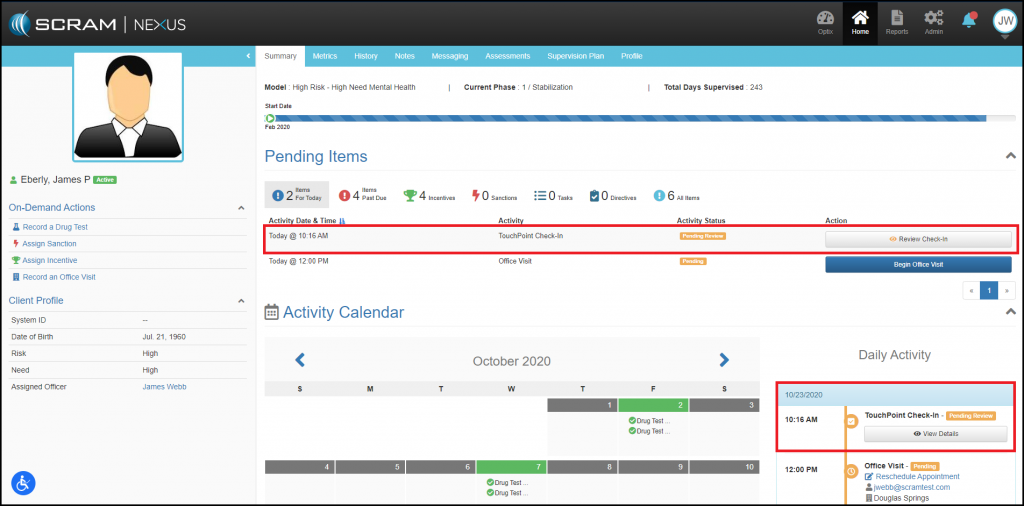
Launch Review Check-In from Pending Items List (click to enlarge)
By selecting Review Check-In, Nexus will open a Review Check-In page, where the officer may:
- Warnings: Review and confirm any warnings that may have generated as a result of the client’s TouchPoint Check-In.
- Photo: Compare the Check-In photo to the Enrollment photo. TouchPoint’s Facial Recognition will automatically determine if the Face Matched or if the image is Inconclusive. If the image is inconclusive, the check-in will remain in pending status until the Officer manually confirms the Check-In photo matches the client’s Enrollment photo, or marks the photo as Circumvention Identified.
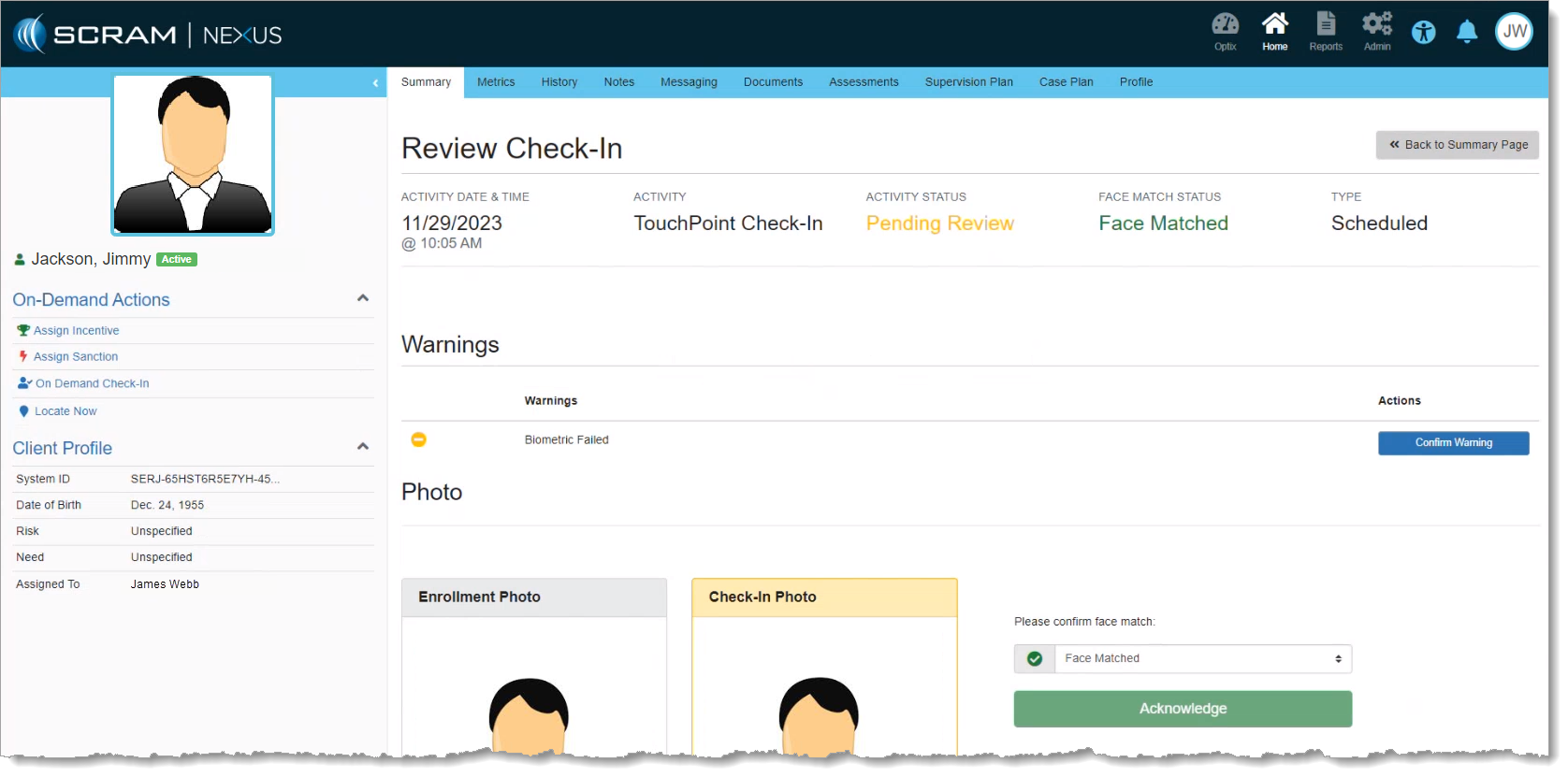
Review Check-In Page – Warnings and Photo (click to enlarge)
- Questions: Review the Client’s responses to the Check-In Questions.
- Notes: Capture any note the officer wants to add from this interaction.
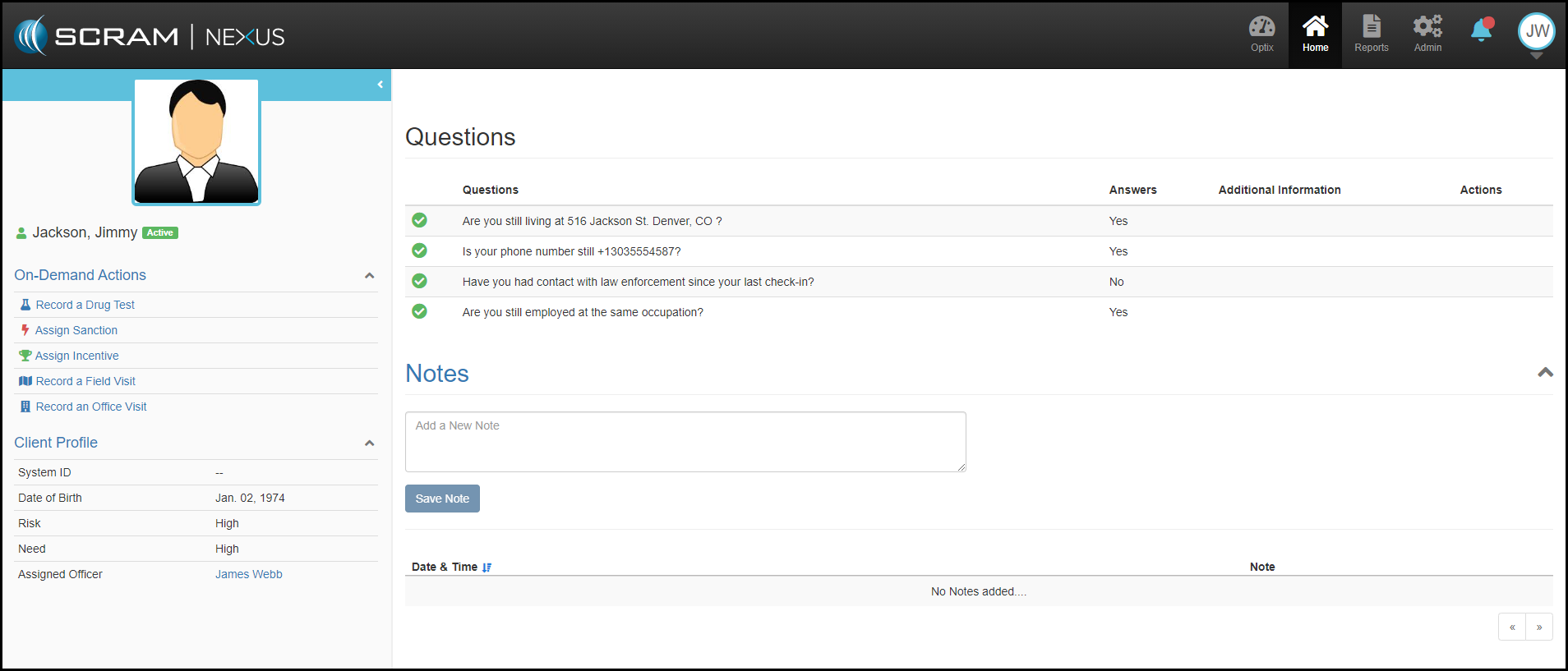
Review Check-In Page – Questions and Notes (click to enlarge)
- Location: The geographical location of the Check-In is mapped for the Officer; so the client’s whereabouts during the Check-In may be determined.
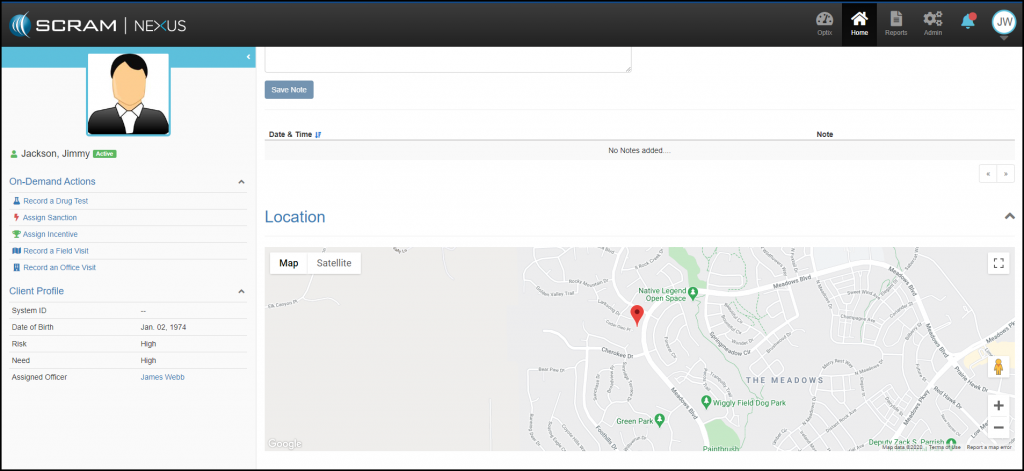
Review Check-In Page – Location (click to enlarge)
Officers should note that all Check-Ins documented for a particular client are listed and time-stamped within the Nexus History tab for that client, and may be opened and reviewed subsequently at any time.