The following is a compilation of the most frequently asked questions by category. Click on a category in the list below to jump directly to it. Click the yellow “up” arrow in the lower-right corner of the screen to return to the top of this page.
Supervision Plan
“I’m trying to complete the last appointment for an Activity, as the client won’t be doing them anymore, but it won’t let me save the last Pending Item.”
- You likely removed the Pending Activity prior to documenting it and Nexus could not complete the last step, which asks for “Next Date.” To correct this, add back the Activity, select a future date, document the pending Activity, and then remove the Activity once again.
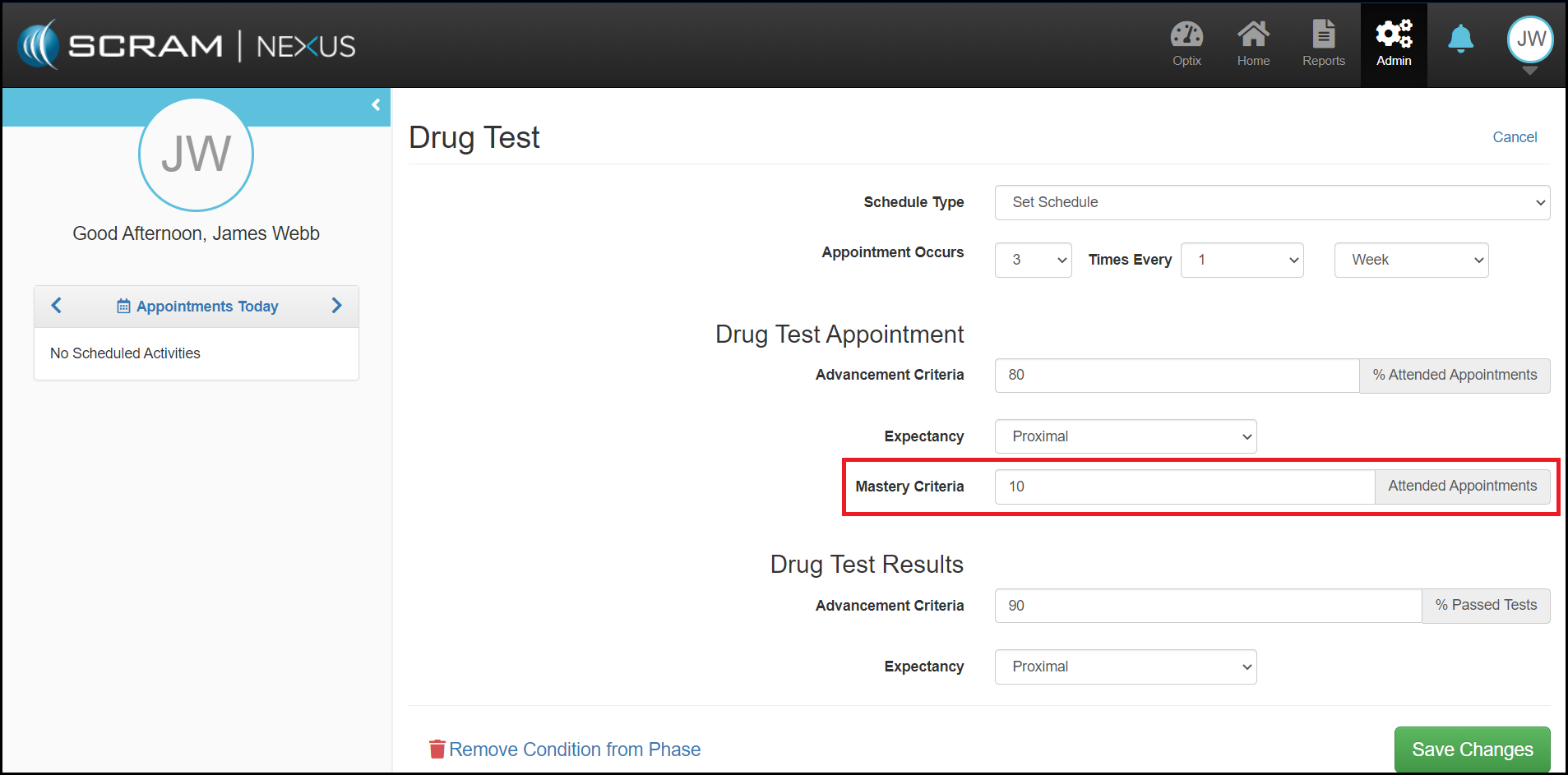
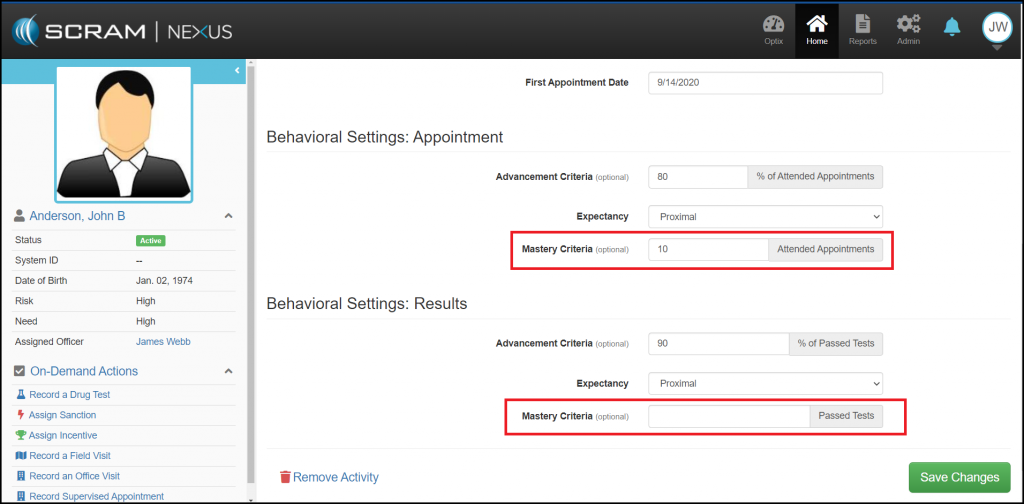
“How do I reduce the number of incentives Nexus recommends?”
- This can be done at the Model level and at the Client level.
-
- Model Level: An administrator will need to edit and change the Mastery criteria for the activities.
Click to enlarge
-
- Client Level: An Office can change the Mastery criteria for an activity in the Client’s Supervision Plan.
Click to enlarge
“I can’t enter drug test information on this client – there is no drug test option available.”
- Make sure the Drug Test Activity is added to the client’s Supervision Plan. If the client does not currently have a Supervision Plan, create one that includes a Drug Test option. A client can always be moved to another Model.
“How do I move someone back a phase?”
- Click the Supervision Plan tab, scroll down to the Reassign Model link and then select the same Model for the client and pick the appropriate Phase. Once complete, click the Complete Supervision Plan
“After moving my client to a different phase, why am I seeing the same schedule for Activities as the last one they were in?”
- You likely clicked Verify Changes before editing the Activities that need new schedules. To correct this, go back into the Supervision Plan and Edit the Activities to implement the new schedule for the new Phase. In the future, make sure you Edit the Activity Details prior to clicking Verify Change.
Appointments:
“How do I proceed with saving an appointment but not scheduling a future appointment?”
- Choose any future Next Appointment Date and then remove or suspend the Activity from the Supervision Plan. You can also, change the Schedule Type to On-Demand.
“My calendar on the left sidebar is blank – it’s not showing anything”
- One of two things is happening:
-
- You do not have any scheduled appointments for that day.
- You do not have any clients assigned to your caseload.
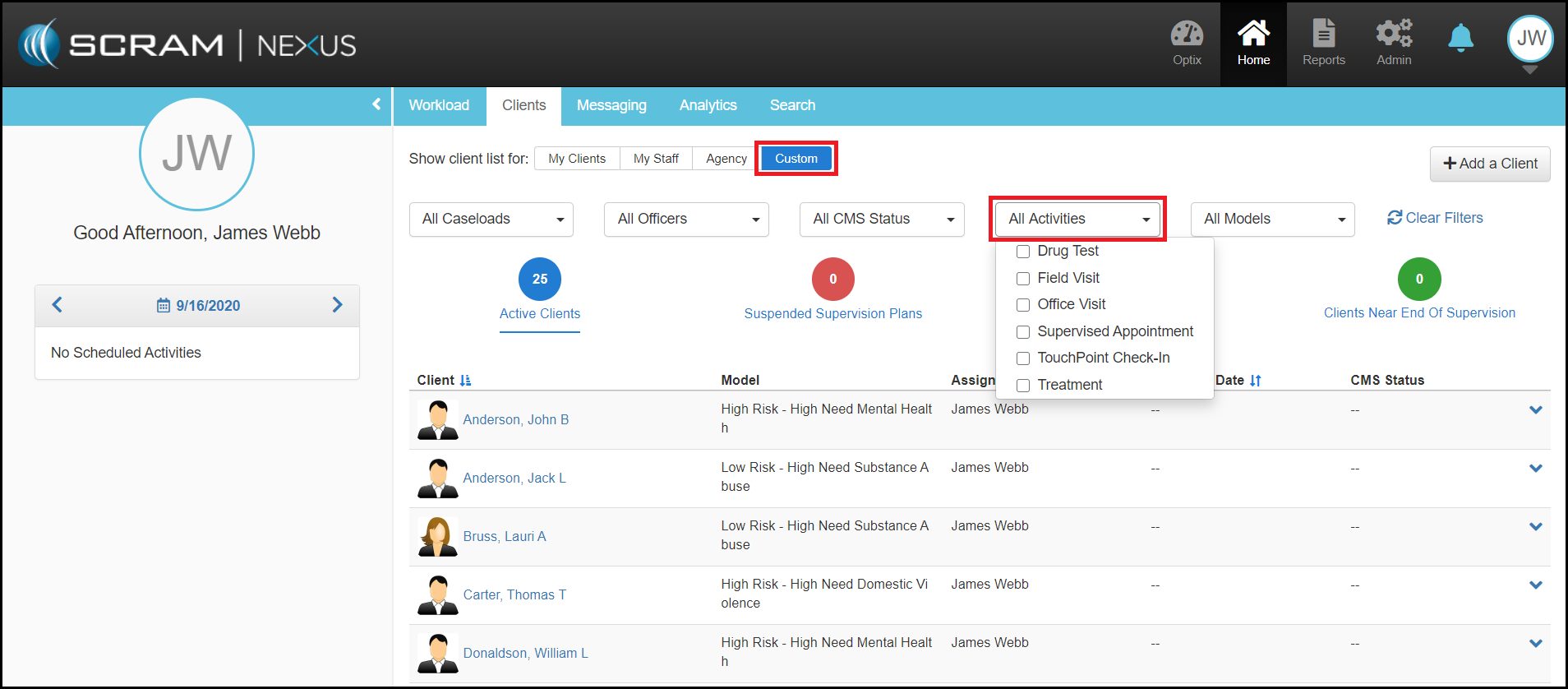
“My past due items include appointments I’m not responsible for logging, like Case Manager Appointments – how do I remove them?”
- Use the dropdown filters on the Custom view and select only the Activities you want to see on your page.
Click to enlarge
TouchPoint:
“My client used to receive TouchPoint reminders – but isn’t now.”
- Ensure the client has push notifications turned on for the application on their phone. If that doesn’t work, have the client uninstall and reinstall the application.
“My client stated that she is not receiving notifications for her Check-Ins or that she has Messages.”
- It’s possible the client turned off notifications for the application in her phone settings. Ensure the client has push notifications turned on for the application.
“My client isn’t getting the time in the Appointment Reminders.”
- This will happen if appointments are set as “All day” and do not have specific times scheduled. You can always reschedule appointments for specific times.
“I keep getting a notification in Nexus that I have an unread message from my client, but when I go into Messaging there is no message.”
- Ensure that you select “Mark as Read” next to each message you have seen.
“My client received a Check-In alert but cannot log into the application.”
- This may occur if there are internet connectivity issues. Have the client make sure they are connected to Wi-Fi and it is working. If the phone is connected to Wi-Fi but still cannot login, have the client follow these steps:
-
- Uninstall the application.
- Have the client clear the cookies for the browser type on their phone.
- Reinstall the application.
- If the issue persists, contact SCRAM Customer Service to report it the issue.
“Check-In will not clear from the workload page even though it is marked as Complete.”
- Change the Check-In as an Inconclusive Image and then Save it. Once complete, open the Check-In and change it back to Face Matched and re-save. If this does correct the issue, contact SCRAM Customer Service to report it.
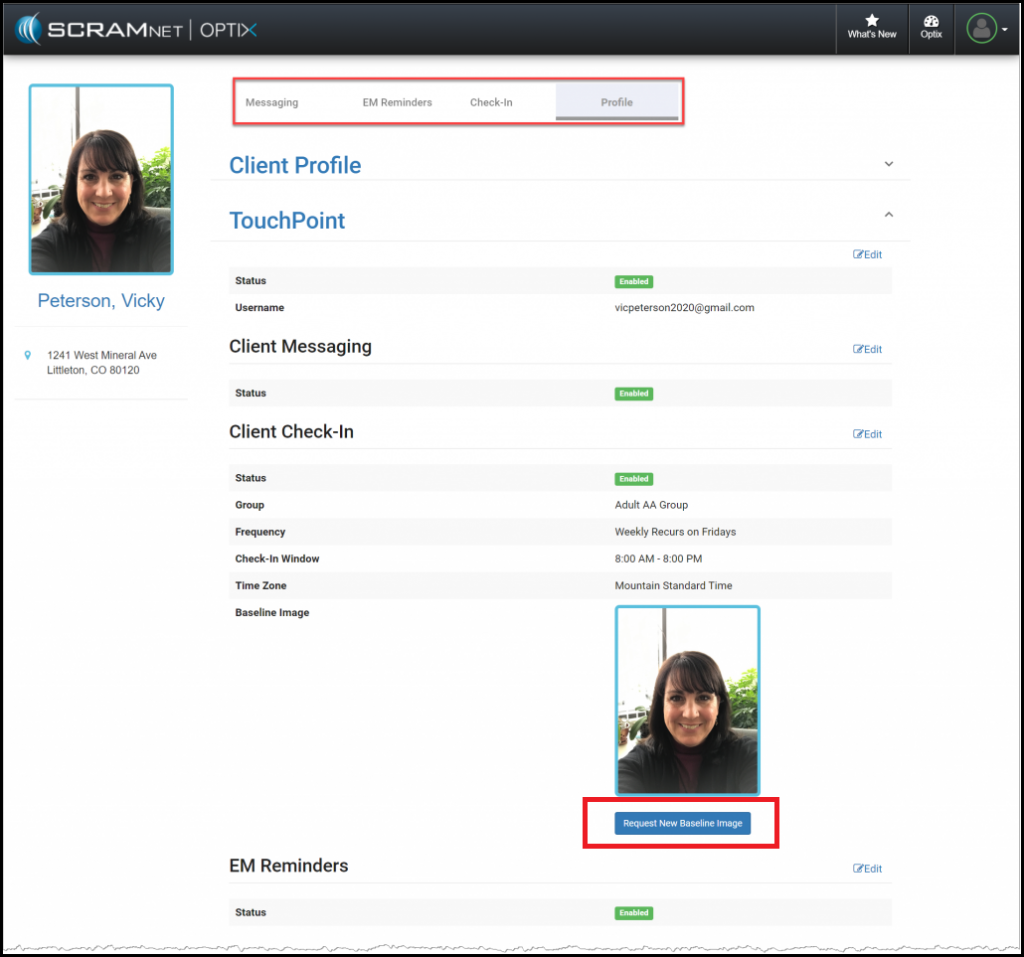
“How do I reset the check-in photo?”
- Open the client’s Optix profile in order to request a new baseline photo.
Click to enlarge
Technical / Miscellaneous:
“I need to backdate a Phase that the client is not currently on and it won’t let me. The client was on Phase 3 but start dates for Phases 1 and 2 need to be changed.”
- Contact SCRAM Customer Service– SCRAM Systems developers will need to make this change for you.
“I accidentally entered a new client twice. Can you delete the duplicate?”
- The duplicate record cannot be deleted, but the name on the duplicate record can be changed to “Duplicate Client” and then made inactive.
“I don’t see the treatment agency I need available in the dropdown menus.”
- Please contact your internal Nexus Administrator to request an update to the appropriate catalog(s) with the choice(s) you need.