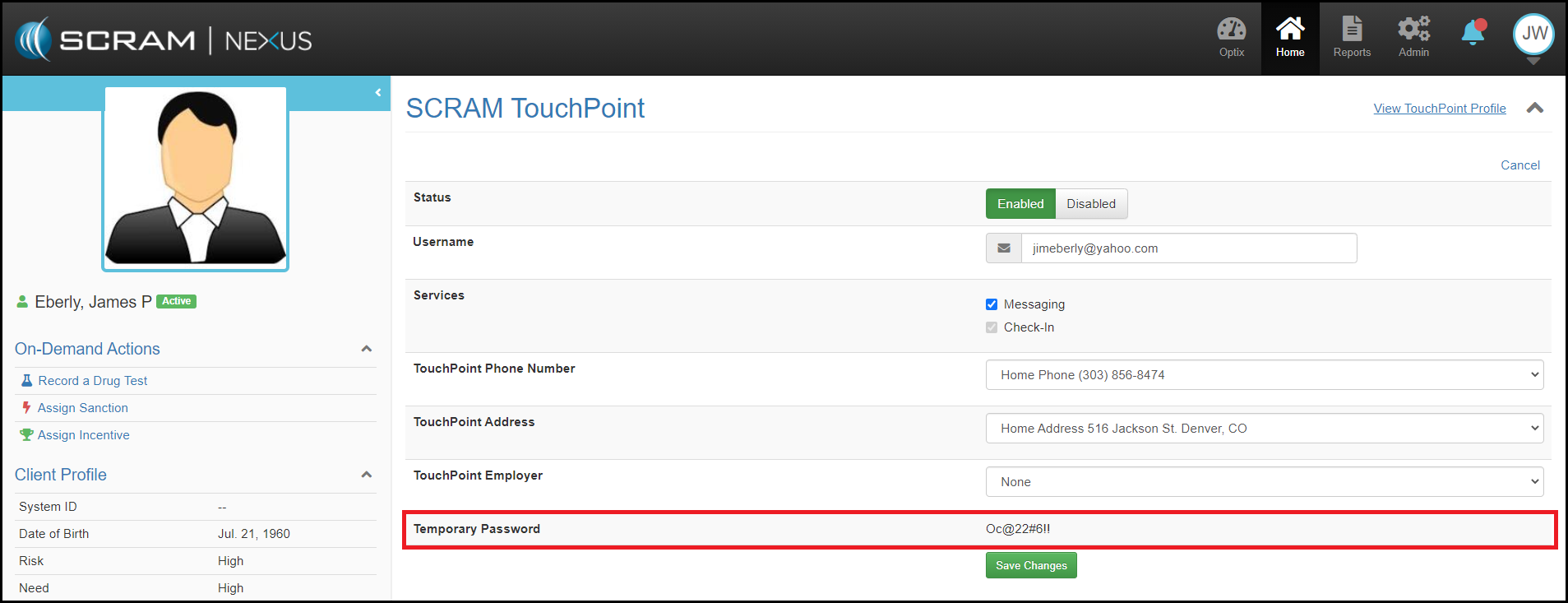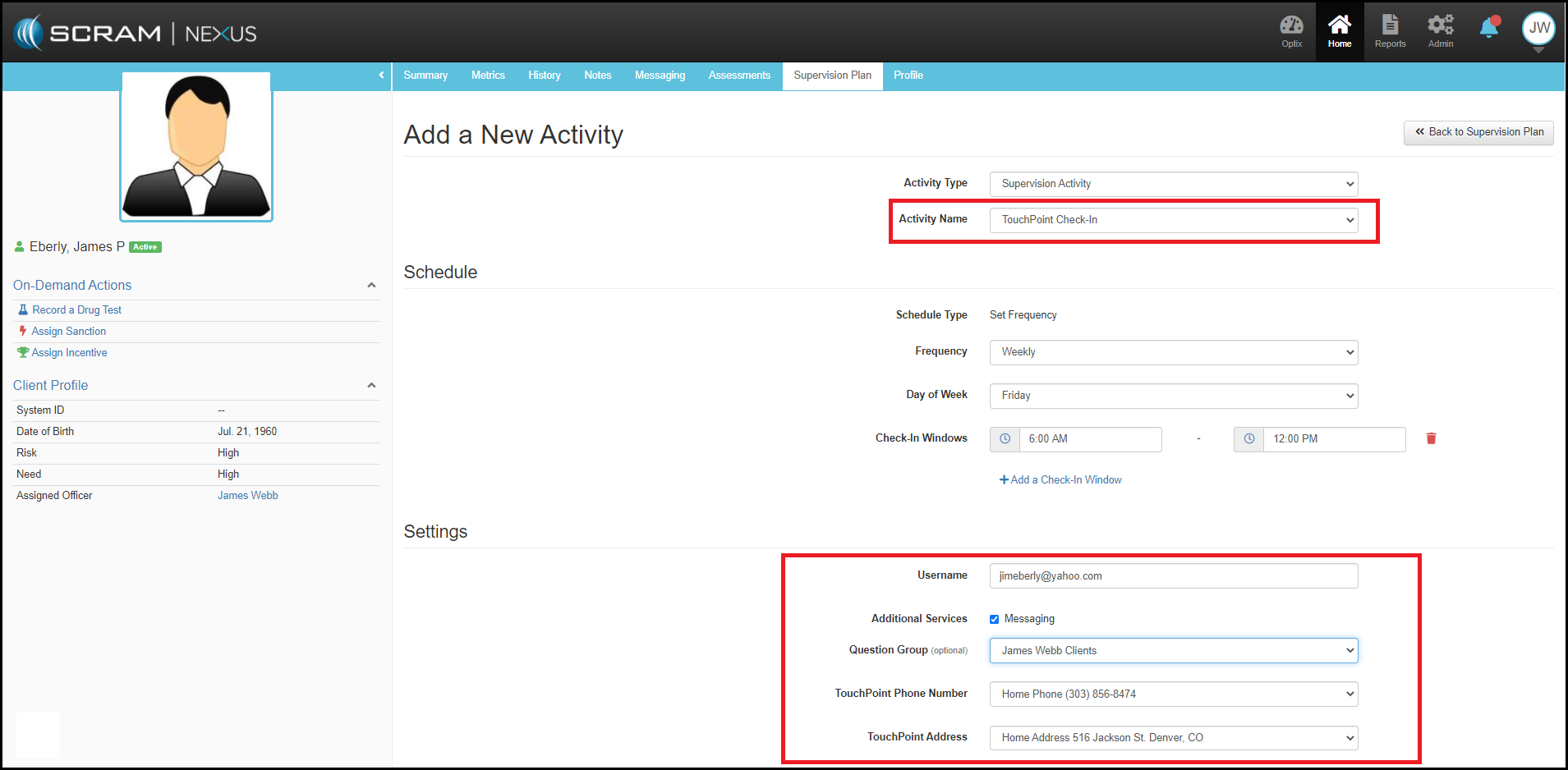
As with all Nexus supervision activities, to add TouchPoint Check-In as a supervision activity, users will follow the standard Add a New Activity workflow available from the client’s Supervision Plan tab.
Once the Add a New Activity menuing page opens up, officers can then make the appropriate selections as instructed below:
- Activity Type: Select Supervision Activity
- Activity Name: Select TouchPoint Check-in from drop-down selections
- Create the Schedule:
- Frequency
- Check-In Window
- First Appointment: Date of first Check-In
- Settings:
- Client Email Address. (An email registration will be sent to the Client)
- Enable TouchPoint Messaging
- Question Group
- TouchPoint Phone Number (The TouchPoint application will ask if this phone is still accurate for the client)
- TouchPoint Address (The TouchPoint application will ask if this address is still accurate for the client)
- TouchPoint Employer (The TouchPoint application will ask if this employer is still accurate for the client)
- Behavioral Settings:
- Advancement Criteria: If needed
- Expectancy: Select of Proximal, Distal, mastered from drop-down list, depending on how the officer would prefer Nexus to surface incentive and sanction responses.
Officers can then click the green Add Activity button to add check in to the client’s supervision plan.
Once TouchPoint Check-In is added as a supervision activity, the second step is to complete the setup in OPTIX.
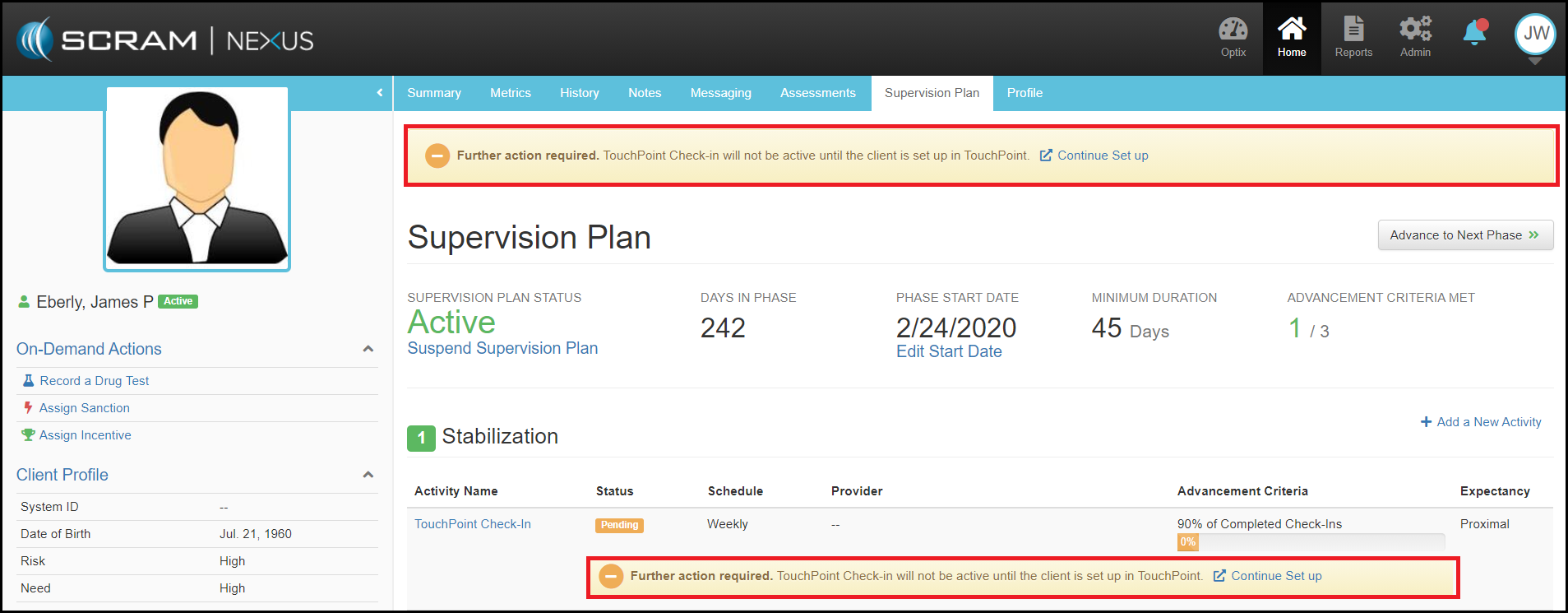
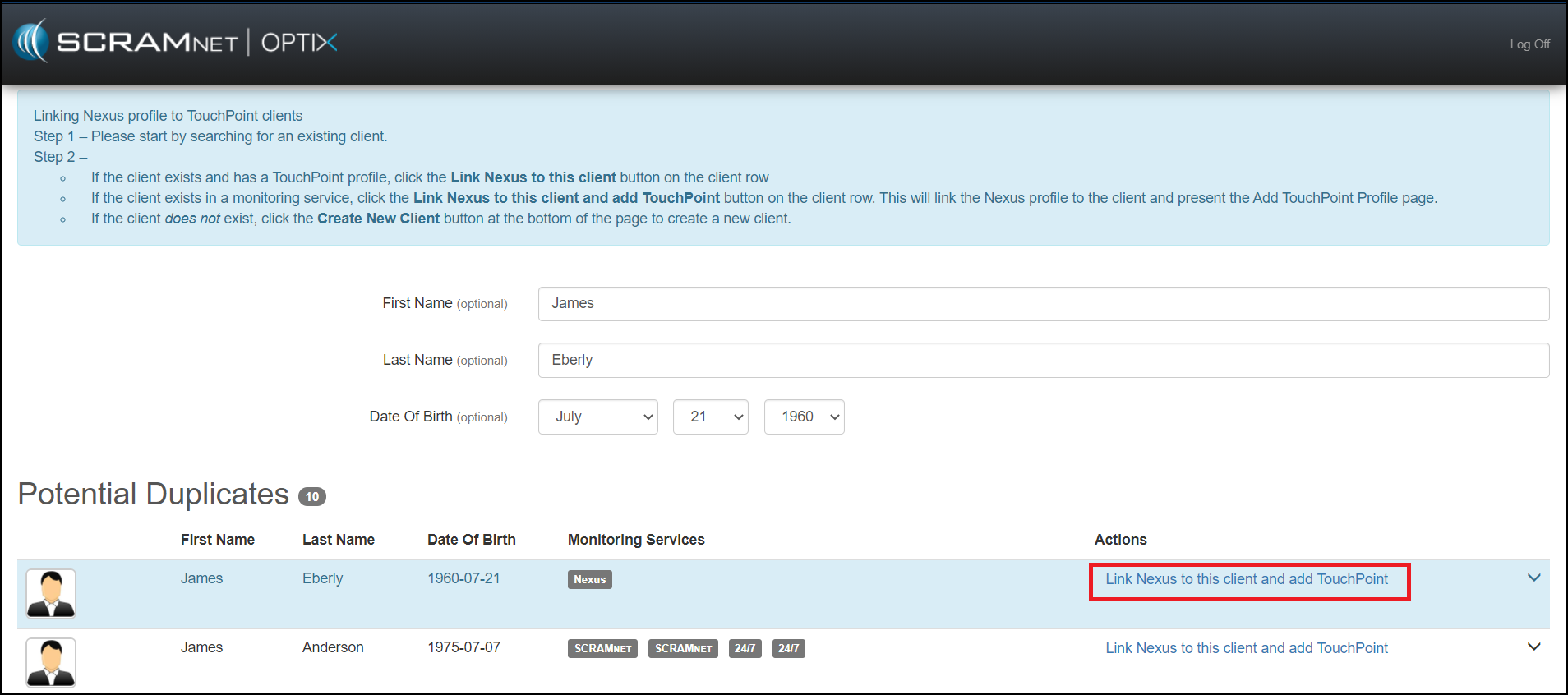
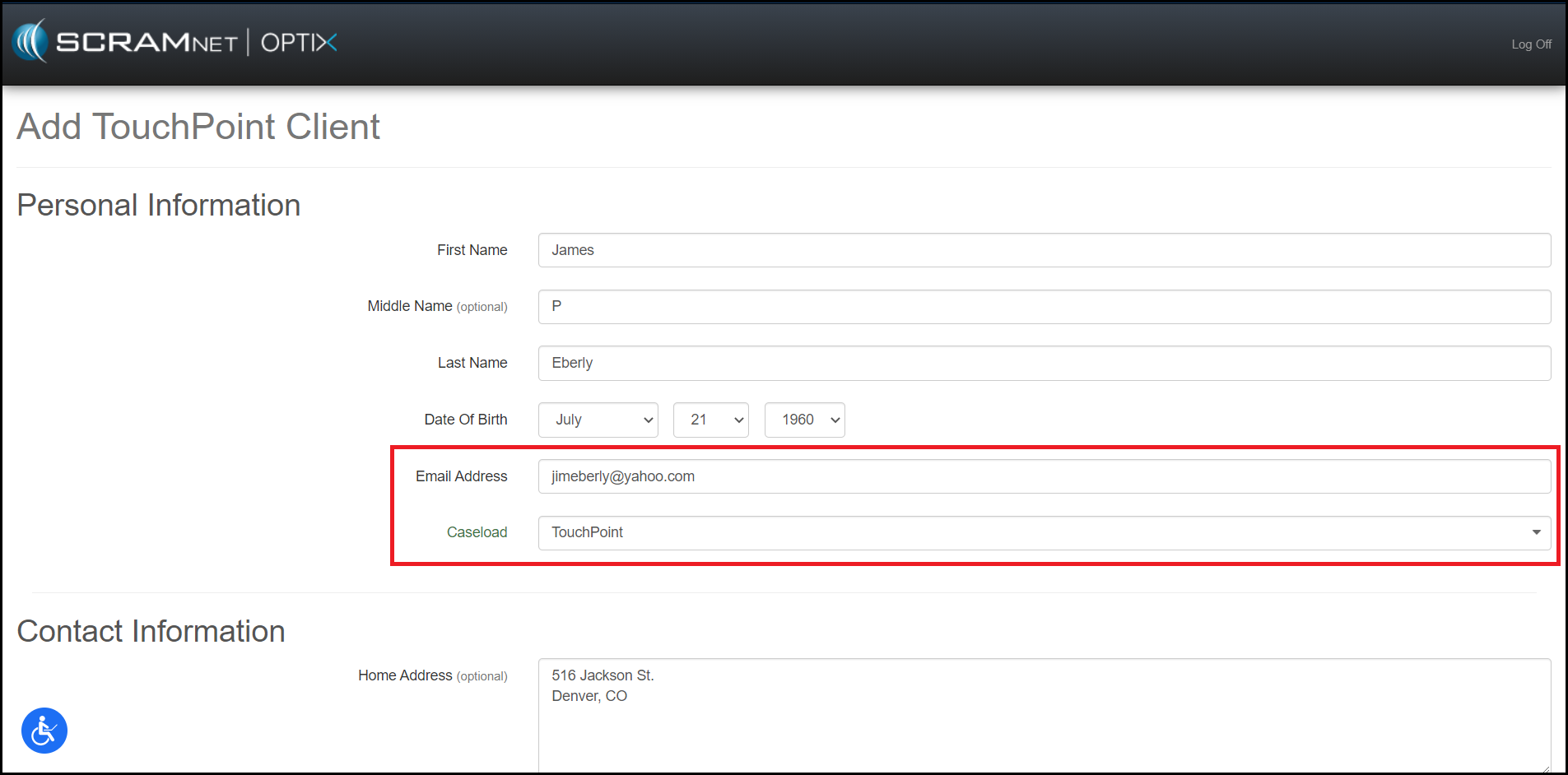
Once the client has been successfully added in OPTIX, return back to Nexus and Open the client’s Profile tab. Scroll down to the SCRAM TouchPoint section and select edit to find the clients temporary password. Once the client successfully signs into TouchPoint, this password will disappear from Nexus and TouchPoint. If the client needs to reset their password, they can do this by selecting the “Forgot Password” link in the TouchPoint app.