If your program utilizes a UCCI Assessment, once you have added that assessment to the client’s profile, the assessment results will automatically populate the client’s Assessments page.
Add a Client Assessment to Nexus
- Navigate to the client’s profile page in Nexus, choose the Assessments tab, and select the +Add a New Assessment hyperlink.
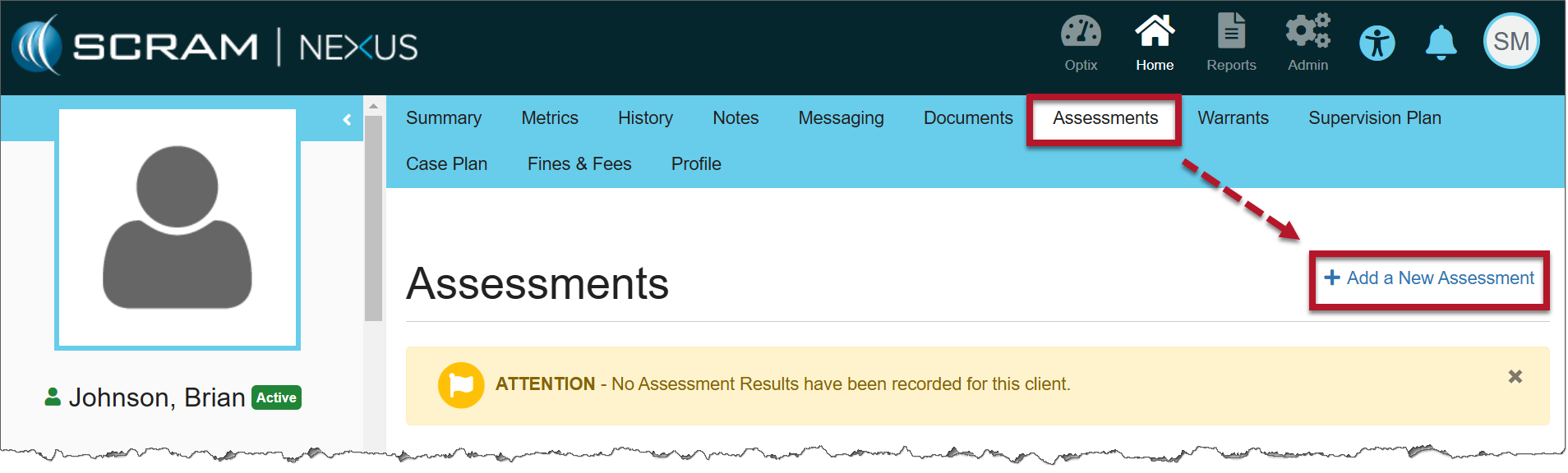
Assessment Tab (click to enlarge)
- On the Add a New Assessment page, select the Assessment Type dropdown menu, and then select the UCCI Assessment option.
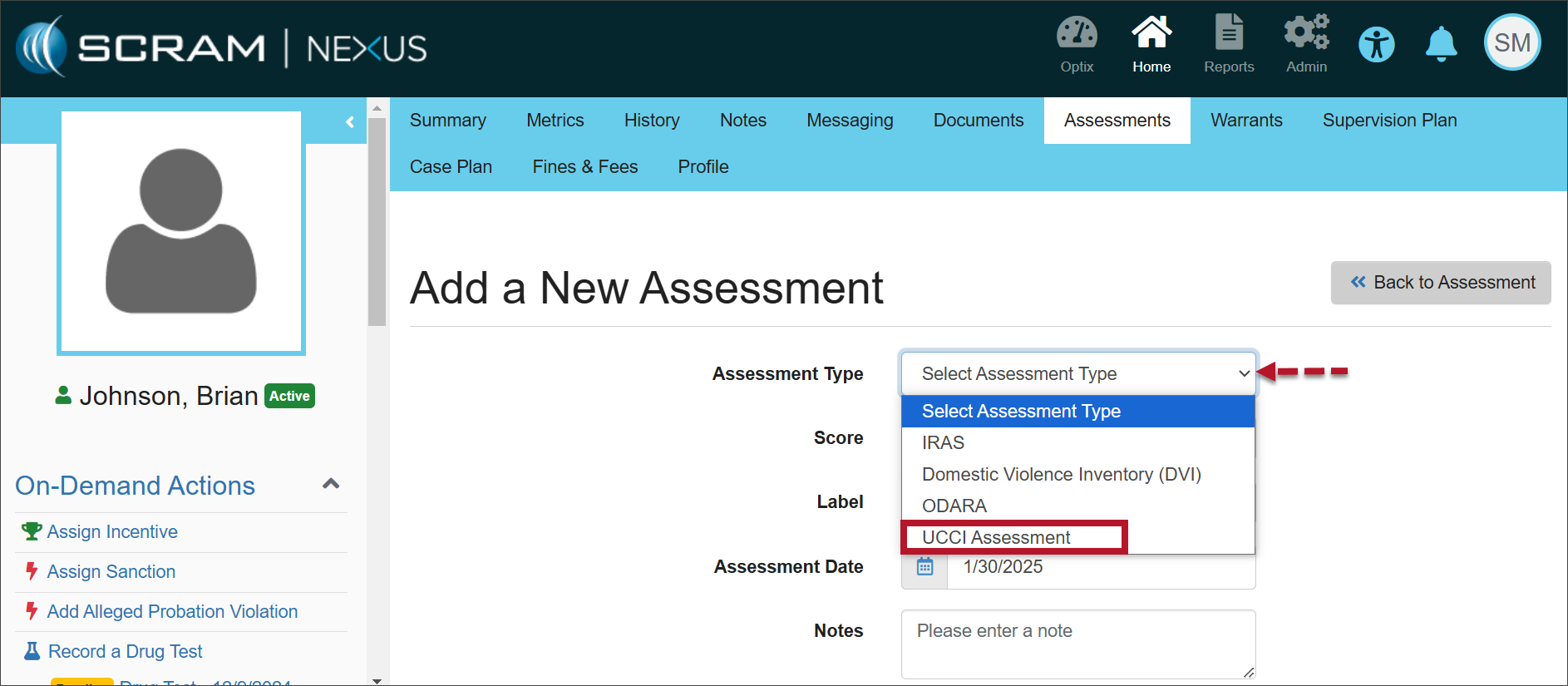
Add a New Assessment (click to enlarge)
- Enter the client’s UCCI Assessment Offender ID.
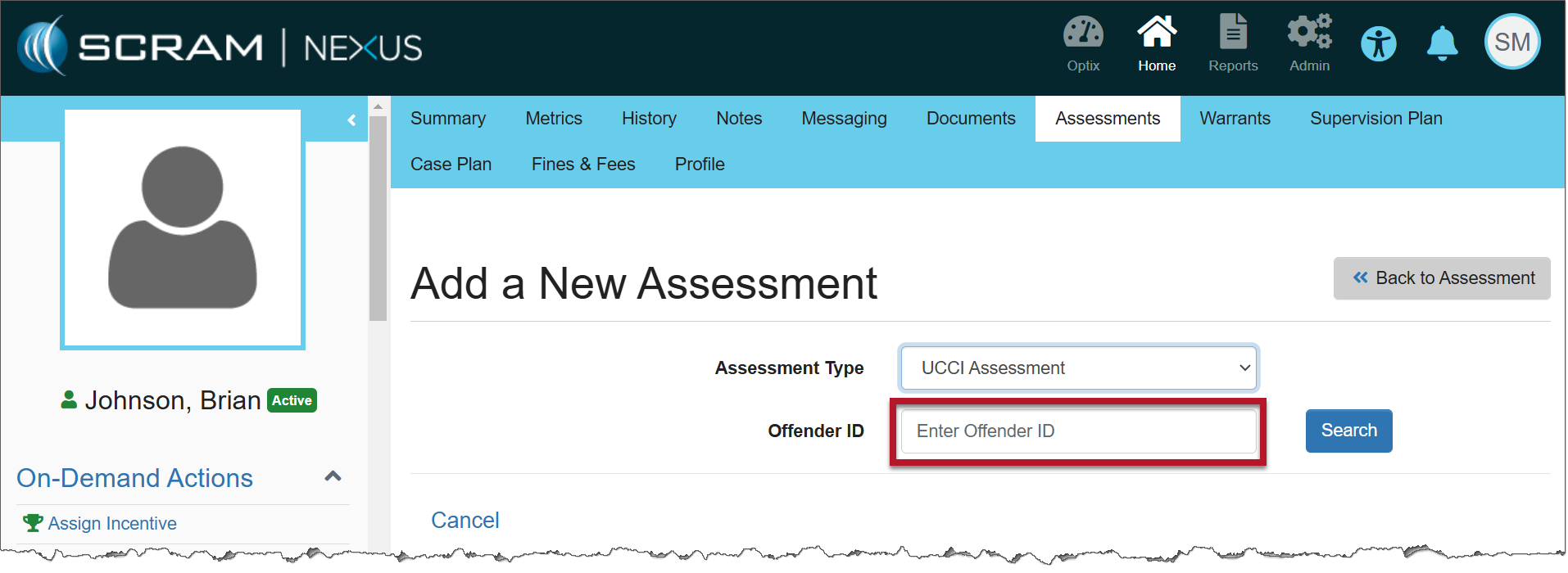
Enter the Offender ID (click to enlarge)
To locate the client’s Offender ID within the UCCI program:
- On the UCCI Assessment website, once you have created a client and completed an assessment for the client, the “Offender ID’” is found within the URL on the Client Detail page.
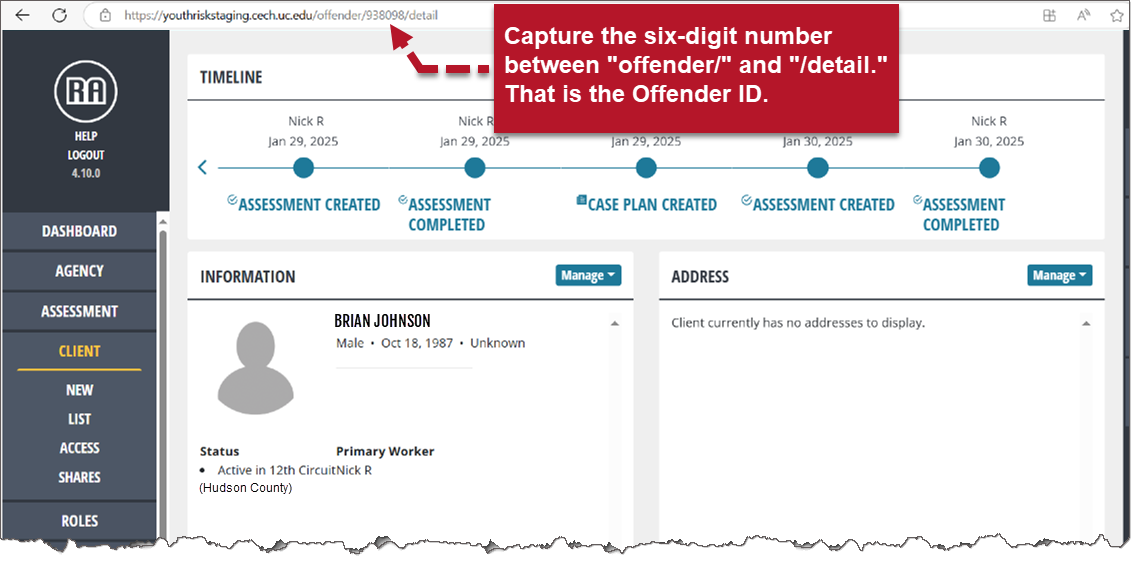
UCCI Assessment Website Client Detail Page

The Offender ID (click to enlarge)
- Carefully copy the six-digit number from the URL and paste it into the Offender ID field.
- Select the Search button.
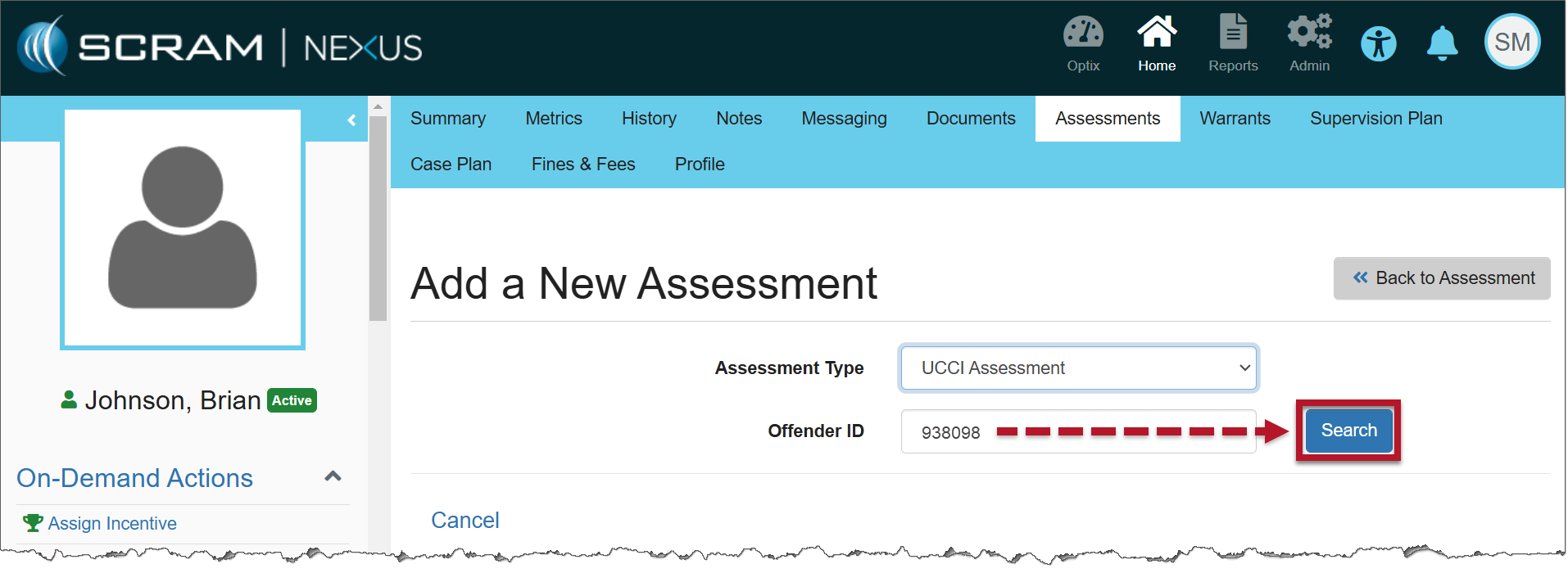
Add a New Assessment with the Offender ID (click to enlarge)
- An Offender Details pop-up window indicates the client that will be linked to that UCCI Offender ID.
- Note: Entering the incorrect number will result in the message “No Match Found,” or possibly linking the wrong UCCI Offender profile.
- Select the Link Profile button.
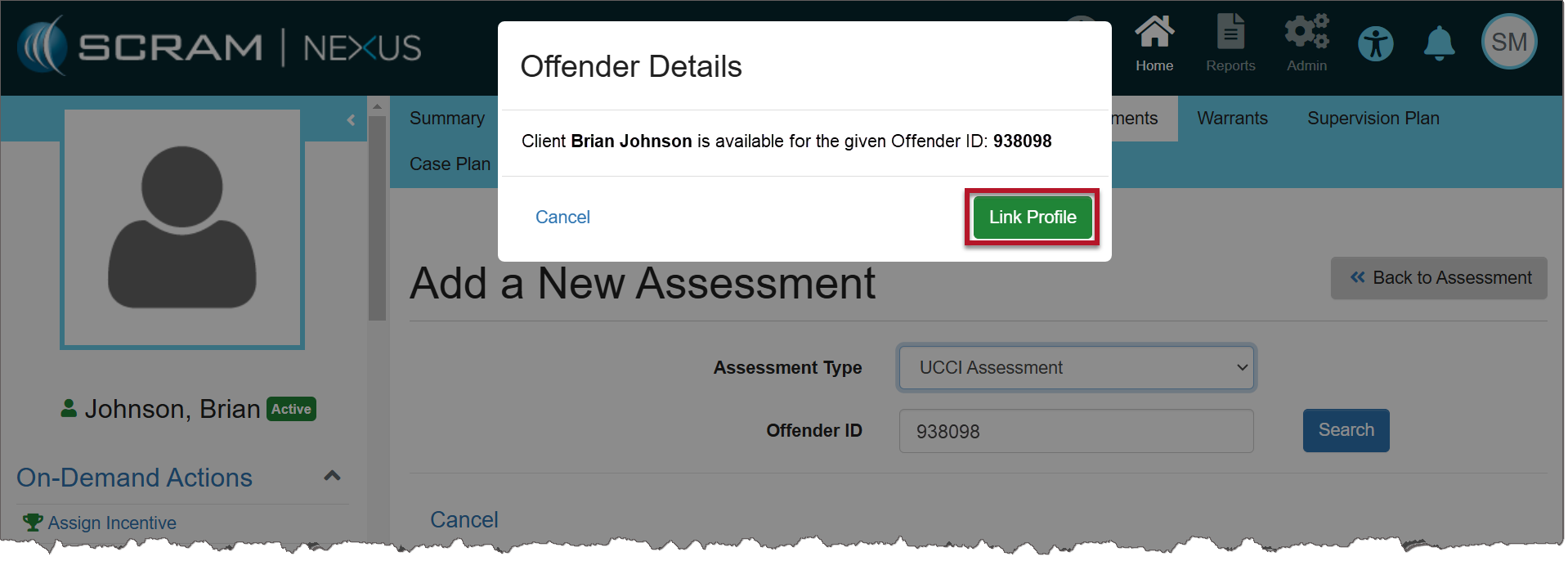
Offender Details Pop-Up Window (click to enlarge)
 |
Moving forward, results from other UCCI Assessments will automatically populate for the client in Nexus. |
View the UCCI Assessment Details in Nexus
On the Assessments page, select the dropdown arrow next to UCCI Assessment to expand the section and view completed assessment results.
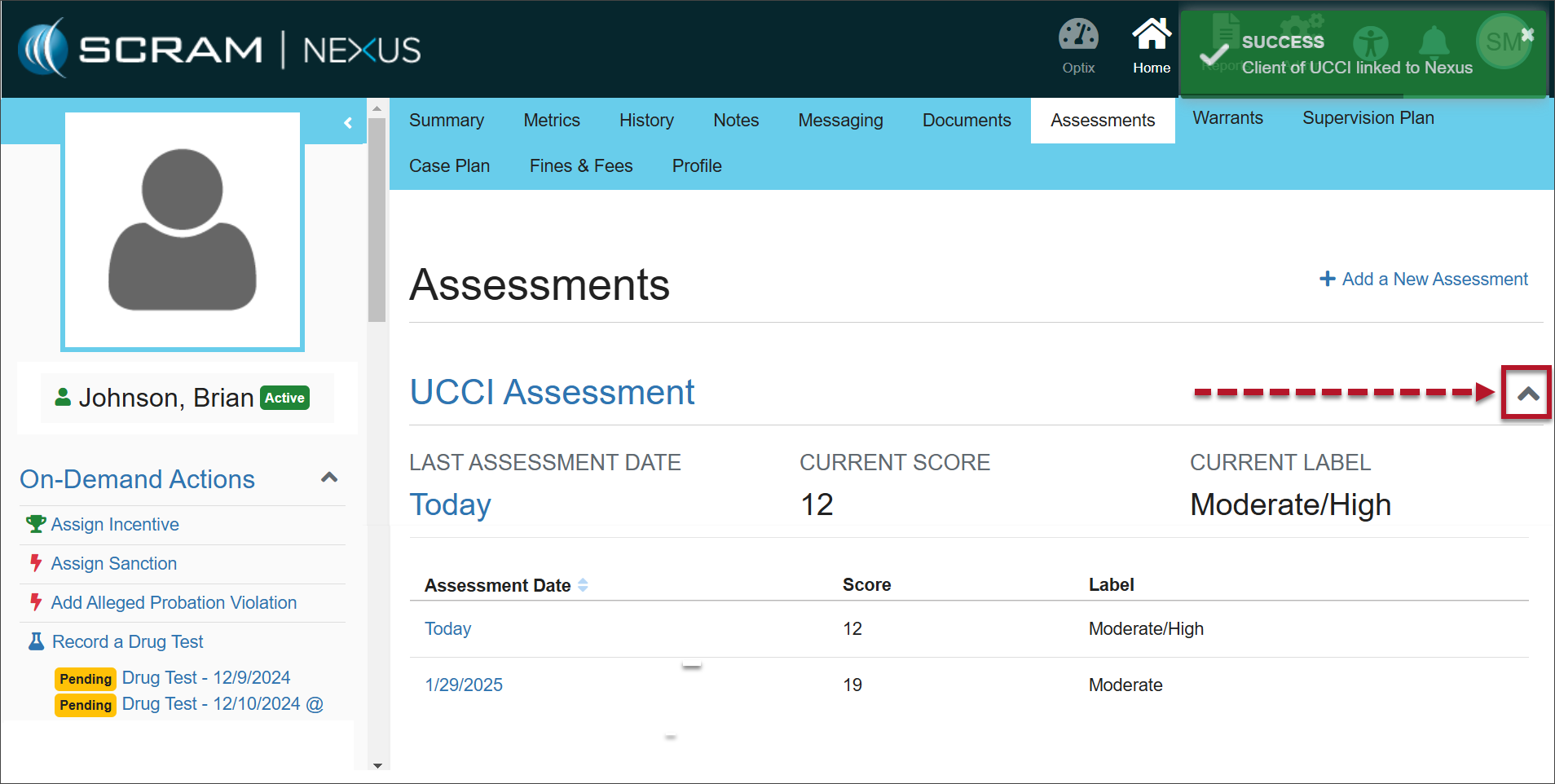
UCCI Assessment Results (click to enlarge)