Manage Caseload Characteristics
An Administrator in Nexus may manage client characteristics that are critical for your organization. You will have the ability to add customized client characteristics that may then be used when identifying your client. Once added, the characteristics may be viewed in the client’s profile.
Add a New Characteristic
- From the Settings tab on the Admin page, select Characteristics under the Client Settings section.
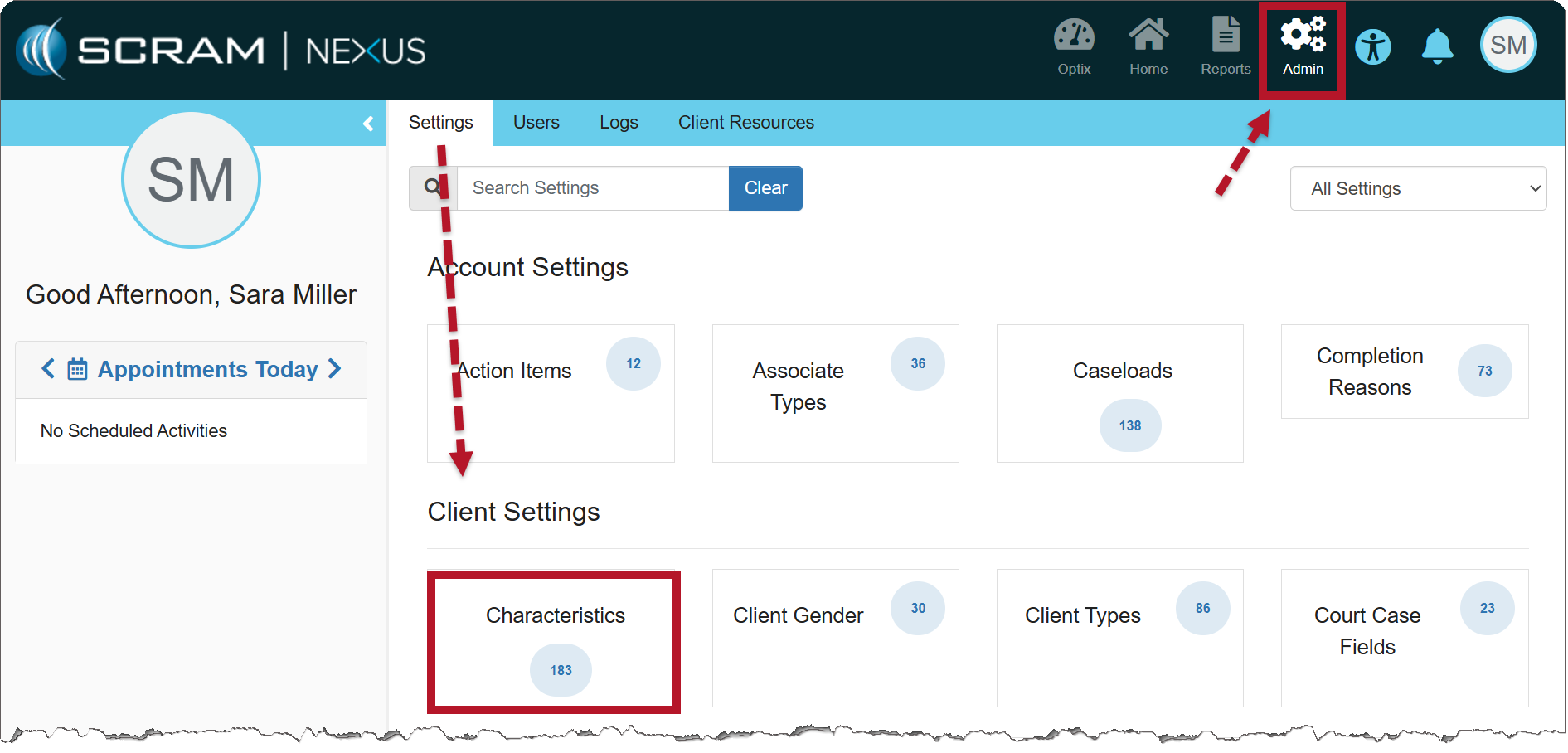
The Settings Tab on the Admin page (click to enlarge)
- On the Nexus Characteristics page, you may edit an existing characteristic or add a new one by selecting the Add a New Characteristic hyperlink.
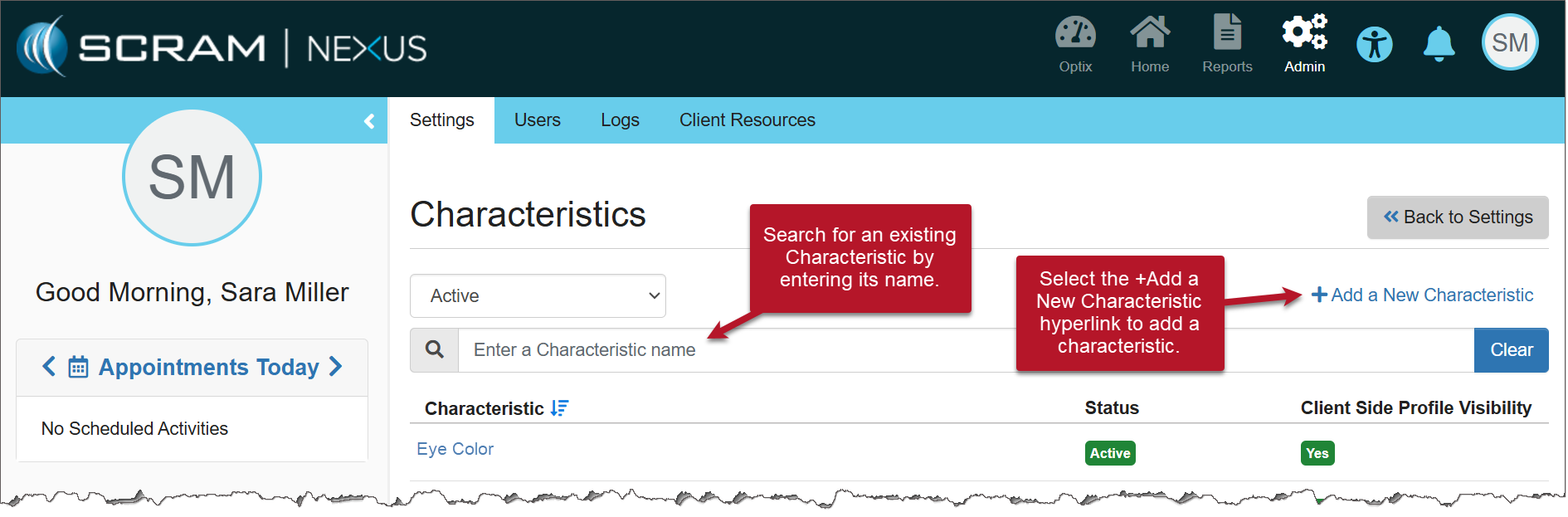
Nexus Characteristics page (click to enlarge)
- When adding a new characteristic, you will:
- Create a unique name.
- Select the Field Type of Text, List, Number, or Date to customize the characteristic’s details.
- Select whether the information is required. When toggled to Yes, the field is required on the client’s Profile page.
- Show in Client Side Profile – Select the Show toggle to view the information in the client’s side profile.
- Mark whether the characteristic information is sensitive or not.
- Model Criteria – This option is set to “No” by default. To add this characteristic to the client’s Model Criteria, select the Field Type option of “List.”
- Select a Category from the dropdown menu.
- Select the Add Characteristic button to save the characteristic.
Once saved, the changes will show in the History tab, as well as the client’s Side Profile (when selected to do so).
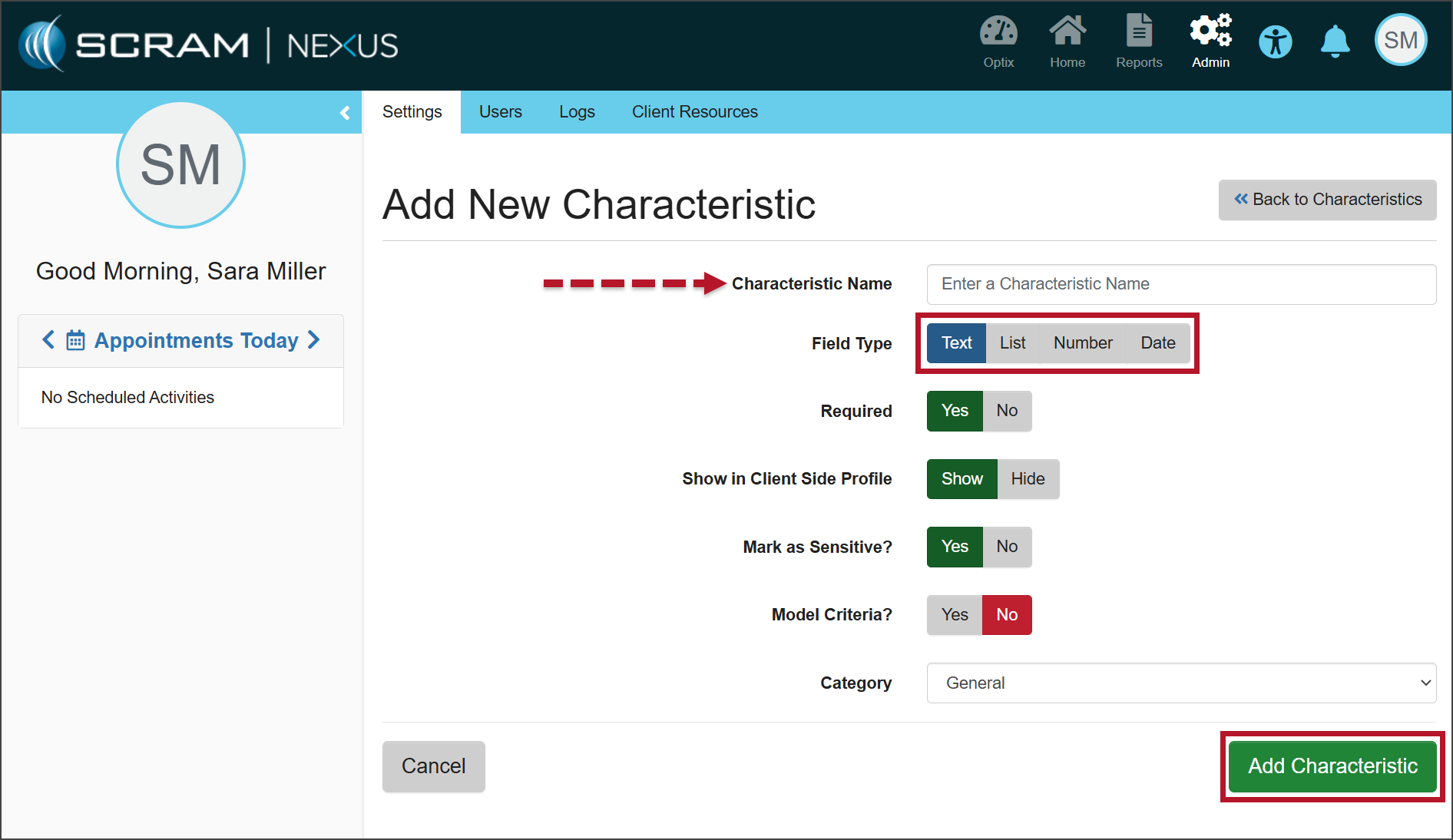
Add New Characteristic page (click to enlarge)
Adding List Values
When you choose the List option in the Field Type, you will add List Values that will identify the client:
- MultiSelect – Selecting the checkbox allows you to choose multiple items from that list at one time. For example, if “Tattoo” was the characteristic, you would choose MultiSelect to identify that the client has multiple tattoos.
- Select the +Add another List Value hyperlink to add additional List Value fields.
- Enter the List Value’s information.
- Model Criteria – When the MultiSelect option is not chosen, you may toggle the Model Criteria option to Yes. This will allow you to add the characteristic as a qualification for the Model.
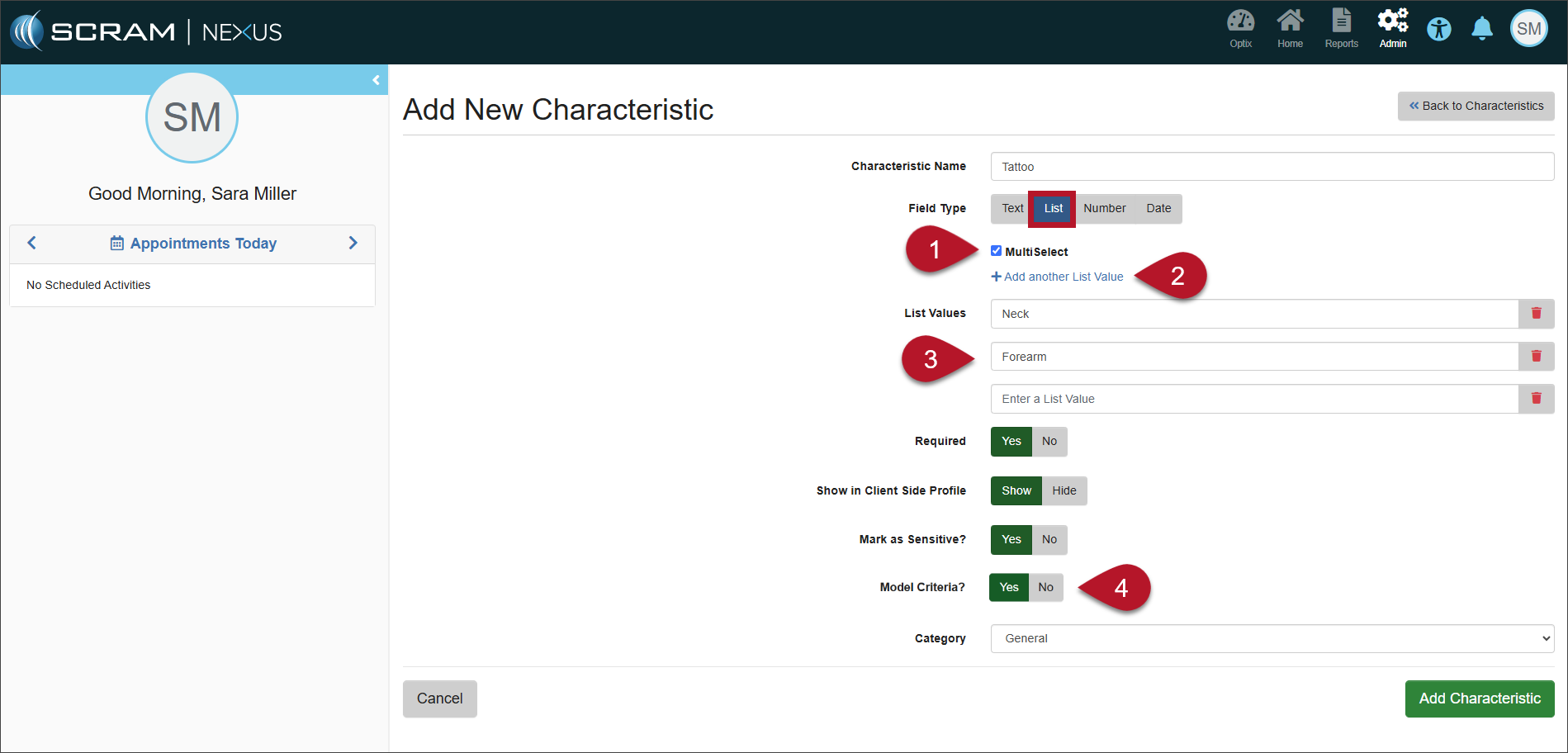
Add New Characteristic page (click to enlarge)
Edit a Current Characteristic
To make changes to a current characteristic, from the Admin tab, select Characteristics. Find the characteristic you want to edit and select the Characteristic name hyperlink.
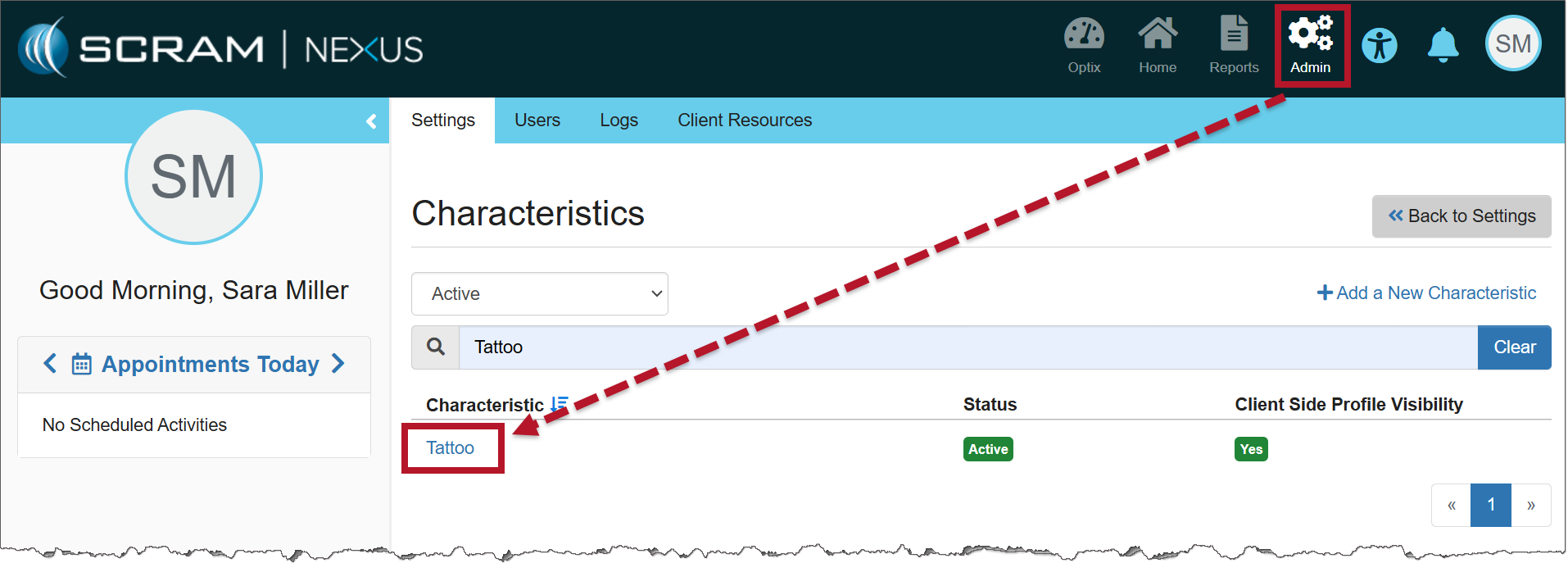
Characteristics on the Admin page (click to enlarge)
Selecting Edit allows you to add features or change any of the fields. A green “Success” banner lets you know that your update was made.
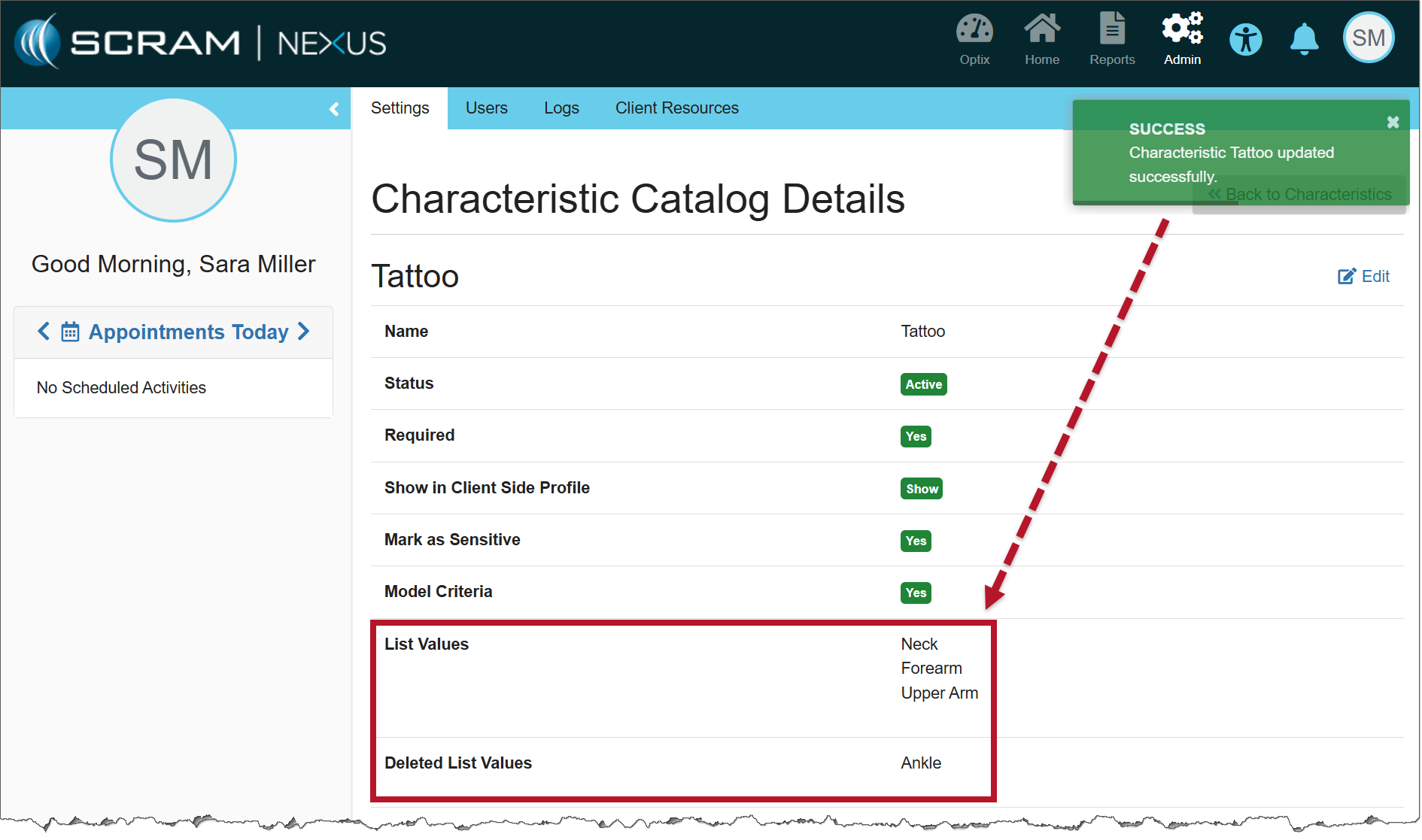
Characteristic Catalog Details (click to enlarge)
Add a Characteristic to a Client
To add a characteristic for the client, go to their Home tab, and select their Profile tab.
In the Other Client Information section, select the Edit hyperlink.
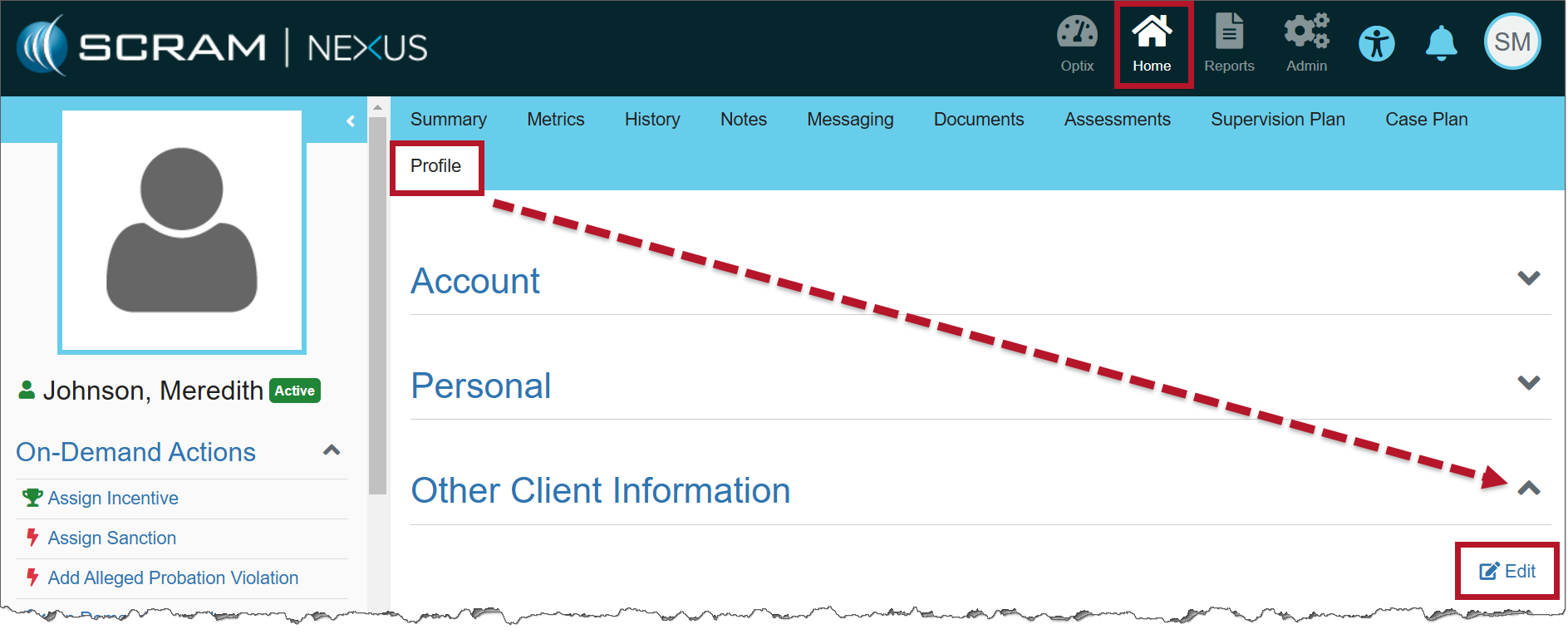
Nexus Profile page (click to enlarge)
The characteristic will be marked as Required or Optional depending on the parameter that was set when creating the characteristic. If the checkbox for MultiSelect was selected, the option to choose multiple characteristics will be available.
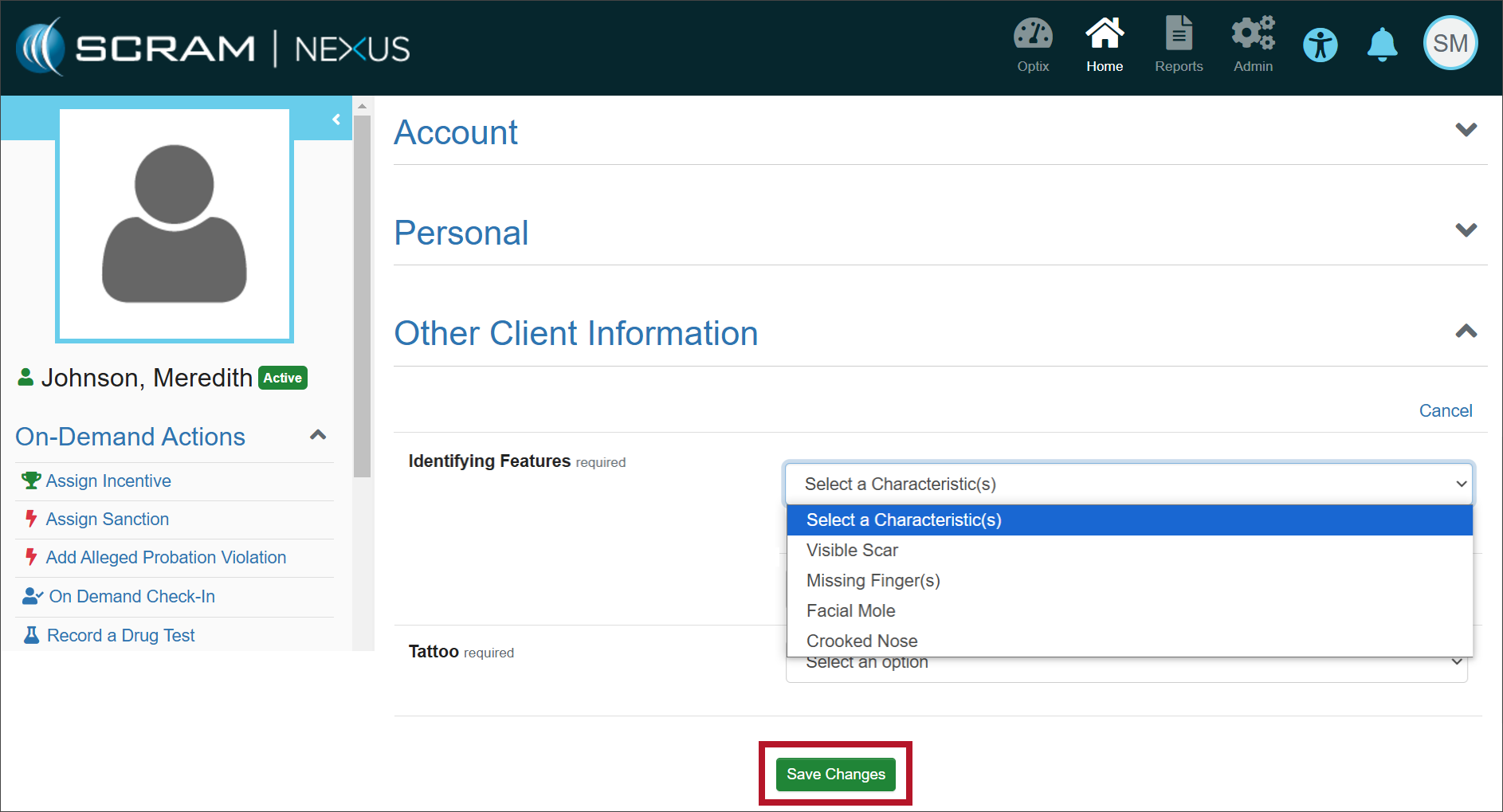
Other Client Information (click to enlarge)
Once the changes have been saved, the characteristics will appear on the client’s Profile, if you toggled Yes for “Required” in the Admin section.
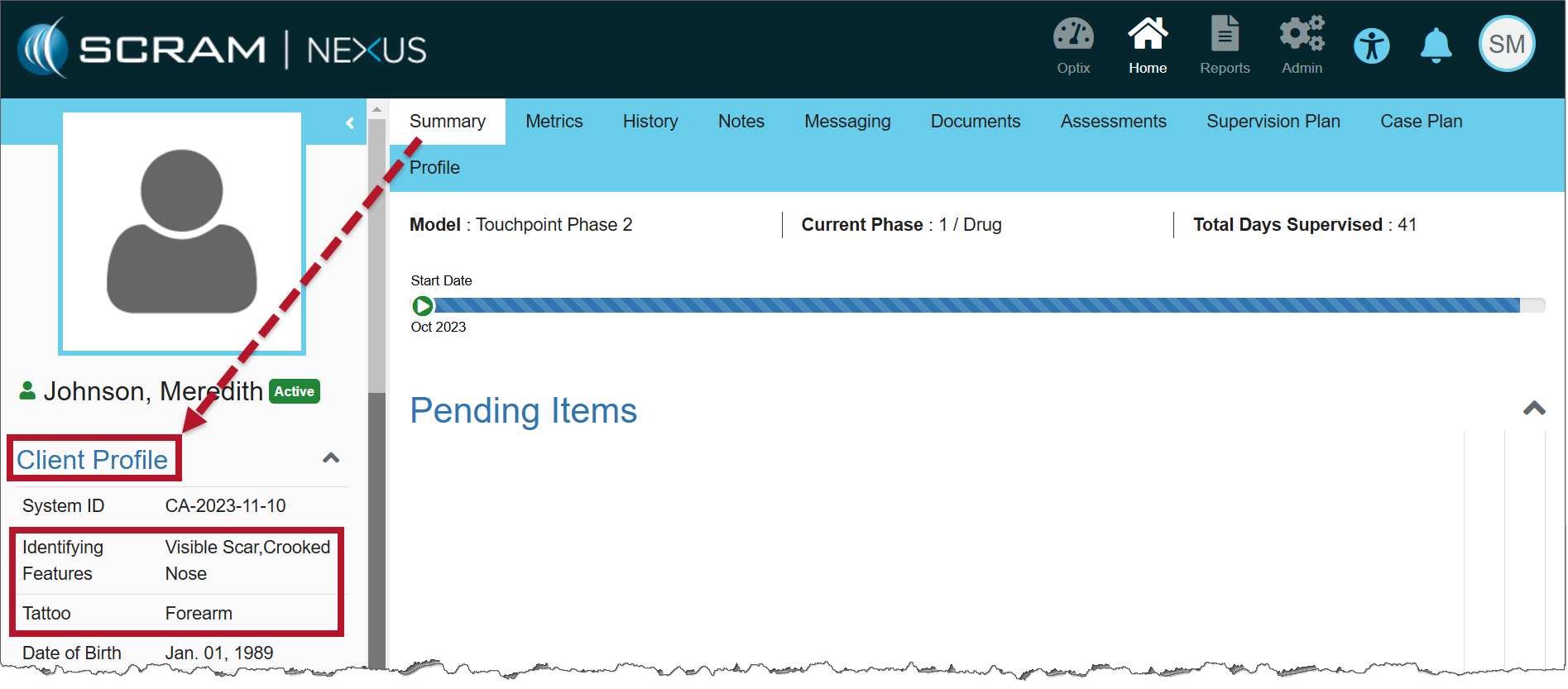
Characteristics Showing on the Client Profile (click to enlarge)