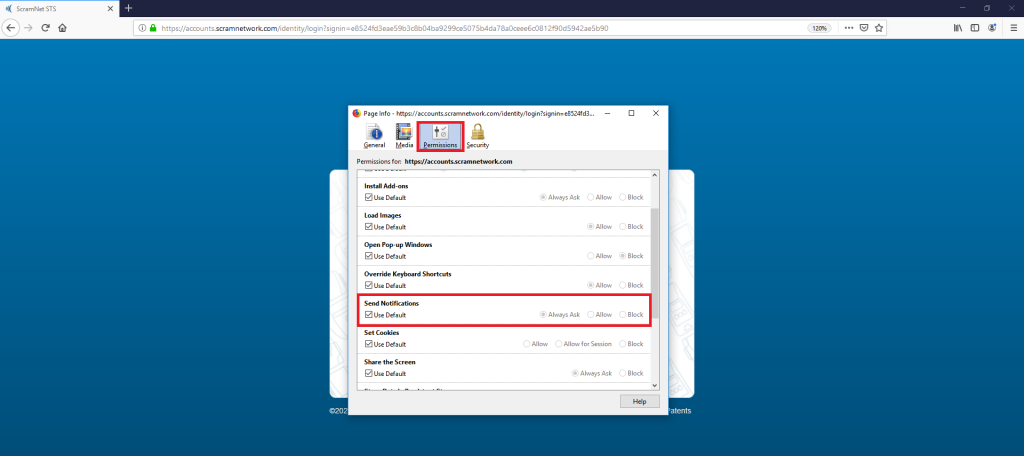
To Allow or Block notifications from sites, follow the procedures for your specific browser:
Google Chrome (Recommended):
- On your computer, open Chrome.
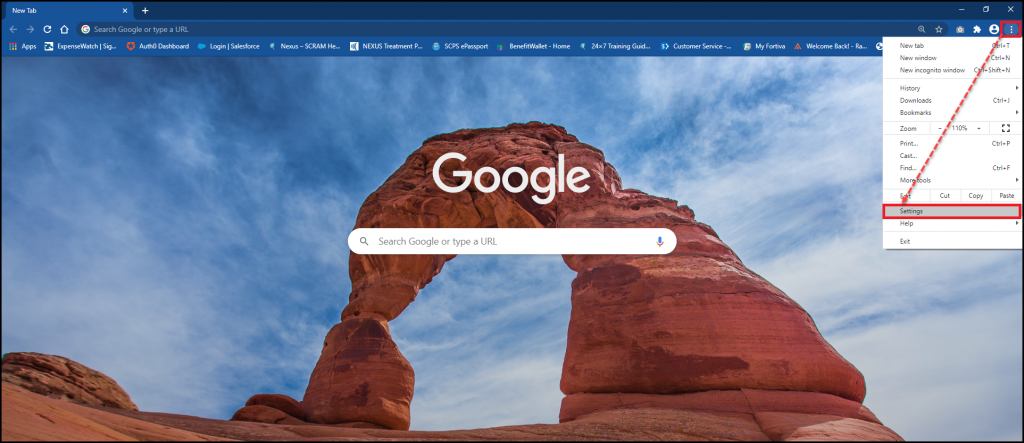
- At the top right, click the three dotted symbol and then click Settings.
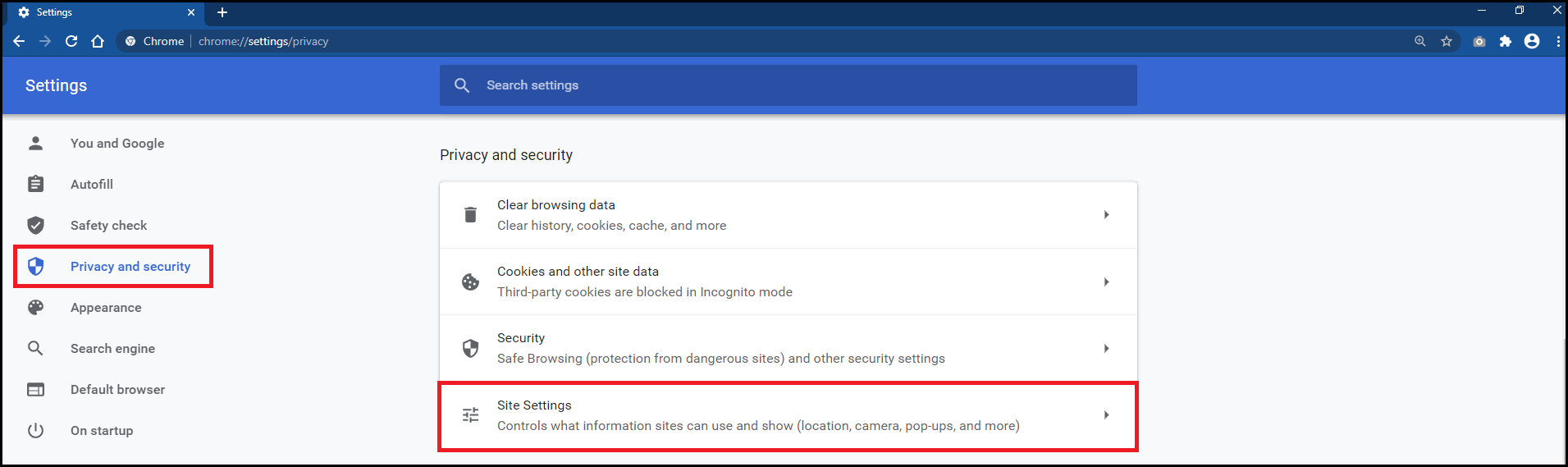
- Under “Privacy and Security,” click Site Settings.
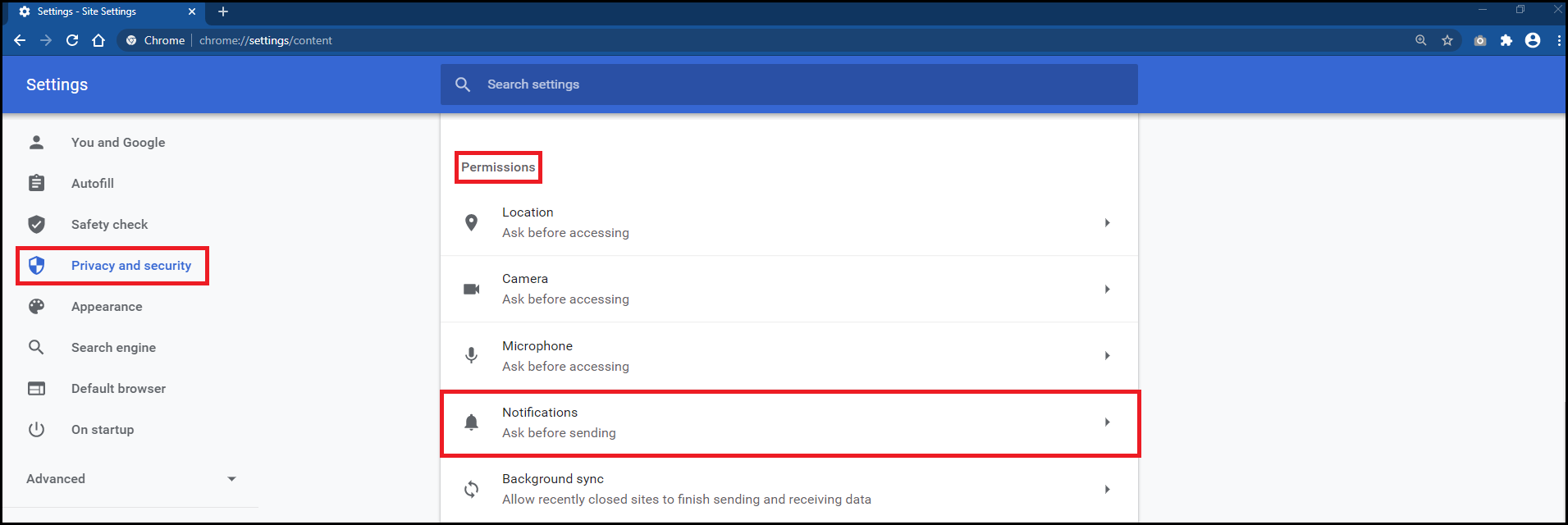
- Scroll down and click Notifications under the Permissions section.
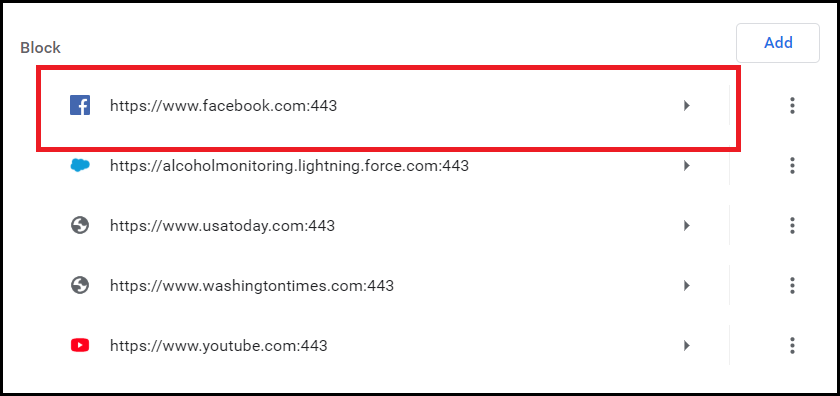
- To block or allow a site to deliver you a notification, select the side arrow next to the site name.
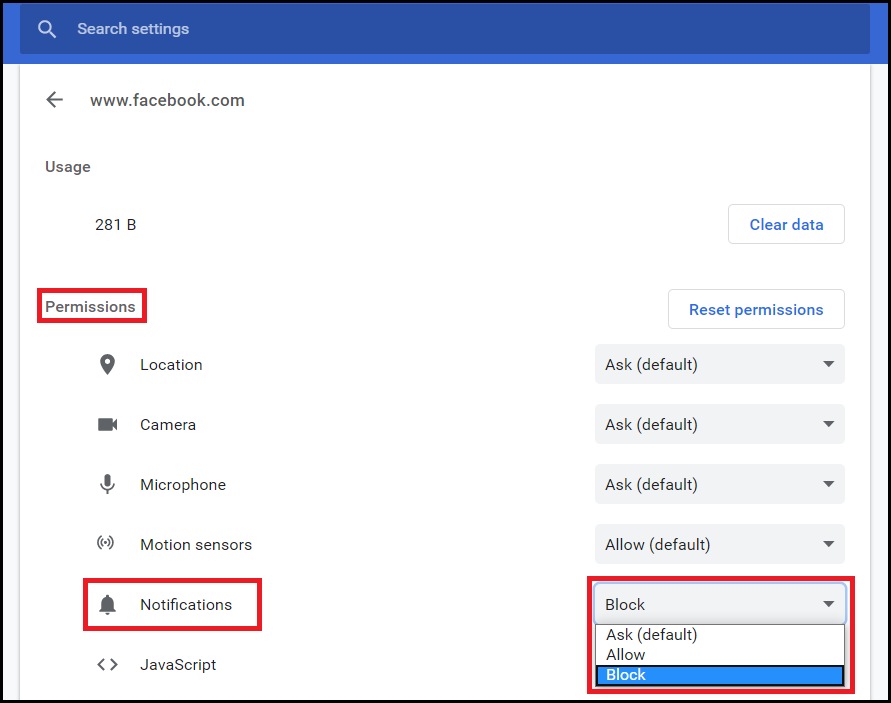
- Locate Permissions and select the desired permission for this site.
Microsoft Edge:
- Update Microsoft Edge to the latest version.
- Launch the Microsoft Edge browser.
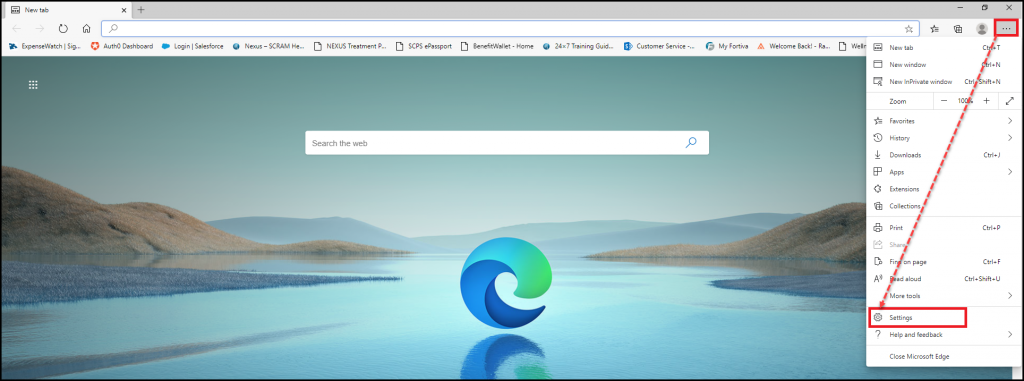
- At the top right, click the three dotted symbol and then click Settings.
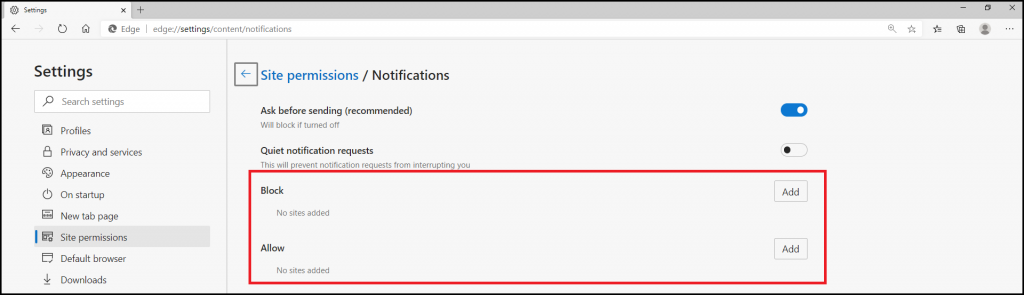
- Next, click Site Permissions and then select Notifications.
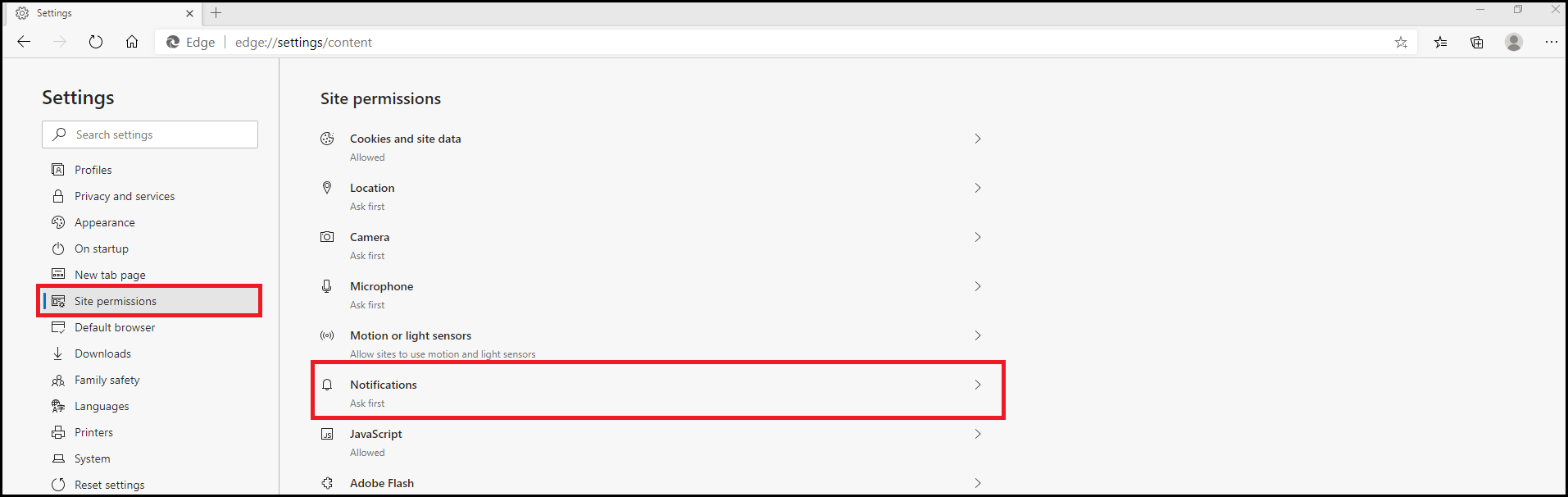
- Here you can choose to Block or Allow Notifications.
Firefox:
- Launch the Firefox browser and enter the desired web address in the address bar.
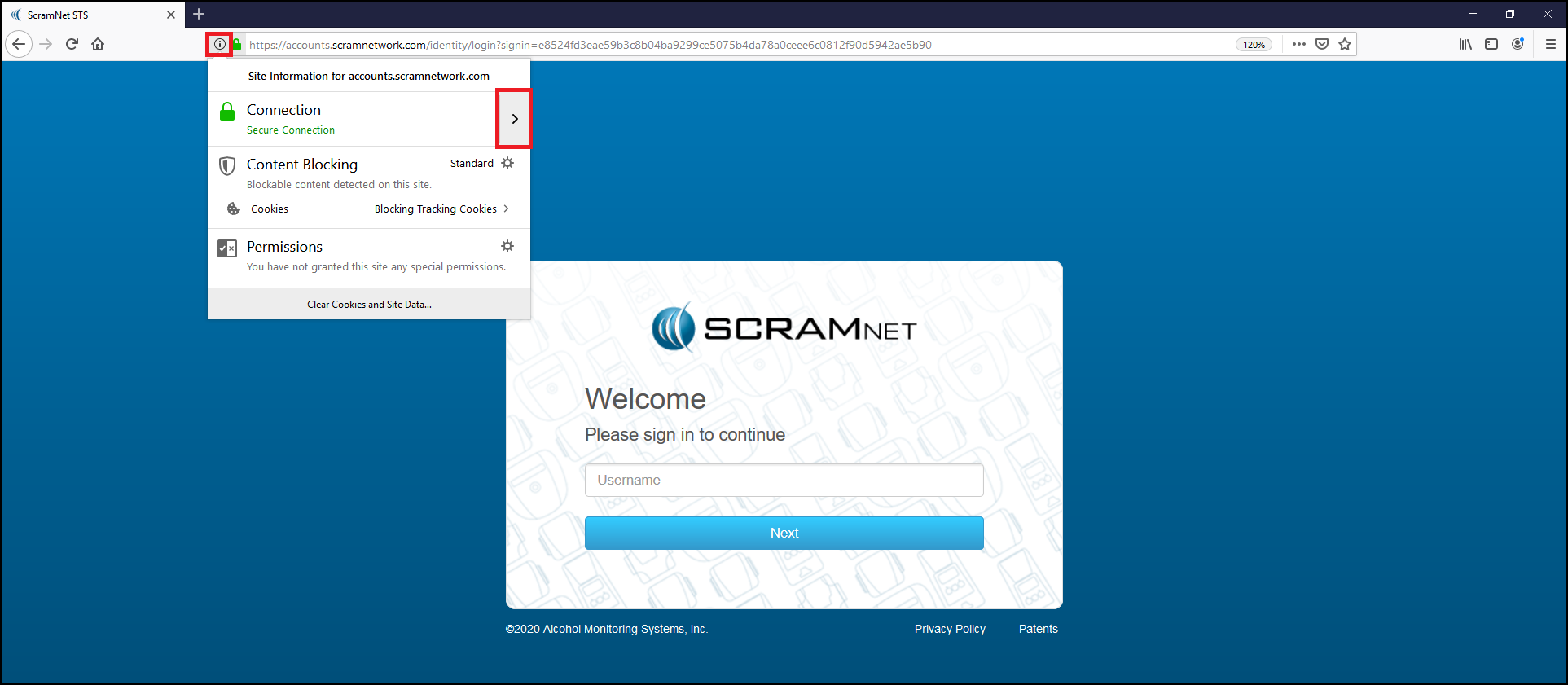
- Select the Information icon (i) in the address bar and then click the Connection side arrow.
- Select More Information.
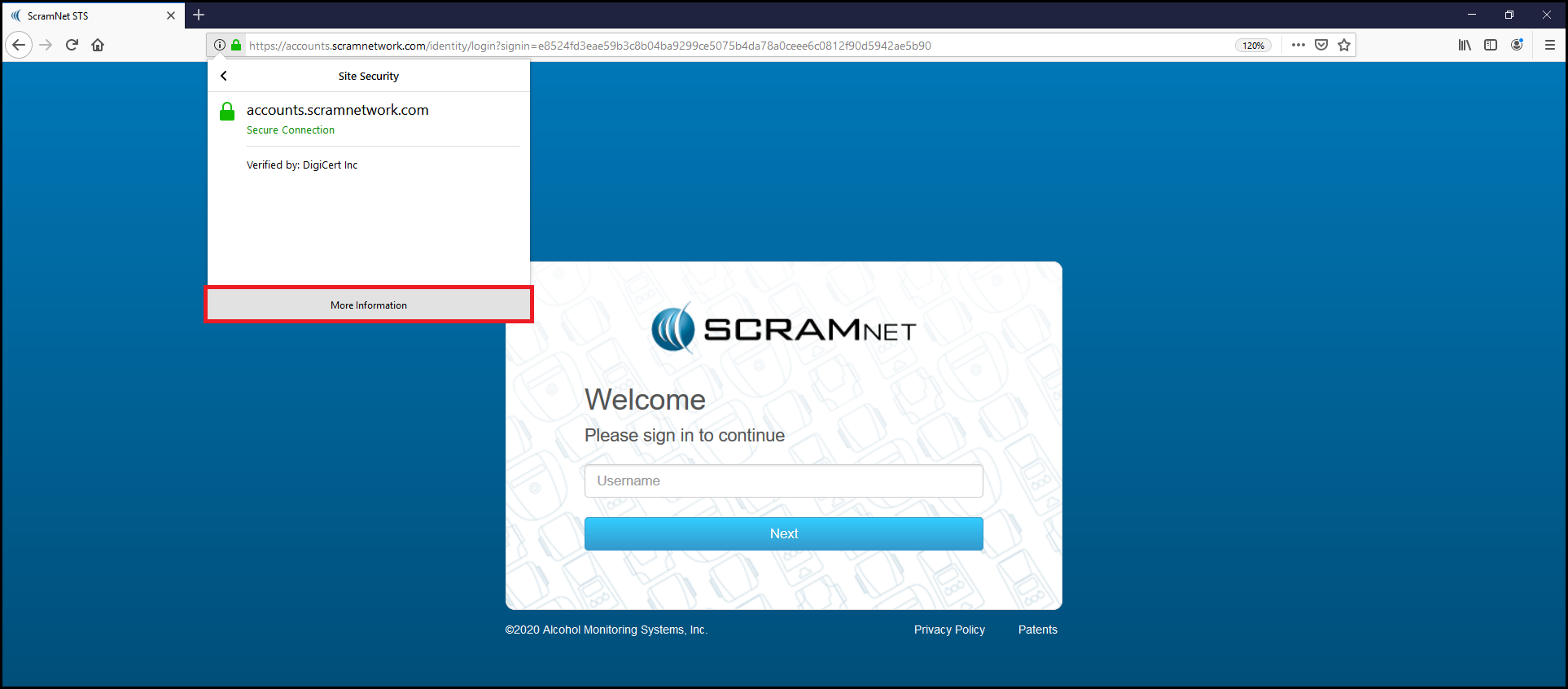
- Finally, click Permissions and then set Notifications to the desired permission level.