A Wi-Fi Setup option is available on the RB Pro’s Device Details page, the client Equipment page, and the Inventory page in SCRAMNET. In addition, you may elect to connect an RB Pro device individually or connect multiple RB Pro devices at once.
Once connected, the devices will automatically reconnect to this persistent Wi-Fi network when in range. Connecting to a Wi-Fi network may speed up the assignment, firmware upload, and check-in processes at locations with poor cellular network connections. For example, a courthouse, an office building, or a remote location.
While on Wi-Fi
- If a new connection is required, access the Wi-Fi Setup page on the Device Details page or the client Equipment page to “overwrite” the current network settings and enter in the new information.
- The device’s communication connection icon will reflect a Wi-Fi signal rather than the cellular “bars.”
Use the quick links to view information on:
Individual RB Pro Wi-Fi Setup
For the RB Pro device to receive the Wi-Fi network information you are about to send it from SCRAMNET, the device must be able to connect to the cellular wireless network. If your client lives in a cellular “dead zone,” have the client move to a location (perhaps outside) where the device can connect – as indicated by a solid blue light – long enough to receive the Wi-Fi info.
From the client’s Equipment page:
- Select the Wi-fi Setup hyperlink.
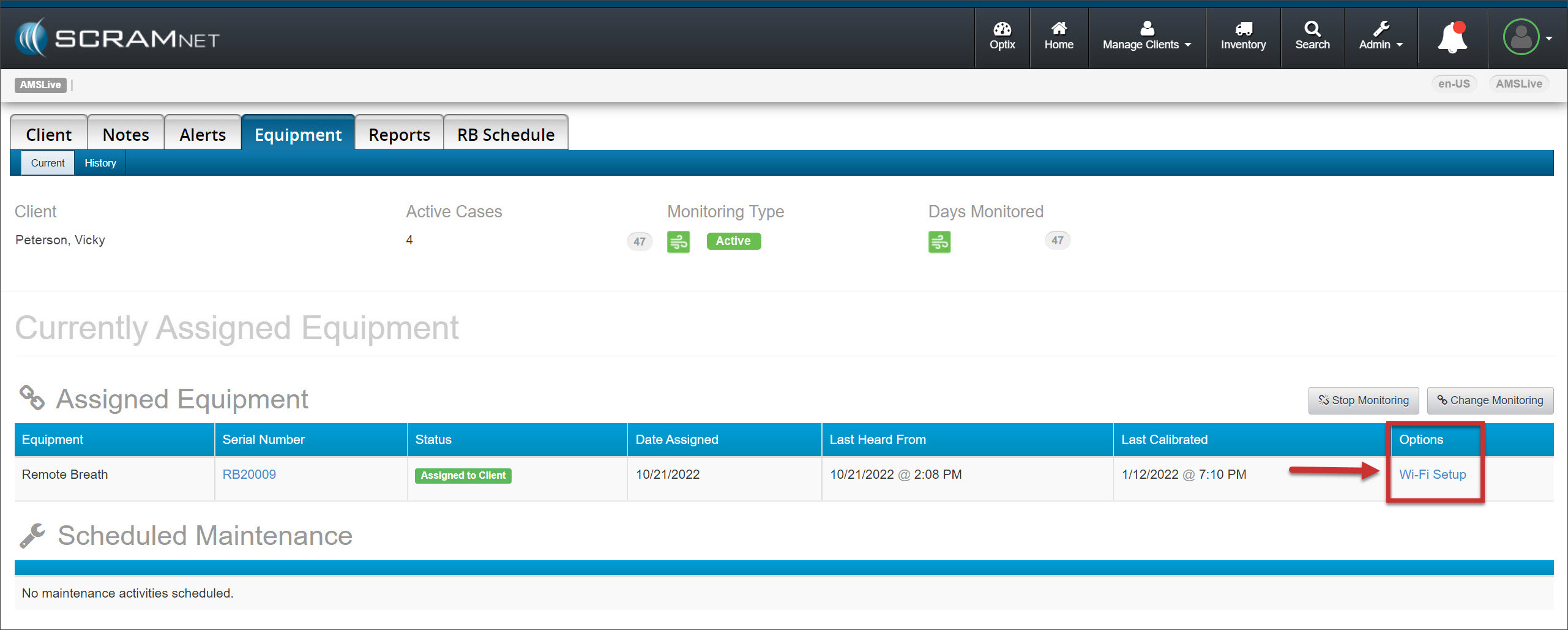
Client Equipment page – click to enlarge
- On the Wi-Fi Setup pop-up, enter the Network Name (SSID) and password.
- Select the Send to Device button.
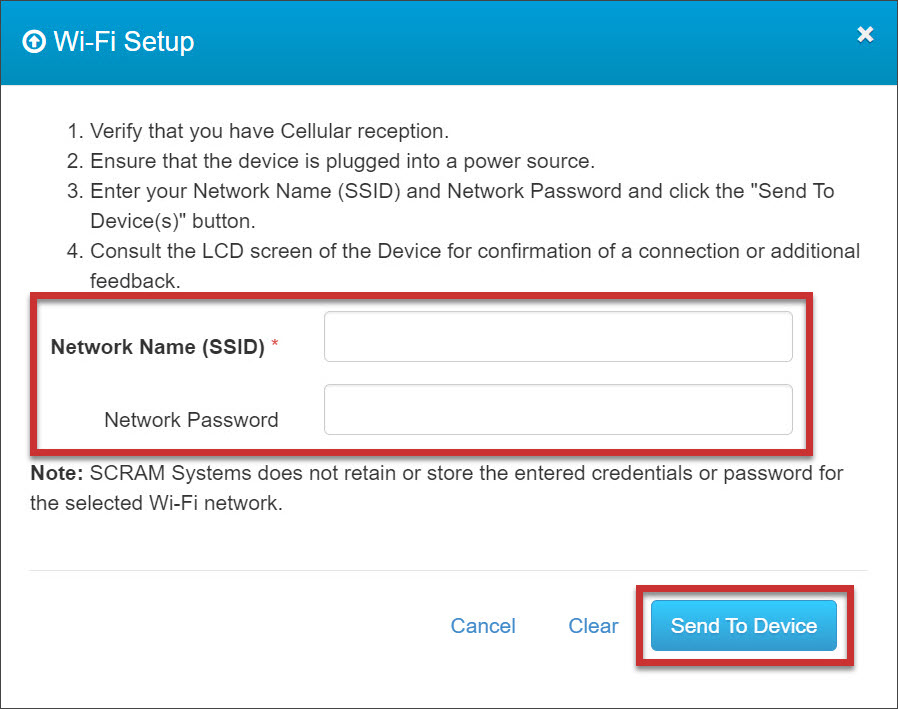
Wi-Fi Setup Pop-up – click to enlarge
 |
If the RB Pro device does not connect to the Wi-Fi network within 24 hours of you entering the SSID and password information into SCRAMNET, you will be required to resend the information by accessing the Wi-Fi Setup pop-up window again, from either the client’s Equipment page or the RB Pro Device page. |
Multiple Wi-Fi Setup
- Select the Inventory button.
- Select the Remote Breath tab.
- Locate the Remote Breath Pro section and check the box next to each device’s serial number to which you wish to send the Wi-Fi credentials.
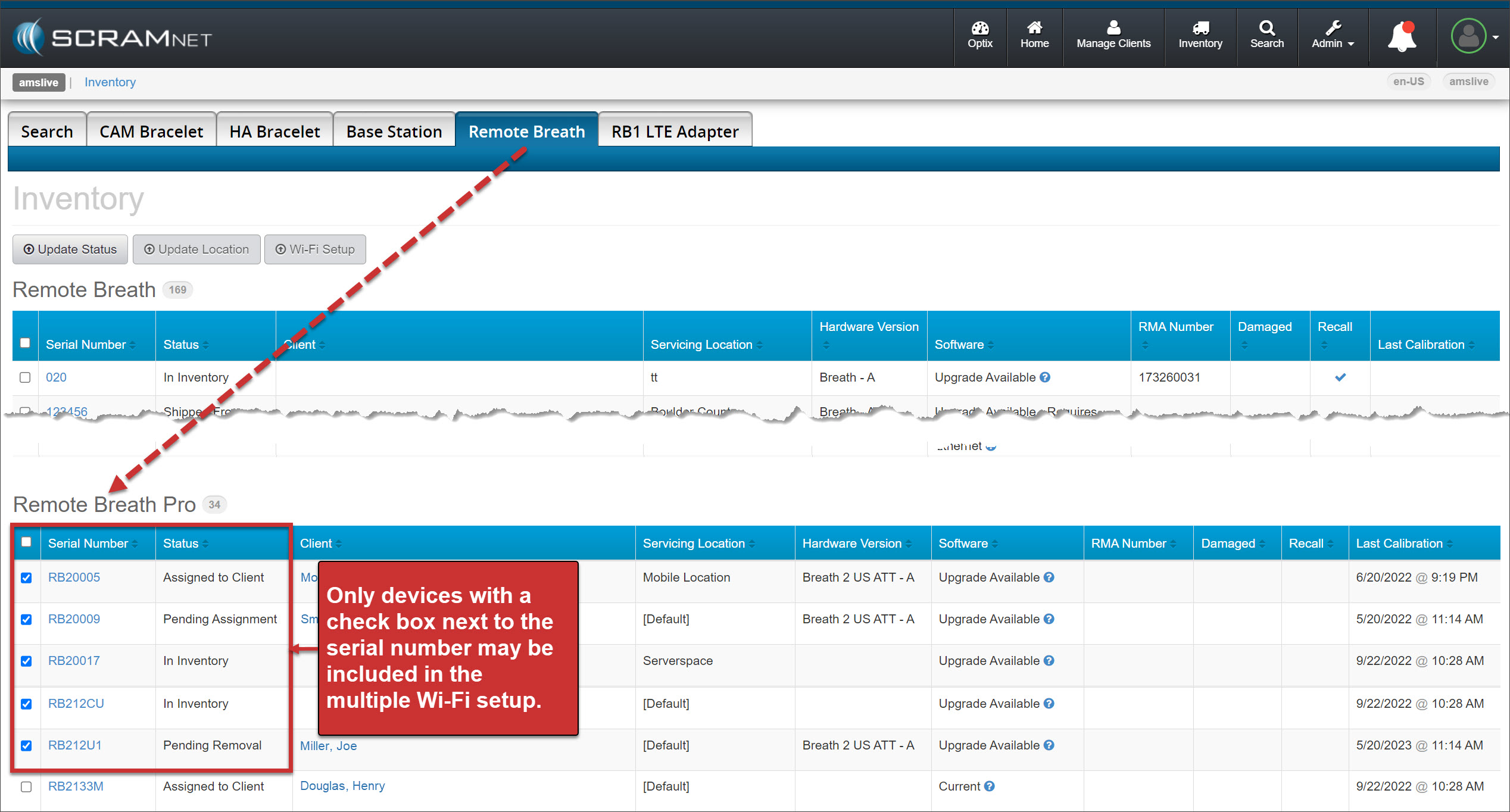
Remote Breath Tab – click to enlarge
- Select the Wi-Fi Setup button.
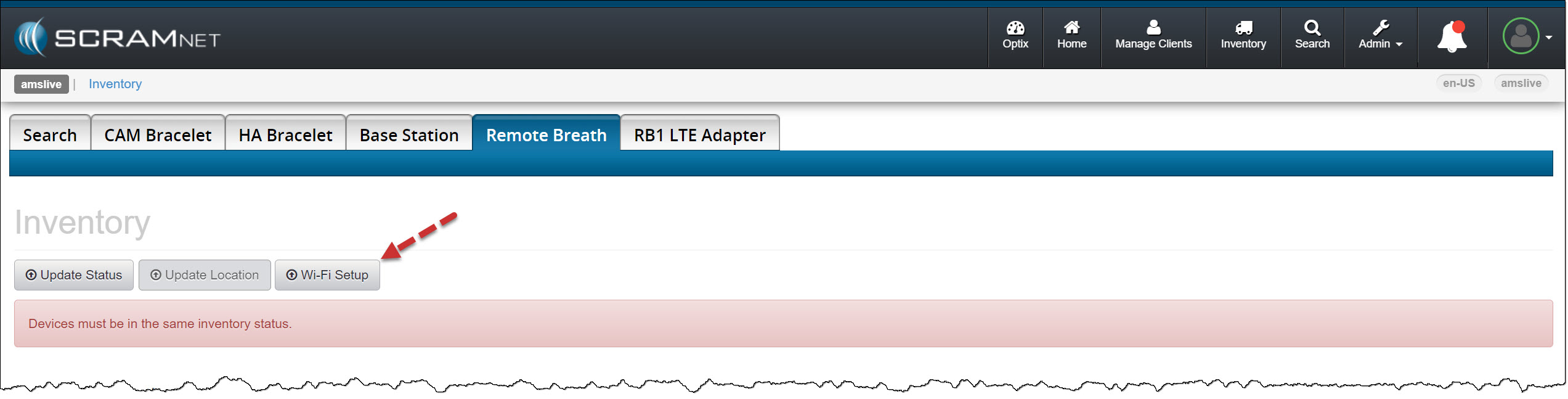
Remote Breath Tab Wi-Fi Setup button – click to enlarge
 |
The warning banner, “Device must be in the same inventory status,” pertains not to the Wi-Fi Setup process but to the update device status or location process. |
- Enter the Network Name (SSID) and Network Password information on the Wi-Fi Setup pop-up.
- Select the Send to Device button.
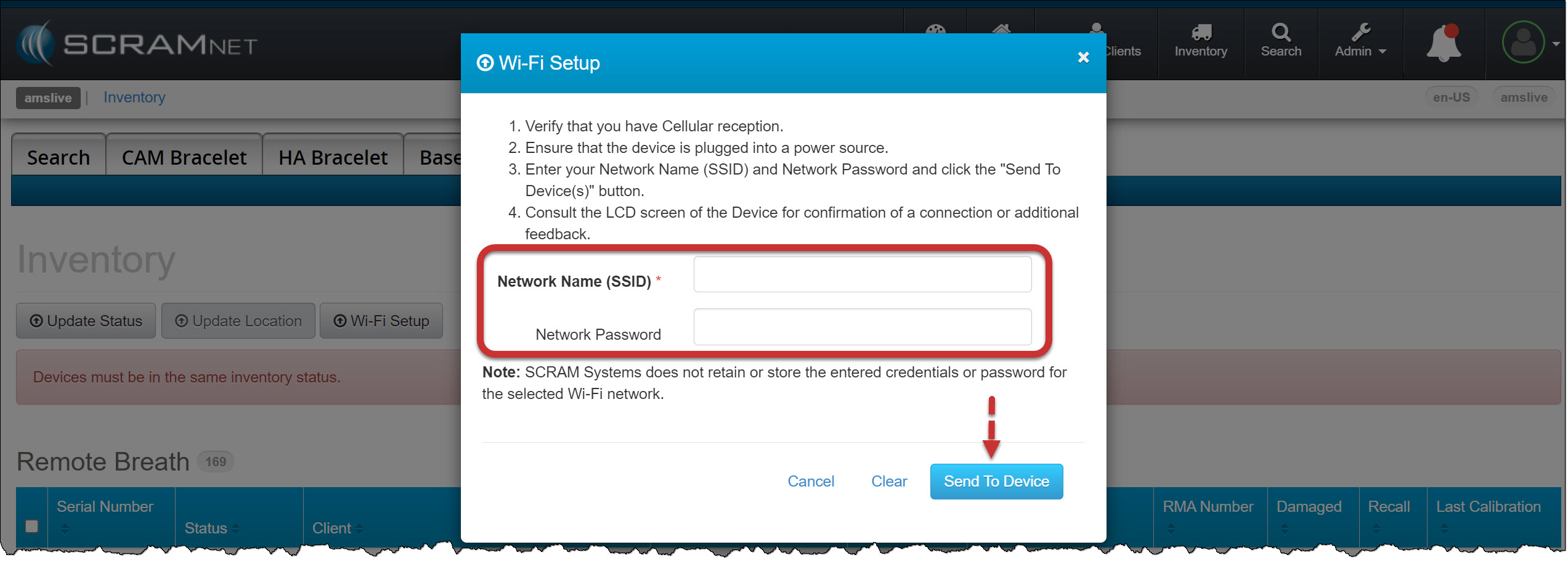
Wi-Fi Setup pop-up – click to enlarge
|
The Wi-Fi information will be available for the selected devices for 24 hours. If the device is not in range of the Wi-Fi network, does not successfully connect to the Wi-Fi network, or is powered off during the 24-hour window, you may resend the information following the above process. |
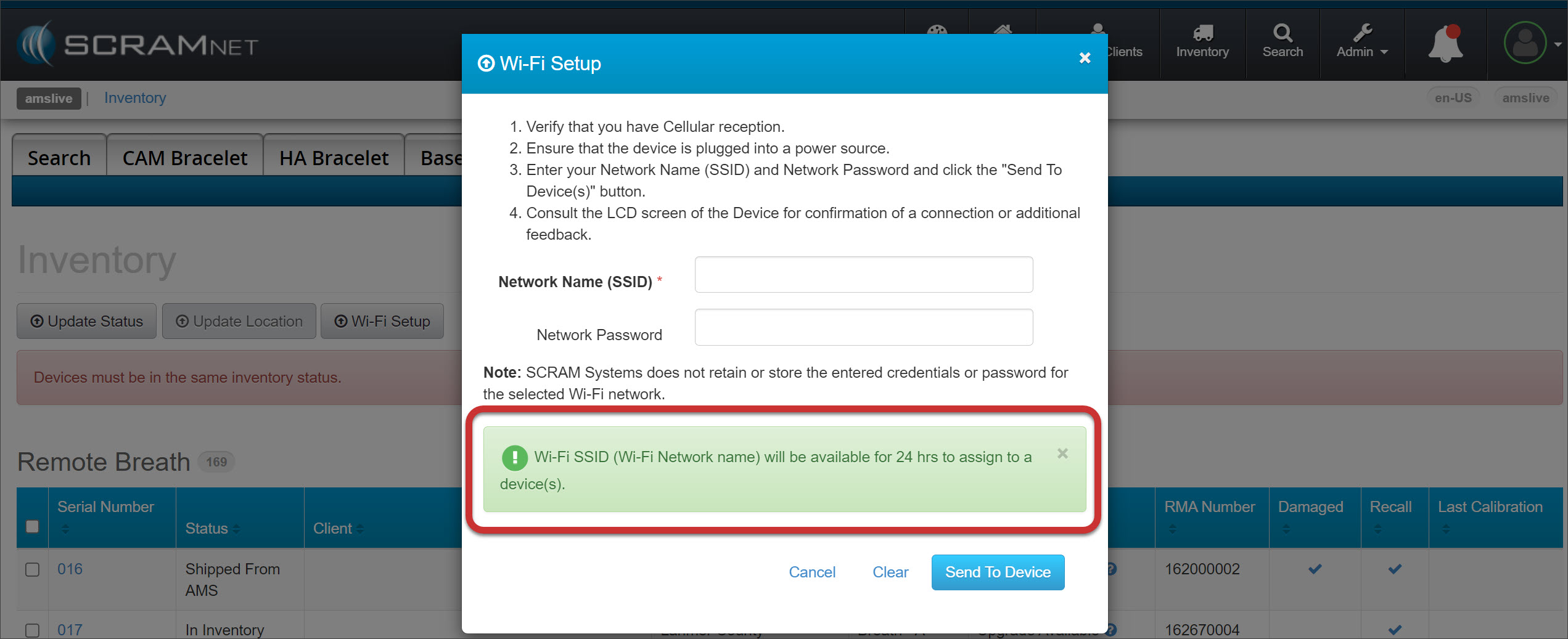
Wi-Fi Setup pop-up – click to enlarge
Disconnect from Wi-Fi
To disconnect the device from a Wi-Fi network, use the “Wi-Fi Setup” process above to resend the same ‘Network Name (SSID)’, but input an incorrect password in the ‘Network Password’ field. It will then not be able to connect to that particular Wi-Fi network and will revert to cellular.