The following is a compilation of frequently asked questions about the SCRAM Remote Breath Pro (RB Pro) device.
Jump to:
General Questions
My client states that the RB Pro device screen goes dark before they can deliver a breath sample. Is the device broken?
- No. When the client sees a solid red light on the device – with or without on-screen instructions – this indicates a pending breath test. If the screen is asleep, instruct the client to press one of the buttons on the side of the device to “awaken” it, and then follow the on-screen prompts.
My client keeps missing tests because the device screen never changes from ‘Align Eyes’ to ‘Blow.’ Is the device broken?
- No. Your client is probably not holding the device steady while trying to take a breath test. Advise your client to simply begin blowing anyway – regardless of facial alignment. The device will accept and record the breath test.
What BrAC threshold does SCRAM Systems recommend?
- SCRAM Systems recommends a minimum threshold of .020%, but the threshold may be set up to 0.080% at the caseload level.
On which cellular wireless network do these devices operate?
- RB Pro devices utilize the AT&T 4G LTE wireless network.
Is there any way to locate an absconded device?
- Potentially, yes. Send an on-demand test to the device. When a Missed Test alert is generated, a cell tower location point is established that can be used to get you in the vicinity of the device, and possibly retrieve it. This is assuming that the device is in a good cell coverage area and the battery is not dead.
What do the three (3) lights to the right of the display screen indicate?
- The indicator light statuses are:
- Green Light: Device is actively assigned
- Solid Blue Light: Connected to a Cellular Data or Wi-Fi Network
- Flashing Blue Light: Establishing a Cellular Data or Wi-Fi Network Connection
- No Blue Light: No Cellular Data or Wi-Fi Network Connection
- Solid Red Light: Breath Test Required
- Slow Flashing Red Light: Low Battery
- Quick Flashing Red Light: Critically Low Battery
How often should the device be calibrated?
- SCRAM Systems recommends that a device be calibrated at least once every 12 months, or if the device fails a field calibration check. However, you may want to calibrate more frequently based on internal policies, state laws, or local court/agency policies.
Is a calibration certification available?
- Yes. Complete the SCRAM Remote Breath Pro Calibration Certification course, which is found in the Course Catalog of the SCRAM Systems University, to obtain your certification.
Initial Enrollment
How long should I charge the device before starting an enrollment?
- The device ships with a partial charge on its internal rechargeable lithium-ion battery. SCRAM Systems recommends fully charging the device before assigning it to a client. The charging time is approximately six (6) hours to a full charge, depending on the battery’s charge level. If you are pressed for time, charge the device for at least 90 minutes prior to starting an enrollment.
Should I power on the device before or after entering the serial number into SCRAMNET?
- Enter the device serial number into SCRAMNET first. Do not power on the RB Pro device until after you have entered the the device serial number into SCRAMNET. This will prevent a firmware update from delaying the enrollment process. Once entered, power on the device by pressing and holding the Select button on the side of the device for three (3) seconds. You may hear a soft click sound, and then the SCRAM logo will display on the screen. After a few seconds, the screen will update to “Device Unassigned,” with a battery icon in the lower-left corner of the screen and a cellular or Wi-Fi signal icon in the lower right corner. It is possible the cellular or Wi-Fi icon will be represented by a large “X.” Give the device a moment to detect and connect to a communication source. While connecting you will notice a flashing blue light. Once connected, the icon will update and the indicator light will turn solid blue.
What are best practices for enrollment photos?
- Testers/Clients should:
-
- Position themselves in a moderately well-lit area away from direct sunlight
- Remove any hat, sunglasses, and any hair hanging over their faces
- Ensure there is nothing in the their mouths during testing except for the supplied breath tube
- Stand with their backs to a wall, hold their heads upright, and look directly forward at the device screen
- Hold the device up to their mouths with their eyes centered in the display screen, and remain in that position while delivering a breath sample
How many initial enrollment photos can be taken?
- After providing the enrollment photo, the device will provide feedback regarding the quality of the photo. If the enrollment photo is poor, the client may provide two additional enrollment photos. Once three enrollment photos have been taken, the system will select the best enrollment photo to use as the baseline photo.
How many practice tests can be taken?
- As many as needed for the client to feel comfortable with taking a breath test.
How do I complete the enrollment process?
- To end enrollment and practice tests, access the menu and select the “End Enrolment” option.
What if none of the initial enrollment photos are any good?
- If needed, you may capture a new Enrollment photo. Start by ensuring the current enrollment has ended. Then, navigate to the client’s Equipment page in SCRAMNET and select the Re-Enroll hyperlink under the “Options” column in the Assigned Equipment table. The RB Pro device will wake up and prompt the client to begin the (re-)enrollment process.
Taking Breath Tests
How does my client know when it is time to take a breath test?
- For a scheduled, On-Demand, or Client Initiated (Voluntary) breath test, when the device prompts the client to provide a breath sample it will “wake up,” provide visual instructions on screen, an audible tone, and a solid red light to alert the client that it is time to give a breath sample. 30 seconds after the initial breath test alert, if the client is not actively blowing into the breath tube, the screen will “sleep.” The red indicator light will remain solid, however, to remind the client a pending breath test is requested. At set intervals throughout the Grace Period, the device’s screen will “wake up” and produce an audible tone to remind the client to complete the breath test.
My client states that the RB Pro device screen goes dark before they can deliver a breath sample. Is the device broken?
- No. When the client sees a solid red light on the device, with or without on-screen instructions, this indicates a pending breath test. If the screen is asleep, instruct the client to press one of the buttons on the side of the device to “awaken” it, and then follow the on-screen prompts.
My client keeps missing tests because the device screen never changes from ‘Align Eyes’ to ‘Blow.’ Is the device broken?
- No. Your client is probably not holding the device steady while trying to take a breath test. Advise your client to simply begin blowing anyway – regardless of facial alignment. The device will accept and record the breath test.
What happens when a client fails their breath test due to BrAC?
- Once the client provides their initial breath sample, the device will analyze it. When the BrAC value is at or above the Caseload’s BrAC Threshold, the device will alert the client that a retest is required. The screen will display “Retest in [countdown] Minutes.” During the wait-to-retest window, the device will go to “sleep.” At any time, the client may “wake up” the device by pressing the “Select” button to view the countdown time remaining. One minute before the end of the countdown timeframe, the device will “wake up” and alert the client that one minute remains on the countdown. Once the countdown completes, the device will prompt the client to provide a confirmation breath sample.
- When the client is set up for Test to Zero, an On-Demand test will be sent automatically 20 minutes after the “Failed” test result is received in SCRAMNET.
What happens when a client fails their breath test due to “Failed AFI?”
- Once the client provides their initial breath sample, the device will analyze it. If the client’s initial photo fails the “Artificial Facial Intelligence” (AFI) match, the device will alert the client that a retest is required. The screen will provide on-screen instructions for providing an accurate photo and then request a confirmation test. Visit the SCRAM Remote Breath Pro client Assignment and Enrollment article and view the Examples when a retest is required section for device screen prompts.
Why do AFI failures occur?
- The most common reasons for a Failed AFI Breath Test are:
- Device misalignment during a breath test
- A glare on the camera
- A glare on the client’s face
My client reports that, instead of prompting for a breath test, the device is asking them to ‘Remove Straw and Place Unit In Well Ventilated Area.’ Why is it doing that?
- Once a breath test has been requested for the client, and before the RB Pro prompts the client to “Align Eyes,” the device will complete a VOC (Volatile Organic Compound) flow path check. When the device detects a VOC in the breath flow path, “Remove Straw and Place Unit In Well Ventilated Area” will be displayed on the screen for two and a half minutes. Instruct the client to follow the on-screen instructions by having the client:
- Remove the breath tube from the device.
- Relocate the RB Pro device to an area of fresh air and free of chemicals (like air fresheners) and cleaning agents (including freshly cleaned countertops).
- Ensure the RB Pro device is not in its carrying case. Place the device on its side on a tabletop or other clean surface away from contaminants, with the vent and breath tube port unobstructed.
After two and a half minutes, the RB Pro’s screen will update to “Blow Again,” the device will complete a second VOC flow path check. If VOCs are still detected, the screen will update to “Please Wait,” then “Remove Straw and Place Unit In Well Ventilated Area” for an additional 30 seconds, and then “Please Wait” with a “30-second” countdown.
At the end of the 30-second countdown, the device will complete a third and final VOC flow path check. If VOCs are still being detected after three attempts, the screen will update to “Monitoring.” In SCRAMNET, an “Ambient VOC Detected“ result will be displayed on the client’s RB Results page.

When the client is set up for Test to Zero, an On-Demand test will be sent automatically, 20 minutes after the “Ambient VOC Detected” test result is received in SCRAMNET. Visit the RB Pro VOC Detection Guidance article for more information.

Does my client need to power down the device after completing a test?
- No, the device will analyze the confirmation breath test, transmit the test results to SCRAMNET, and then go to sleep automatically.
If a client has a medical condition and is having difficulty blowing for the length of time needed to take a breath test, will the test window expire?
- Potentially, yes.
- For a client-initiated test, the client has five minutes to complete the test before an Incomplete Test alert is generated.
- For a fixed or random test, the client has until the end of the caseload-established Grace Period before an Incomplete Test alert is generated.
Breath Test Scheduling
How can I set a fixed test to be recurring?
- Fixed tests automatically recur for an indeterminate amount of time once placed on the schedule for a specific day.
- Click the Fixed button and use the Add New Fixed Schedule pop up. This interface allows for multiple days of the week to be selected.
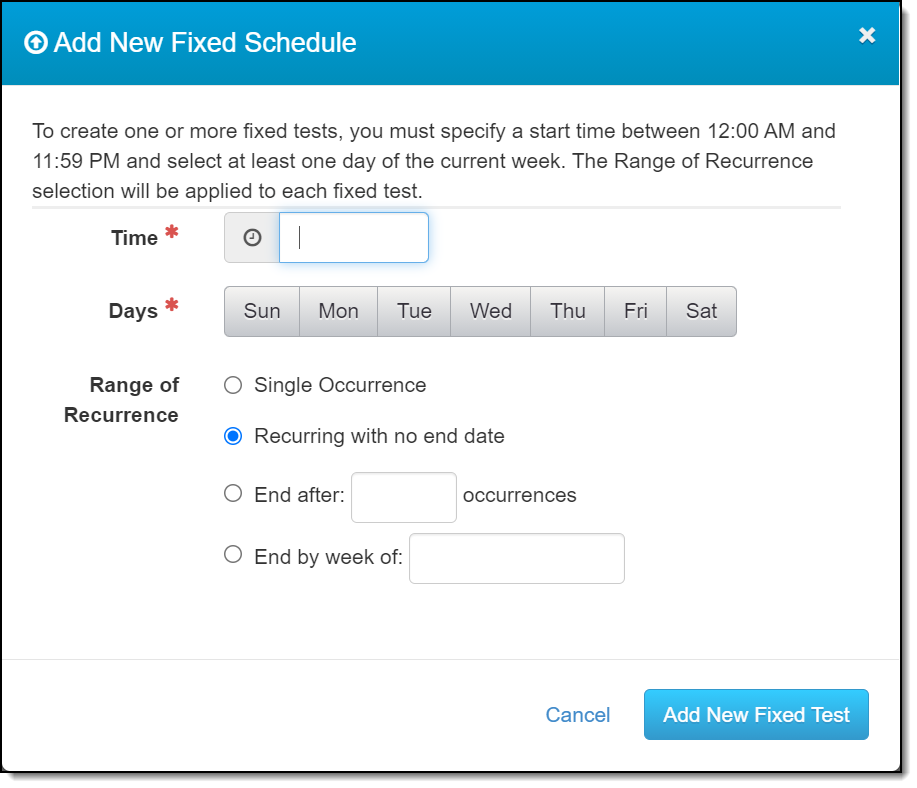
Add New Fixed Schedule Pop-up (click to enlarge)
- If a fixed test is meant to be a single occurrence, click the Fixed button, and select the Single Occurrence radio button.
How do I set up a random test to reoccur for a defined period of time?
- Click on the Random button, select the End after ___ occurrences radio button, and enter the appropriate number of occurrences in the field.
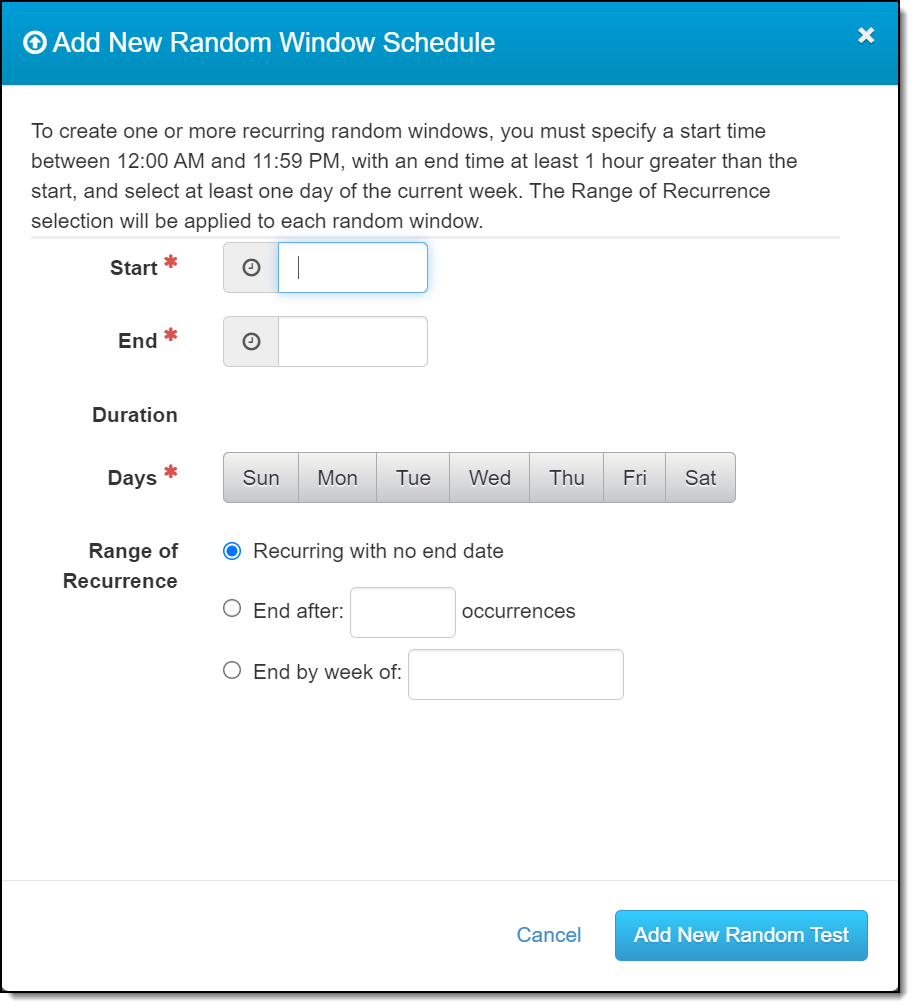
Add New Random Window Schedule Pop-up (click to enlarge)
What is a Grace Period?
- A Grace Period is the amount of time that a client has to take a test once the test has been initiated.
What is the range of time for establishing a Grace Period?
- A Grace Period may be set to between two and 60 minutes. SCRAM Systems recommends 20-minute grace periods to maximize battery life.
Why did the device power up for no apparent reason, then shut down?
- The device is always on, but remains in “sleep” mode when not in use. The device “awakens” and connects to the network every 30 minutes to check for assignment or schedule updates and on-demand tests. This check should be transparent unless there is a firmware update that needs to be uploaded to the device.
What is a courtesy reminder and how is it used?
- A courtesy reminder is a text message that can be sent to the client’s cell phone to remind the client that a scheduled test must be performed.
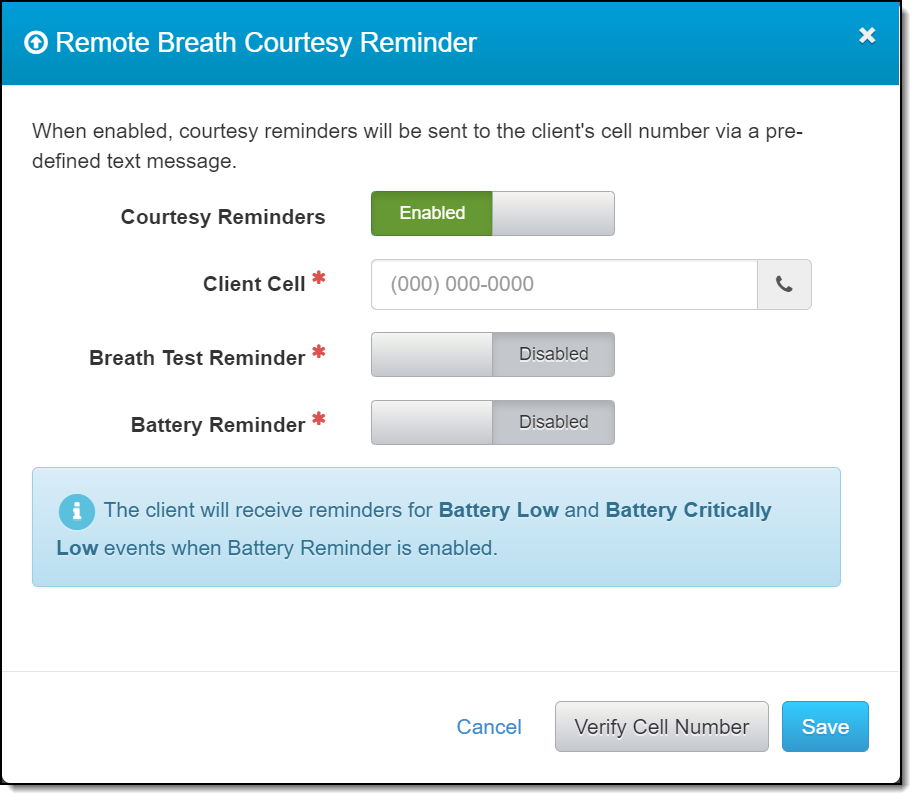
Remote Breath Courtesy Reminder Pop-up (click to enlarge)
- The customer may also receive a courtesy reminder text message when the device should be charged
Alert Management
Why is a passed test shown with a positive BrAC reading?
- The alert is passed when the second test is below the BrAC threshold, which typically indicates that the device detected mouth alcohol (from a breath mint or a piece of bread, for example), as opposed to a true consumption.
What do I do when an ‘AFI Pending Review’ alert appears?
- An AFI Pending Review alert is generated when the facial matching has flagged a test for manual review. Find the alert in SCRAMNET and manually select Agent match or Circumvention Identified. The most common reason for this alert is misalignment of the device during a test or a glare on the photo.
Why would I need to manually match a photo?
- Possible causes include:
- Poor initial enrollment photo
- Presence of glare on the breath test photo
- Device is not being held in the correct position during testing
What is a ‘Failed Test – Abnormal Confirmation’ alert?
- This alert is generated when there is a difference between the first and second test of greater than or equal to .020%. Both tests must be over the BrAC threshold set for the caseload.
Why did SCRAMNET NOT receive a scheduled or on-demand test?
- The device logs in (checks in) to SCRAMNET every 30 minutes to receive schedule updates and/or on-demand test requests. If the device is not able to communicate with SCRAMNET, information is not sent to the device and test results are not sent to SCRAMNET. Poor cell phone coverage or a dead battery is usually the cause.
What is a ‘Scheduled Test Not Received’ (STNR) alert?
- This alert is generated when SCRAMNET has not received the results from a scheduled or on-demand test within 90 minutes. When communication with the device is restored, the test results (complete, missed, failed) will replace the Scheduled Test Not Received (STNR) alert. If the Scheduled Test Not Received alert is generated because of a dead battery, that alert is replaced by a Missed Test – Battery Depleted alert when the device is plugged in and communicates with SCRAMNET.