During active monitoring of your Remote Breath and Remote Breath Pro client there are three areas in SCRAMNET where events and alerts will display.
Alerts will display on the:
- Active Workload page (Equipment Alerts, Equipment Assignments, and Scheduled Maintenance sections)
- RB Results sub-tab on both the Workload page and the client’s Alerts page (Alerts)
- Caseload page (Alerts)
Some examples of these alerts are:
- Failed breath test
- AFI Pending Review
- Low Battery
- Calibration Required
For a complete list of alerts as well as a glossary of terms, view the SCRAM Remote Breath Glossary of Terms help article.
Workload page, RB Results sub-tab
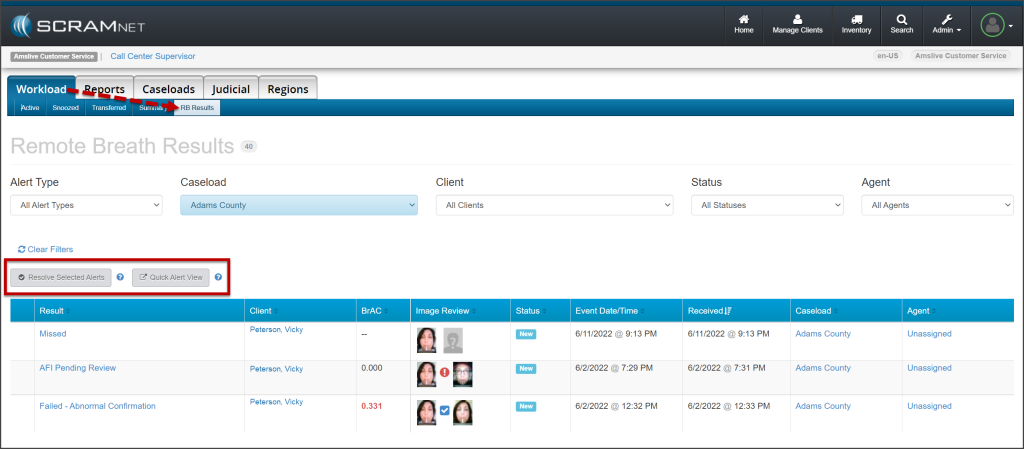
RB Results Page (click to enlarge)
Use the filters to customize the alerts displayed on the page. Additionally, use the Resolve Selected Alerts button to resolve multiple alerts simultaneously, or the Quick Alert View button to efficiently view and manage multiple alerts one right after the other.
Note: Only alerts that are currently active are displayed in the Alert Type filter.
Caseload Page
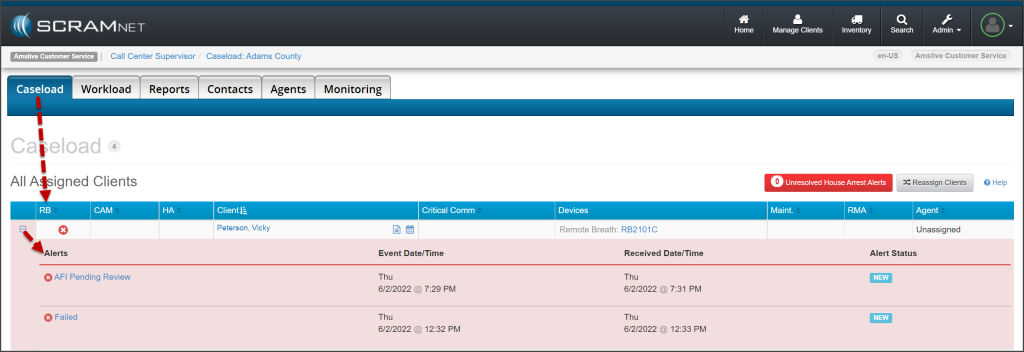
Caseload Page with RB alerts expanded (click to enlarge)
The RB column will display a red “X” icon next to the client’s name when a non-compliance alert requires your attention. Select the “plus” icon to expand the alert list. Once expanded, select the alert to access the Alert Management Console.
In addition to the RB column, the Critical Communication, Maintenance and RMA columns will display a red icon if there are actions that need to be taken, such as a replace equipment alert, the device requires calibration, or extended missed communication.
Client Alerts page, RB Results Sub Tab
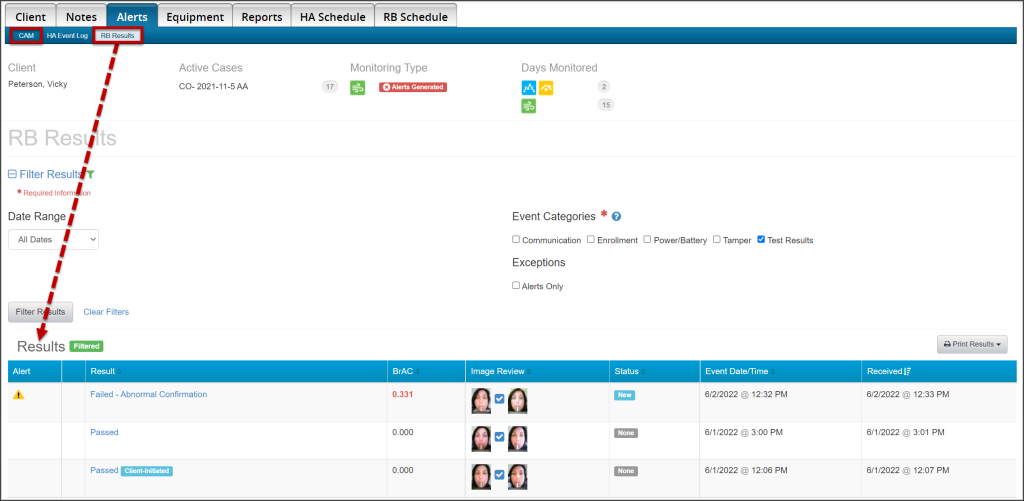
Client Alerts Tab, RB Results Sub-Tab (click to enlarge)
After navigating to the specific client’s profile, select the Alerts tab. On the CAM results page will display important equipment replacement, assignment status, and calibration alerts. This information is also available on the Daily Action Plan (DAP).
On the RB Results sub-tab, all test results and additional equipment events are displayed. Use the filters to customize the events displayed on the page.
Events will only display on the client’s Alerts page, RB Results sub-tab.
Some example of these events are:
- Passed breath tests
- Device plug-in and unplug from power
- Device Enrollment
Alert Management Console
Once you have identified the event or alert you would like to view, select the result hyperlink for that event or alert.
On the Alert Management Console you may:
- View the Enrollment Photo, Initial Test, and Confirmation Test (if applicable). Use the arrows on the bottom left and right of the Enrollment Photo to scroll through all photos taken by the client.
- Identify the specific event information, including the BrAC level at the time of the test.
- Select the Facial Comparison disposition, if needed.
- Add notes.
- Update the status of the alert.
- View the location of the device at the time of the test.
- Print the event with or without the location information.
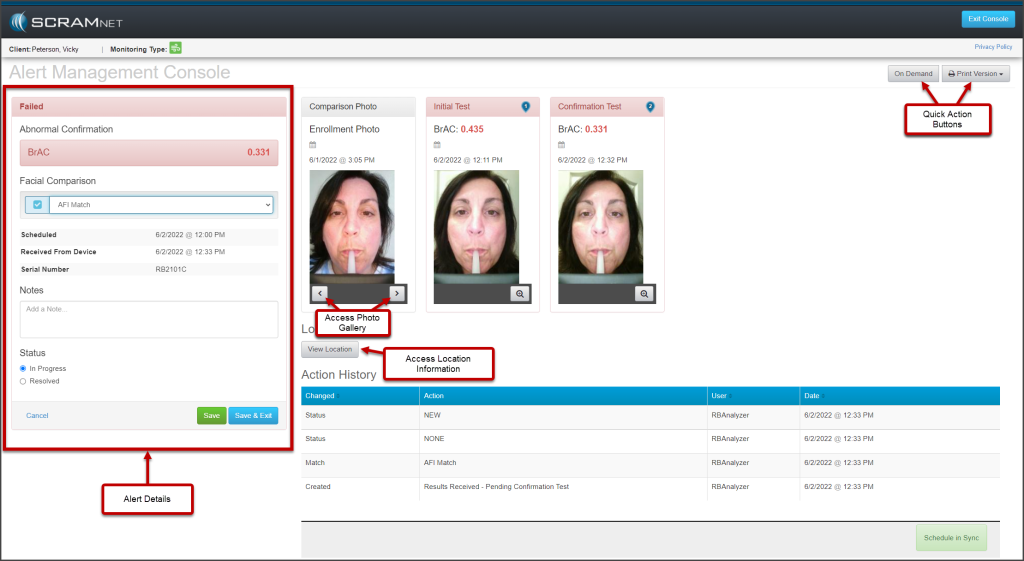
Alert Management Console (click to enlarge)
For a complete list of alerts as well as a glossary of terms, view the SCRAM Remote Breath Glossary of Terms help article.