To complete a check-in, the client taps the Submit button to send the information to the system for review. Occasionally, an error can prevent the check-in from completing.
Location Error
While the smartphone is capturing the client’s photo, the smartphone’s location is also being acquired. If location services are disable or if the smartphone is not in a location where a location point can be established, the client will receive an error message of, “There was an error getting your location. Please try again.”
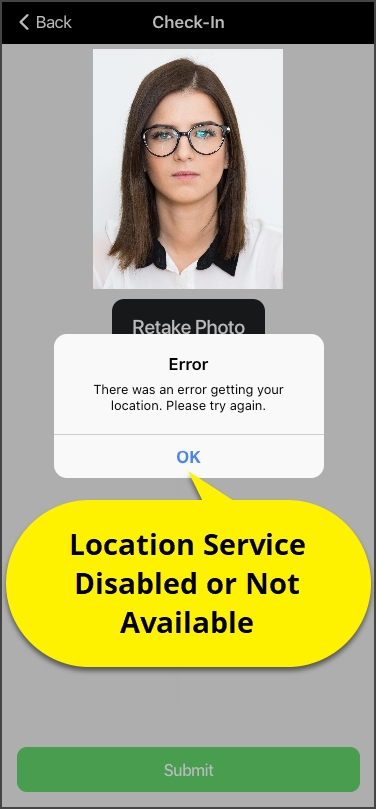 TouchPoint Client Application Check-In Error Message (click to enlarge) |
Step One:
Have the client check the settings and ensure the location services are set to Allowed. Step Two: Have the client move to a new location with better cellular service and retake their photo.
|
Camera Access Error
When the client attempts to take their photo for the check-in, if the permission to access the camera is disabled, the client will receive an error message of, “There was an error capturing your photo. Please try again.”
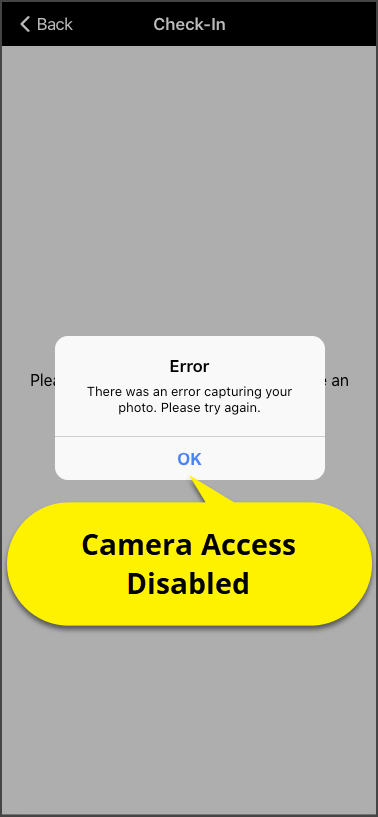 TouchPoint Client Application Check-In Error Message (click to enlarge) |
Step One:
Have the client check the settings and ensure the camera access is set to Allowed. Step Two: Have the client retake their photo.
|
Check-In Submission Errors
Connectivity Issues
When the client attempts to submit the check-in, but has poor wi-fi and/or cellular service, the client will receive an error message of, “There was an error submitting the check-in. Please try again”.
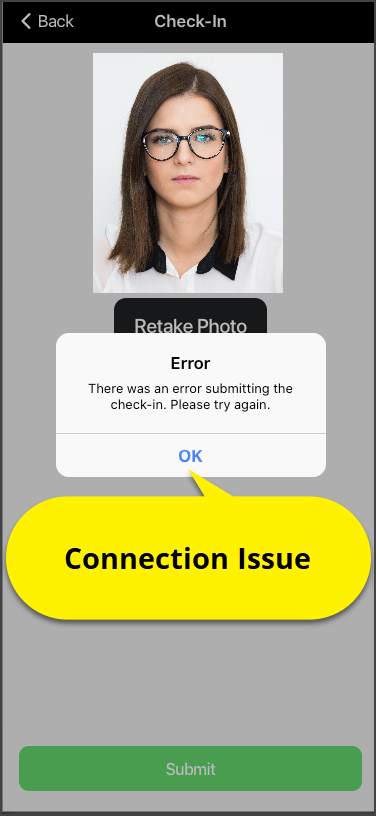 TouchPoint Client Application Check-In Error Message (click to enlarge) |
Step One:
Have the client move to a new location with better cellular service and try again. Step Two: If the error message persists, contact SCRAM Systems Customer service. |
Android Smartphone Settings Issue
When the client submits a check-in, but the activity isn’t recorded in the Optix Check-In facility, it is possible that the client’s Android smartphone is erasing the activity before it can be submitted. To check for this, instruct the client to do the following:
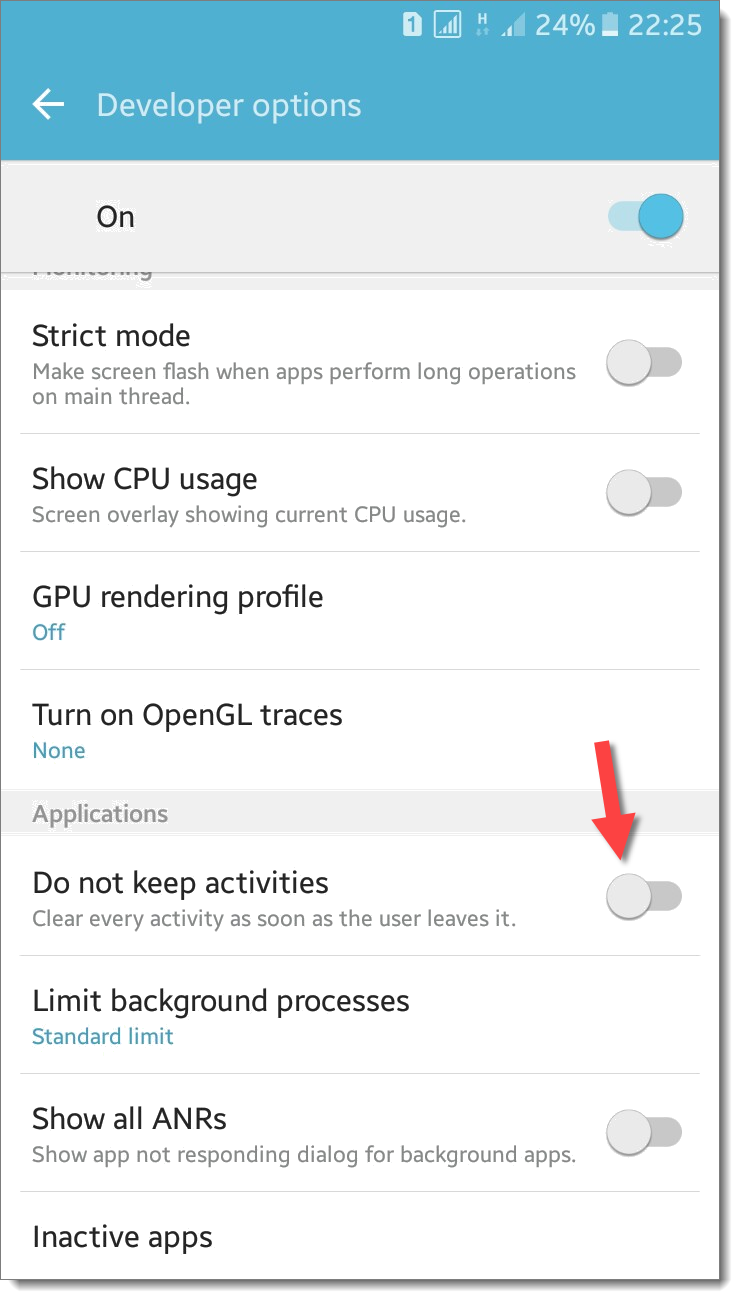 Android Developer Settings on a Samsung Galaxy (click to enlarge) |
Step One:
Access Developer Options in the phone’s Settings. Step Two: Swipe down to the ‘Do not keep activities’ switch and ensure it is toggled to the “off” position. |