Use this page to check in the SCRAM House Arrest Bracelet and base station for a client that is being removed from the SCRAM Systems Monitoring Program.
What you will need:
- SCRAM House Arrest Bracelet assigned to client
- SCRAM Base Station assigned to client (including power cord and phone cable)
- Direct Connect device with USB cable
- Shear Cutter
- T10 Screwdriver
- Magnet
- Faceplate Removal Tool
Procedure
When Client Arrives
Perform the following steps when the client arrives to be removed from the SCRAM Systems Program.
- Access the client’s Equipment page, and select the Stop Monitoring button.
- On the Stop Monitoring page, select when to Stop Monitoring the client.
- Stop Monitoring now and check in Equipment now. Equipment status updates to “Pending Removal.”
- Stop monitoring now and check in Equipment later. Equipment status updates to “Awaiting Return.” Use this option with the client and equipment is not available.
- Schedule stop monitoring at a later date. Equipment status updates to “Awaiting Return” on the set date and time. Use this option with the client and equipment is not available.
- Select whether or not to automatically inactivate client upon return of all equipment.
- Click the Complete Stop Monitoring button.
The Equipment page will display the updated equipment status.
Direct Connect the Equipment starting with the bracelet.
- Open the Direct Connect Application on your computer.
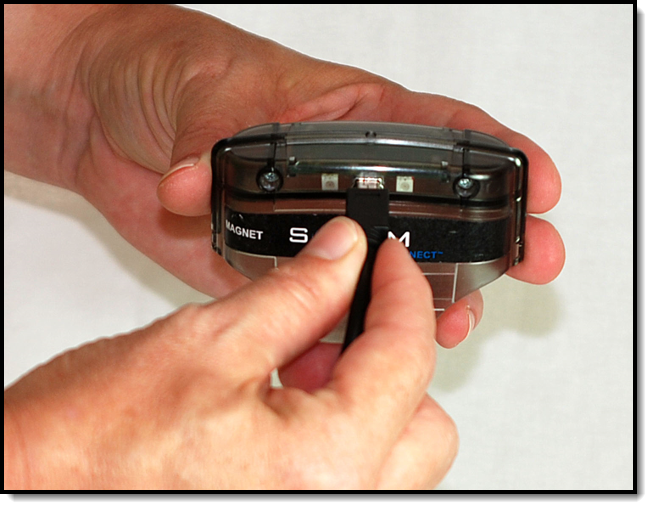
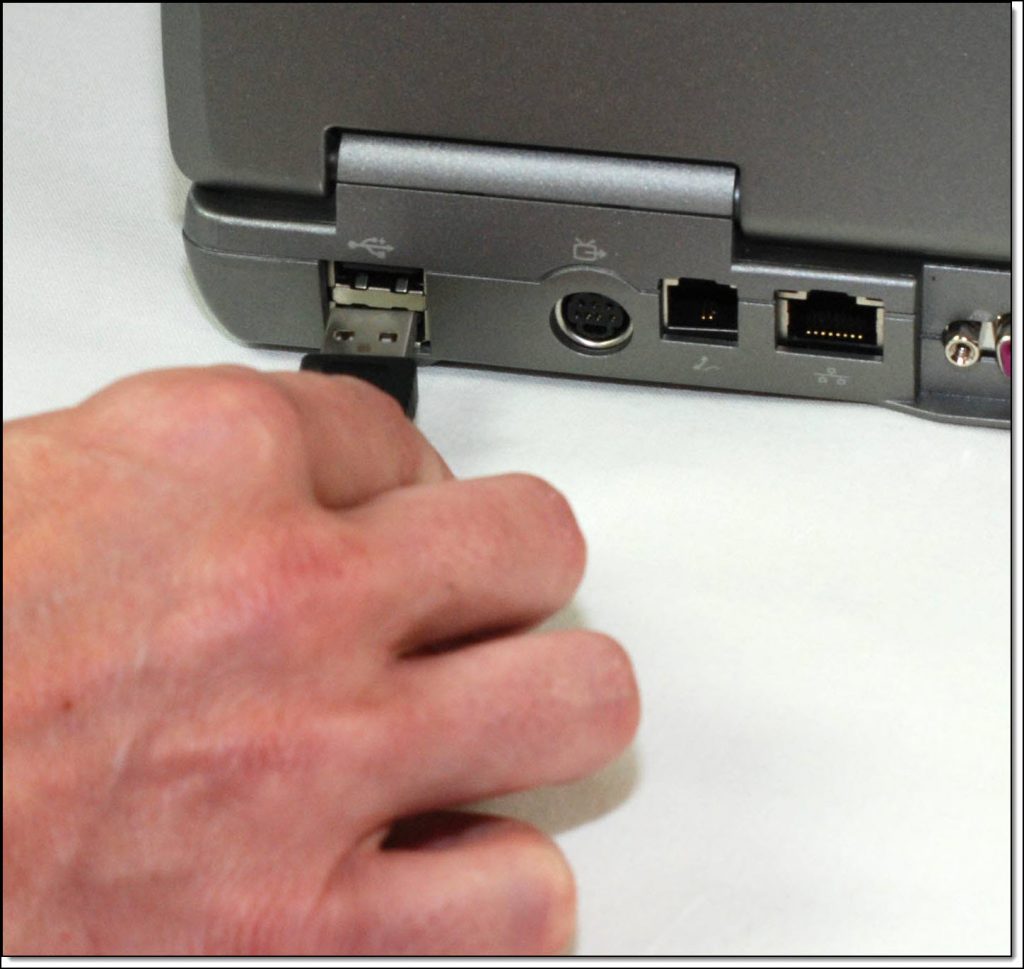
- Plug the small (mini-B type) USB connector into the Direct Connect device and the large (A type) USB connector into the USB port on your computer.
 click to enlarge |
 click to enlarge |
The red and blue lights on the Direct Connect device blink for approximately 5 seconds then both remain on. Bracelet status in Direct Connect Application: Waiting for Bracelet
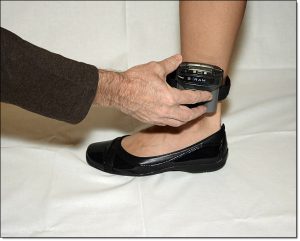
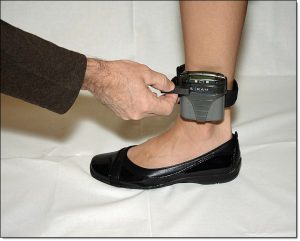
- Attach Direct Connect Device to bracelet by aligning the Direct Connect device with the top of the bracelet and then sliding the Direct Connect device down over the bracelet.
- Place the magnet on the Direct Connect device where the word “Magnet” appears until the red light turns off.
click to enlarge
click to enlarge
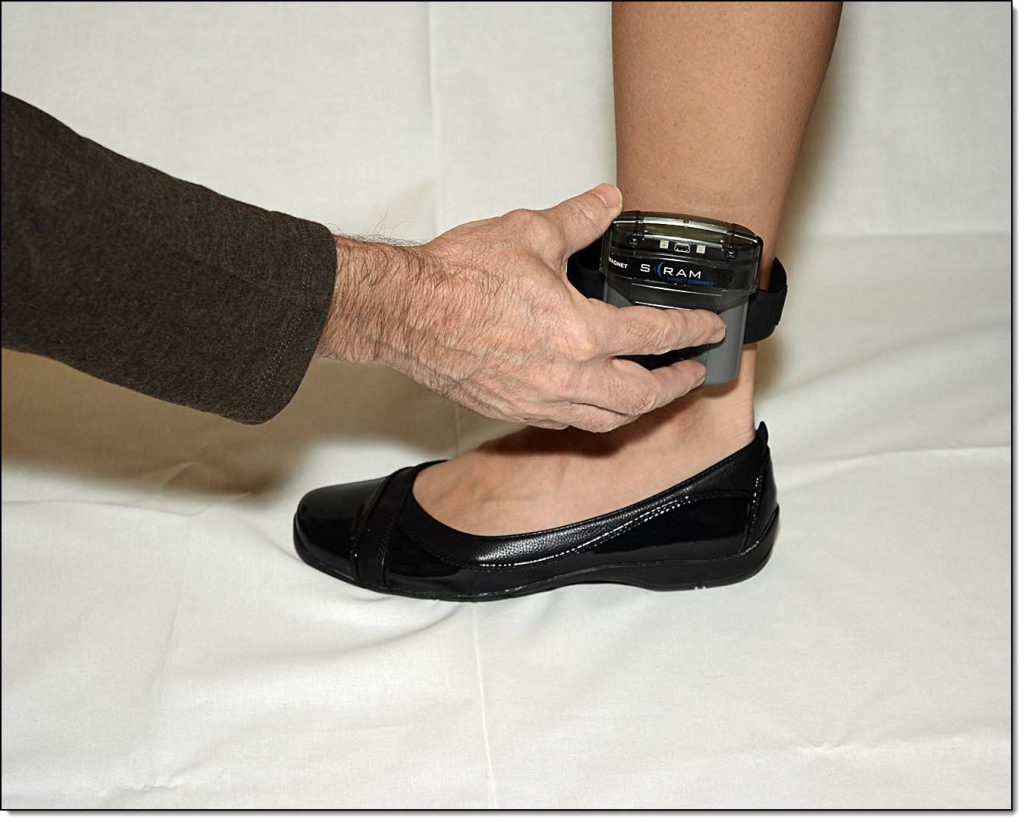
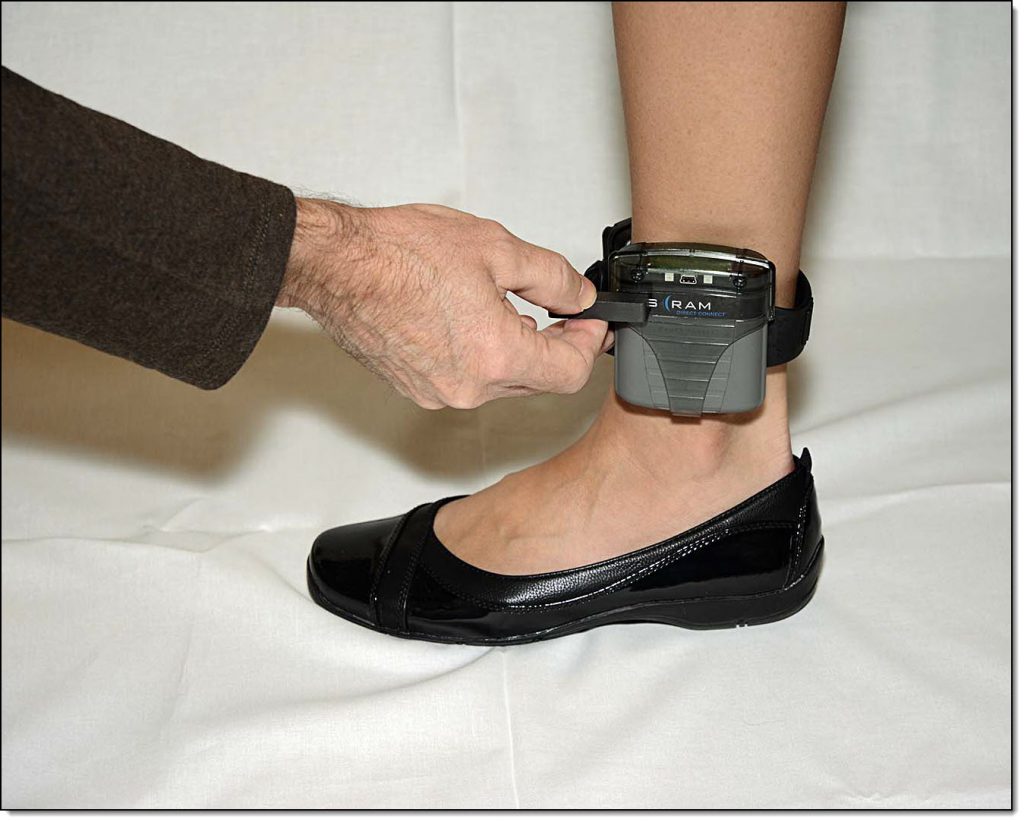
While the bracelet is communicating via Direct Connect application, any remaining data is transferred from the bracelet to SCRAMNET. The bracelet’s software is also checked and updated if necessary. As a best practice, take a moment to verify the client’s information displayed on the Direct Connect application. The information should match the current client associated to the bracelet.
Once communication has completed the blue light will turn off on the Direct Connect device for approximately 5 seconds and then both lights will turn back on. Navigate to SCRAMNET and refresh the page. The bracelet’s information is no longer displayed on the Equipment page. The bracelet is now back in inventory.
- Remove the Direct Connect device from the bracelet.
Removing the Bracelet
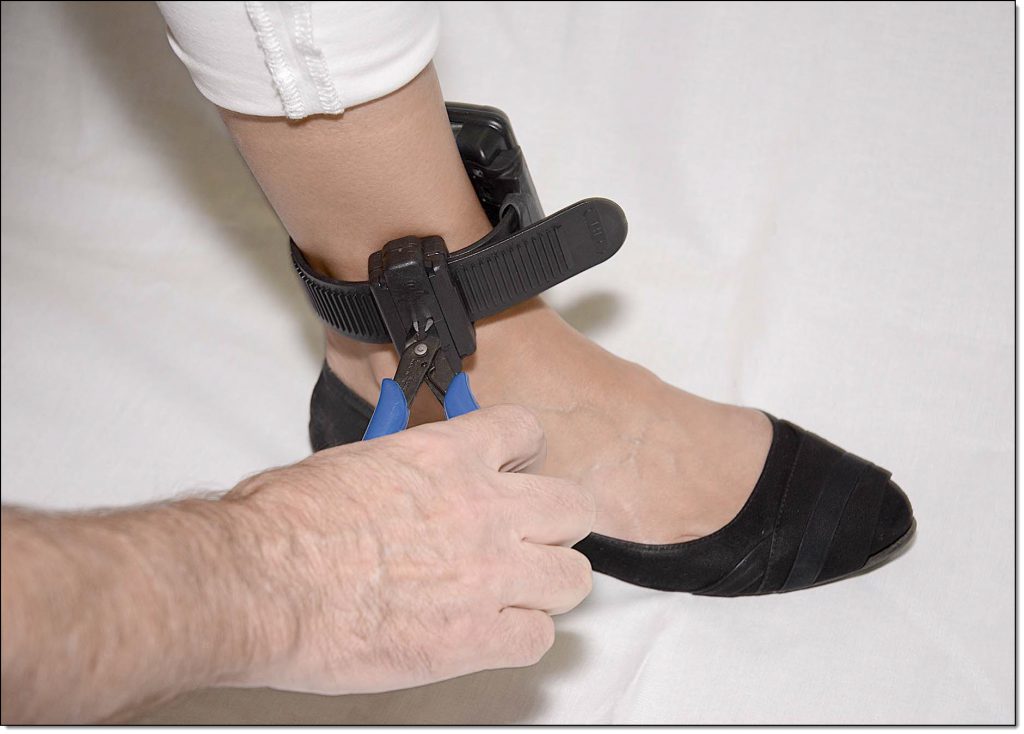
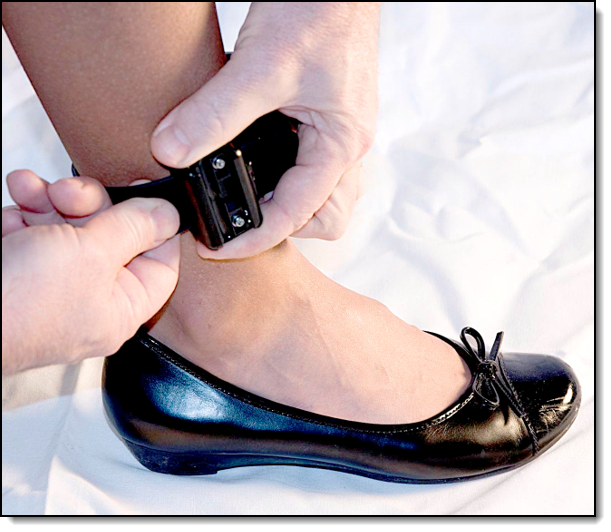
- Place the shear cutter on the center line where the two pieces of the tamper clip meet. Press down firmly with one point of the shear cutter until the point breaks through the plastic. Press down firmly with the other point of the shear cutter until that point breaks through the plastic. Squeeze the shear-cutter handles until the plastic center breaks and the two pieces separate from the buckle cover.
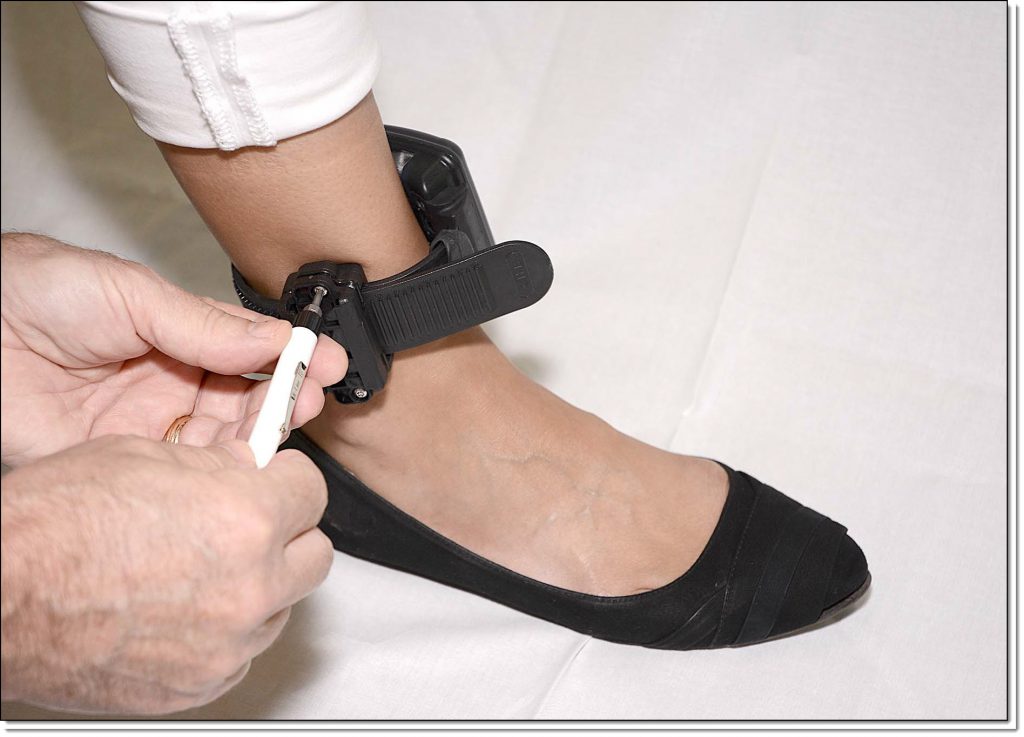
- Using the T10 screwdriver, loosen the two retaining screws.
- Pull the strap back through the buckle, removing the bracelet from the client’s ankle.
 click to enlarge |
 click to enlarge |
 click to enlarge |
Check in the Standard Base Station
- Plug the base station in to a power source.
- Connect the base station to the Direct Connect cable.
- For Step by step instructions, view the Upload SCRAM Base Station Data Help section.
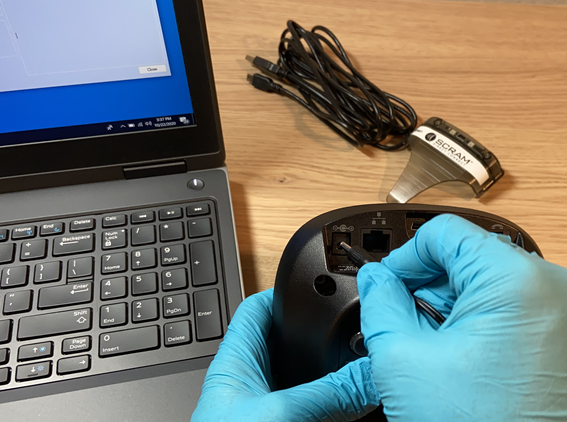 Plugging Power Cord into the Back of Base Station (click to enlarge) |
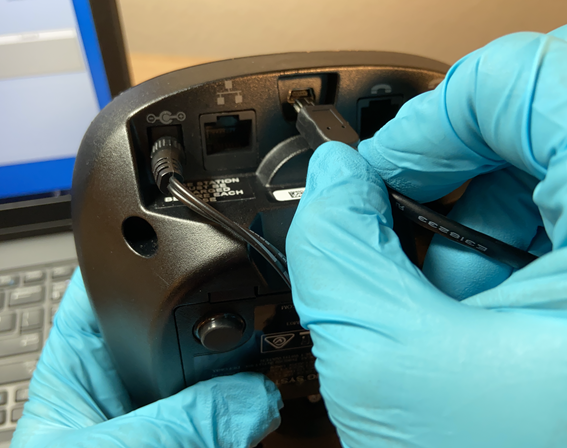 Plugging Direct Connect Cable into the Back of Base Station (click to enlarge) |
While the base station is communicating via the Direct Connect application, take a moment to verify the client’s information displayed on the Direct Connect application. The information should match the current client associated to the base station.
- Once communication has completed, navigate to SCRAMNET and refresh the page. The base station’s information is no longer displayed on the Equipment page. The base station is now back in inventory.
- The Base Station’s LCD screen will display Storage Mode.
Check in the Wireless Base Station
When checking in the Wireless Base Station:
- If the option of Stop Monitoring now and check in Equipment now has been selected, once the Wireless Base Station communicates with SCRAMNET, the status is automatically updated to In Inventory.
- If the option of Stop Monitoring now and Check in Equipment later has been selected, once the Wireless Base Station communicates with SCRAMNET, the status is updated to “Awaiting Return” on the Equipment page. Once the device is received, select the “Move to Inventory” option to update the status to In Inventory.
After Client Leaves
Once the equipment has been removed, follow the information provide in the Approved Equipment Cleaning Products and Biohazard/Disposal and Clean and Disinfect the Equipment Help articles.