This page explains the options available to establish a Wi-Fi connection for a client who will use that communication method to transfer SCRAM House Arrest® Bracelet data to SCRAMNET®.
Options
The two options available to establish a Wi-Fi connection are:
- Establish Wi-Fi Connection During Assignment
- Client Establishes Wi-Fi Connection at Home
Establish Wi-Fi Connection During Assignment
If the client knows his/her router information, you can establish a Wi-Fi connection with the client’s router when you are meeting with the client to assign equipment. To do this:
-
- Plug in Base Station.
Plug the power cord into the base station and an electrical outlet.- Base station display if base station IS FULLY CHARGED:
- Line 1 – STORAGE MODE
- Line 2 – FULLY CHARGED
- Base station display if base station IS NOT FULLY CHARGED:
- Line 1 – STORAGE MODE
- Line 2 – BATT CHARGING
- Base station display if base station IS FULLY CHARGED:
- Access the client’s Equipment page and click the Assign Equipment button.
The Assign Equipment page appears. - Enter the bracelet serial number.
- Select an option in the “Strap Version used on Bracelet” drop-down list.
- Enter the wireless base station serial number.
The options in the Communication Method drop-down list change to “Cell” and “Wifi.” - Select the “WiFi” option (recommended) in the Communication Method drop-down list.
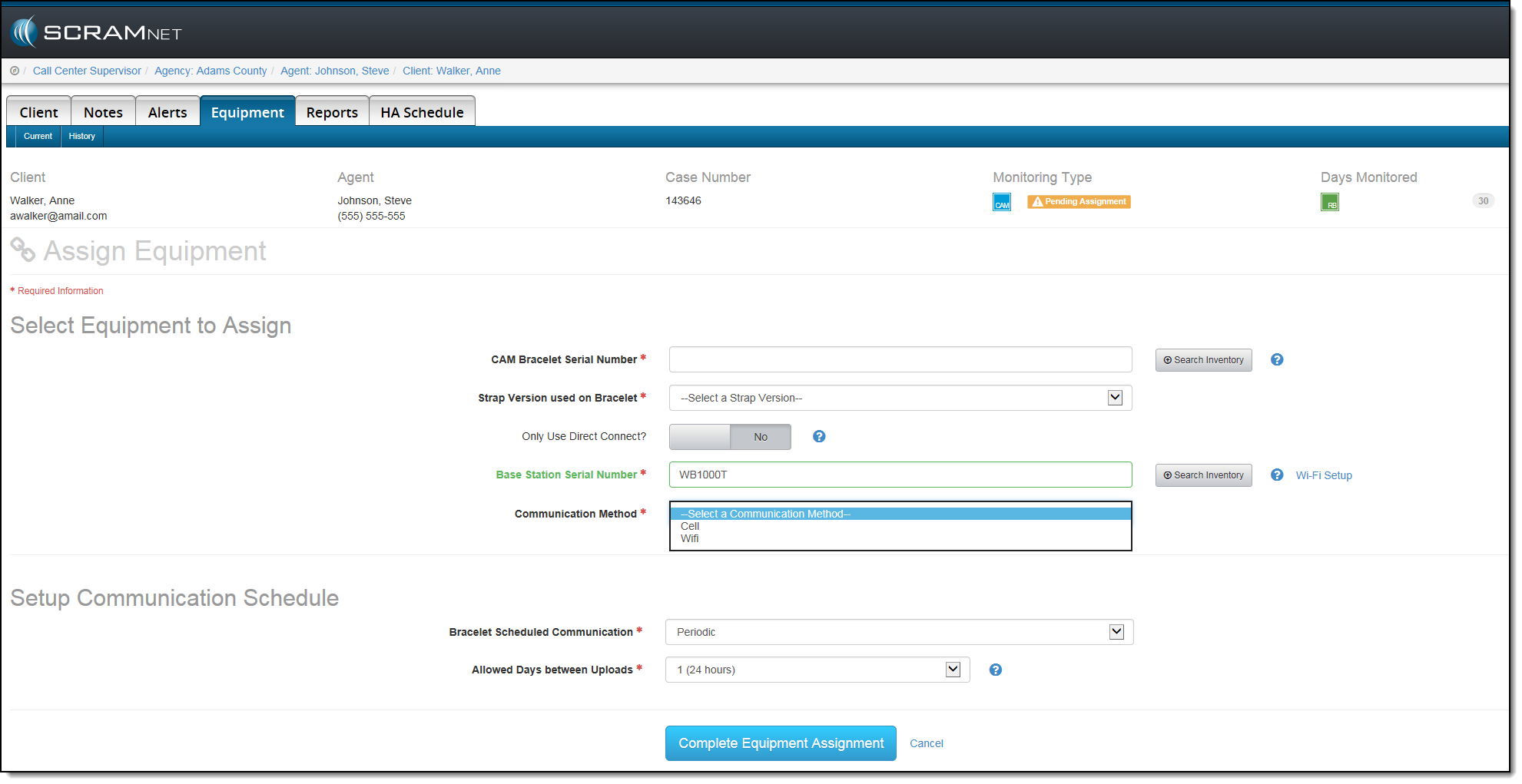
Assign Equipment Page – Wireless Base Station Communication Methods - Set up the client’s router.
- Click the Wi-Fi Setup link to access the WiFi Setup pop up.
- Follow the instructions on the pop up to complete the connection process.
- Click the Send to Base Station button.
The router information is transmitted to the assigned base station and the “Wi-Fi SSID will be available for 24 hours to assign to a device(s)” message appears on the pop-up, as shown below. - Close the pop up.
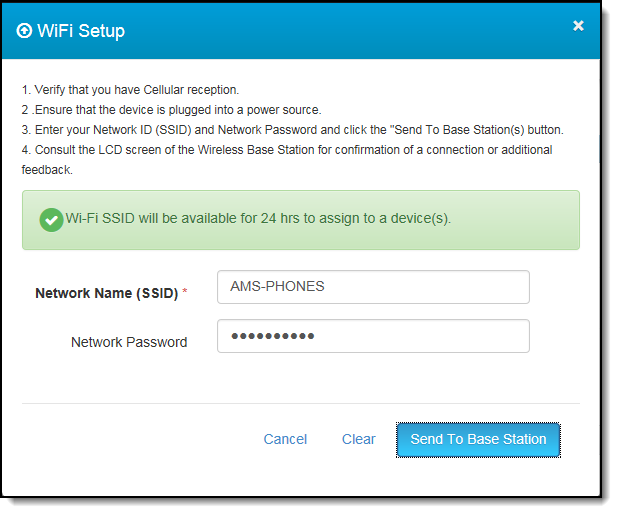
WiFi Setup pop up
- After establishing a bracelet communication schedule, click the Complete Equipment Assignment button.
- Click the Return to Currently Assigned Equipment button.
Base station display:- Line 1 – TIME/DATE
- Line 2 – MONITORING
- Plug in Base Station.
Note: Allow up to 30 minutes for the connection to be established.
Client Establishes Wi-Fi Connection at Home
If the client does not know their network name (SSID) and password, you have the option to assign equipment without establishing a Wi-Fi Connection and instruct the client to establish a Wi-Fi connection with his/her router once they arrive home. Cellular services will be used until the Wi-Fi connection is established. To do this:
- Point out the scramsystems.com/wifisetup URL on the label on the back of the wireless base station.
- Give the client a copy of the “Install Wireless Base Station at Monitoring Location” procedure.