On March 4, 2021, SCRAM Systems® will release a new Notifications Window in SCRAMNET®. This Notification Window displays new messages sent from your SCRAM TouchPoint™ client caseload. With this feature you can view, clear, mark messages as read, or respond to your clients’ messages from within SCRAMNET. All actions completed within the Notifications Window are reflected on each client’s TouchPoint Messaging page.
Notifications in SCRAMNET
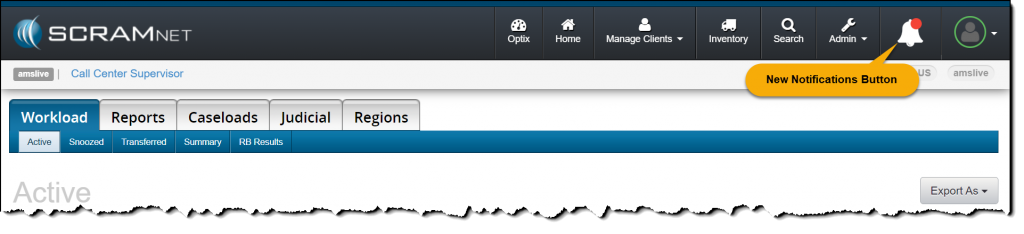
When a new message is sent by your client through the SCRAM TouchPoint app, the Notifications button in SCRAMNET will display a red badge. To view the message, click the button.
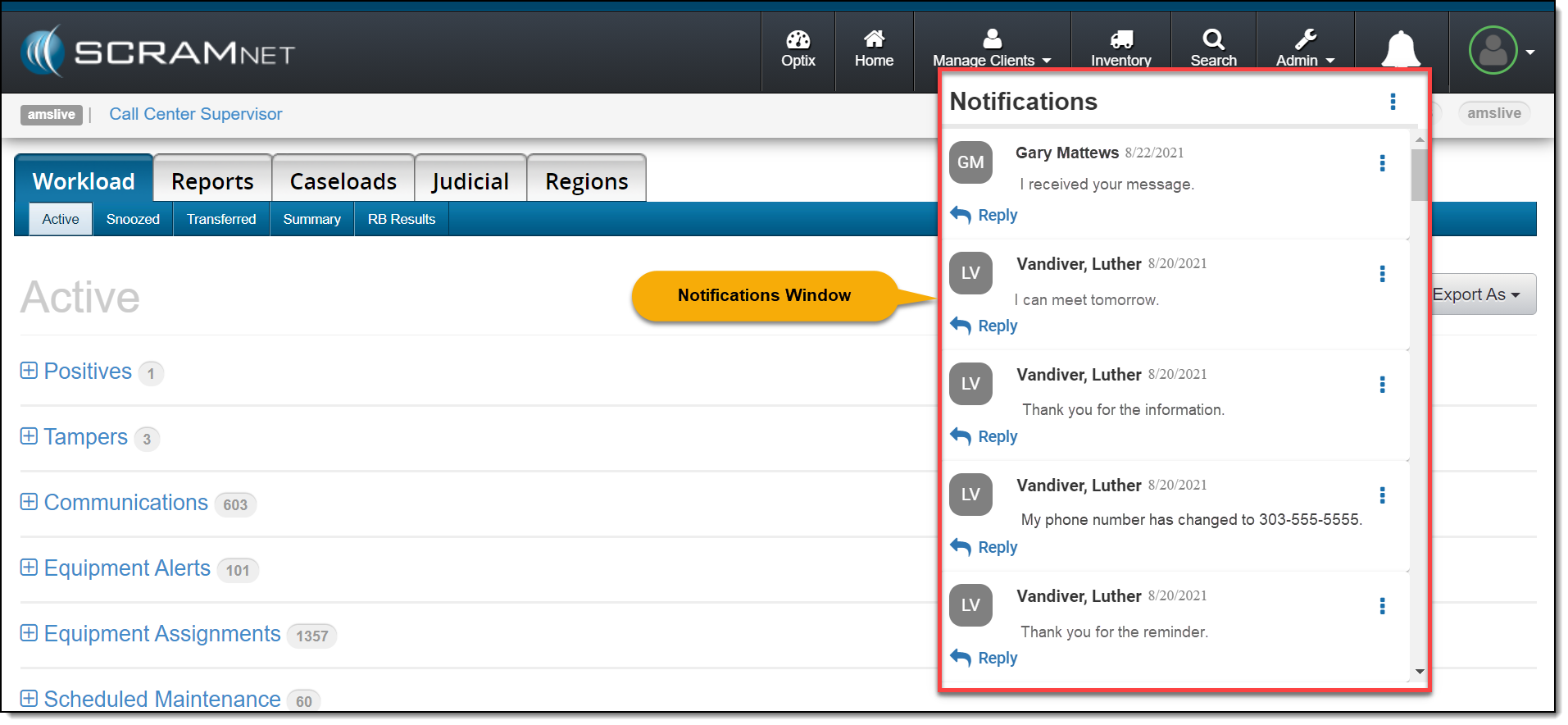
On the Notifications Window, the client’s name, date, and message is displayed.
Managing the Notifications Window
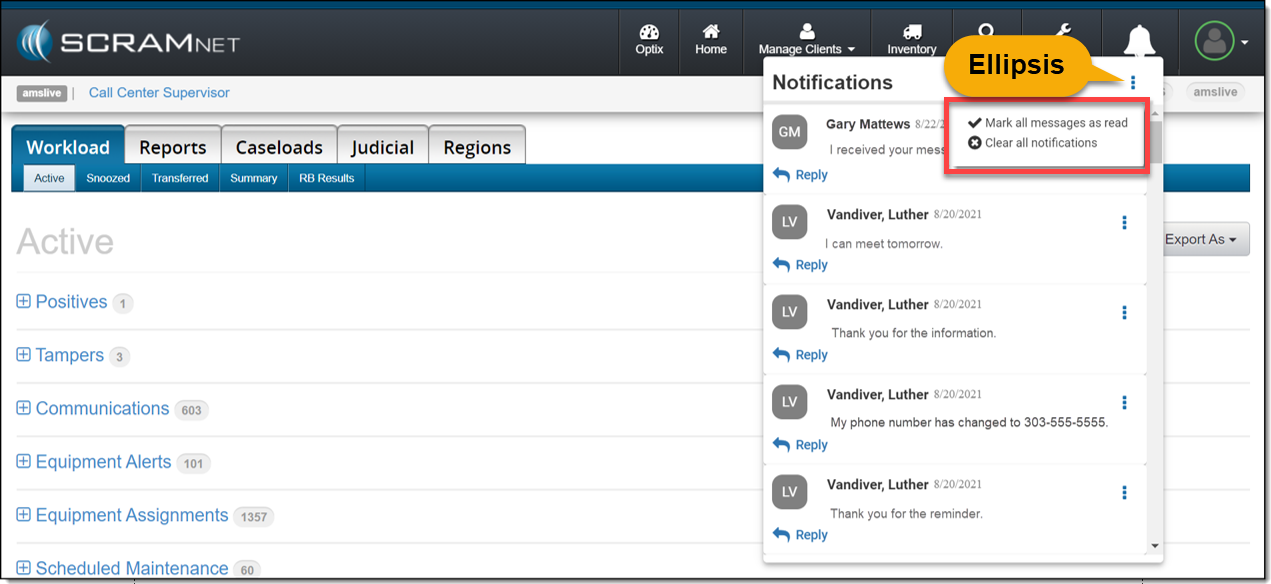
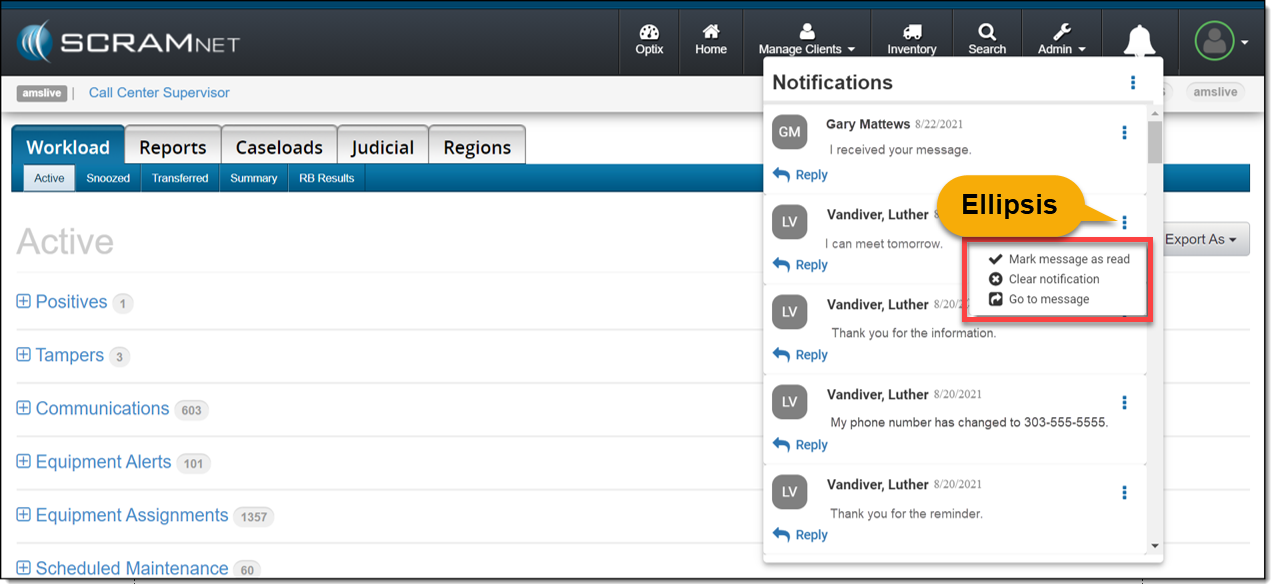
Selecting the ellipsis next to the Notifications heading or next to the client’s name will display a menu with following options:
- Mark all messages as read or Mark message as read: When selected, the message will be cleared from the Notifications Window. On the client’s TouchPoint Messaging page, the message will display as Read for the client.
- Clear all Notifications or Clear Notification: When selected, this option will clear the message from the Notifications Window in SCRAMNET. This does not mark the message as Read on the client’s TouchPoint Messaging page; it simply clears the message from the Notifications Window.
- Go to Message: This option will open a new tab that displays the client’s TouchPoint Messaging page. This action will clear the message from the Notifications Window.
Option One
Mark all messages as read or clear all notifications by selection the ellipsis to the right of the Notifications heading.
Option Two
Manage each message individually by selection the ellipsis next to the message.
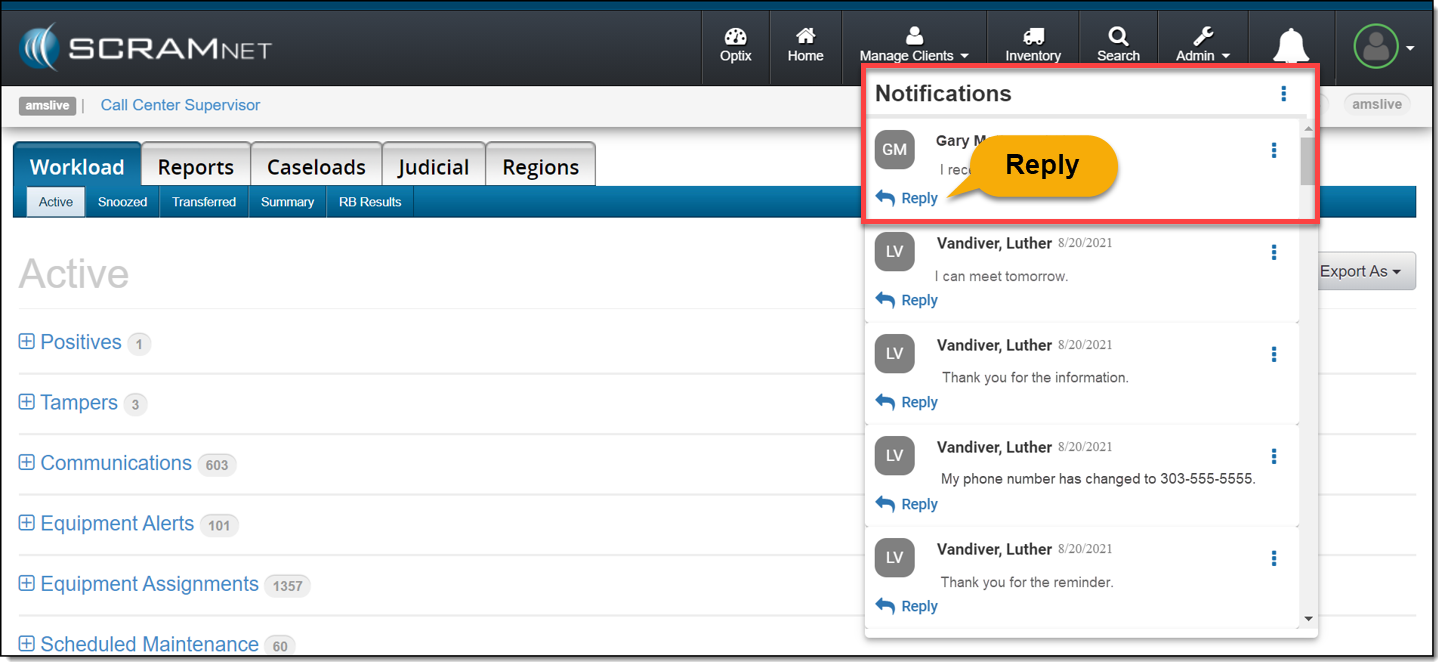
Reply
Click the Reply link to respond to the client’s message. After entering a response, click the Send button.
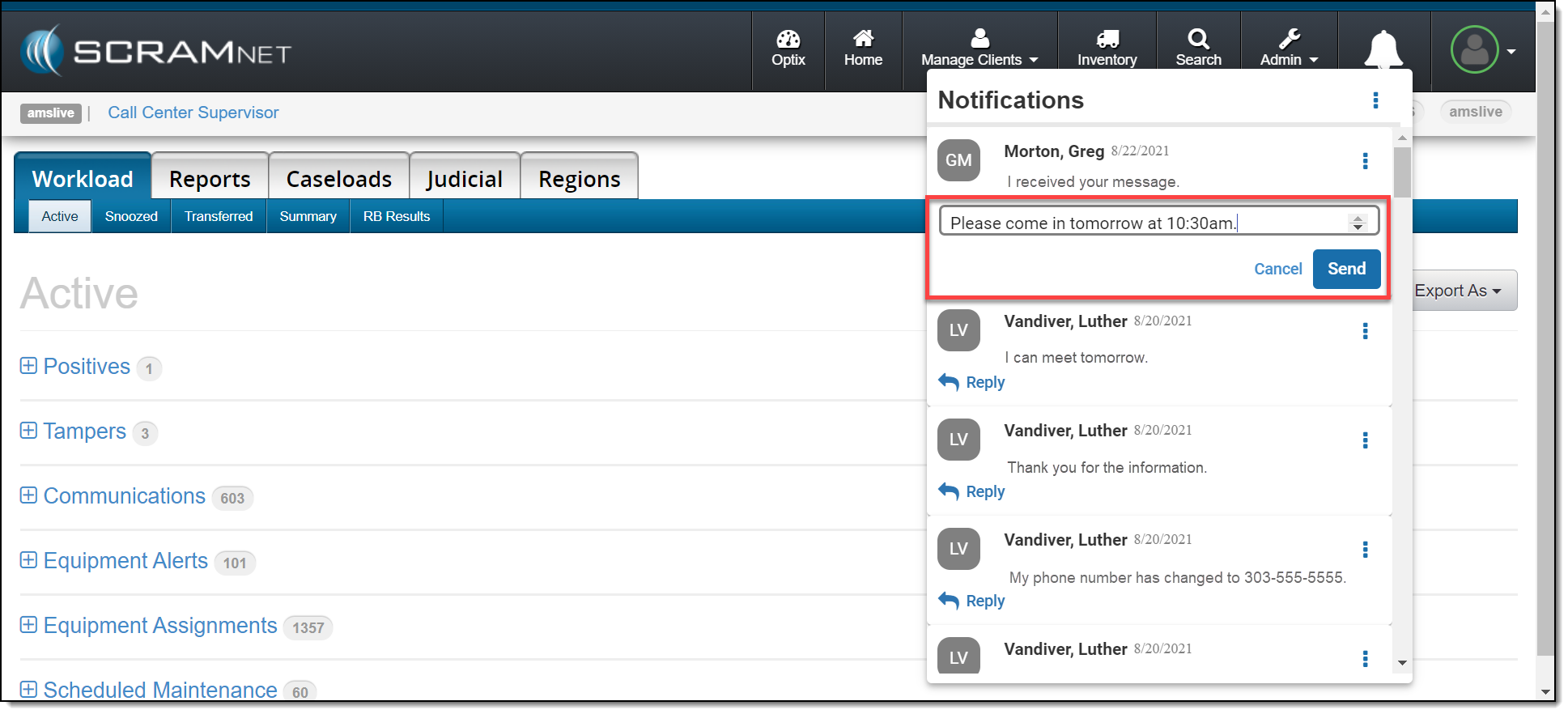
The message will no longer be displayed in the Notifications Window.
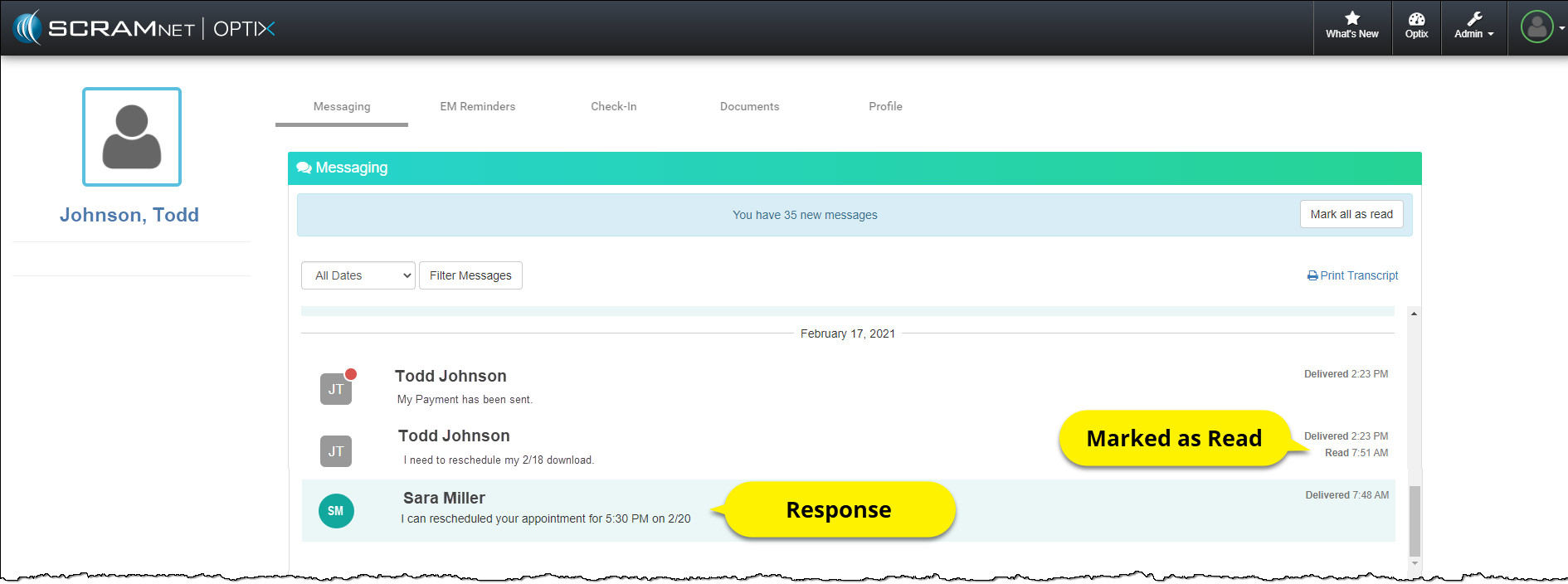
On the client’s TouchPoint Messaging page, the message will be marked as Read and the response sent by the user will be displayed.
Feedback
As always, please contact SCRAM Systems Customer Service with any recommendations for system improvements.