On July 11, 2024, SCRAM Systems will release enhancements for your client Check-In and Document-sharing Caseloads. Specifically:
- You may now eliminate the requirement for the client to answer questions during a TouchPoint Check-In.
- Clients may send Word and PDF documents, as well as images, by utilizing the Documents feature within the TouchPoint mobile application.
 | The latest version of the TouchPoint app will be available to clients in the app stores. As a best practice, SCRAM Systems recommends that all TouchPoint app users enable their smartphones to automatically update their apps to make this process easier. |
 | Not seeing the enhancement in SCRAM Optix? Clear your cache and cookies and refresh your browser window. |
No Question Check-In Group
When a client is not required to answer questions during a TouchPoint check-in, you may remove that requirement for current Check-In Groups or create a new Check-In Group with the questions removed.
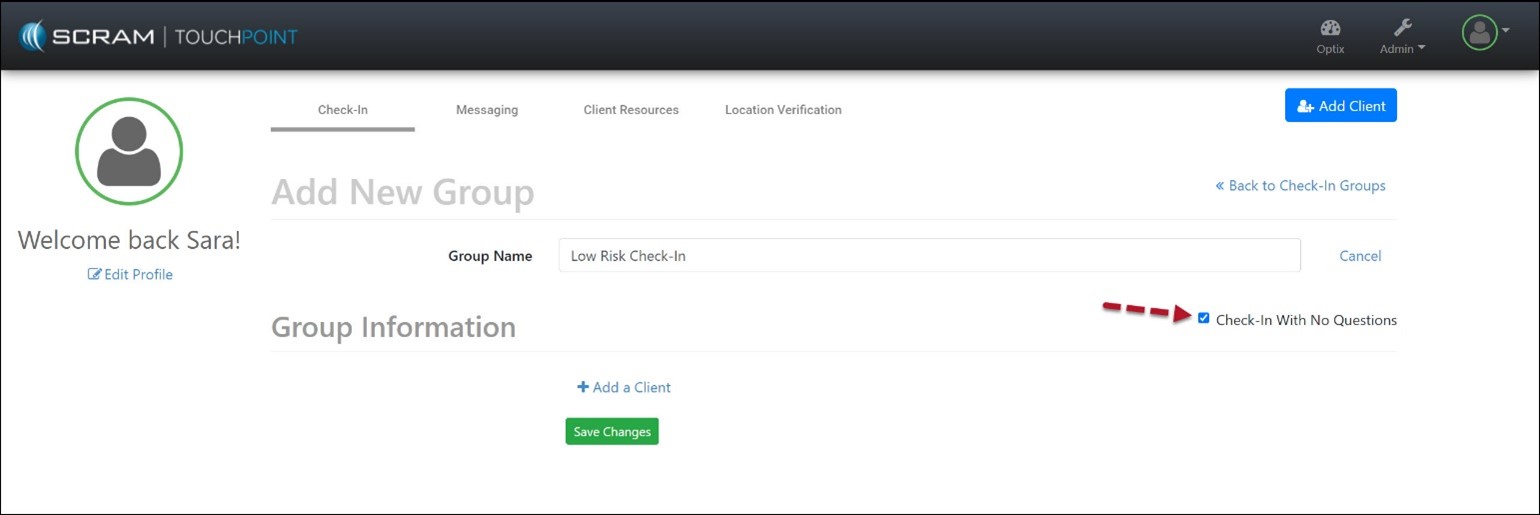
New Check-In Group
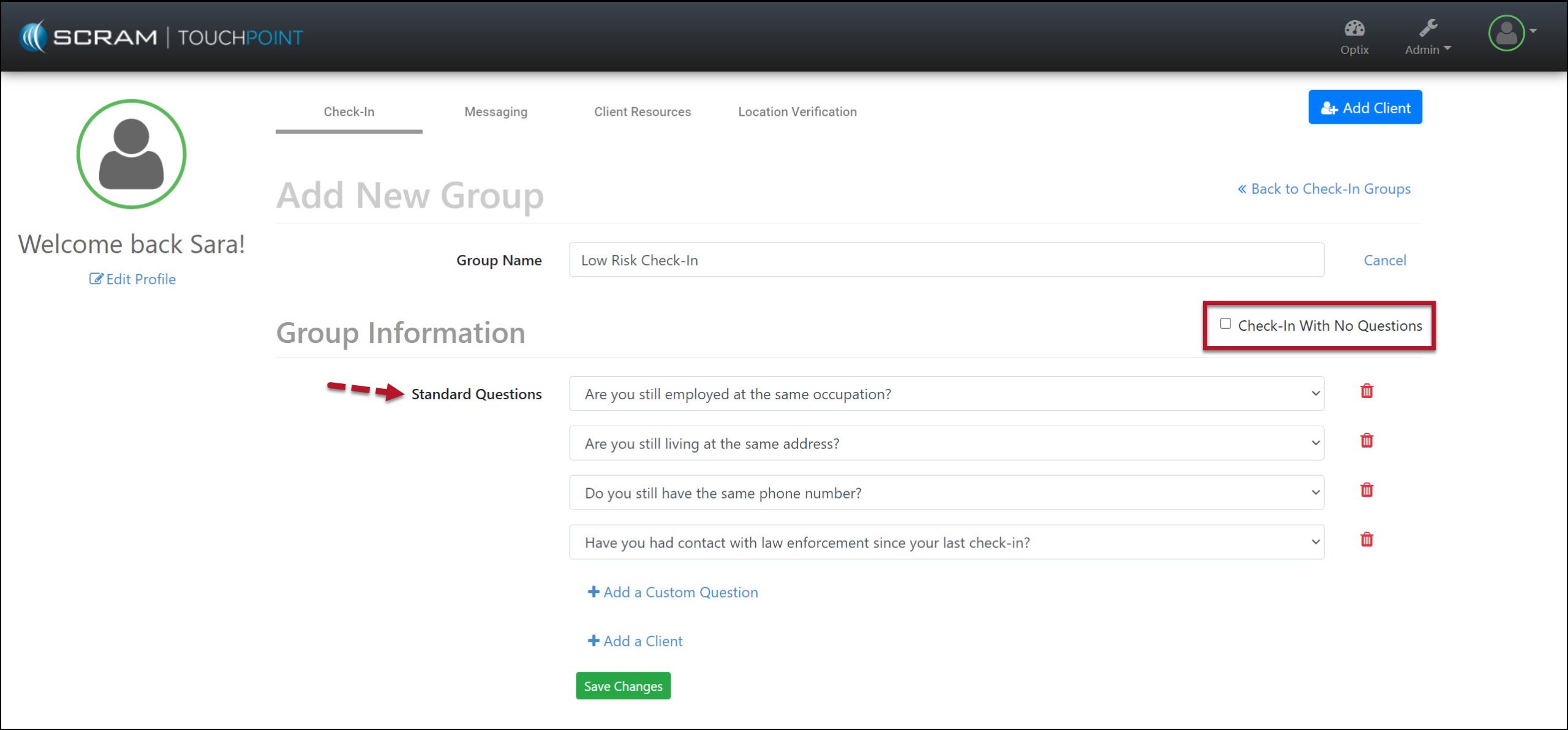
When creating a new Check-In Group, select the checkbox next to the statement “Check-In With No Questions” to remove all questions from the check-in.
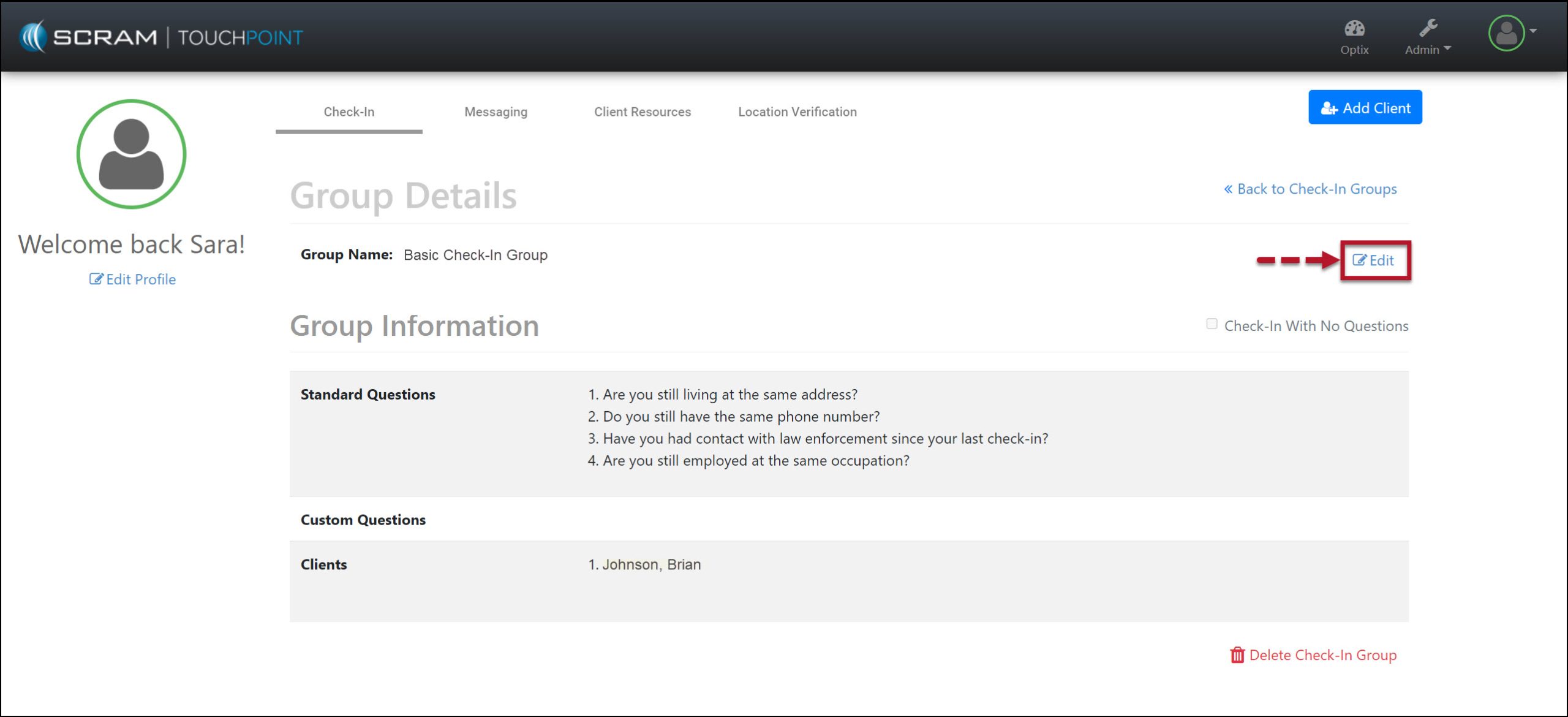
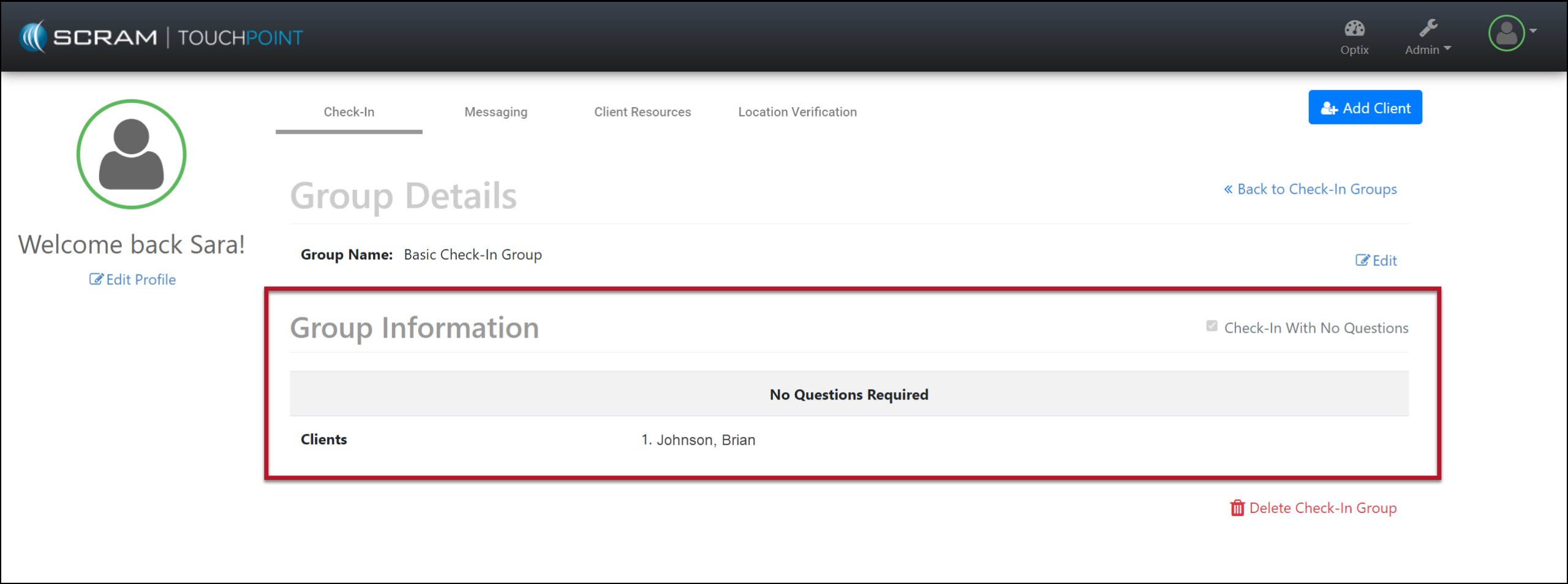
Edit a Current Check-In Group
To remove the questions from a current Check-in Group, select the Edit link and the checkbox next to “Check-in Group With No Questions.”
During a Check-In, once the client has selected the Check-In button within the TouchPoint mobile application and completes the Biometric verification (fingerprint or face ID), they will be prompted to take a photo and submit the check-in.
Document Sharing from the Client’s TouchPoint Mobile Application
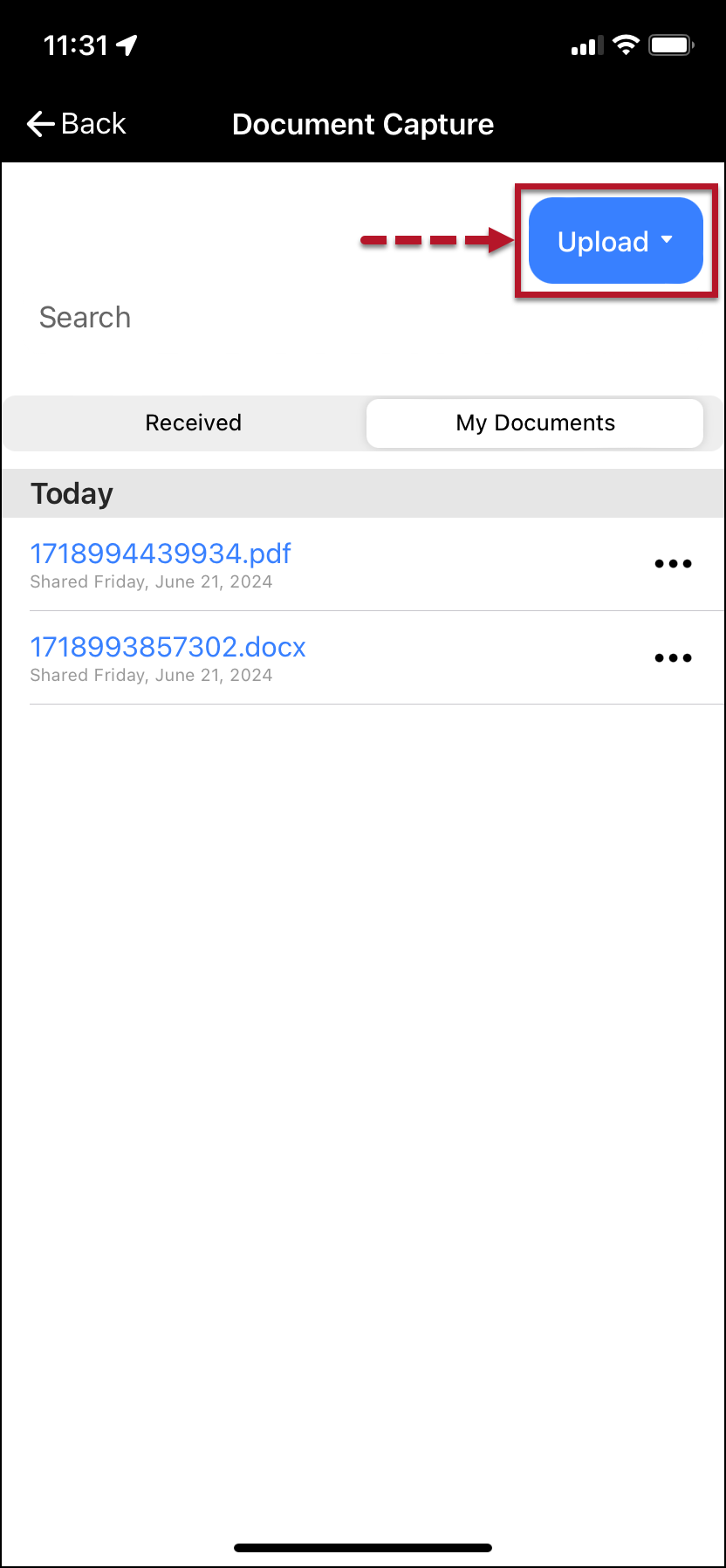
The client may share images from their TouchPoint mobile application from the Documents Capture screen. With this update, the client may also share Word documents and PDF files from their mobile application.
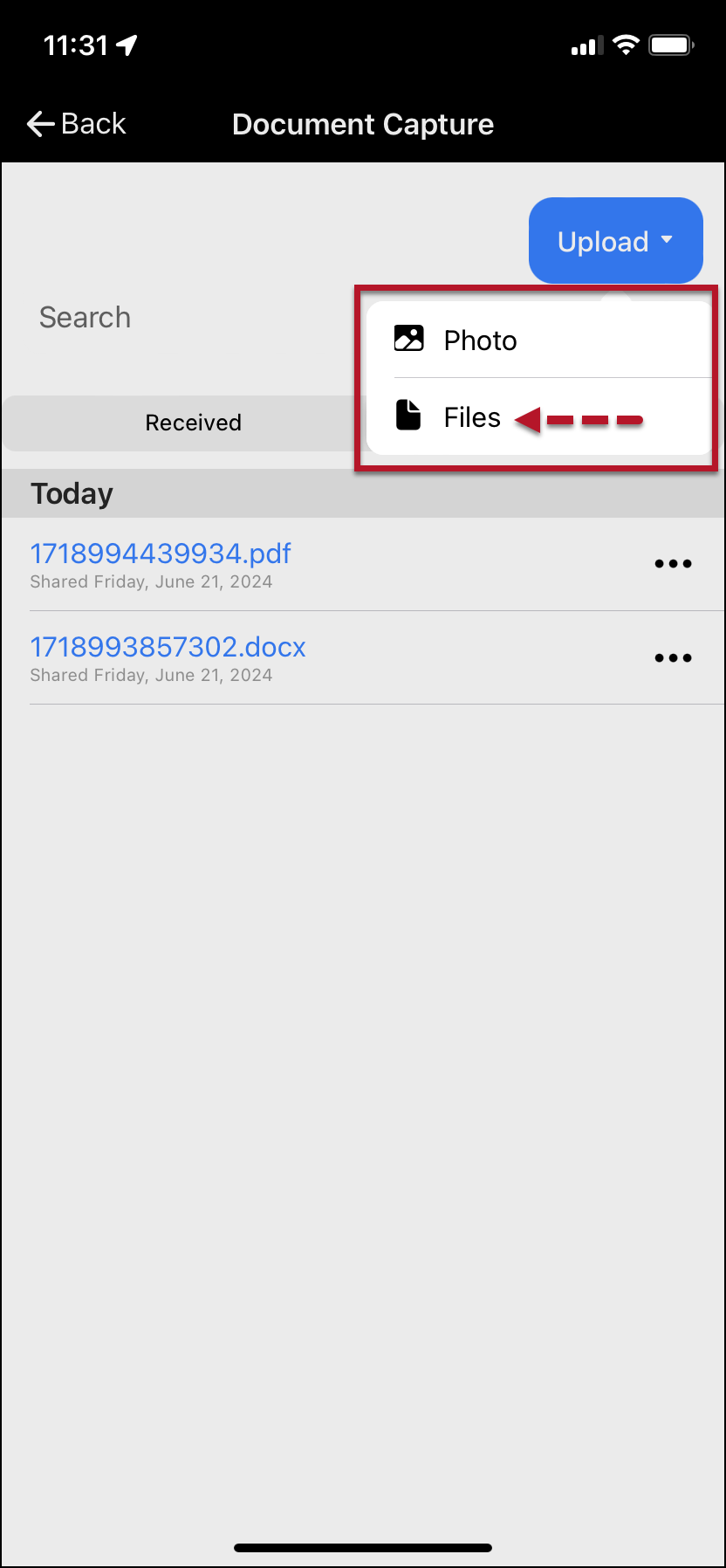
Once the client has saved a document to the smartphone, on the Document Capture screen:
- Tap the Upload button.
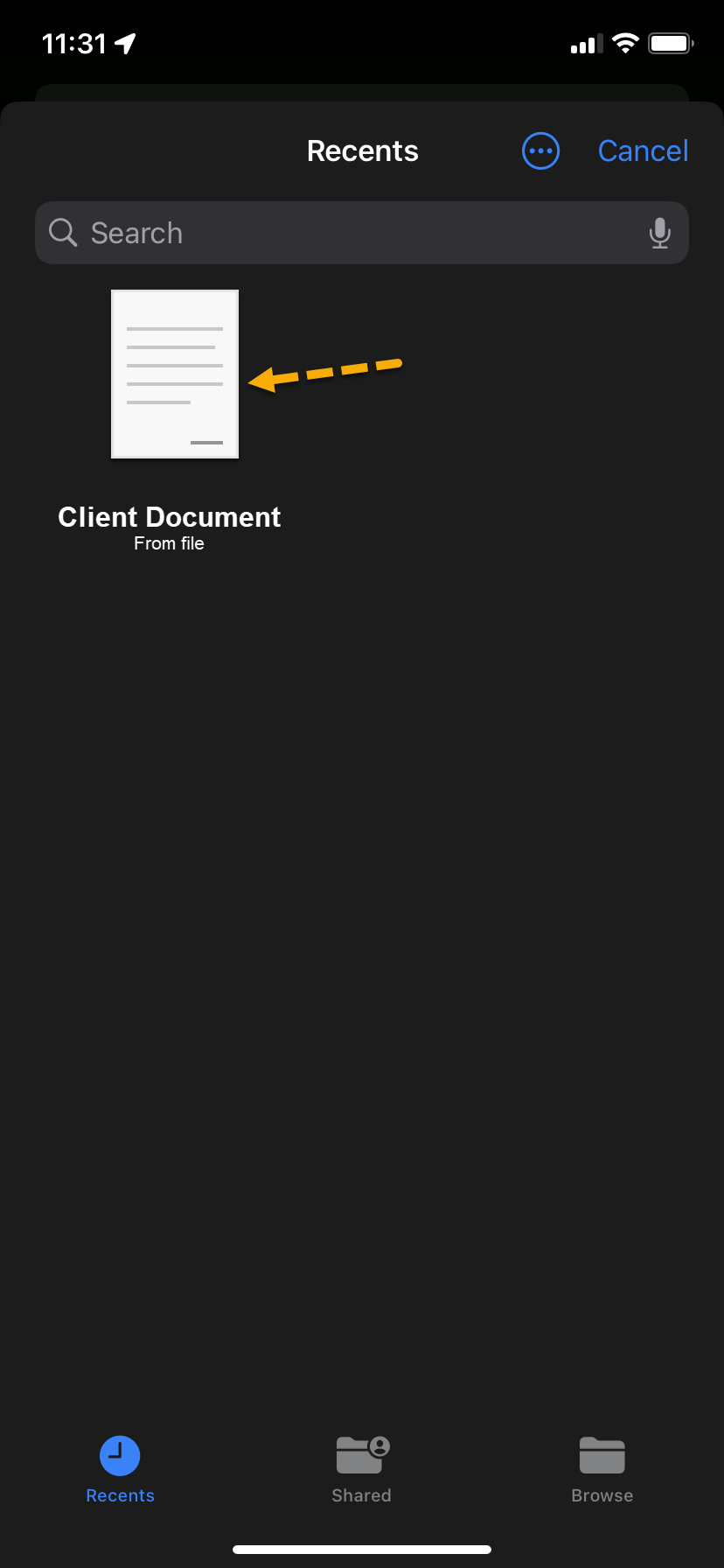
- Tap the Files option on the dropdown menu.
- Search for or tap on the file to be shared.
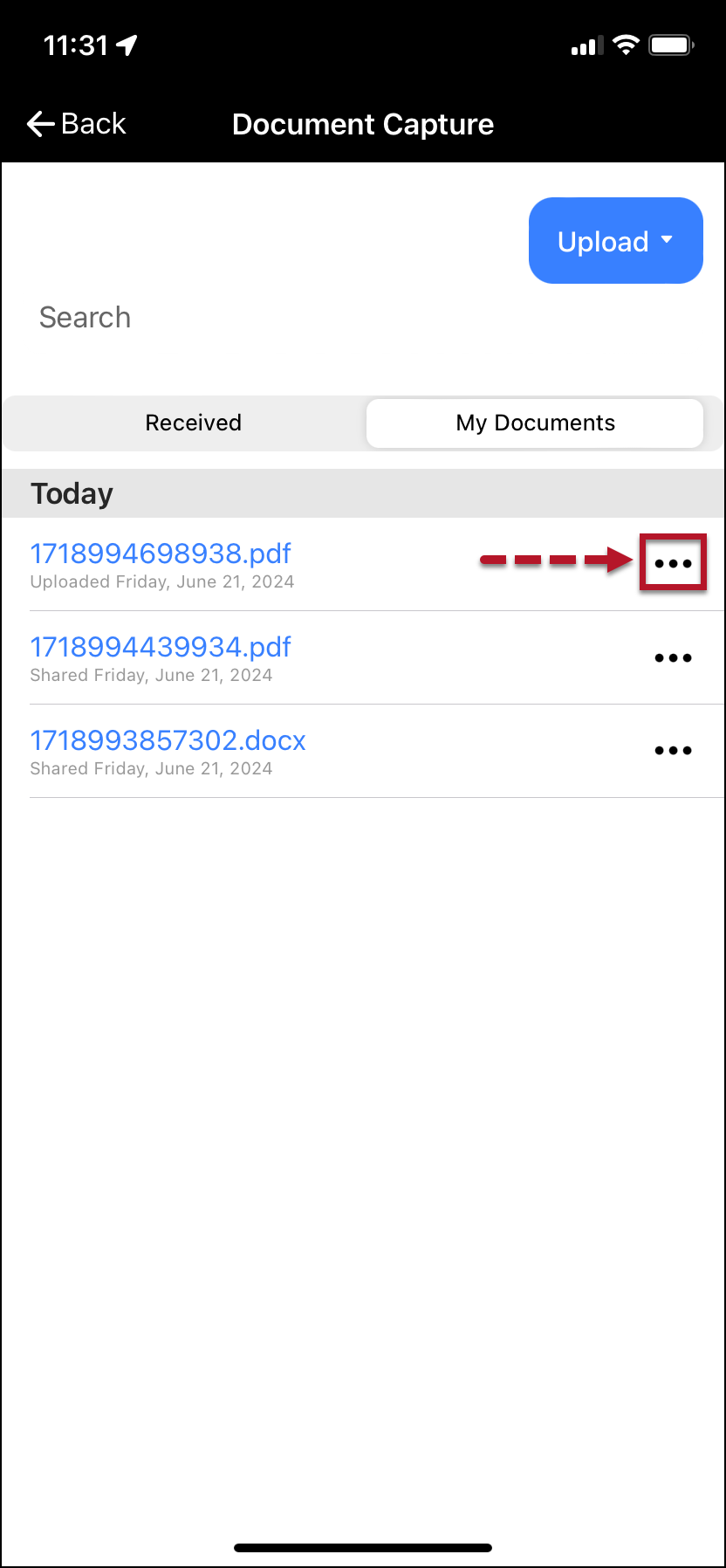
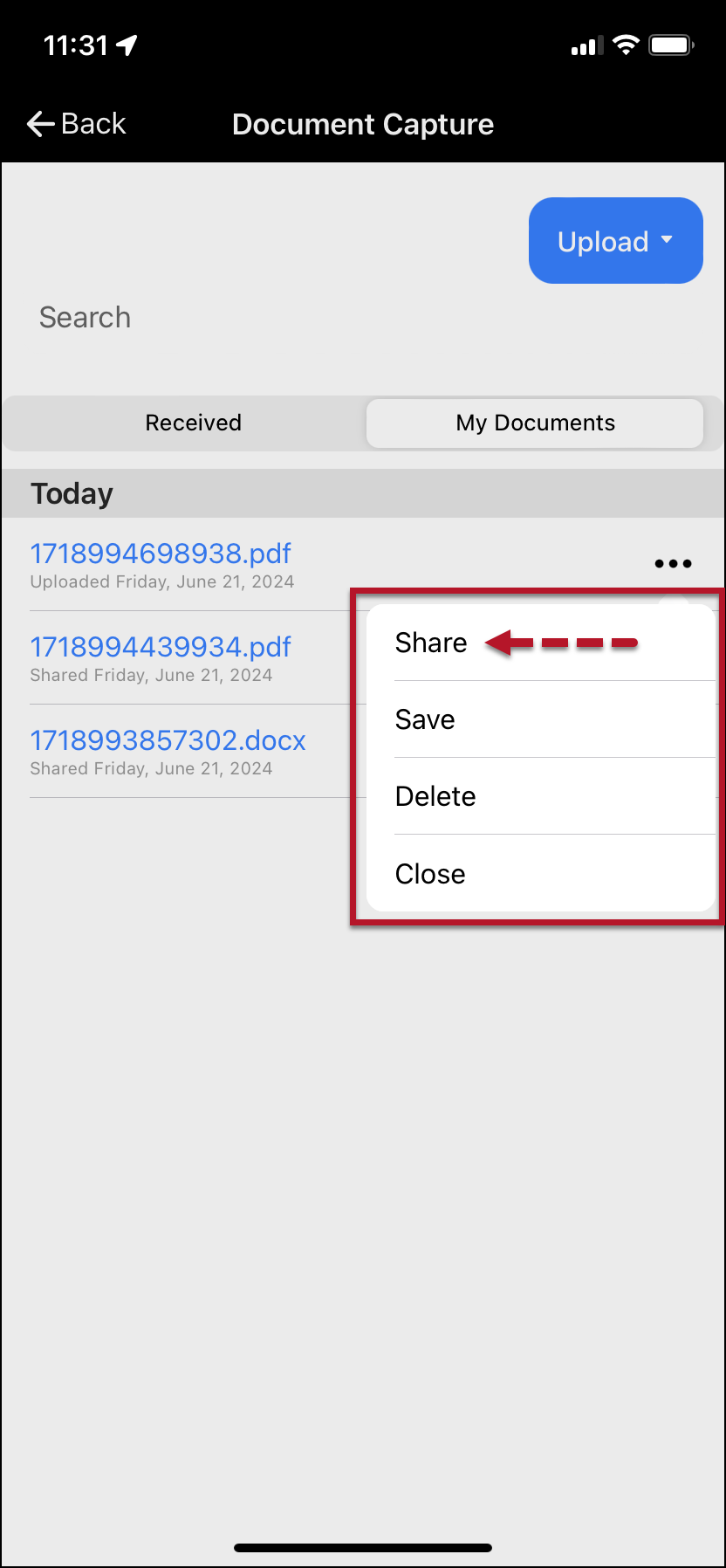
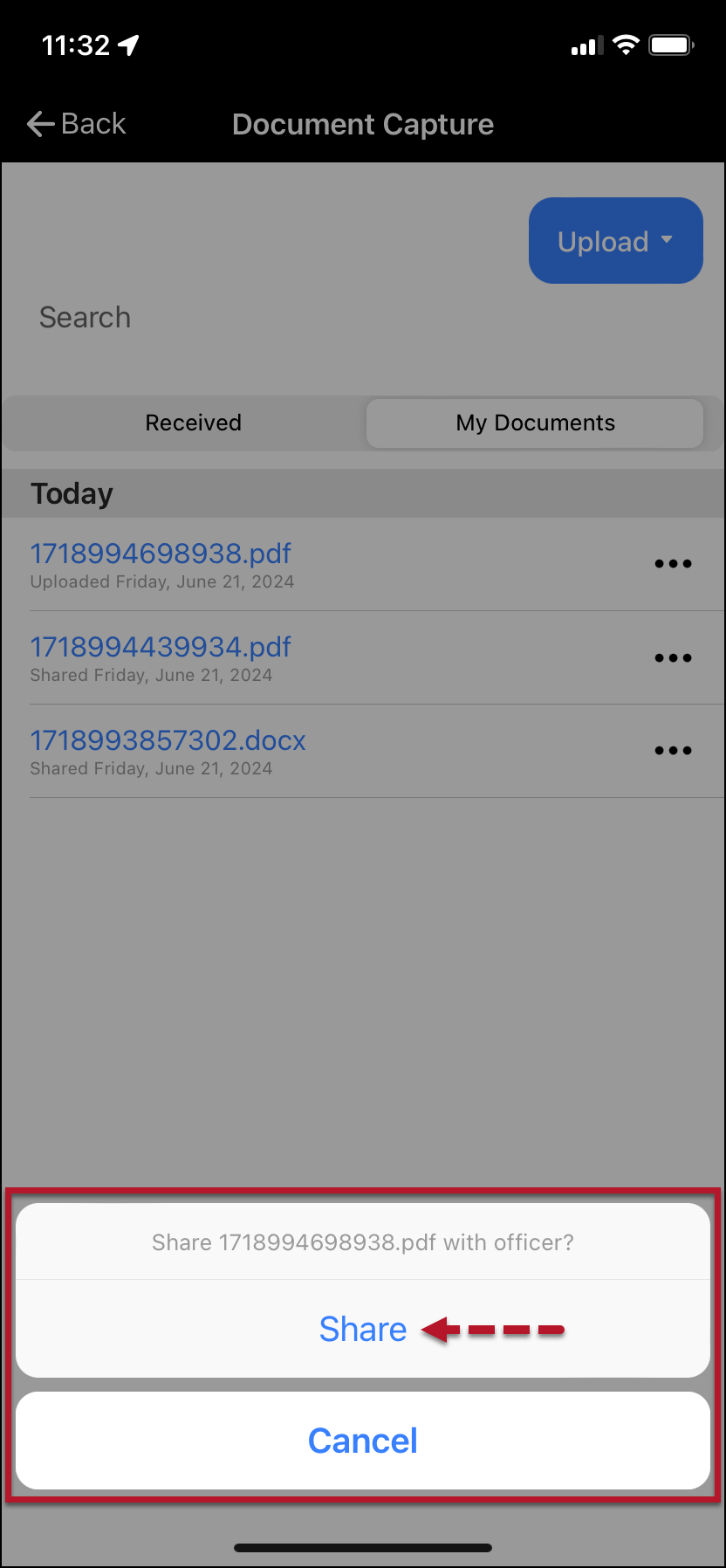
- The uploaded file will be listed on the client’s My Documents screen. Select the ellipsis next to the file and tap the Share option on the dropdown menu to access it.
- Tap the Share file acknowledgment button.
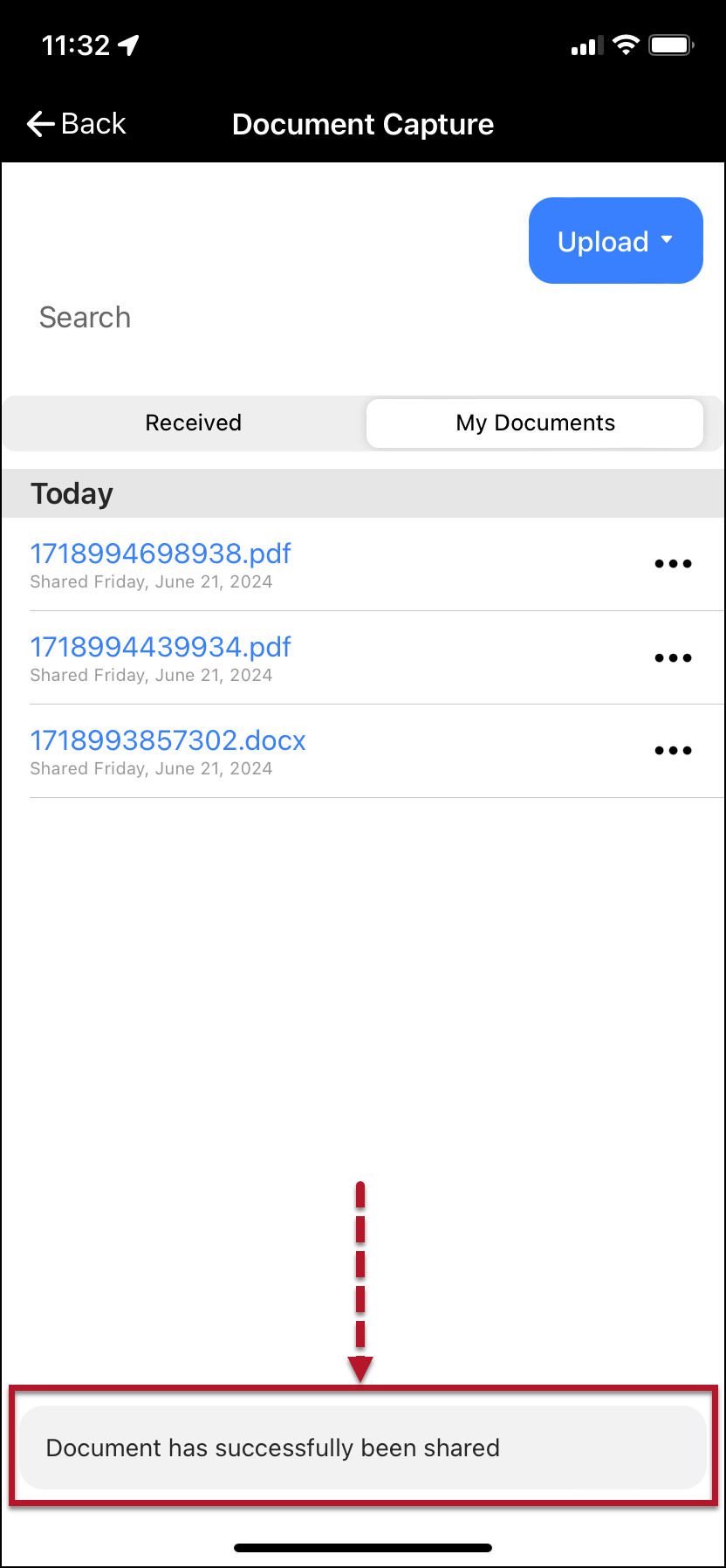
- Once shared, a “success” banner will be displayed on the bottom of the screen.
|
|
Viewing a Shared File
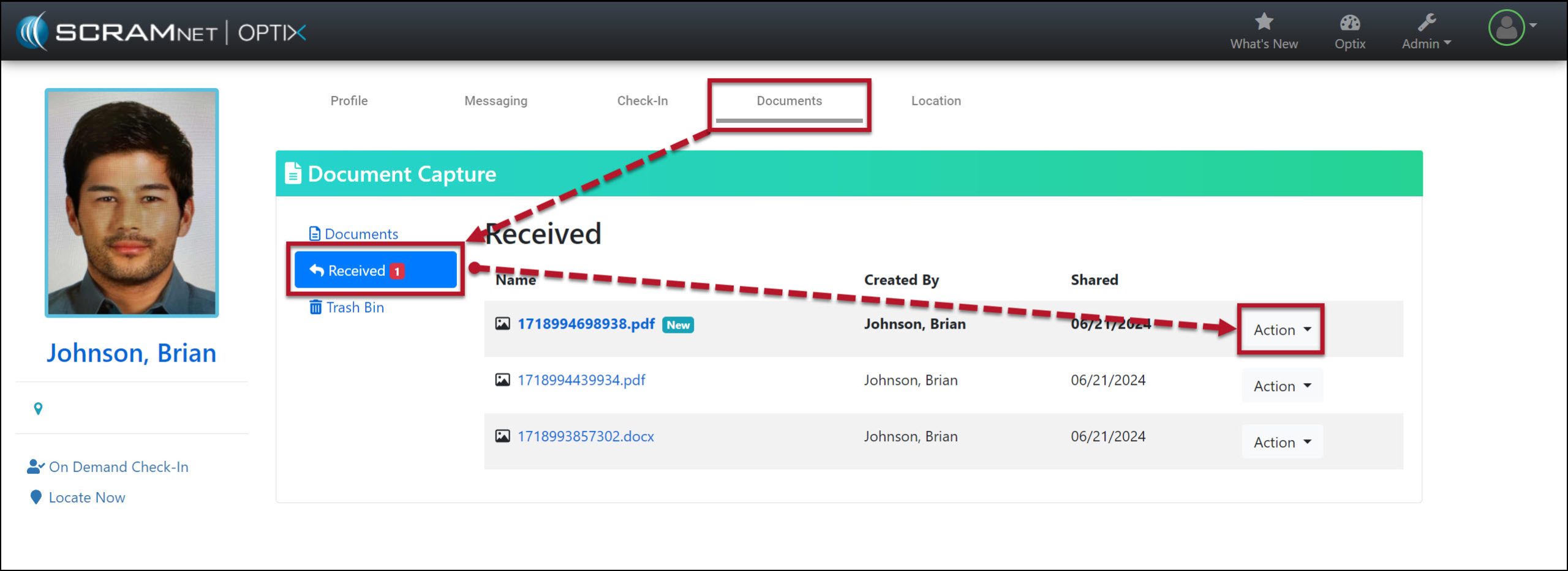
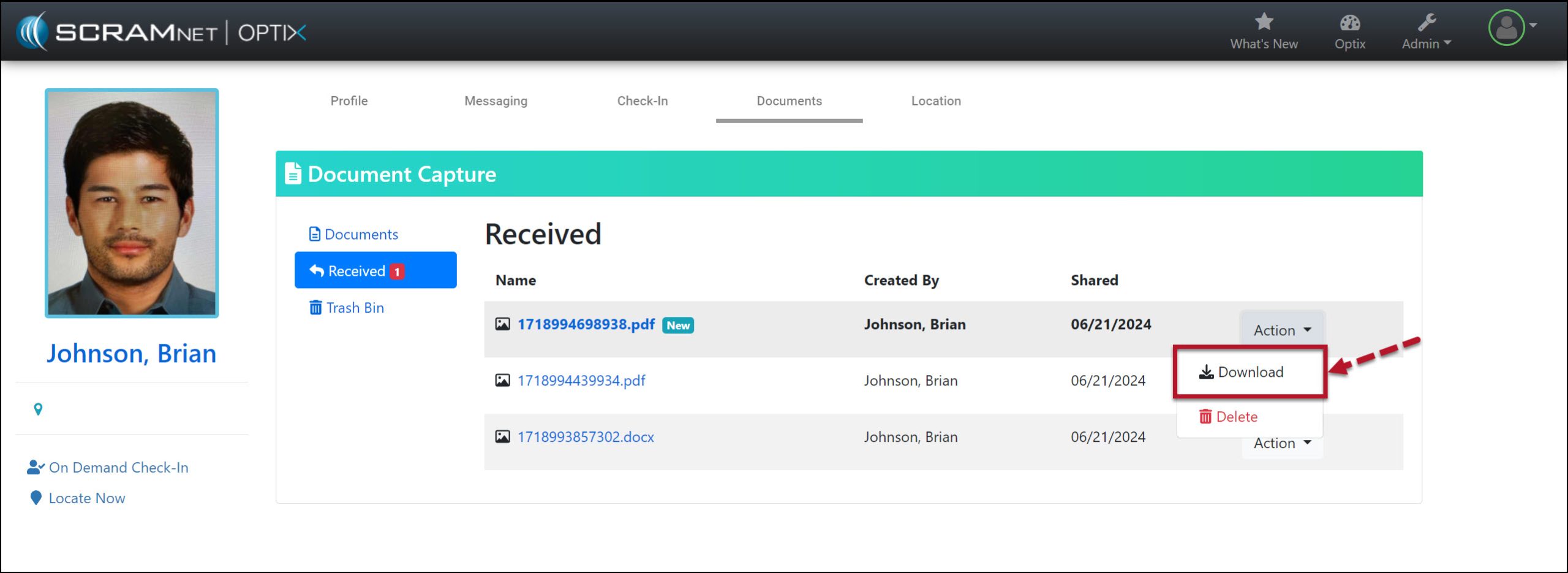
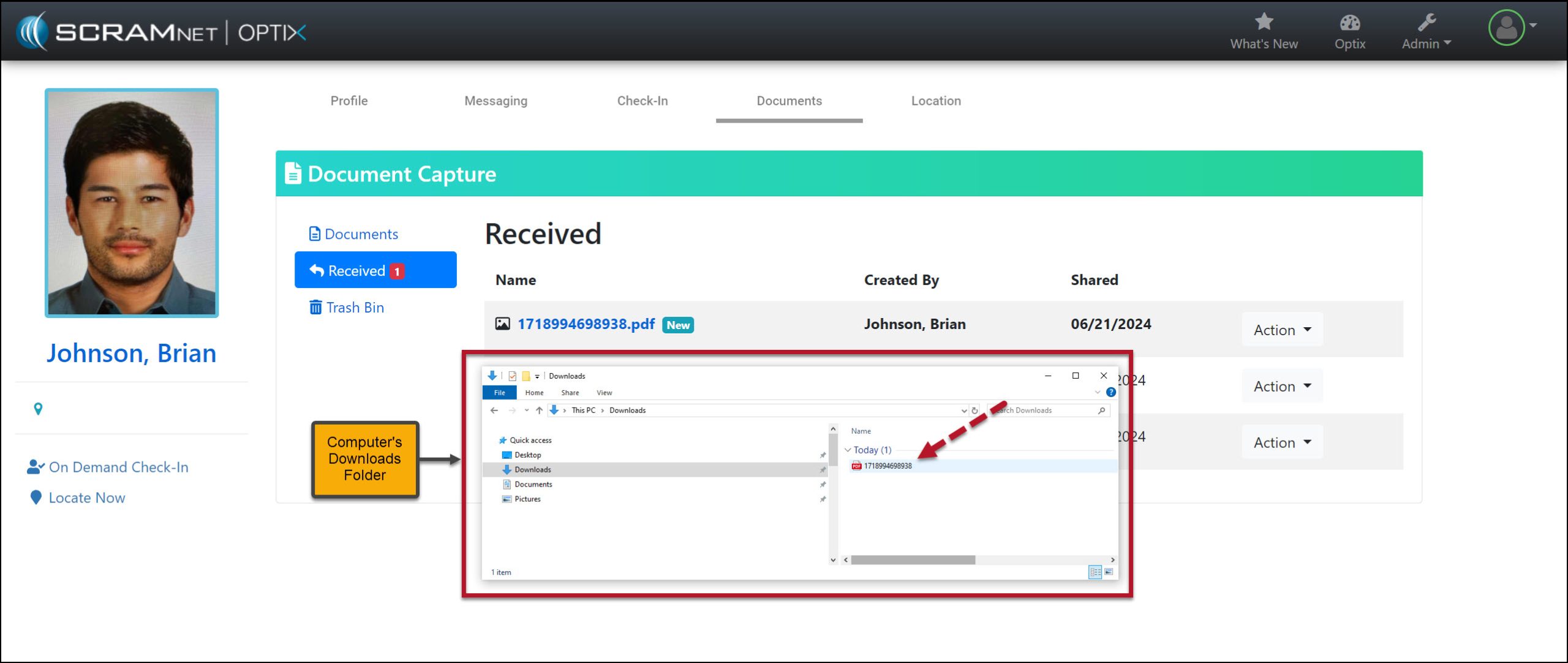
In SCRAM Optix, access the Received section of the Documents Capture page for the client, and then open the Action dropdown menu to download the shared file.