Starting this afternoon, December 8, 2022, SCRAM Systems® will release a series of enhancements to support Wi-Fi communication for your Remote Breath Pro (RB Pro) devices. This first phase is designed to assist you during in-office client assignments, removals, and firmware updates for RB Pro devices, where a cellular network connection may be an issue. For example, a courthouse, an office building, or a remote location.
Phase One
Thursday, December 8th:
- Remote Breath Pro firmware update #1: This update will change how the signal strength icon on the device’s screen is displayed. After the update, when the device is connected to a cellular network, the icon will display as vertical bars ranging in size. When connected to a Wi-Fi network, the icon will display semi-circular “waves” ranging in size.
Monday, December 12th:
- Remote Breath Pro firmware update #2: This update will enable the Wi-Fi capabilities on the device.
- SCRAMNET monitoring system enhancement: A Wi-Fi Setup option will become available on the RB Pro Device and client Equipment pages.
 | For devices that are currently “Assigned to Client,” the system will verify there is not a scheduled breath test within the next two hours before beginning each firmware update. Once verified, the update will automatically begin. Each update should complete within 15 – 25 minutes. |
Wi-Fi Functionality
- Once the RB Pro device has connected to a Wi-Fi network, it will automatically connect to that network, whenever it is available. For example, if you connect the RB Pro device to the Wi-Fi in your office, then every time the device is within range of your office Wi-Fi it will reconnect to it. Once the Wi-Fi connection is no longer available, the device will connect to the cellular telecom network.
- If a new connection is required, access the Wi-Fi Setup page to “override” the current network settings and enter in the new information.
- For phase one, the RB Pro device will not “sleep” while connected to Wi-Fi. You, or the client, will observe that the screen remains illuminated while on Wi-Fi.
- Because the screen is always on, the device’s battery will require frequent charging while on Wi-Fi. When a client is utilizing Wi-Fi for communication (at home, e.g.), the device should be charging whenever possible. This will eliminate possible missed breath tests due to a depleted battery.
Wi-Fi Setup
Ensure the device can connect to the cellular network and has a sufficient battery charge.
From the client’s Equipment page:
- Select the Wi-fi Setup hyperlink.
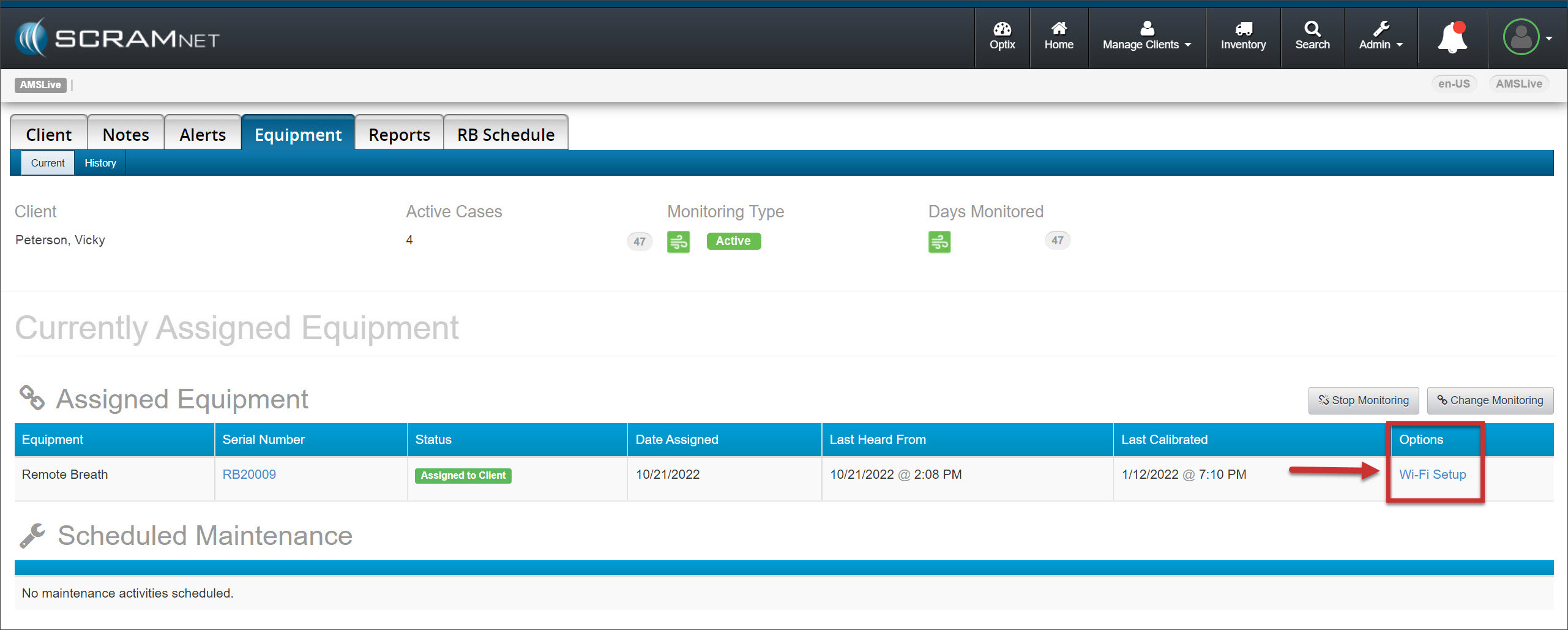
- Enter the Network Name (SSID) and Network Password in the Wi-Fi Setup pop-up window.
- Select the Send to Device button.
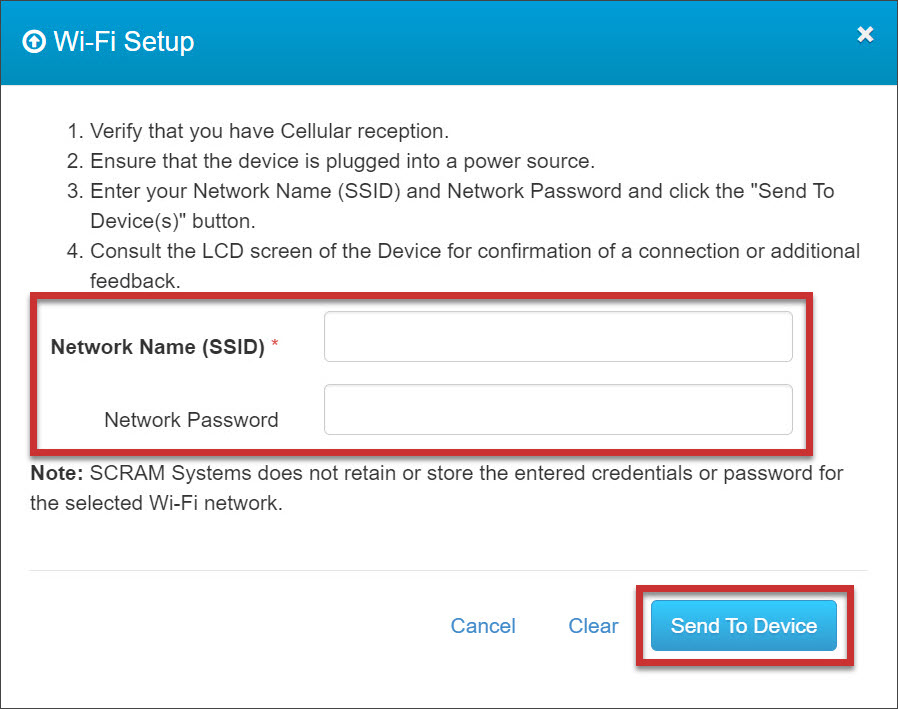
 | If the RB Pro device does not connect to the Wi-Fi network within 24 hours of you entering the SSID and password information into SCRAMNET, you will be required to resend the information by accessing the Wi-Fi Setup pop-up window again, from either the client’s Equipment page or the RB Pro Device page. |
Disconnect from Wi-Fi
To disconnect the device from a Wi-Fi network, use the “Wi-Fi Setup” process above to resend the same ‘Network Name (SSID)’, but input an incorrect password in the ‘Network Password’ field. It will then not be able to connect to that particular Wi-Fi network and will revert to cellular.