Today, March 2, 2023, SCRAM Systems released several SCRAM TouchPoint Mobile Application enhancements. These updates are available now in the Google Play and Apple App stores. Please encourage your clients to update their TouchPoint apps as soon as possible. As a best practice, SCRAM Systems recommends that all TouchPoint app users enable their smartphones for automatic app updates to make this process easier.
This update includes:
- A new client Profile screen and access point.
- An updated Change Password process.
- Support for the following languages:
- English
- Spanish
- French
Client Profile Enhancement
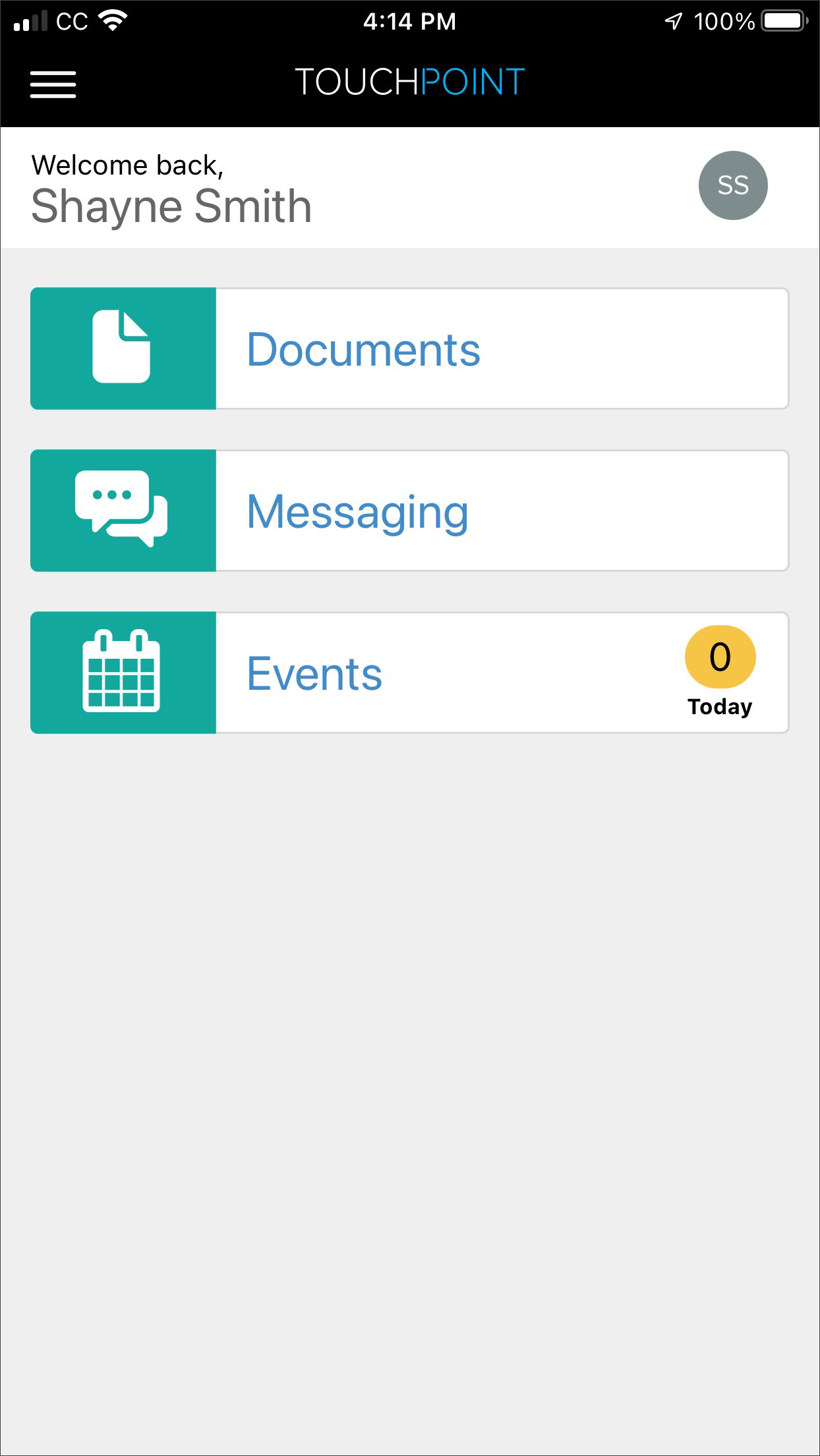
For your current TouchPoint caseload, once the client logs into the TouchPoint application, the welcome banner will display a profile icon with their initials or the baseline Client Check-In photo. To access the new client profile screen, tap the profile icon.
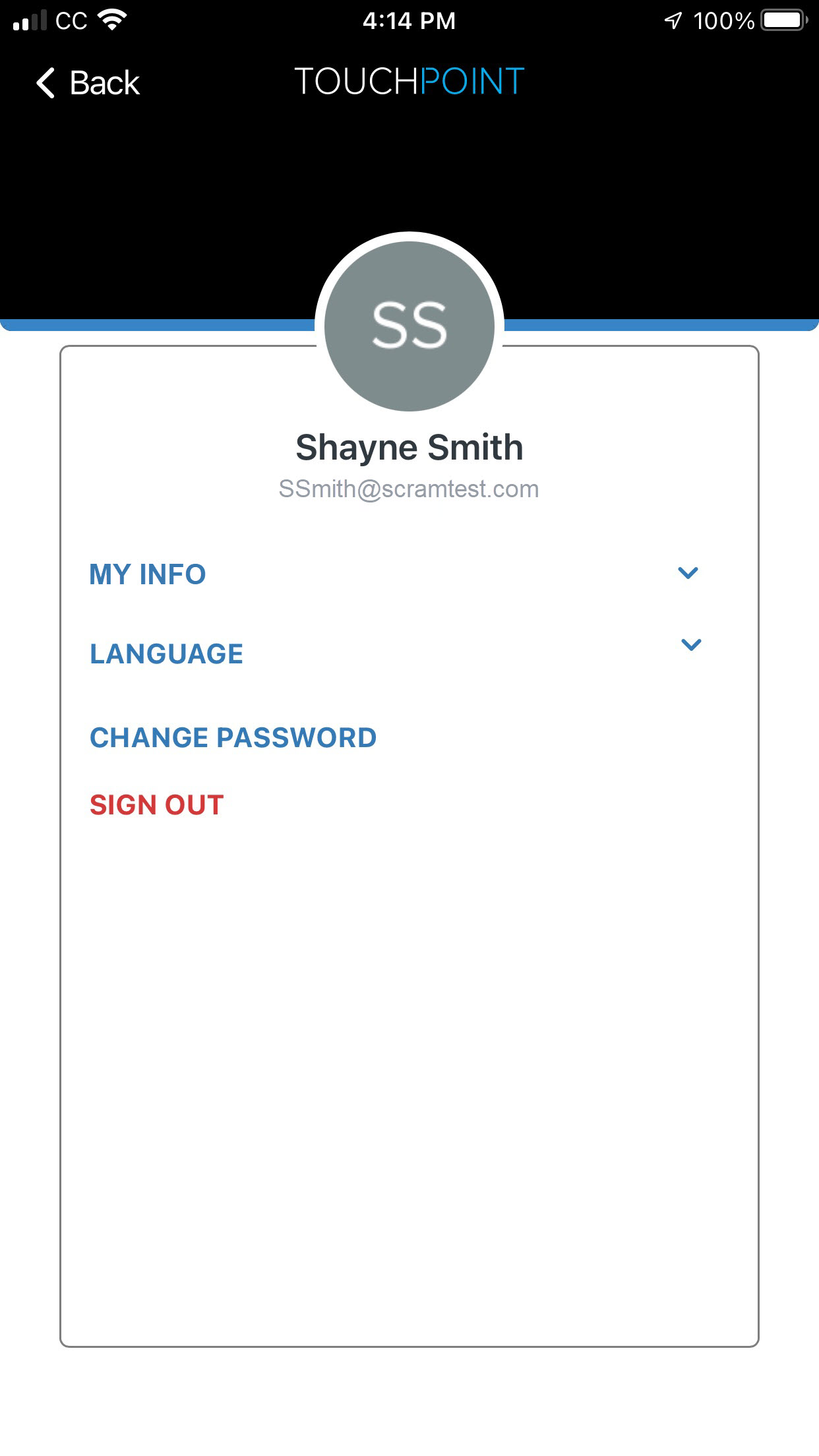
The updated profile page allows the client to update the preferred language for the application, change their Password, and sign out of the app on their smartphone. Additionally, the client’s general information and occupation will be displayed under the My Info section if entered via the SCRAM Optix profile page.
Change Password Process
When clients need to change their password, they will need access to their TouchPoint app and email account. Starting on the user profile page in the app, have the client tap the Change Password option and follow the instructions on the screen.
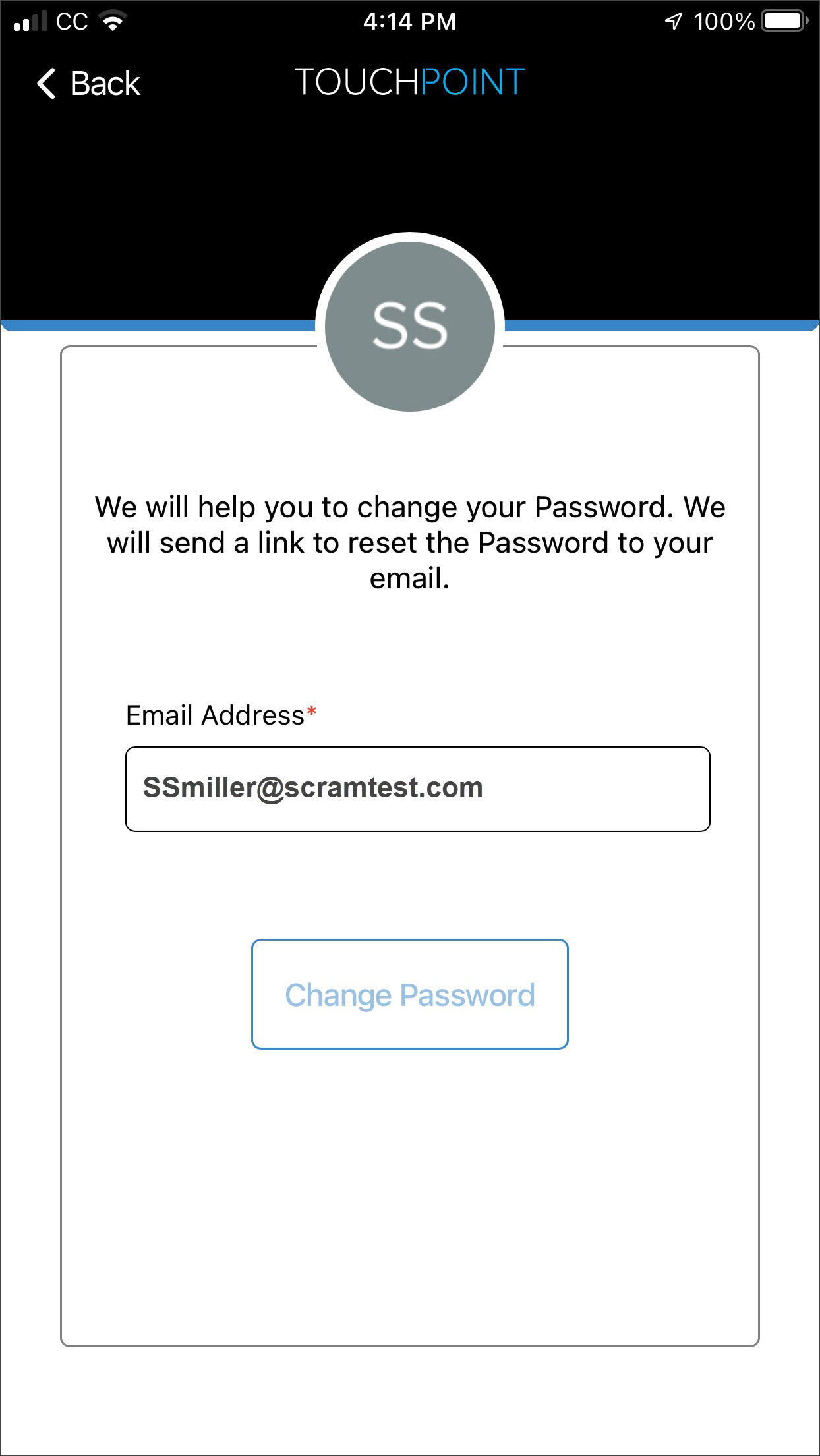
After the client has tapped the Change Password button, the app will display a message stating a Change Password email has been sent. The app will then sign the client out of the application.
The client should access the Change Password email and follow the instructions to create a new password.
 |
The Change Password email is currently only available in English. |
Preferred Language Options
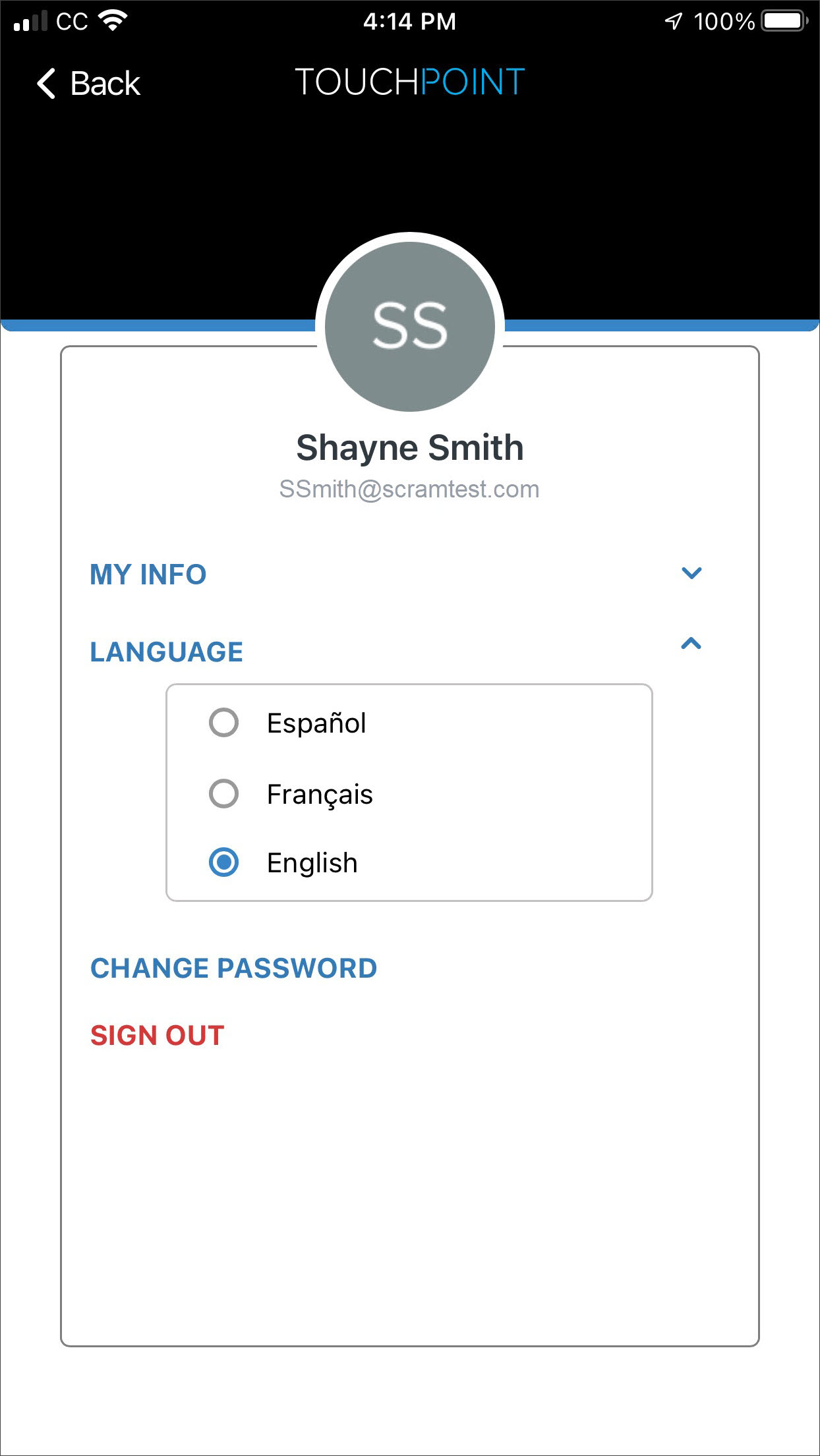
To update the application to the client’s preferred language, have the client tap on the Language option to open the dropdown menu on their profile screen. Then, select their preferred language. All sections, including historical data, will translate into the chosen language.
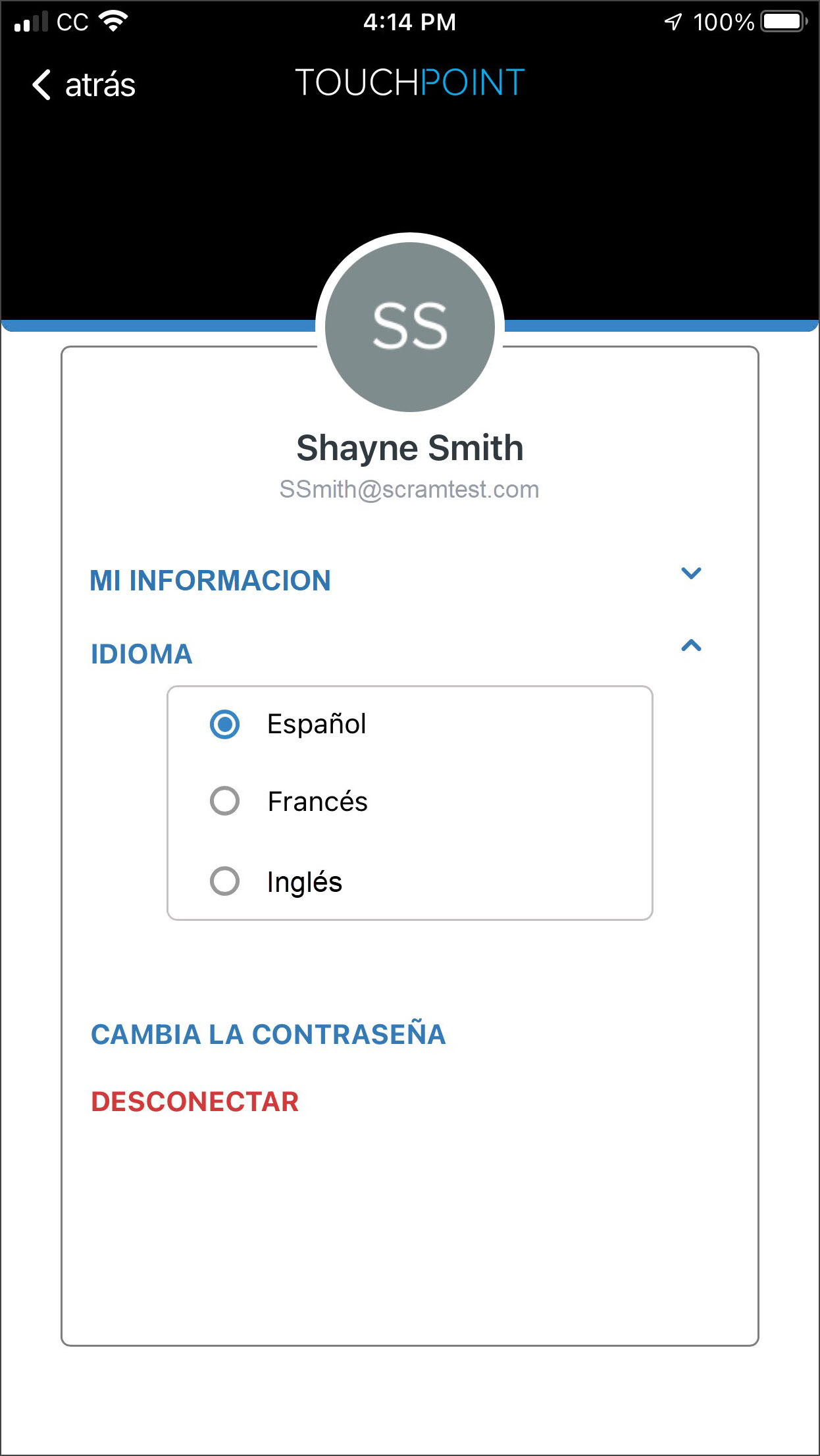
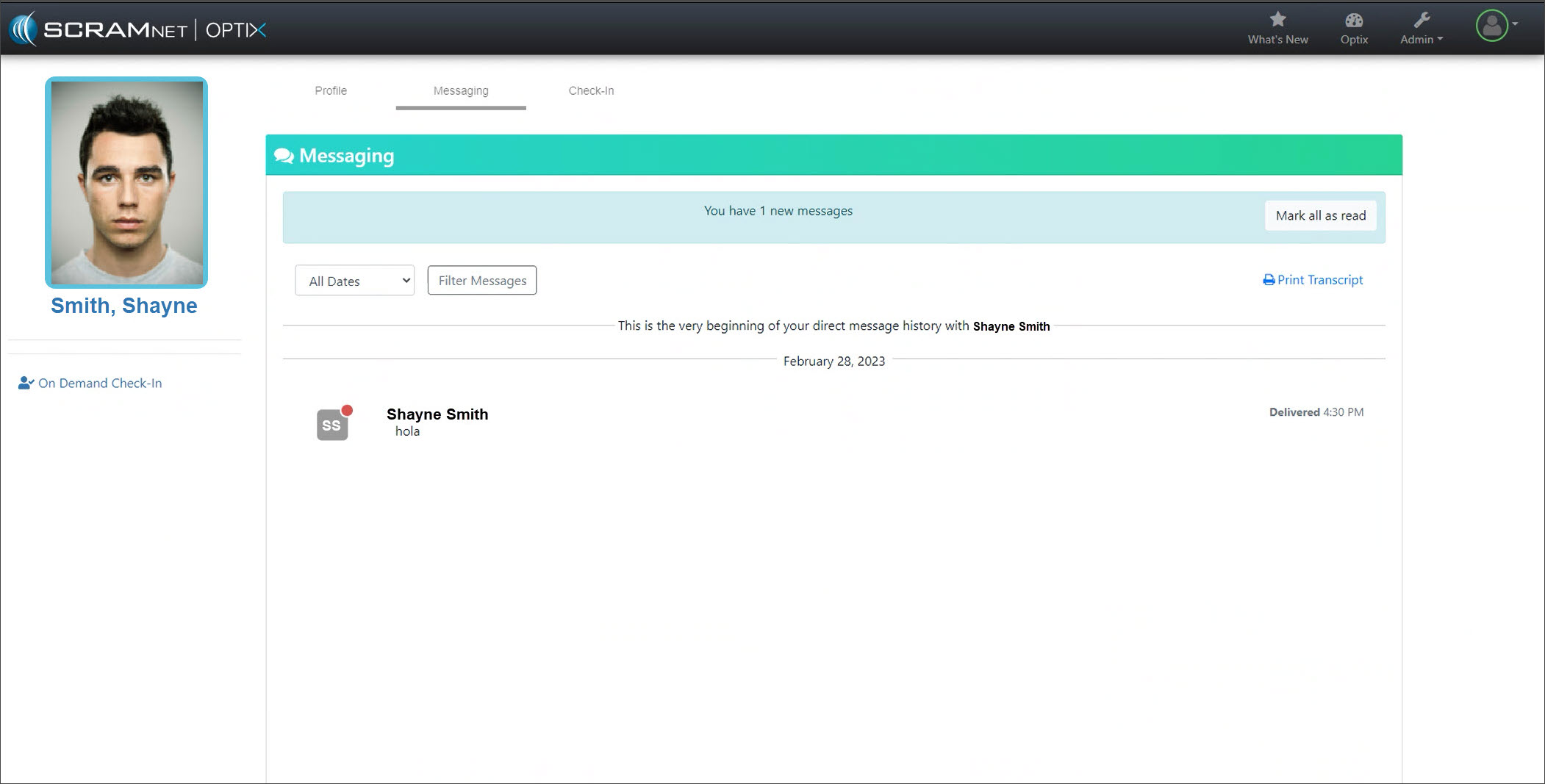
SCRAM Optix Client Messaging Page – Preferred Client Language
When the client has selected their preferred language on the TouchPoint mobile app, in this example, the preferred language of Spanish has been selected. The messages sent from the app will display in that chosen language on the client’s Messaging page in Optix.
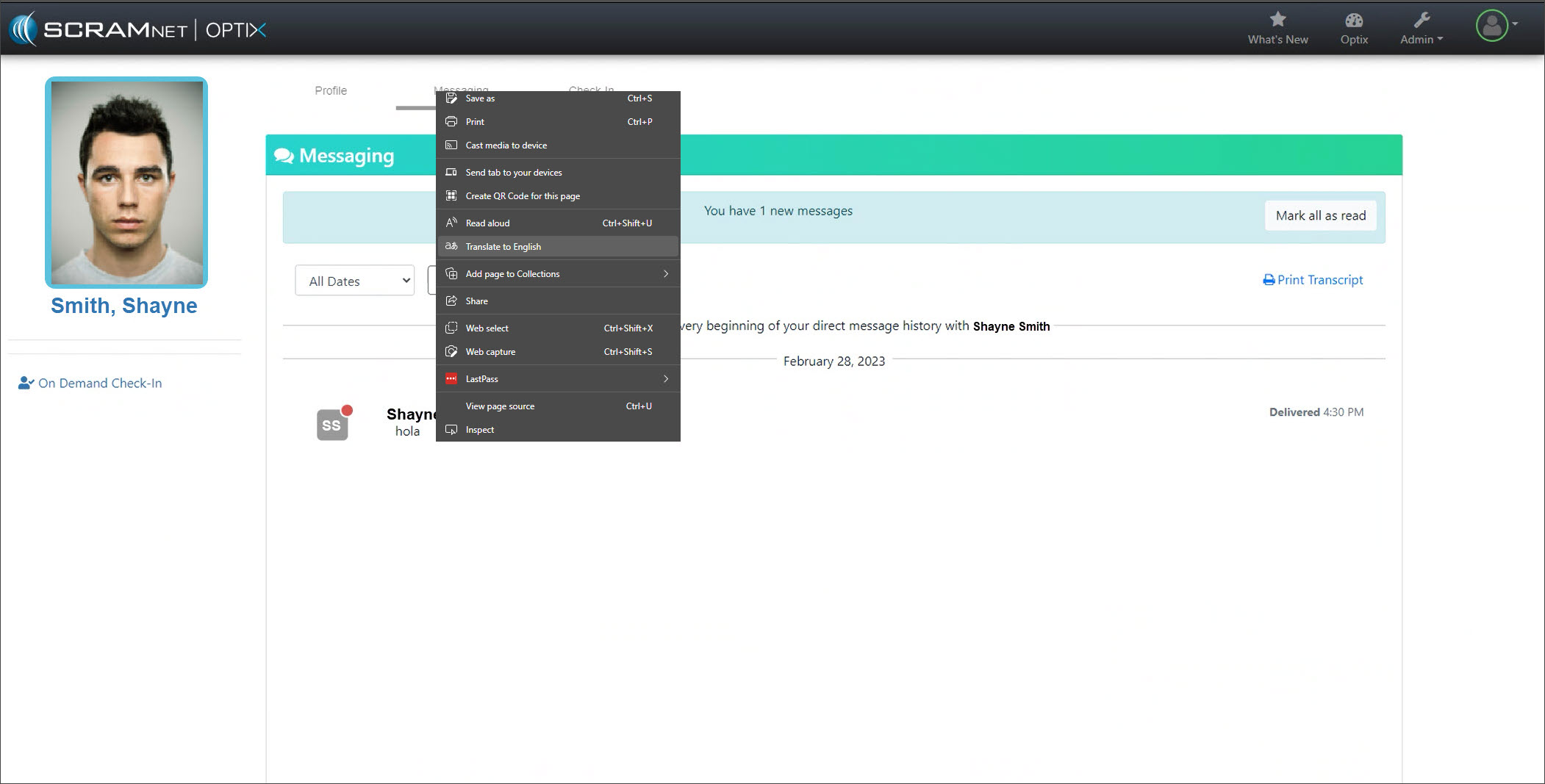
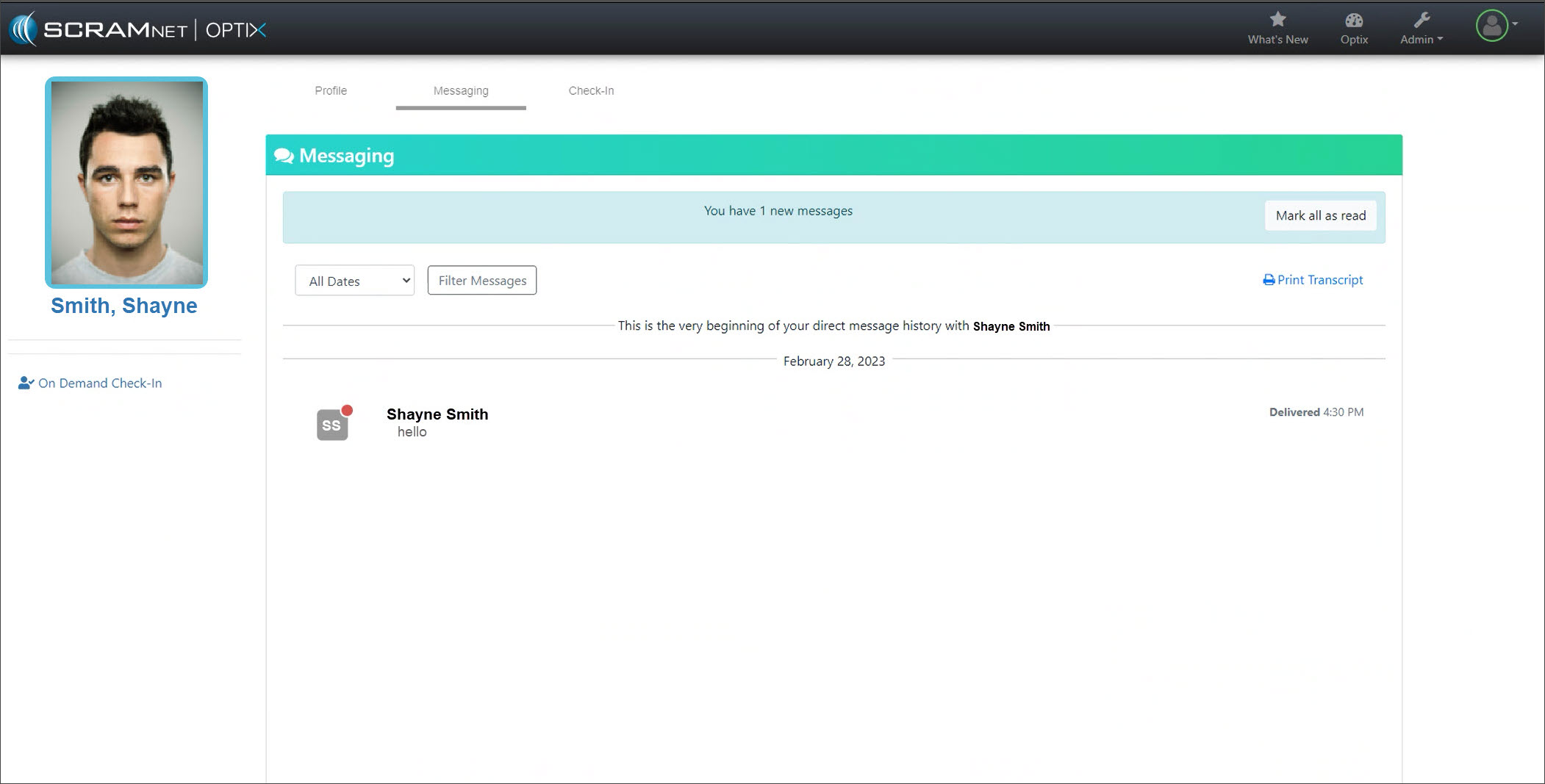
Use your browser’s “translate” feature (or Google Translate) to translate messages you receive into SCRAM Optix from your client that are written in Spanish or French. When using Google Chrome, highlight the text to translate and then right-click on your mouse to open the browser settings menu.
|
All messages sent to the client from the Messaging page are automatically displayed in the client’s preferred language. |