On June 12, 2024, SCRAM Systems will release multiple enhancements to SCRAM 24/7.
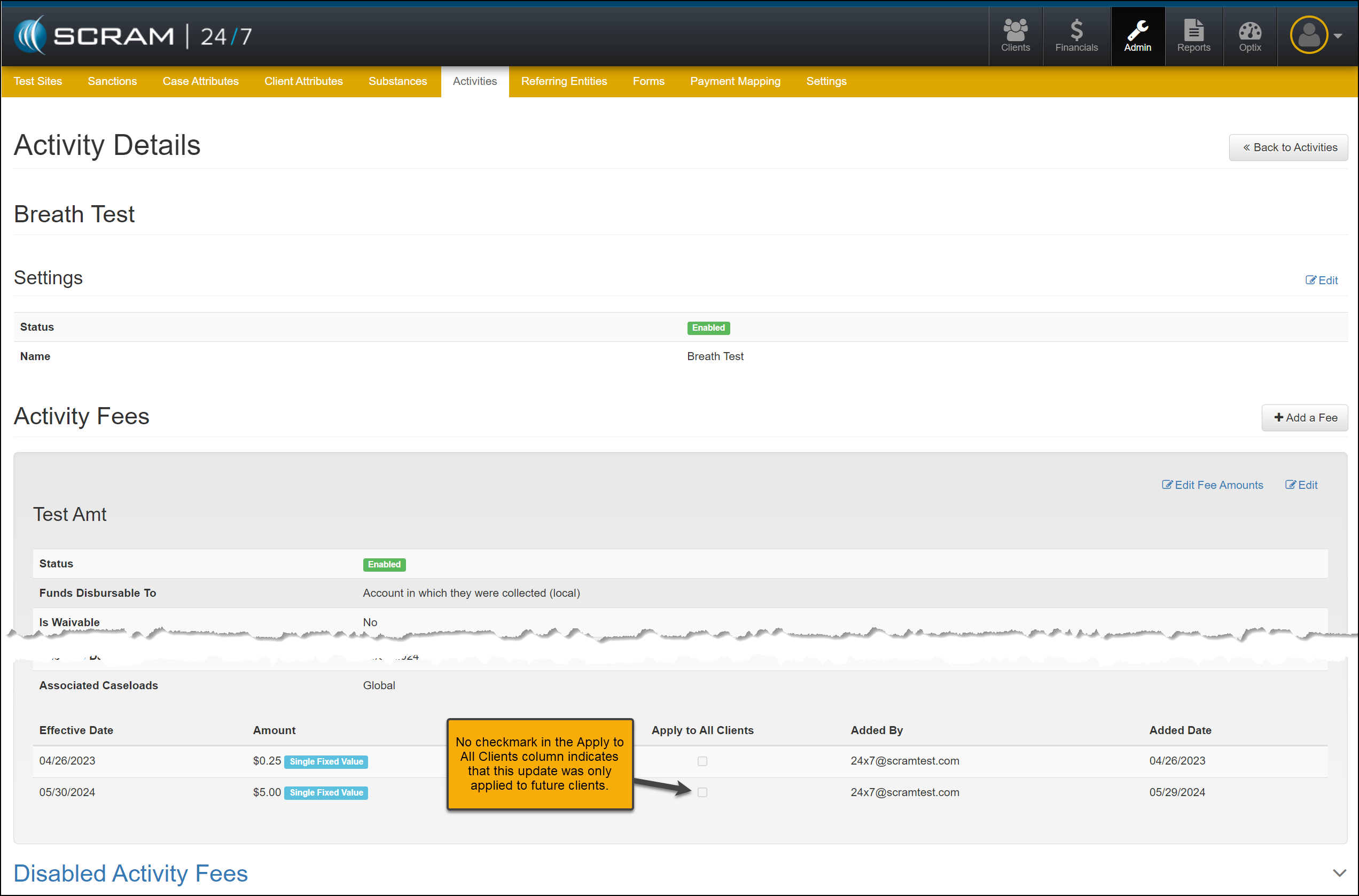
- When viewing an activity fee, a new column displays whether the fee has been applied to all clients or will only be applied to future clients.
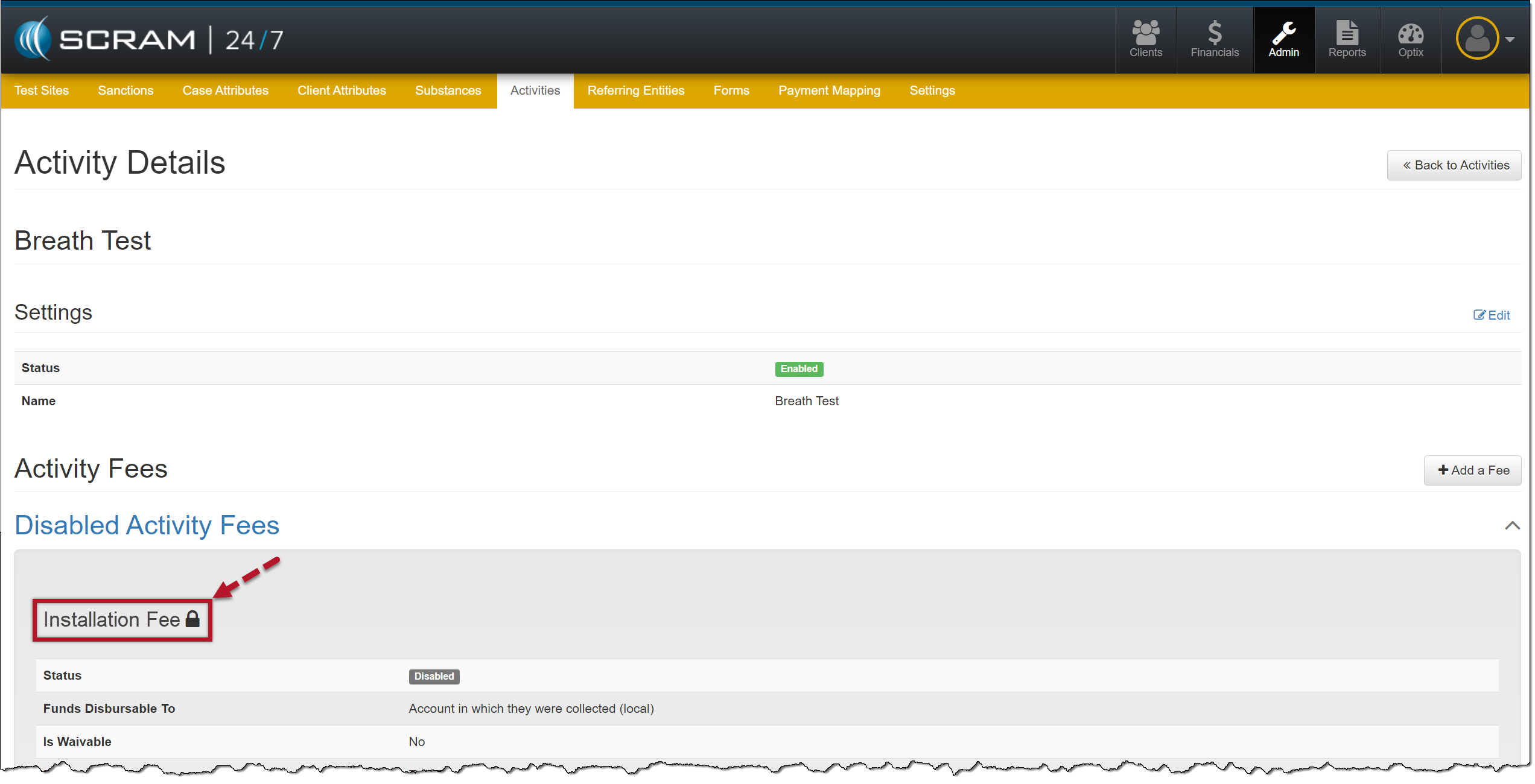
- When deactivating an activity fee, a lock icon will be displayed next to the fee’s name when a fee is still being applied to currently active clients.
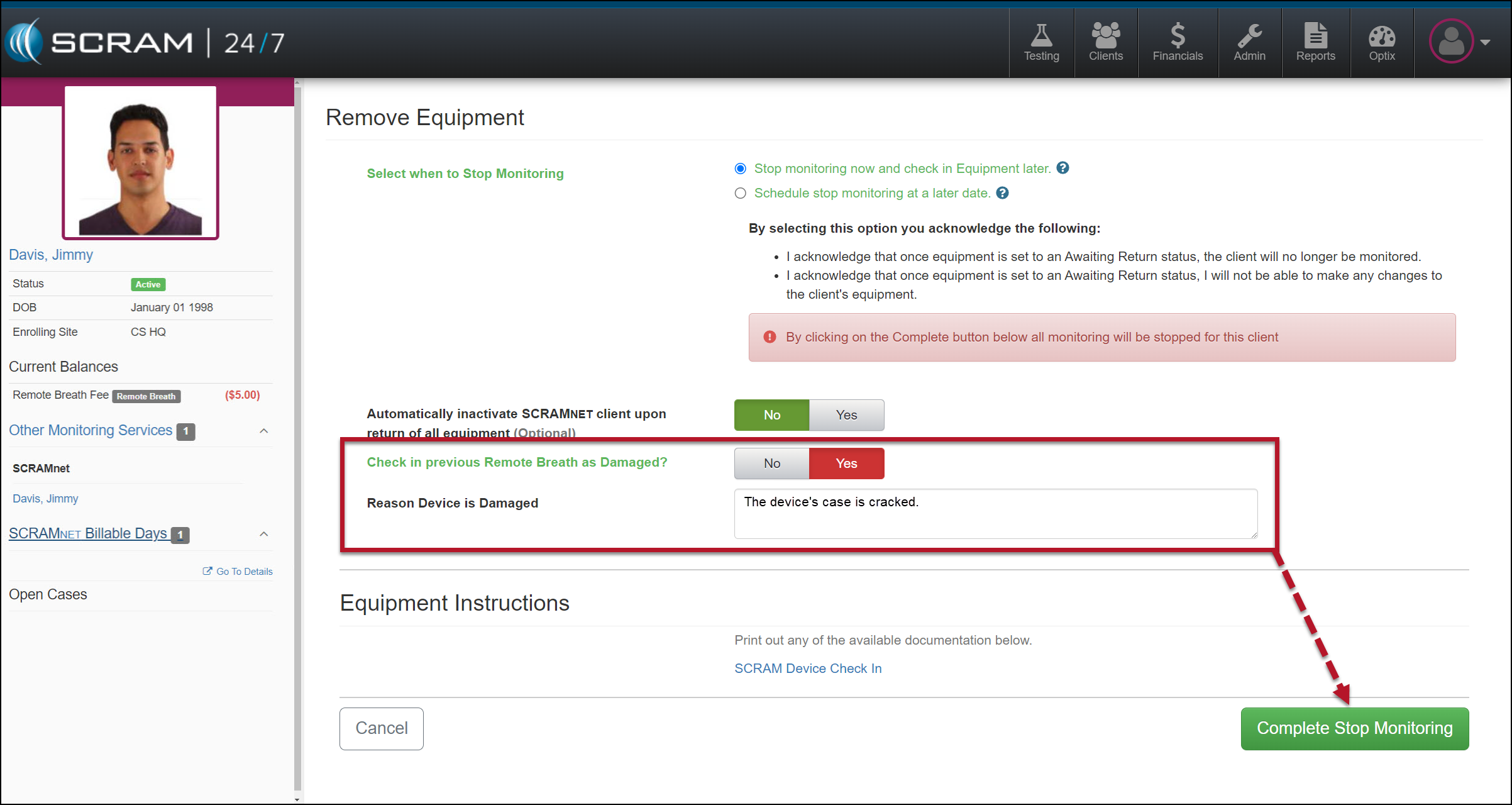
- You will now have the option to flag a device as damaged when Suspending or Removing an EM Activity for the client.
- The notes entered for a device being checked in as damaged will now be visible on the Device Details page in SCRAMNET.
 | Not seeing the enhancement in SCRAM 24/7? Clear your cache and cookies and refresh your browser window. |
Apply to All Clients Column
When viewing or editing an Activity’s fee, an “Apply to All Clients” column indicates whether the adjusted fee has been applied to all current and future clients or will only apply to future clients.
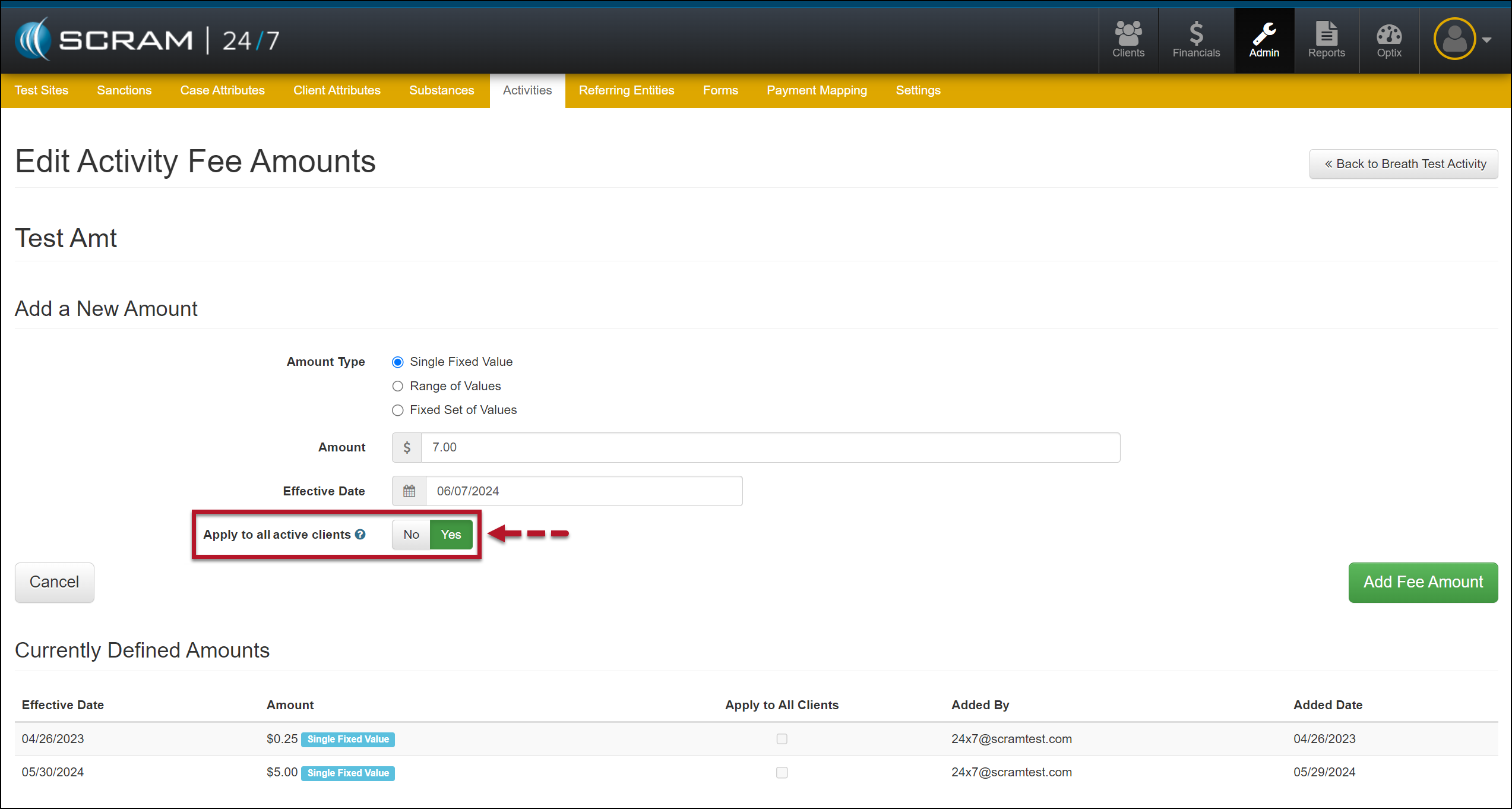
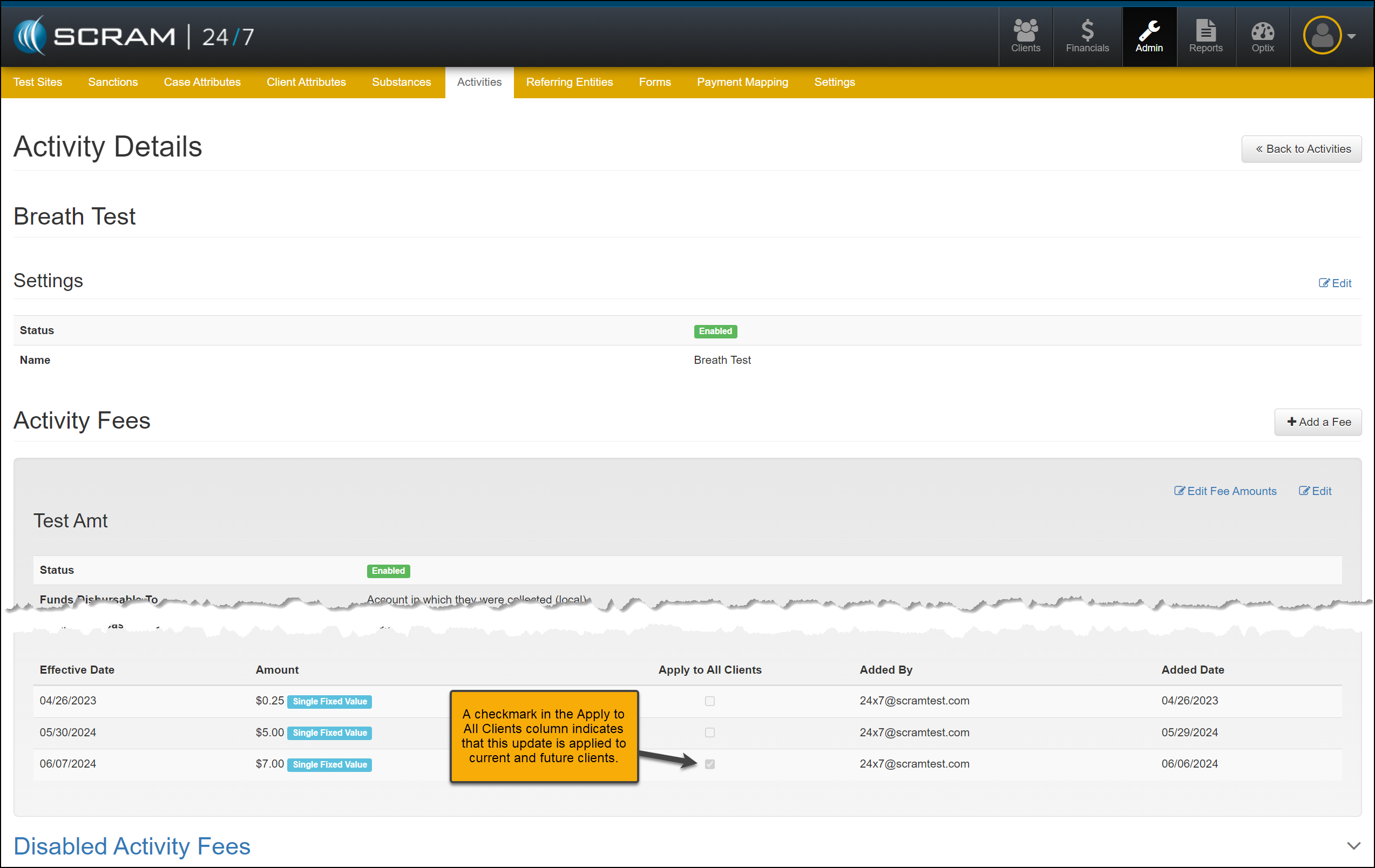
While editing a fee, when you select the “Yes” option to apply this updated fee to currently active and future clients, a checkmark will appear in the “Apply to all Clients” column.
Disabled Fee Lock Icon
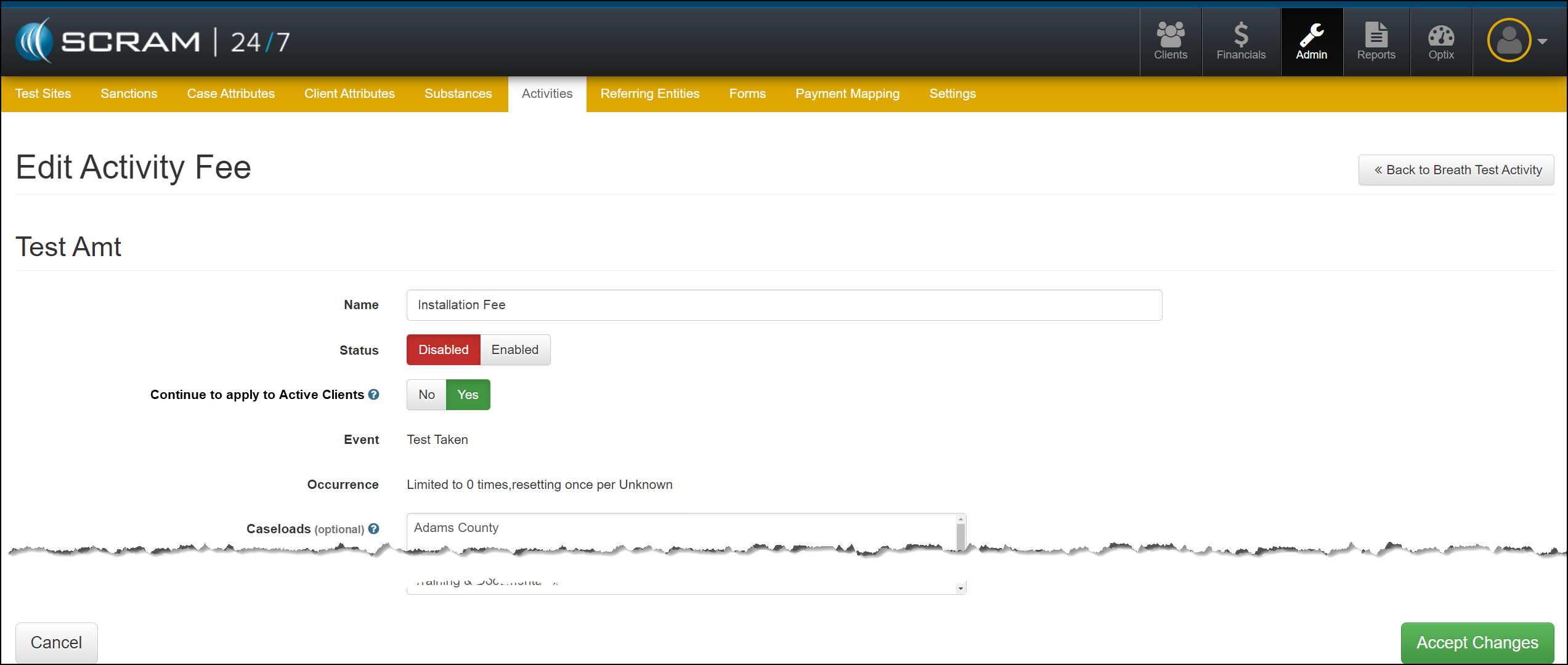
As fees for activities are disabled, you may continue billing or remove that fee from currently active clients.
When you select the “Yes” option to continue billing current active clients, a lock icon will appear next to the disabled fee’s name.
Suspend or Remove Activity and Check In Device as Damaged
When removing or suspending an Activity for your client in SCRAM 24/7, you may flag a device as damaged by setting the “Check in previous [Device type] as Damaged?” option to Yes. Once set, add a note explaining why you flagged the device as damaged, and then complete the stop-monitoring process as usual.
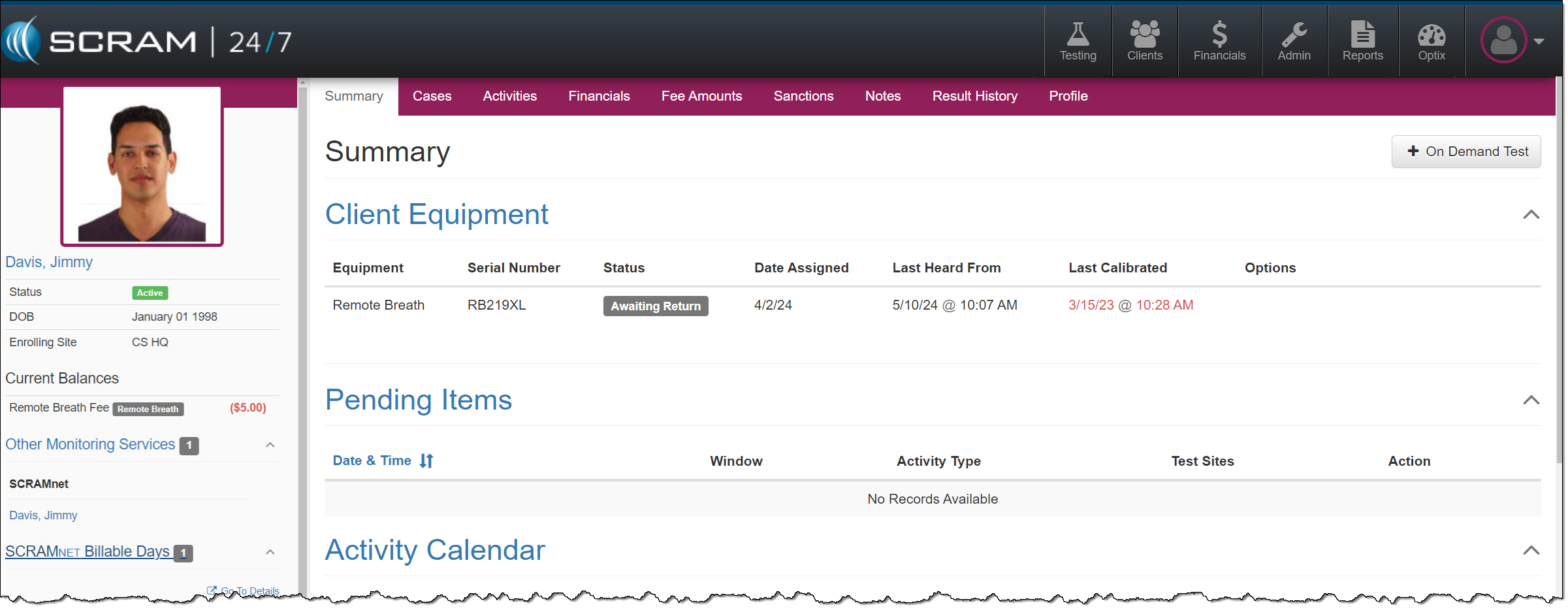
Once the device’s status is updated to “Awaiting Return,” complete the process of returning it to your inventory.
|
|
Device Details Damage Notes
Once a device has been flagged as damaged, you may view the notes associated with the damaged device on the Device Details page in SCRAMNET.
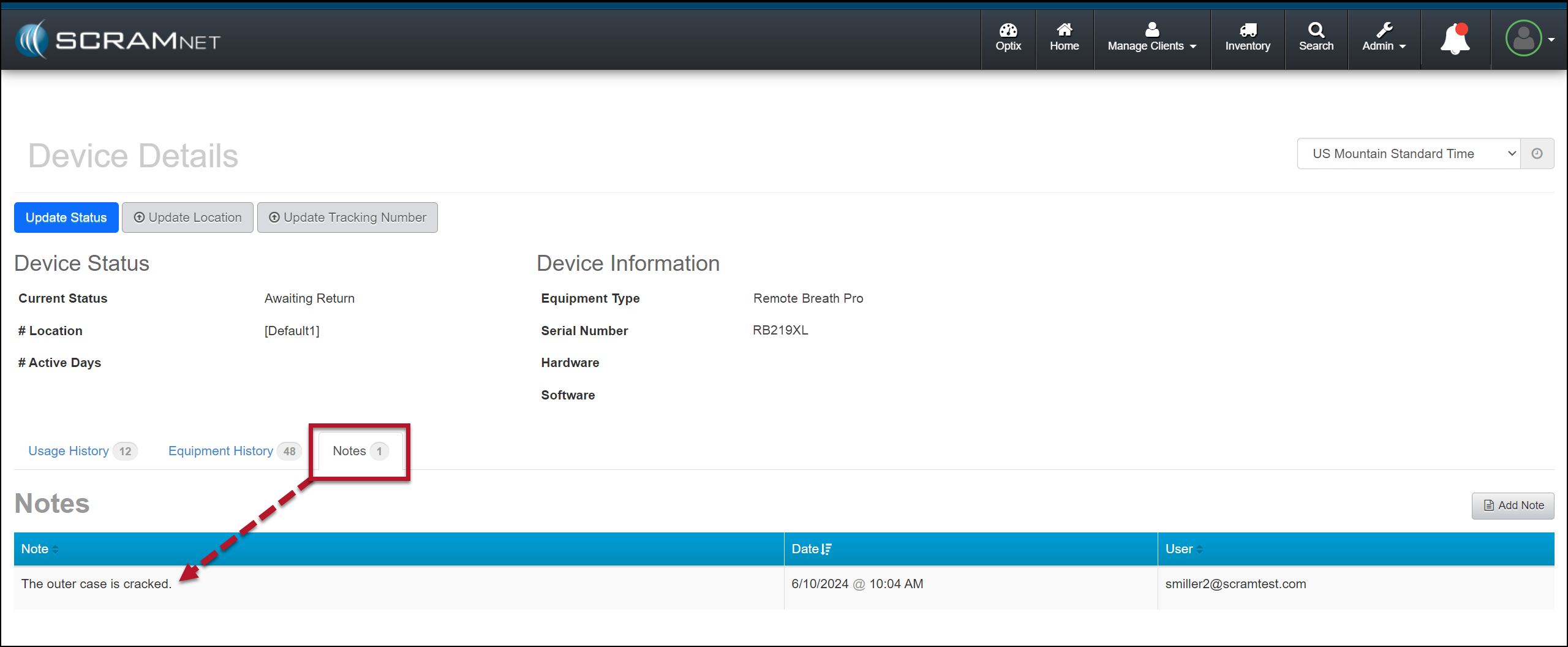
This information is helpful to reference when troubleshooting a device or requesting an RMA.
| The damage notes will remain visible on your Device Details page until the device is returned and serviced at SCRAM Systems. At that time, they will no longer be visible. |