On January 28, 2026, SCRAM Systems will release multiple enhancements for your SCRAM 24/7 Client Caseload.
These enhancements are:
- Consolidate Topic-Driven Client Tabs
- Activity Type Menu Options Update
- Activity Electronic Monitoring (EM) Monitoring Settings
Topic Driven Client Tabs
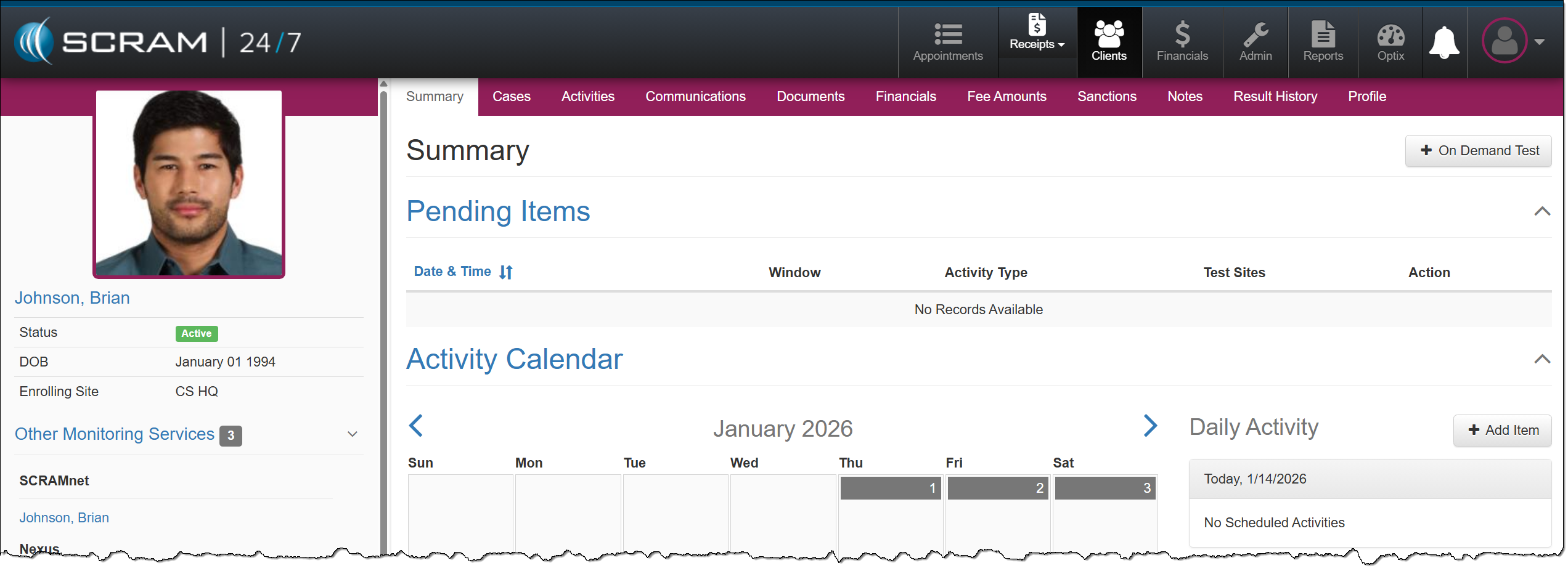
To accommodate future enhancements and provide an efficient user experience, the tabs used to view and access client information and tasks have been consolidated into topic-driven navigation tabs that include dropdown menus.
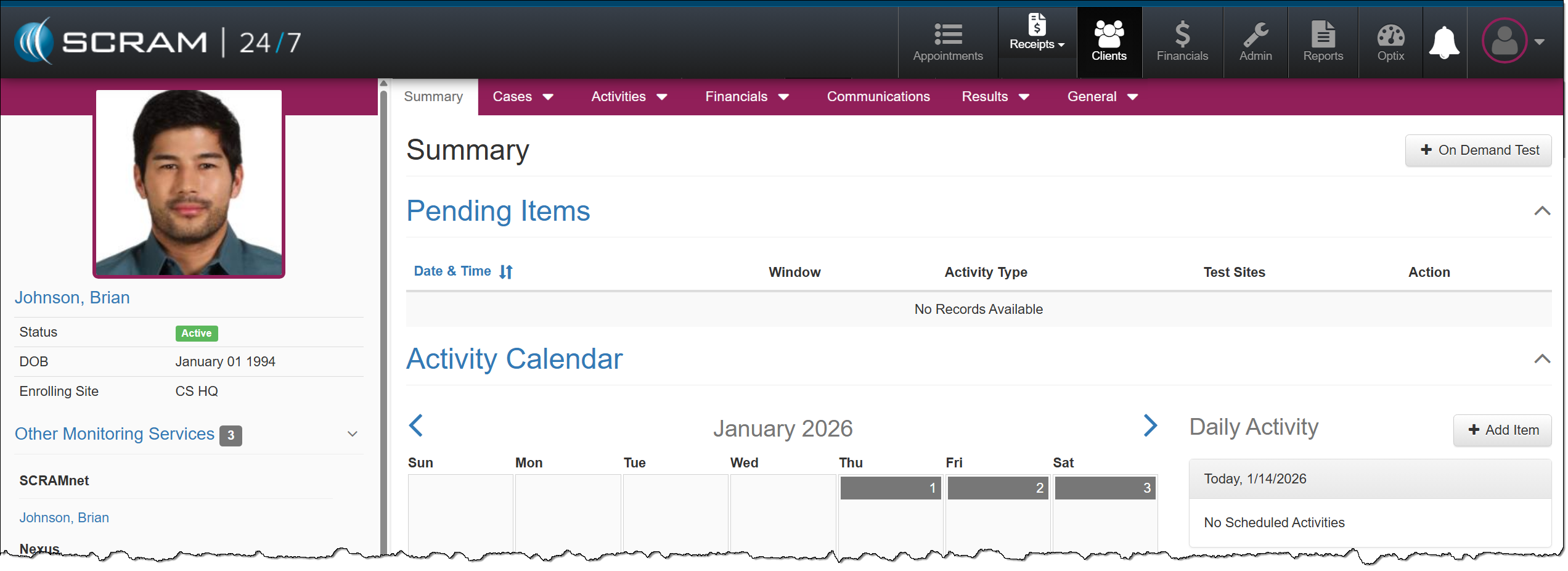
The Cases tab dropdown menu includes access to the client’s:
- Cases
- Add Case*
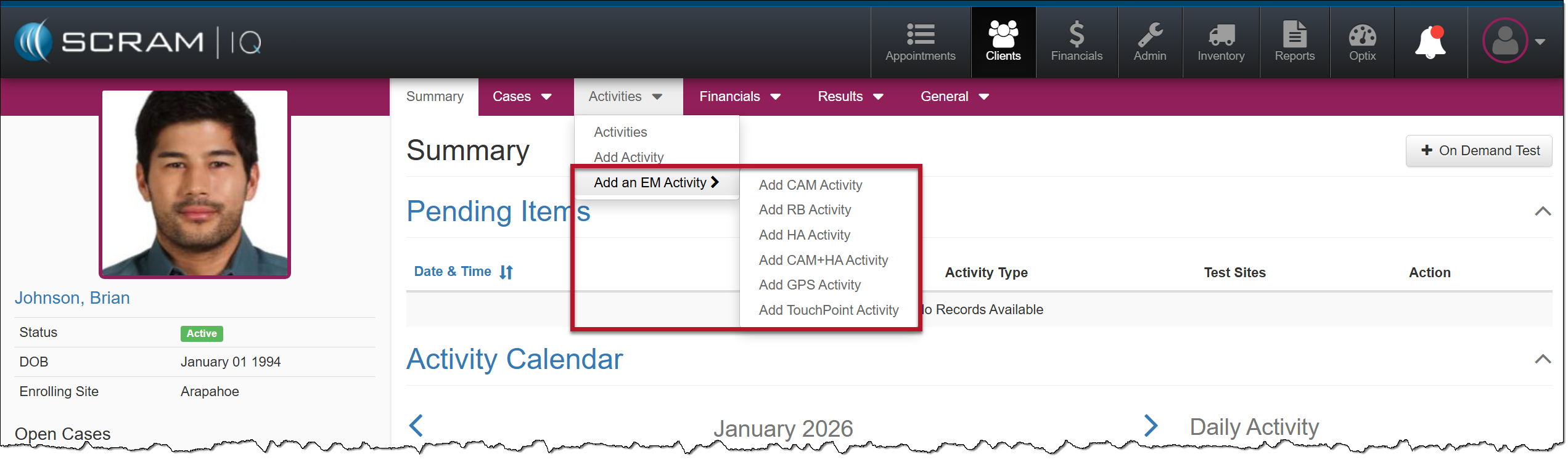
The Activities tab dropdown menu includes access to the client’s:
- Activities
- Add Activity
- Add an EM Activity**
The Financials tab dropdown menu includes access to:
- Client Financials
- Fee Amounts
The Results tab dropdown menu includes access to the client’s:
- Result History
- Sanctions
The General tab dropdown menu includes access to the client’s:
- Profile
- Documents
- Notes
- Add Notes*
*New direct access to specific tasks.
Activities Option
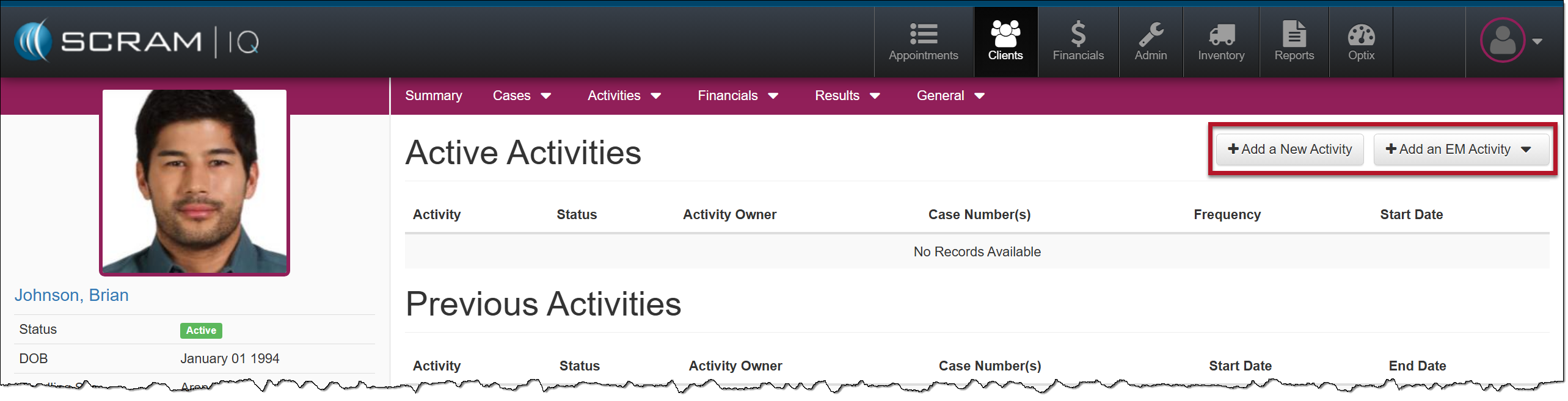
There are two additional options available on the Activities tab dropdown menu: Add Activity and Add an EM Activity. These two options separate the EM-related activities from the non-EM-related activities.
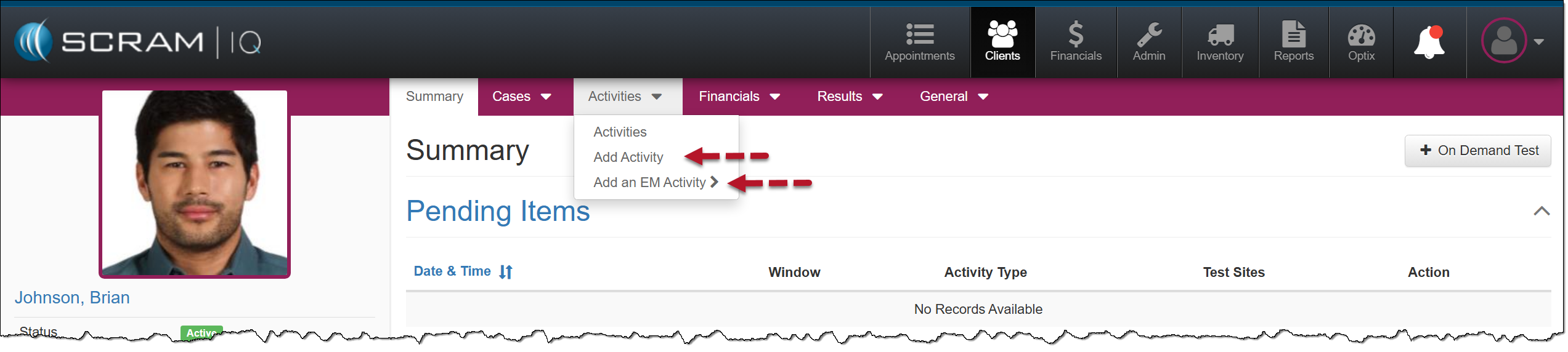
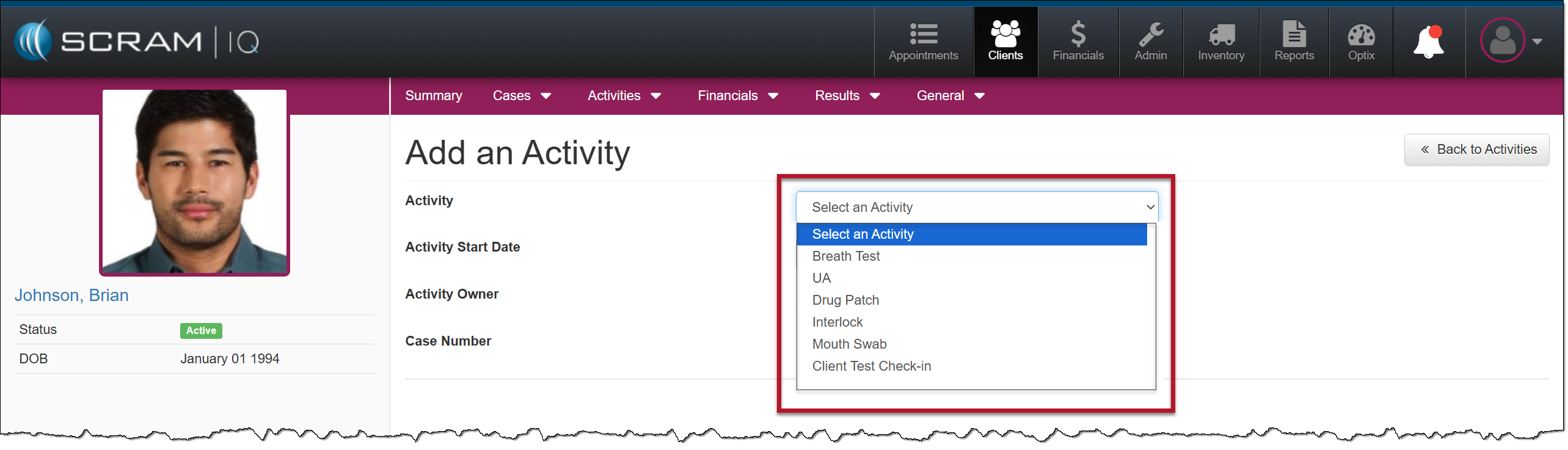
The client’s Activities page will also reflect EM-related activities from the non-EM-related activities.
 | Tip: The available Activity options will reflect the activities currently active in your program and the EM Activities you have access to. Additionally, if an Activity is currently active for the client, that option will NOT appear in the dropdown menu. |
Monitoring Settings for an Electronic Monitoring (EM) Activity
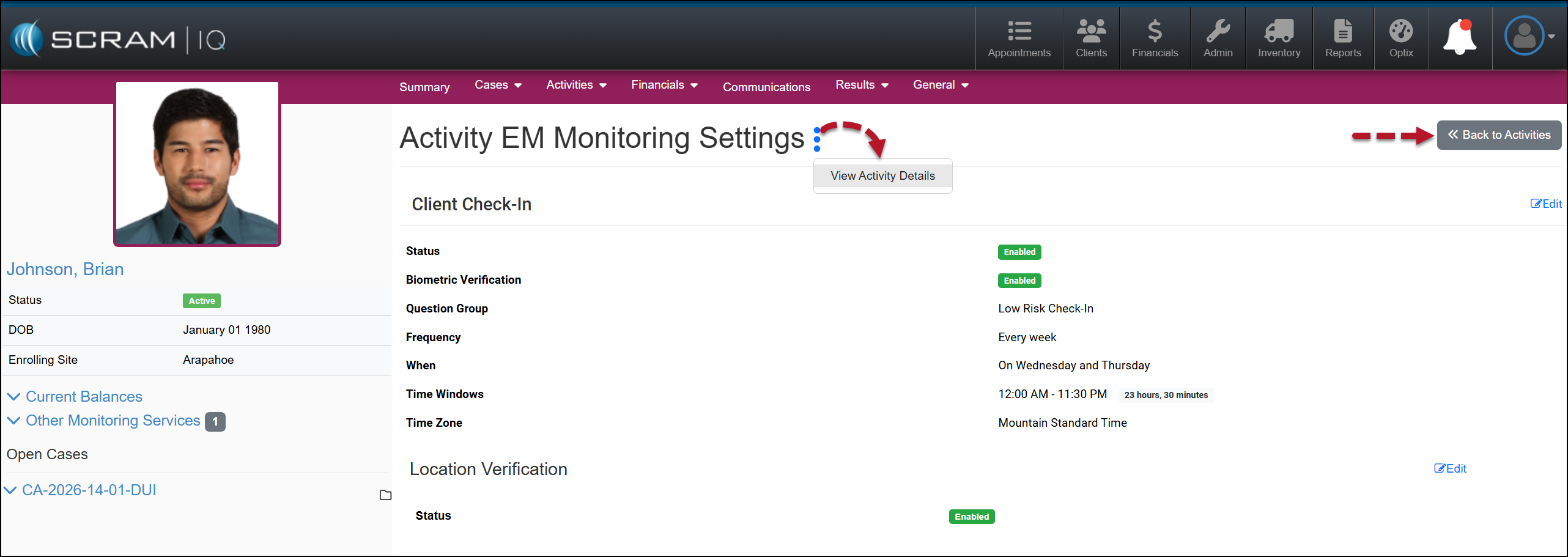
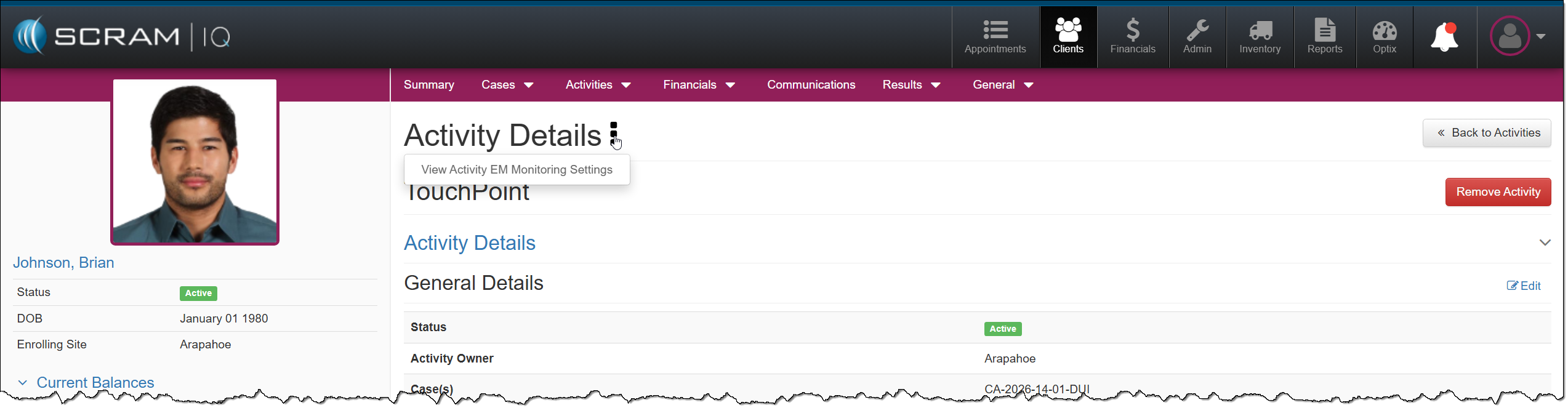
Once an EM Activity is active for a client, you may view their EM Monitoring Settings by selecting the ellipsis next to the Activity on the Active Activities page or the Activity Details page and then the View Activity EM Monitoring Settings option.
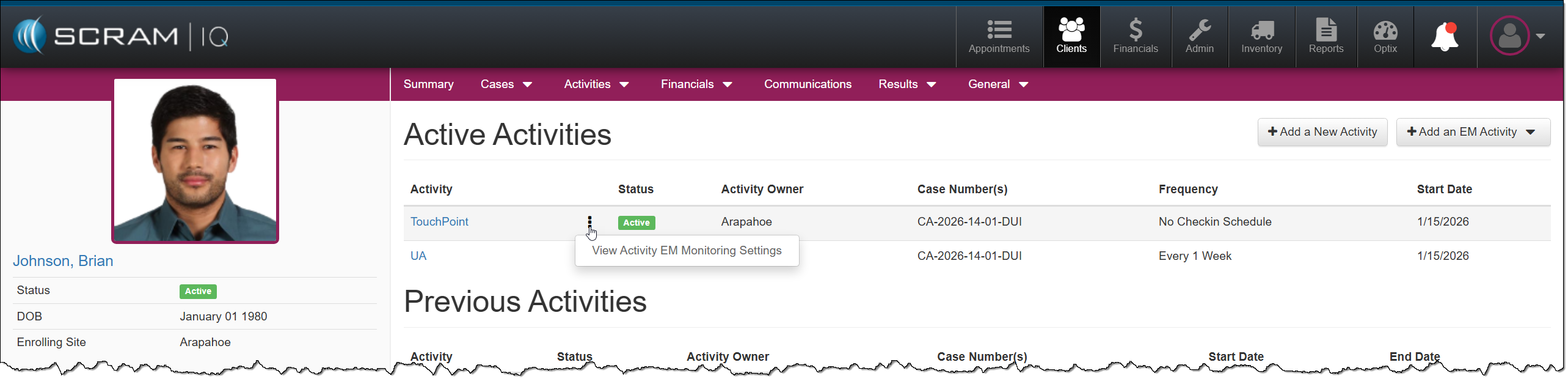
On the Activity EM Monitoring Settings page, you can view the current settings or select the Edit hyperlink to modify them.
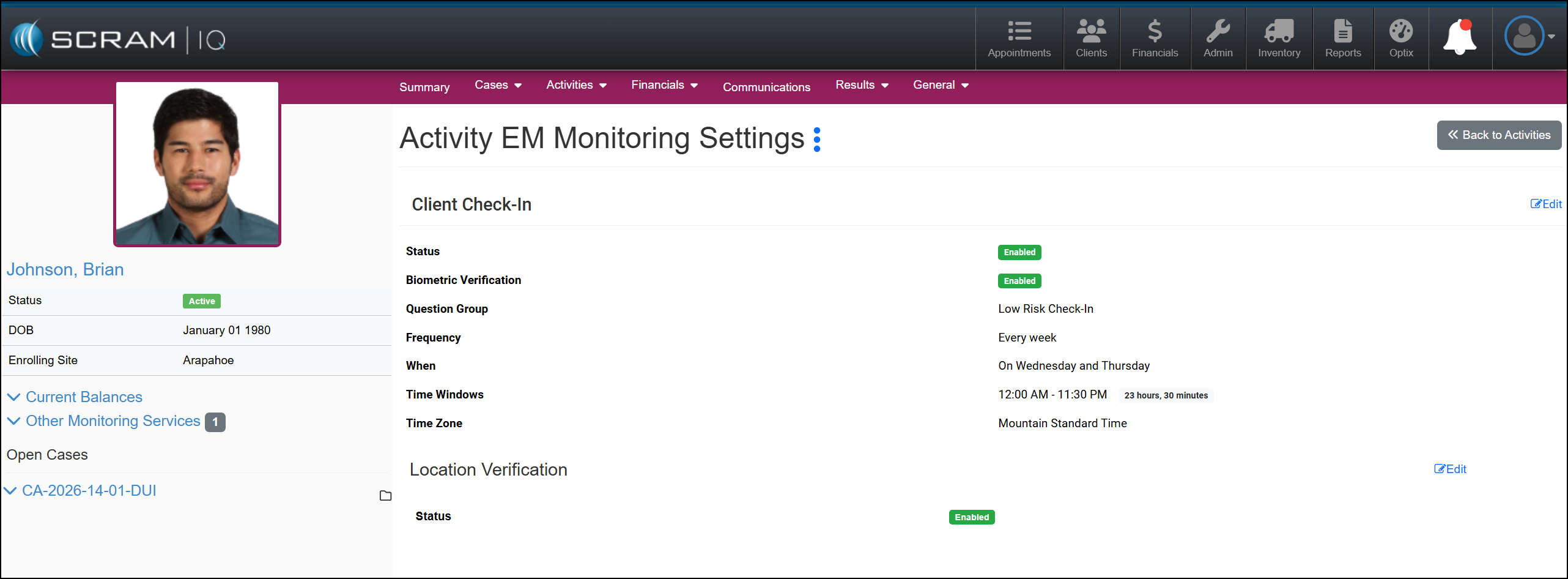
Select the ellipsis, and then the View Activity Details option to navigate back to the selected Activity Details page, or use the Back to Activities button to navigate back to the Active Activities page.