Enhancements made to the Inventory page in SCRAMNET include:
- The Status, Servicing Locations, and Region dropdown filters will allow you to select multiple options when searching your inventory
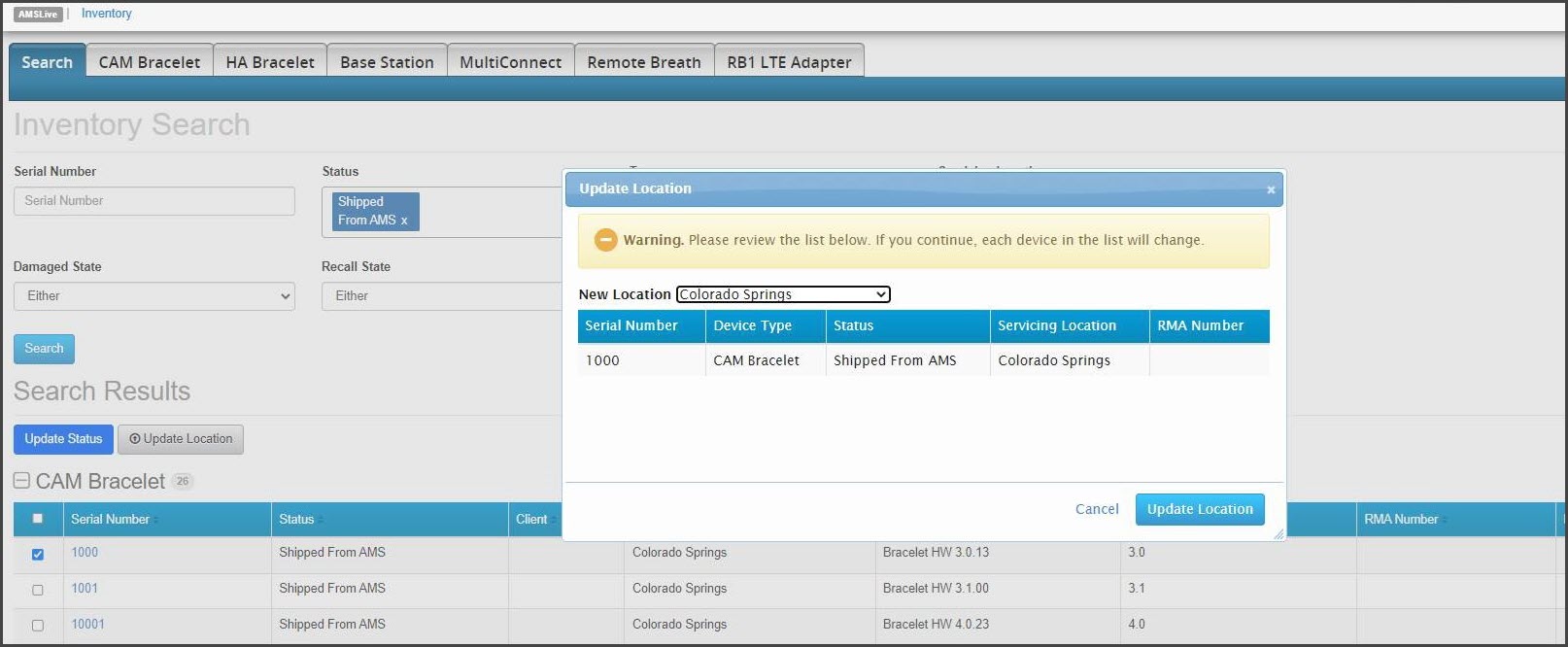
- You may update the Servicing Location for equipment in a “Shipped from AMS” status to reflect the specific “branch office” to which the equipment has been shipped
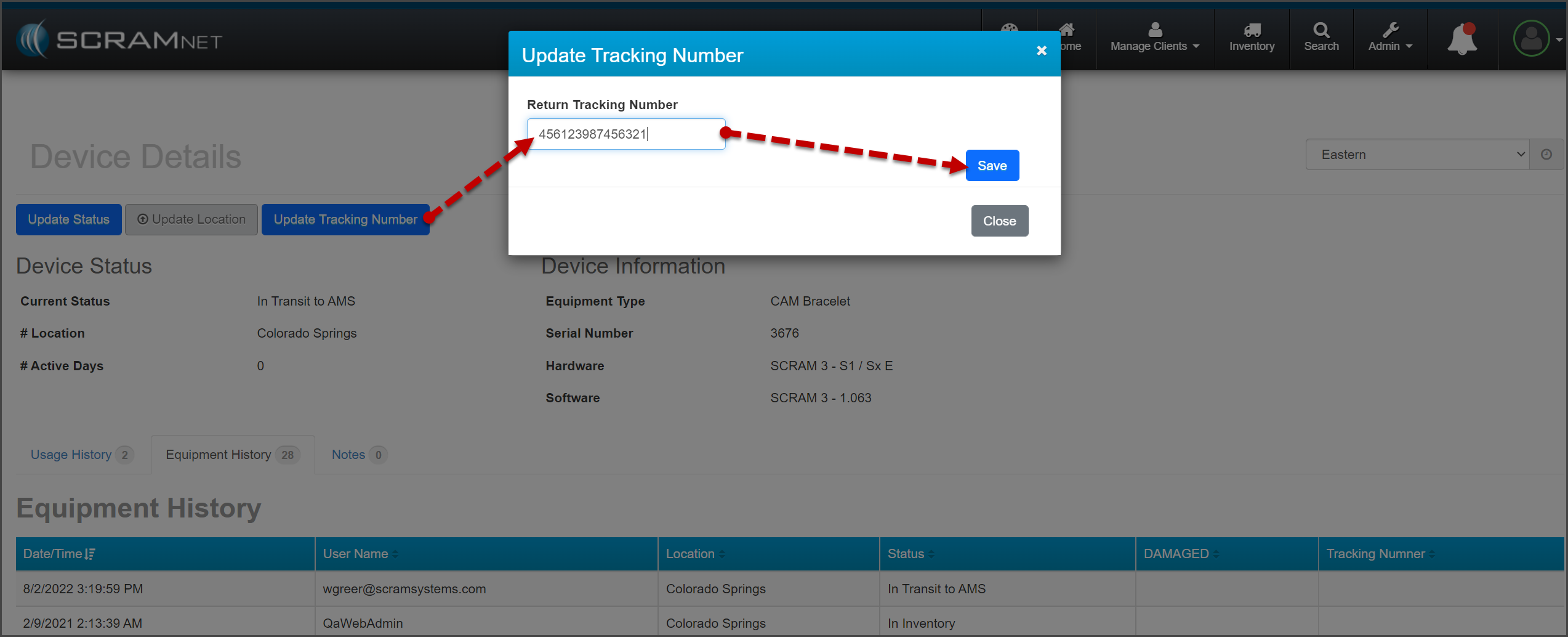
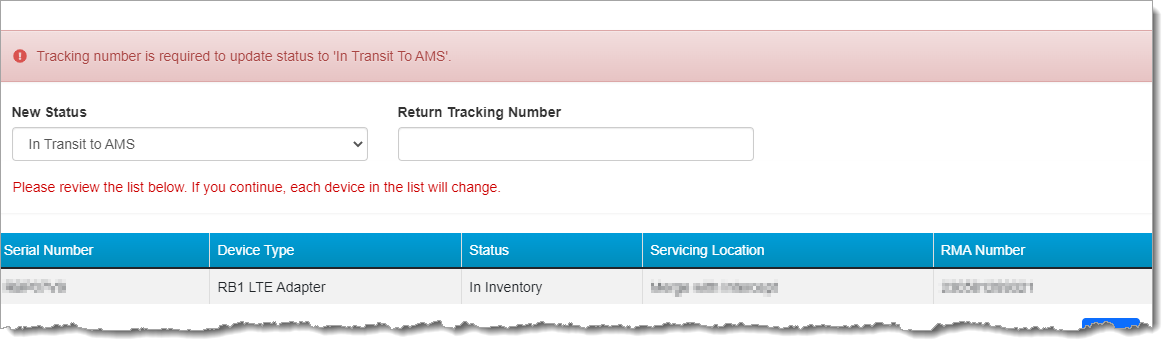
- Return Tracking Number is now a required field in SCRAMNET for “In Transit to AMS” equipment that has been “RMA’d”
Multi Select Filters
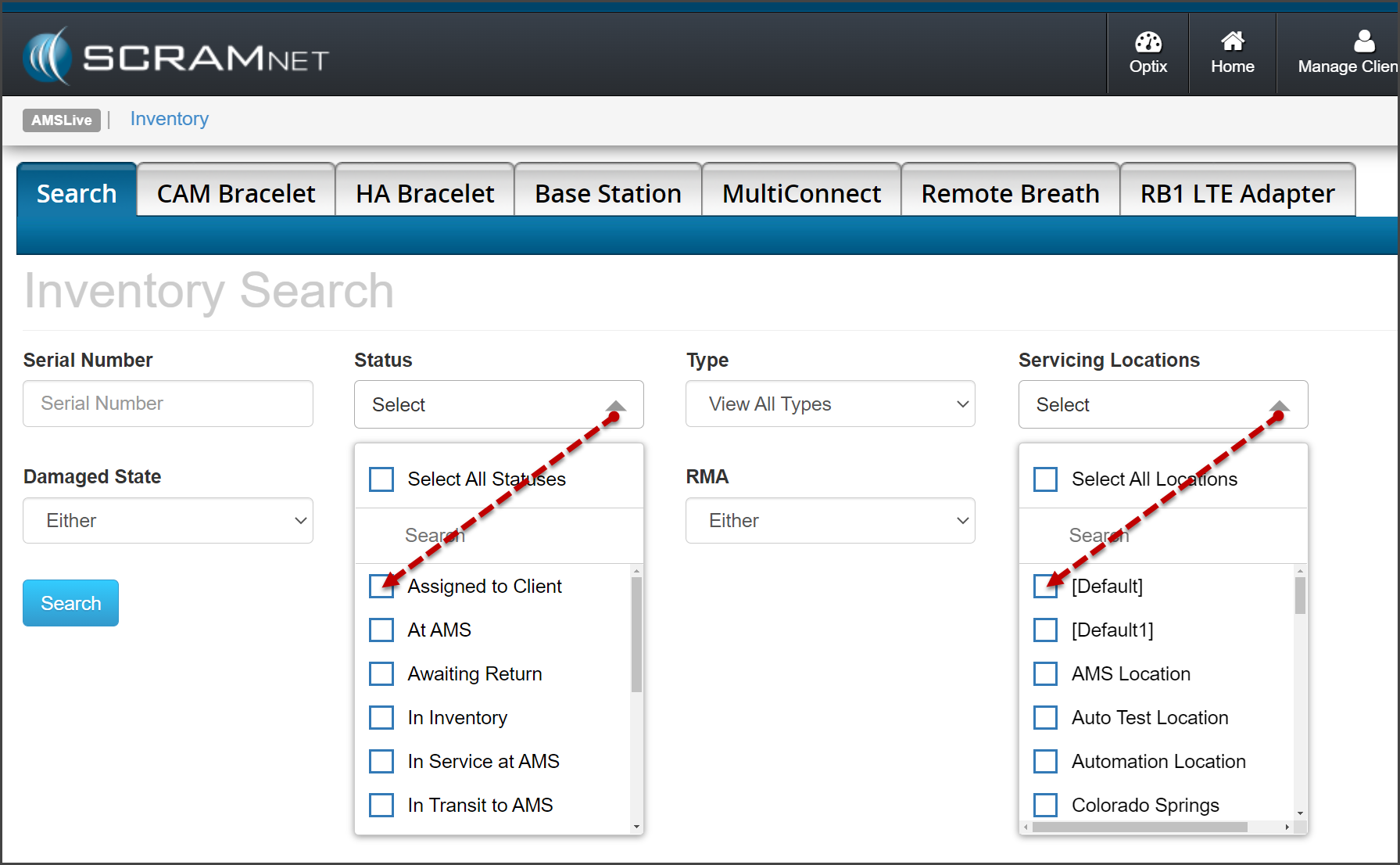
Starting on the Inventory page in SCRAMNET, open the dropdown filters and check the checkboxes to select one or more filter options.
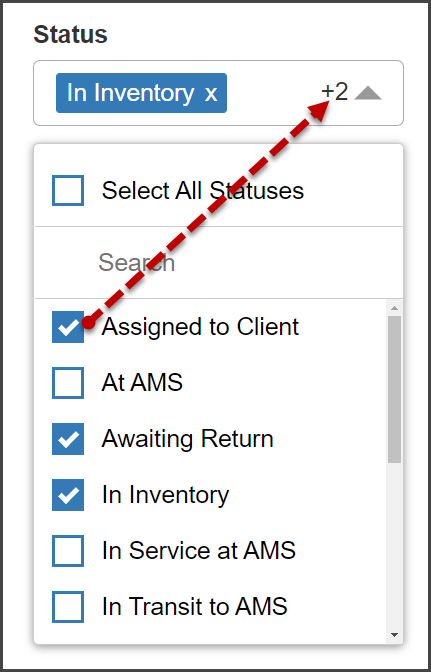
After opening the dropdown menu, the filter’s heading will display the first option selected, as well as the total number of additional selections made. In this example, the option of “In Inventory” was selected first, and two additional options were added.
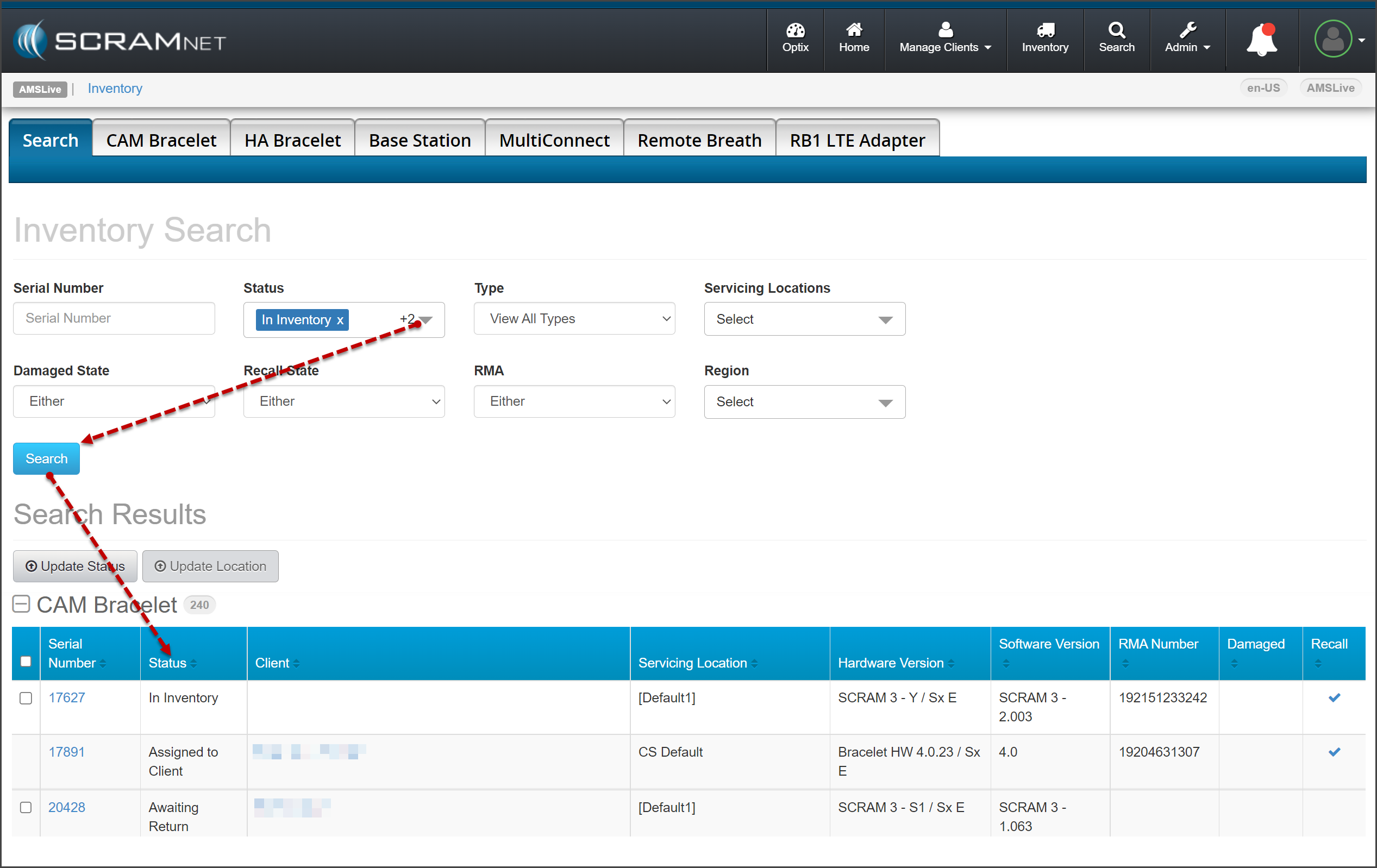
After choosing your options, select the Search button.
 | As a reminder, to make changes to multiple devices’ statuses or servicing locations, the selected devices must be in the identical status and location. |
Update Servicing Location for “Shipped from AMS” Devices
In some scenarios, SCRAM Systems ships equipment directly to our Service Providers’ separate inventory locations. With this update, the inventory managers for these Service Providers may update the Servicing Locations while the equipment is in a “Shipped from AMS” status. Once the equipment is delivered to the location, the inventory manager for that Servicing Location may update the equipment to an “In Inventory” status.
Add FedEx Tracking Numbers
When returning equipment to SCRAM Systems, after selecting the status of “In Transit to AMS” on the Update Inventory Status pop-up, you must add FedEx tracking information.
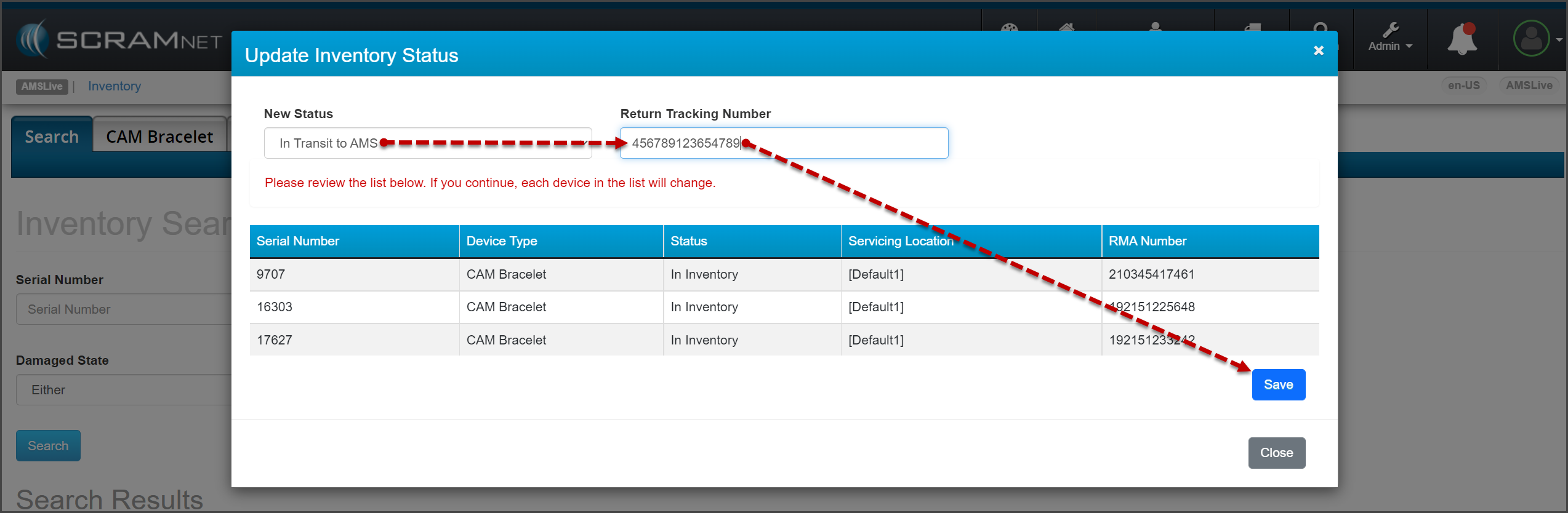
Once you select the Save button on the pop-up, the tracking information is recorded on the Device Details page for each device.
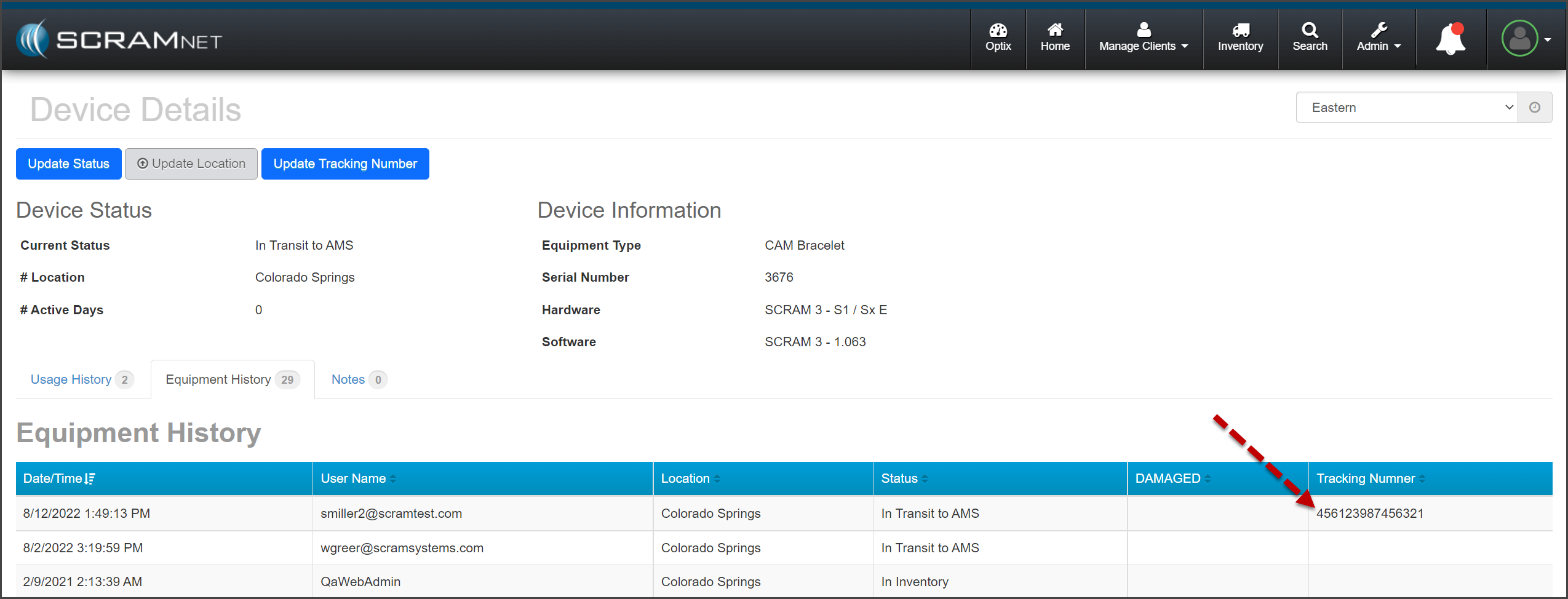
| If the tracking information needs to be edited after initially entering it, you may update the tracking number on the Device Details page for the device. |