On the afternoon of June 17, 2021, SCRAM Systems® released Direct Connect v2. Once installed, this new version of the Direct Connect application will no longer require that you log in each time you launch the tool. Instead, the application uses your Microsoft credentials to automatically log you in.
Installing the new application will entail:
- Ensuring that the application is closed.
- Validating that the correct back-end framework is installed.
- Completing the installation steps.
For now, the Direct Connect application currently installed on your computer can continue to be used to upload data. Instructions for removing the old application are included below at the end of this article.
Installation
To install Direct Connect v2:
- If Direct Connect is open, close the application before proceeding.
- Access the new SCRAMnet Direct Connect installation page. You will know you are on the correct installation page if it reads Version: 2.2.0.2.

- Ensure that “Microsoft .NET Framework 4.7.2 Client Profile (x86 and x64)” and “Windows Installer 4.5” are installed.
- Click the Install button.
Note: You may have to click the Install button twice.
A setup.exe pop-up appears in the lower-left corner.
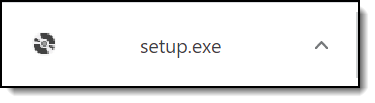
- Click the pop-up.
The Windows protected your PC pop-up may appear.
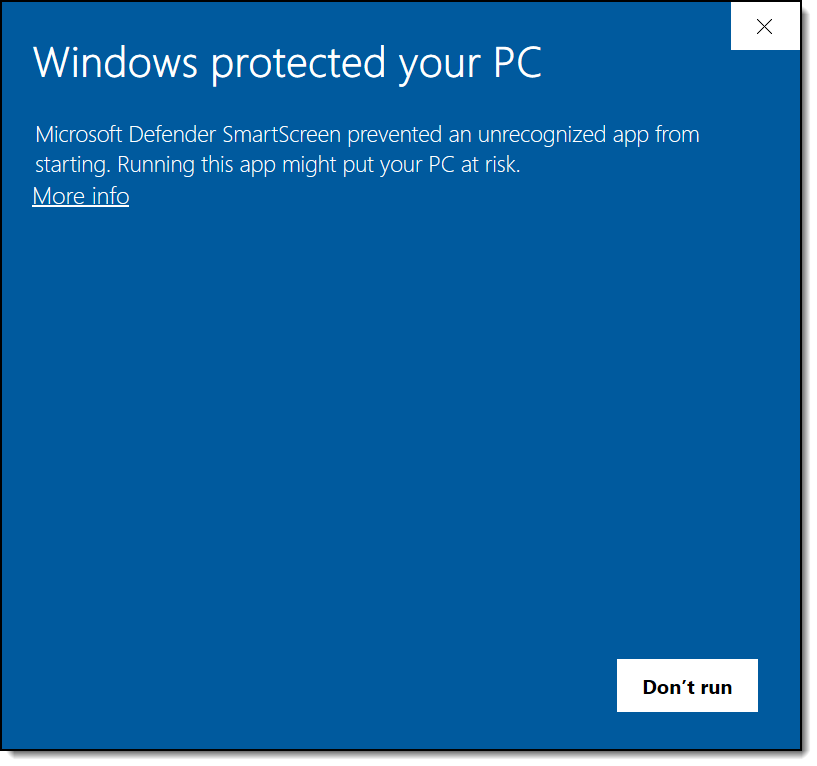
- Click the More Info link.
A Run anyway button appears.
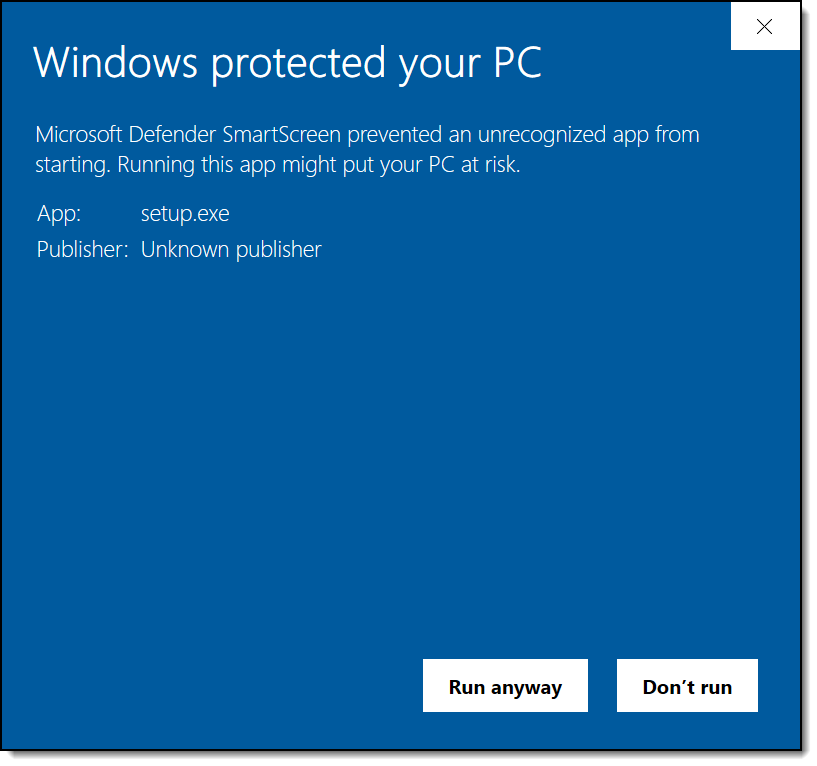
- Click the Run anyway button.
An Application Install – Security Warning pop-up appears.
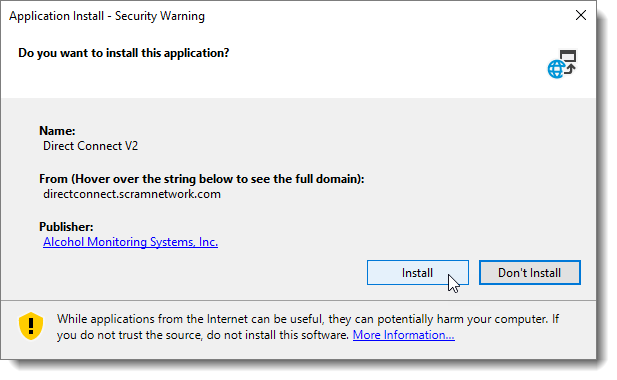
- Click the Install button.
The Windows protected your PC pop-up may reappear.
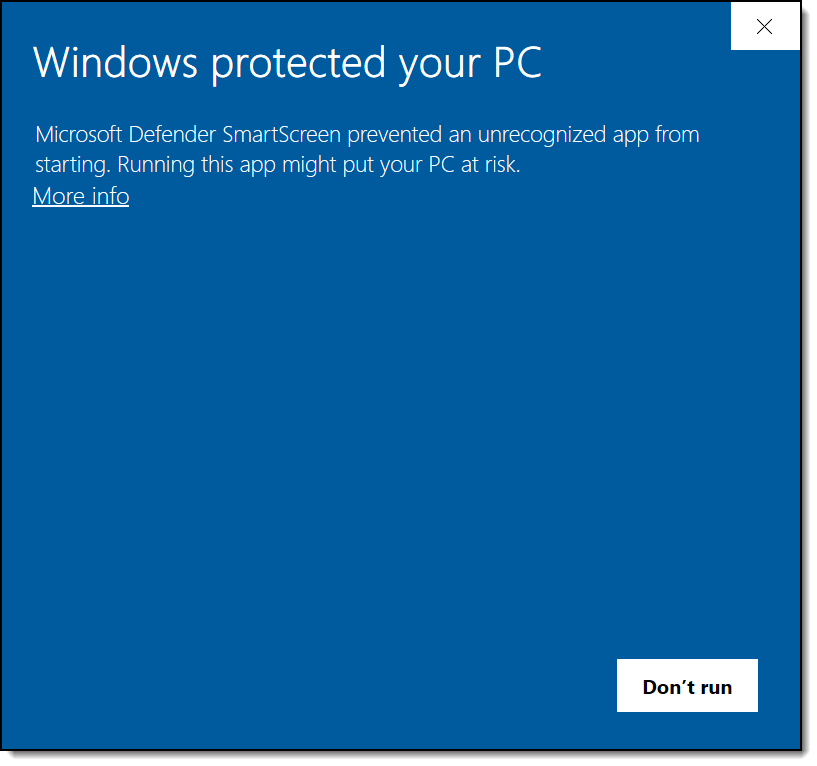
- Click the More Info link.
The Run anyway button reappears.
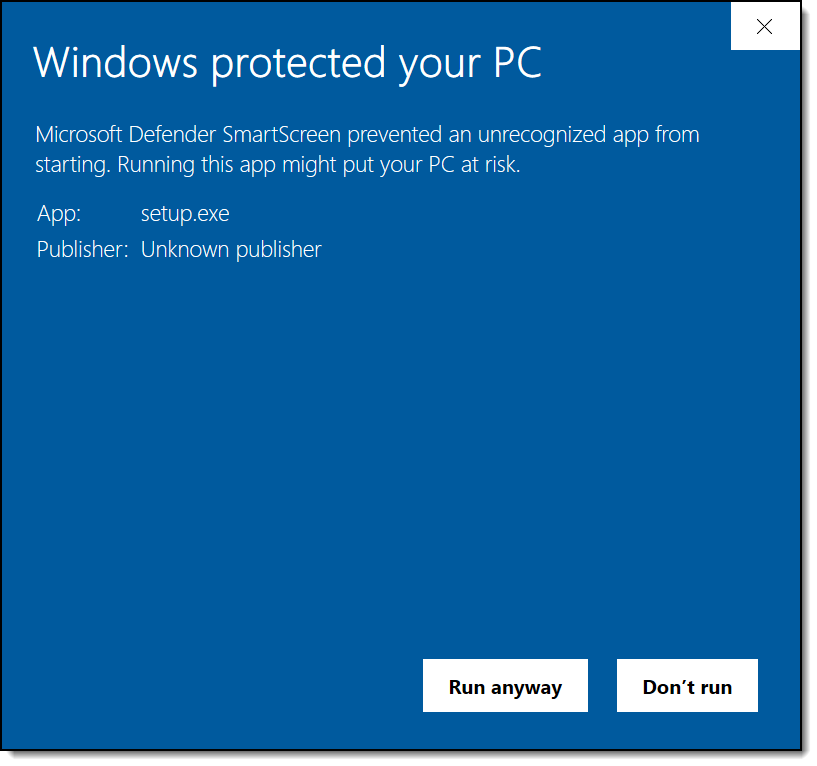
- Click the Run anyway button.
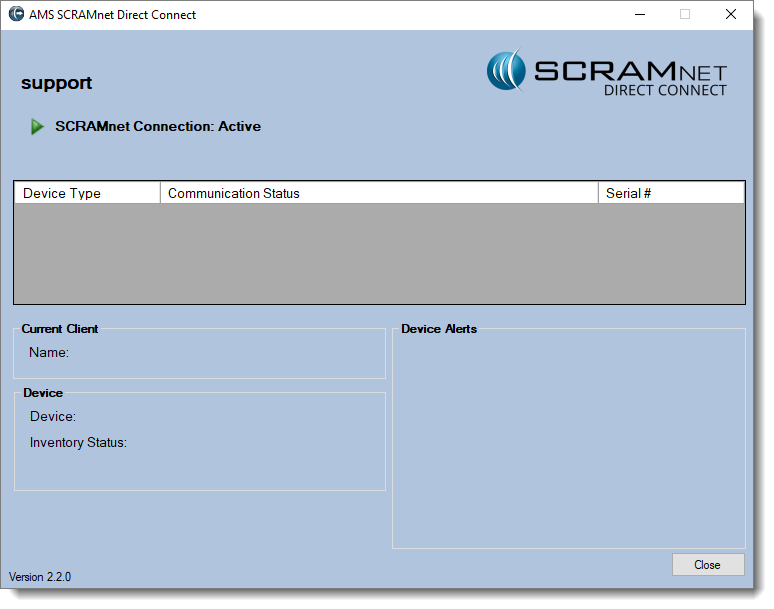
The application launches with your Microsoft user name displayed.
Uninstall Old Direct Connect Application
Two versions of the Direct Connect application are now on your computer. They are:
- Direct Connect v2 (New)
- Direct Connect (Old)
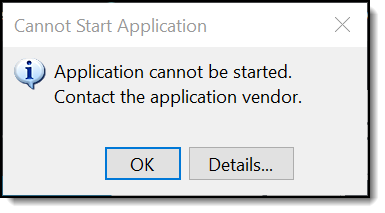
The following message will appear if you attempt to open the old Direct Connect application.
It is not necessary but you have the option to uninstall the old version. To do that:
- Locate the SCRAMnet/Direct Connect option in your program list.
- Right-click the option and select the Uninstall option.
- Select the Direct Connect program.
- Click the Uninstall/Change button and follow the instructions.