On January 14th, 2026, from 11:00 AM to Noon MST, SCRAM Systems will release two enhancements in SCRAM 24/7. The first enhancement improves client search capabilities. The second allows you to perform additional equipment actions directly from the Options column on the client’s Summary page for your CAM+HA and RB Activity clients when equipment is assigned.
During the release window, SCRAM 24/7 access will be interrupted for 1 hour. During this time frame, SCRAM 24/7 will be unavailable, and you will not be able to perform client-related tasks, such as adding a new client or managing current client activities. Once the maintenance window has expired, you will need to refresh your connection (logout/login) to the SCRAM 24/7 system to resume access and navigation.
Equipment Options Column
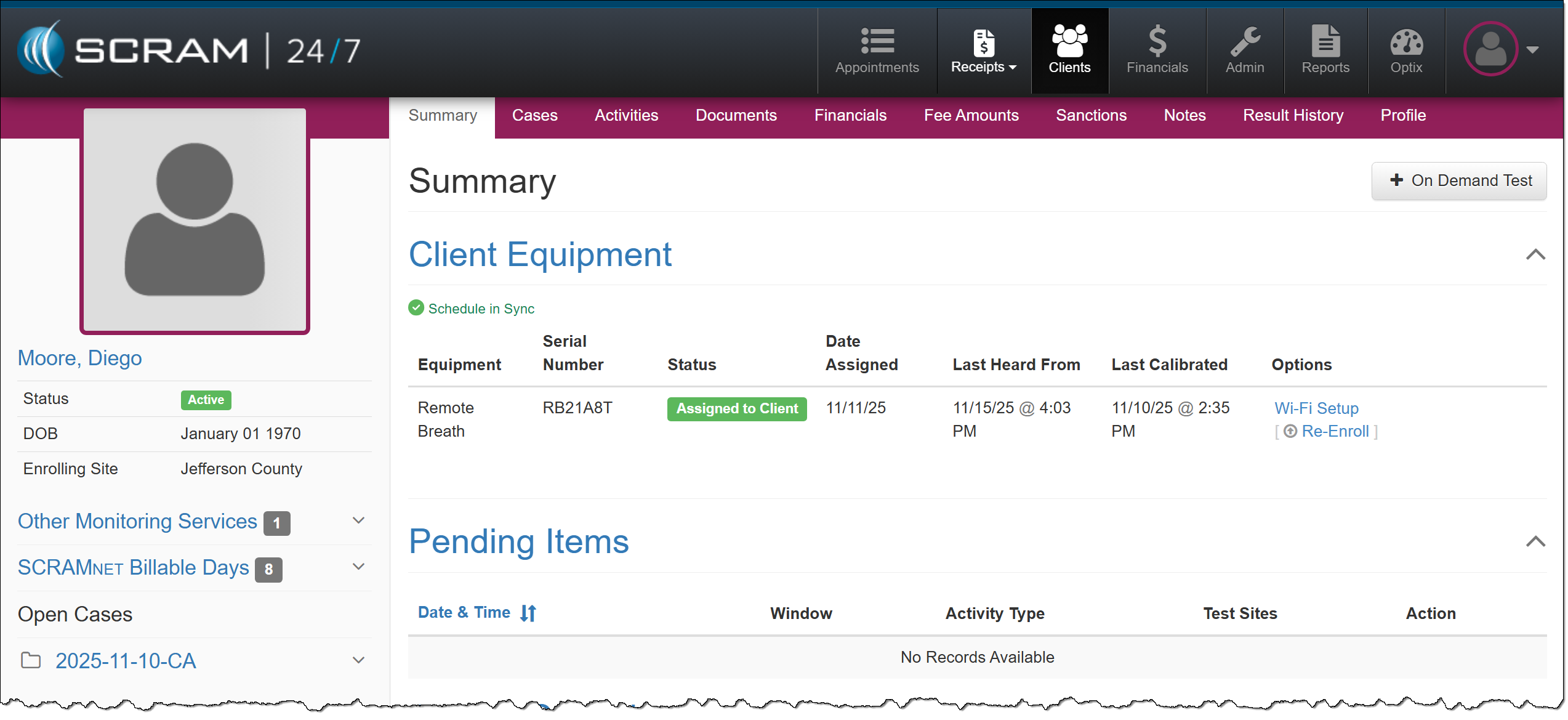
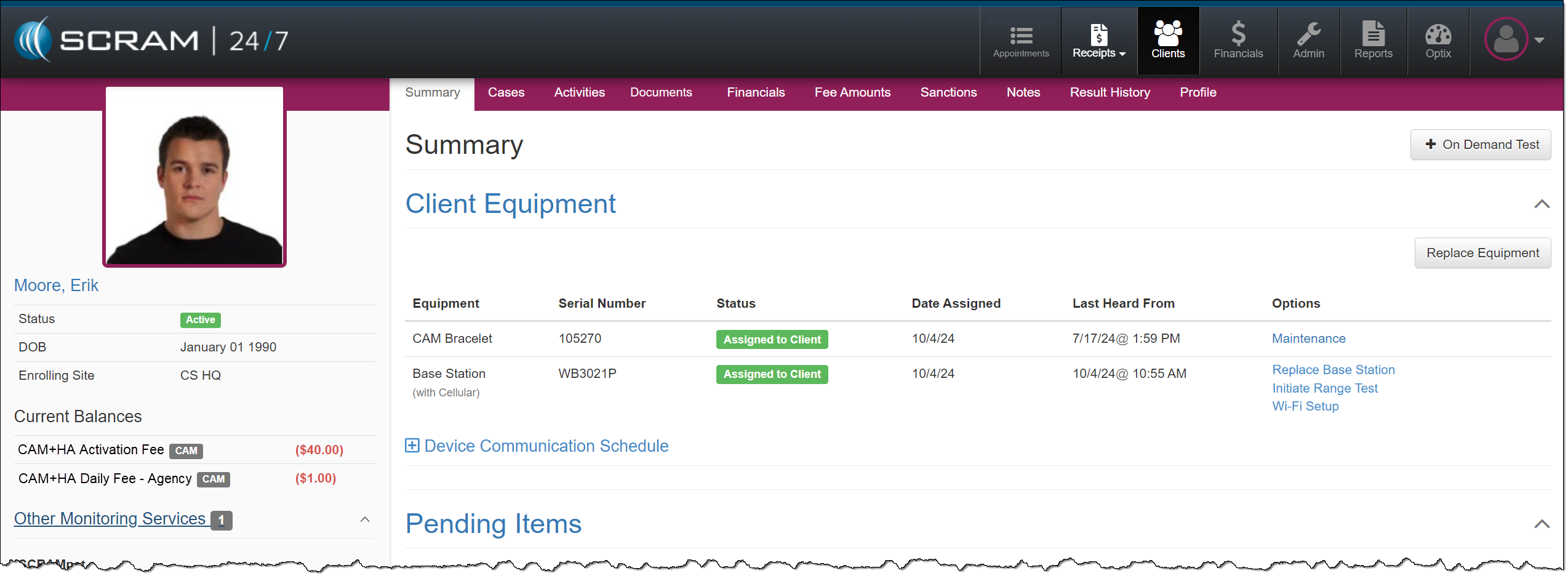
Actions typically completed in SCRAMNET for assigned equipment may now be performed on the client’s Summary page for the Remote Breath and CAM/House Arrest Activities. Select the task you wish to perform from the new ‘Options’ column found in the table under the Client Equipment heading.
Search Options
In addition to the current search fields, you may now search by:
- Date of Birth
- Gender
- Phone Number
- Address
- Case Type
- Case Reason
This update will be reflected on both the Clients page, on the Search All Clients tab, and the Financials page, on the Clients tab.
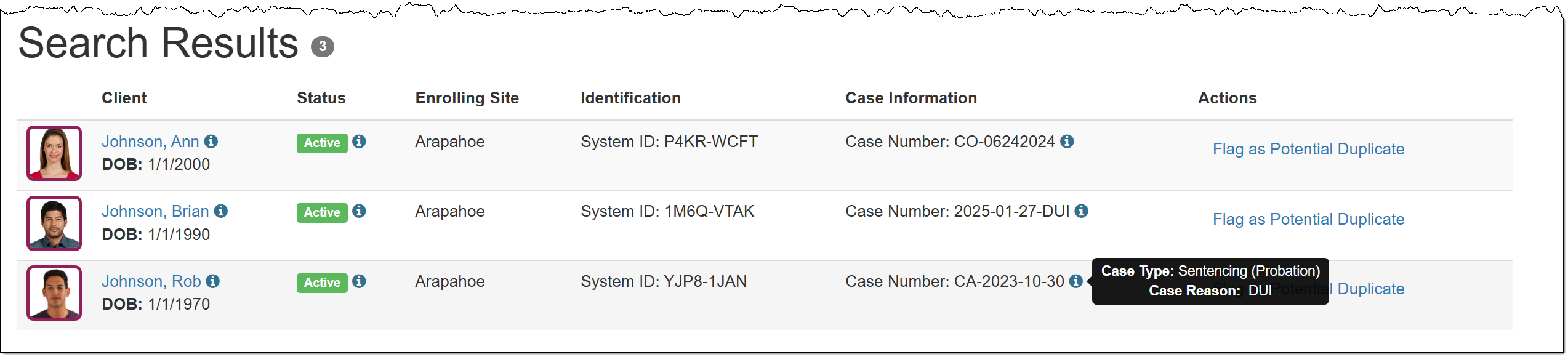
In the Search Results section, you will note some additional changes
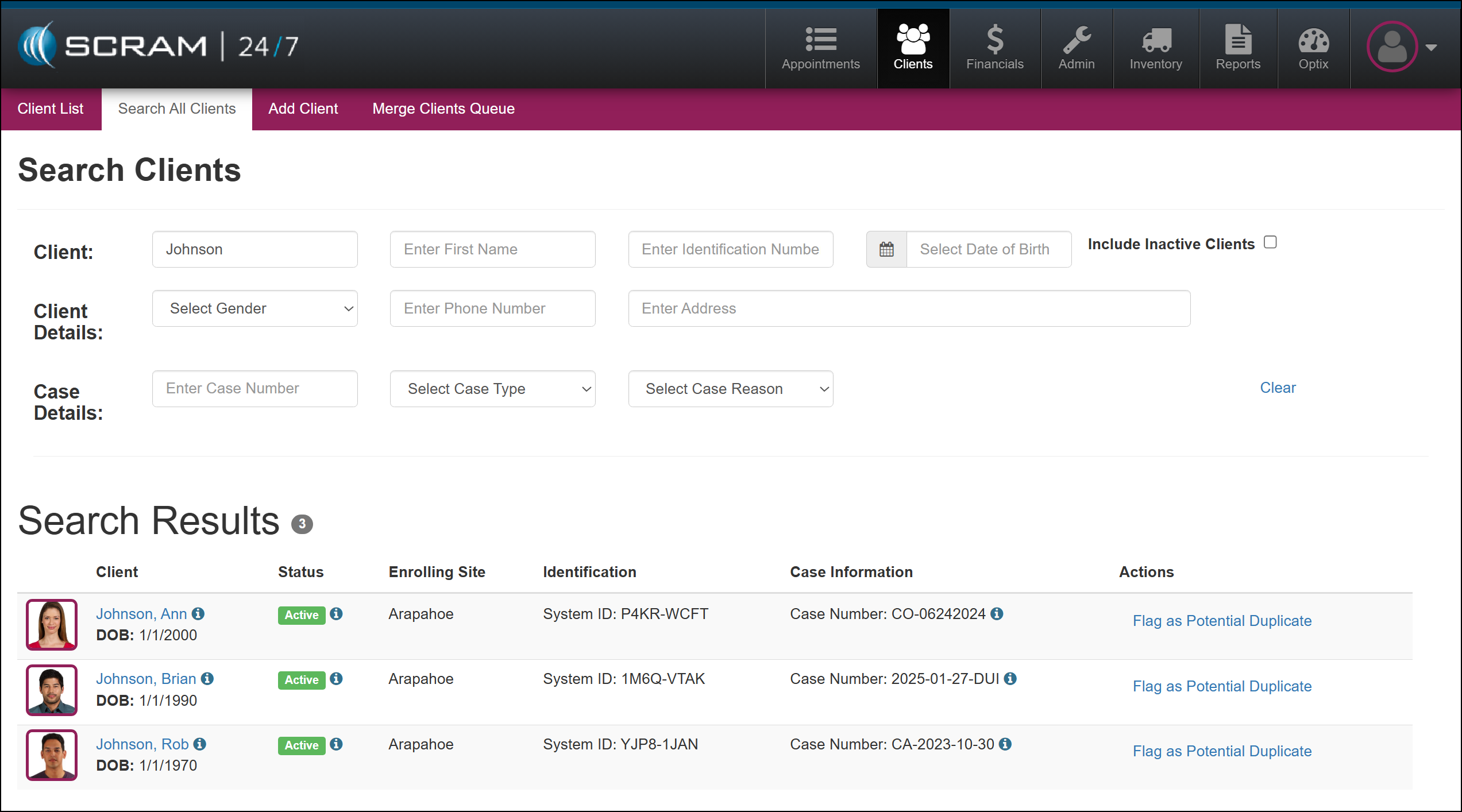
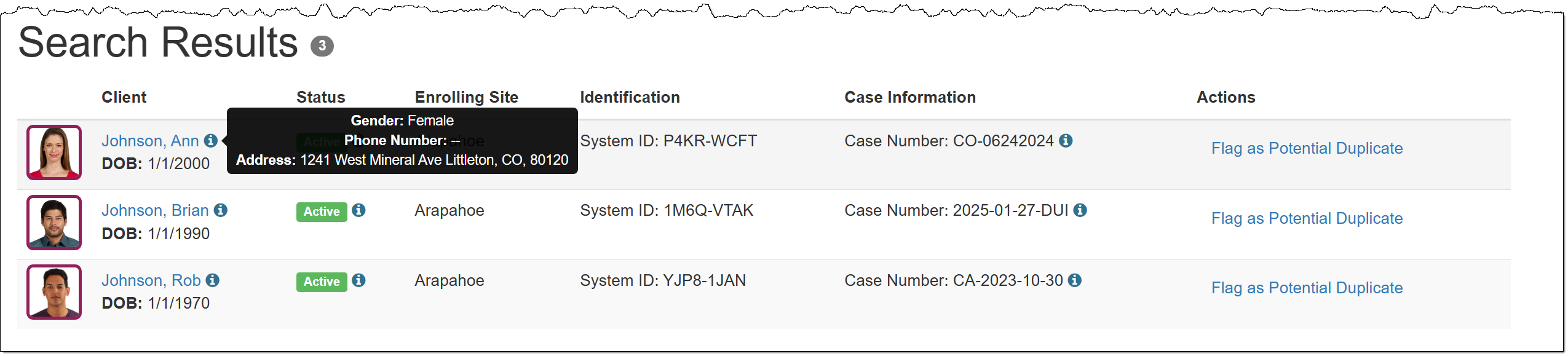
The client’s Date of Birth is now located under their name hyperlink, along with an information icon that displays the client’s gender, phone number, and address when you hover your mouse pointer over it.
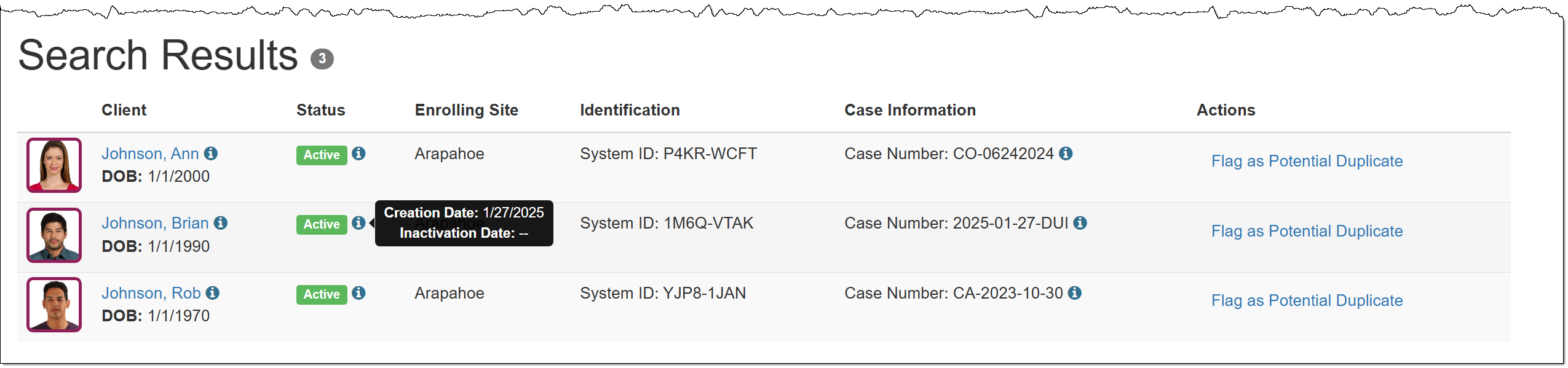
The Status column has been relocated, and an information icon that will display the creation and inactivation dates when hovered over has been added.
A new Case Information column displays the client’s case number, along with an information icon that shows the case type and case reason when hovered over.