On October 15th, 2025, SCRAM Systems will release multiple enhancements for your SCRAM 24/7 Monitoring program.
These enhancements are:
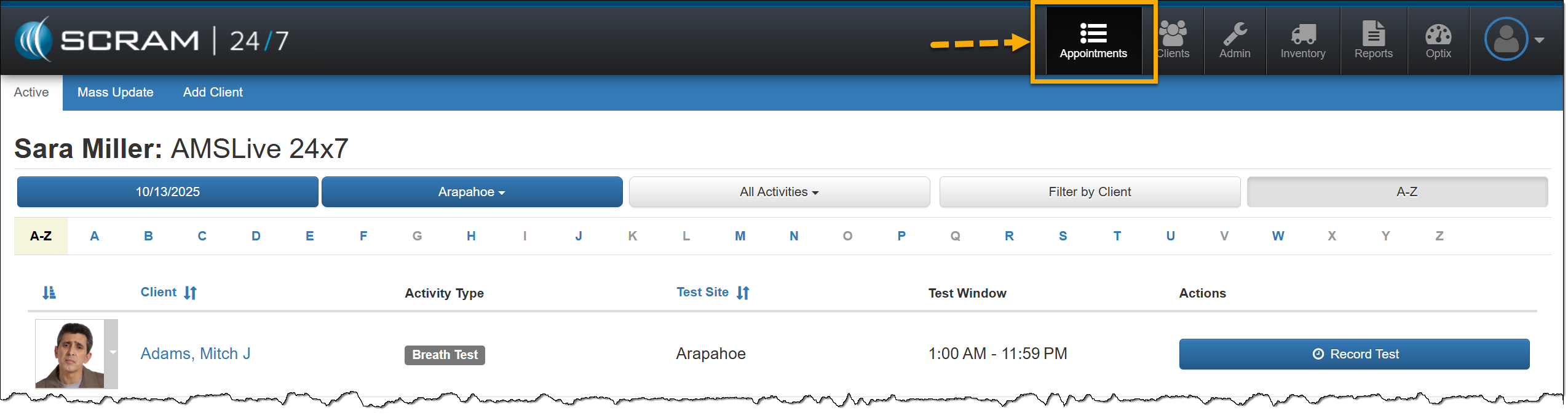
- New “Appointments” button replaces the “Testing” button.
- A Documents page for your client caseloads.
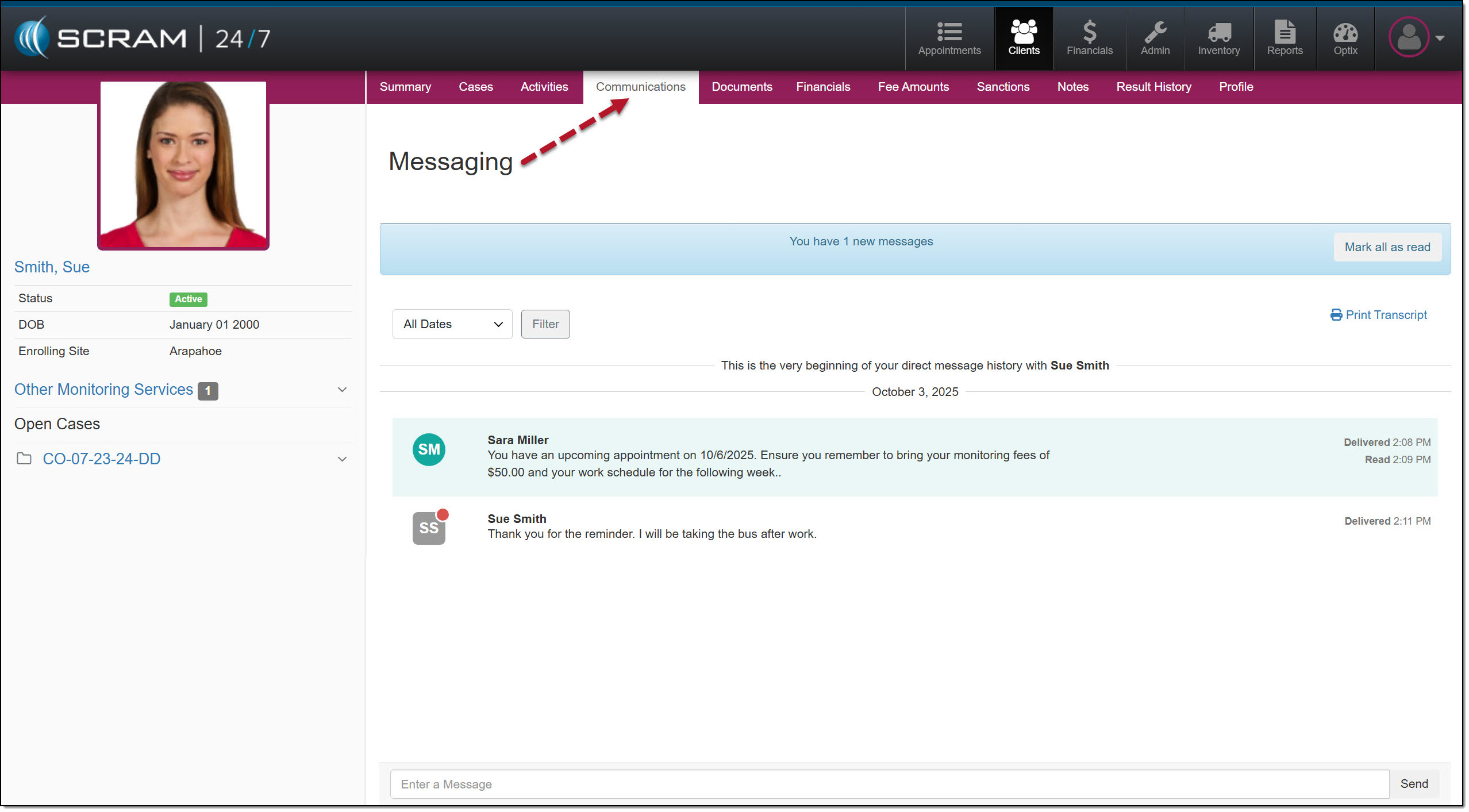
- A Communications page within SCRAM 24/7 for clients utilizing the Messaging feature with their TouchPoint Activity.
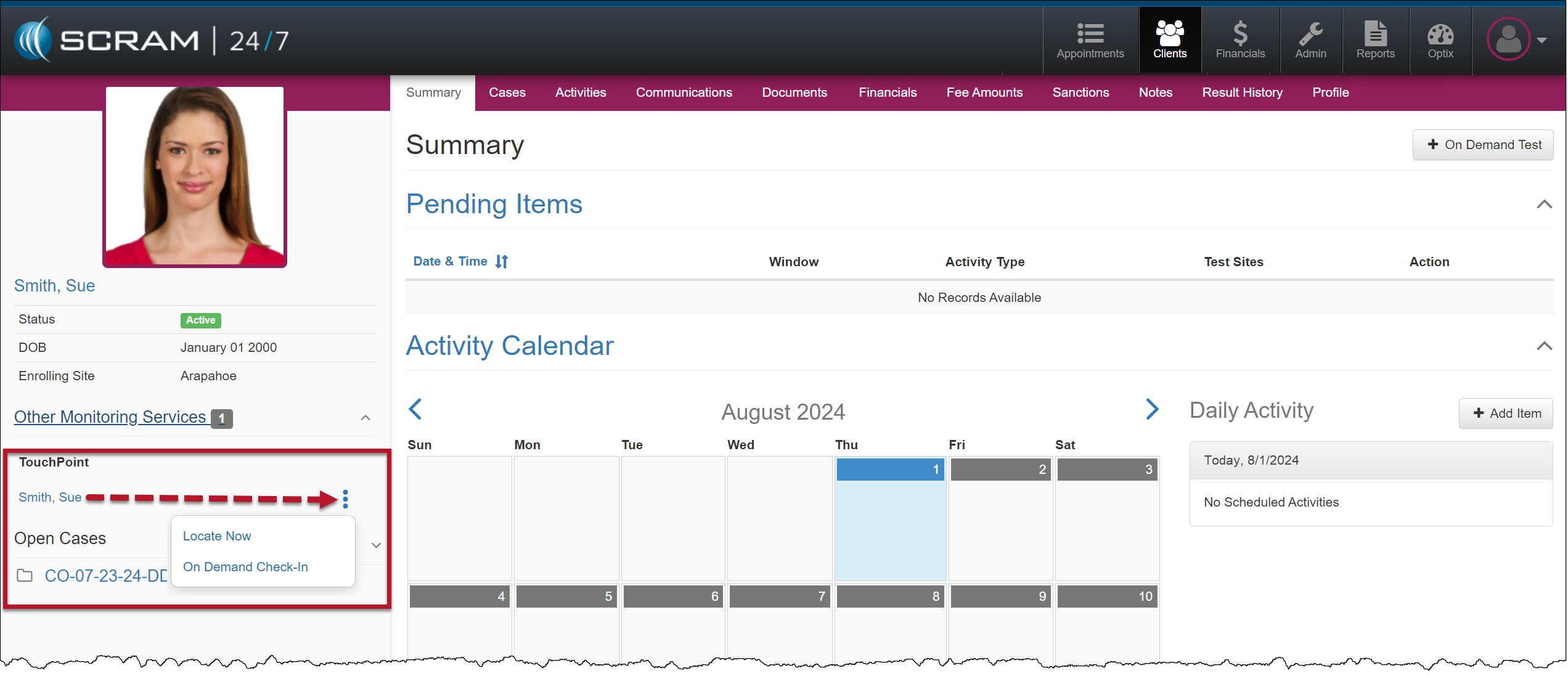
- Touchpoint Activity “Quick Actions” dropdown menu.
Appointments
With this release, the current main navigation button of “Testing” will be updated to “Appointments” to more accurately represent the activities that may be required for clients during their monitoring program.
Documents
Currently, during your client’s monitoring program, you may associate and save documents relating to a specific case on the Cases tab. Depending on the client, there may be occasions when the client has multiple cases and documents. This enhancement will add a dedicated Documents tab for each client in SCRAM 24/7, providing centralized management of client documents.
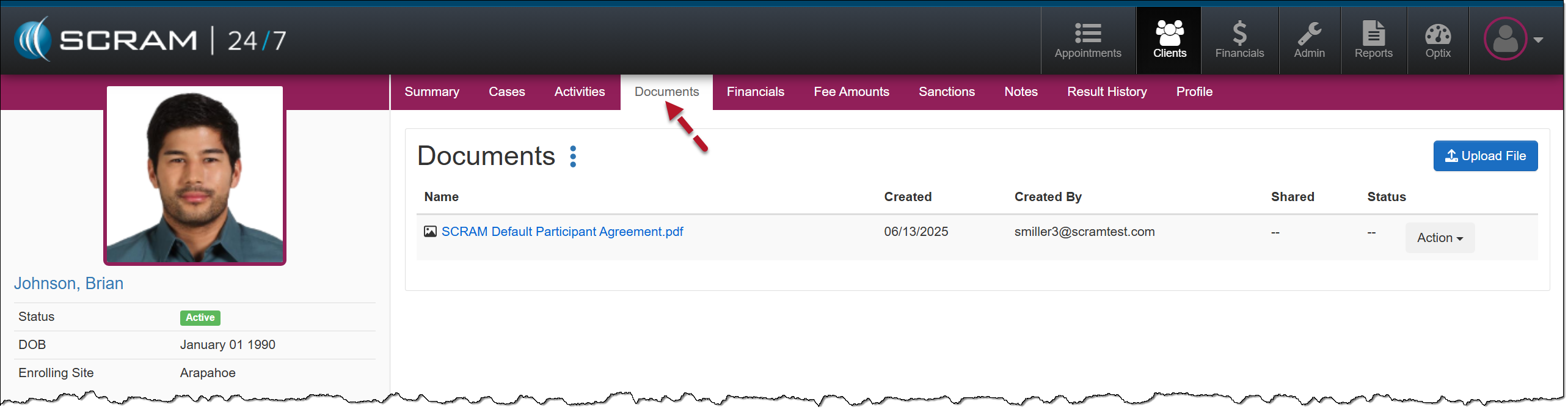
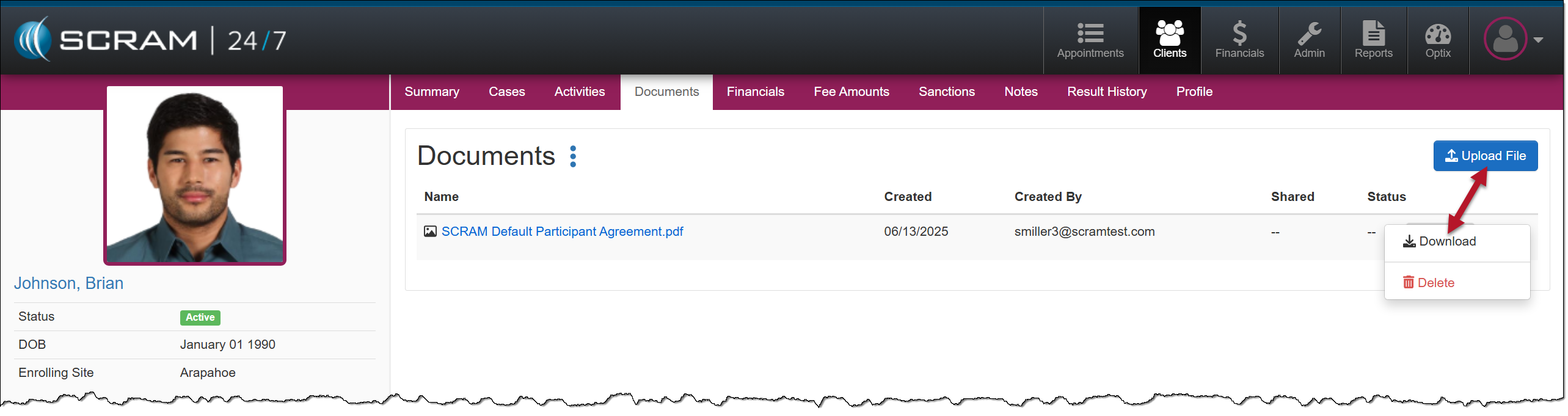
Once the Documents enhancement is released, all current documents saved on the Cases tab will automatically be relocated to the client’s Documents tab for easy access. From there, you may upload or download files, select the document’s hyperlink to view it in a preview window, or delete it.
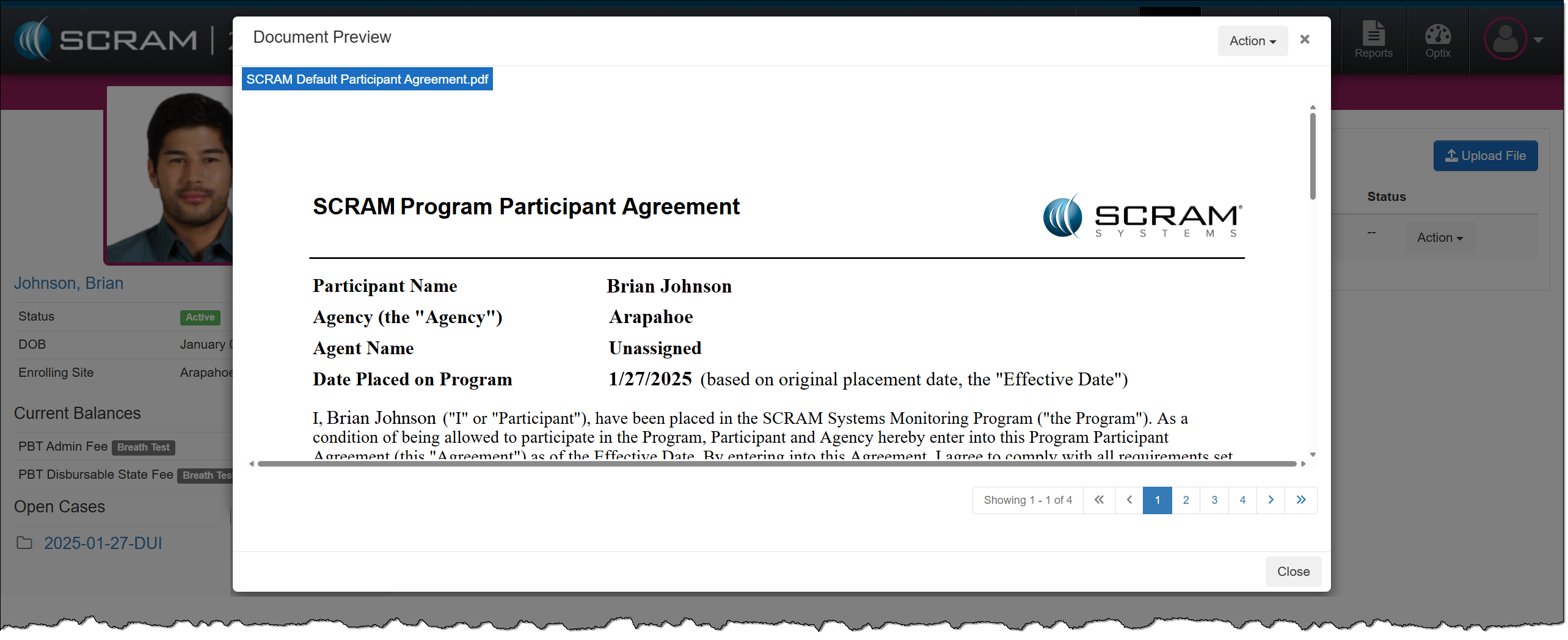
An additional benefit of this Documents enhancement for clients utilizing the TouchPoint Activity and the SCRAM TouchPoint Mobile application is that you may take advantage of all the benefits of the Documents service without navigating to the client’s Optix Profile. This includes:
- sharing documents directly with the client through the SCRAM TouchPoint Mobile application,
- requiring client e-signatures, and
- generating “Read” date and time stamps on shared documents.
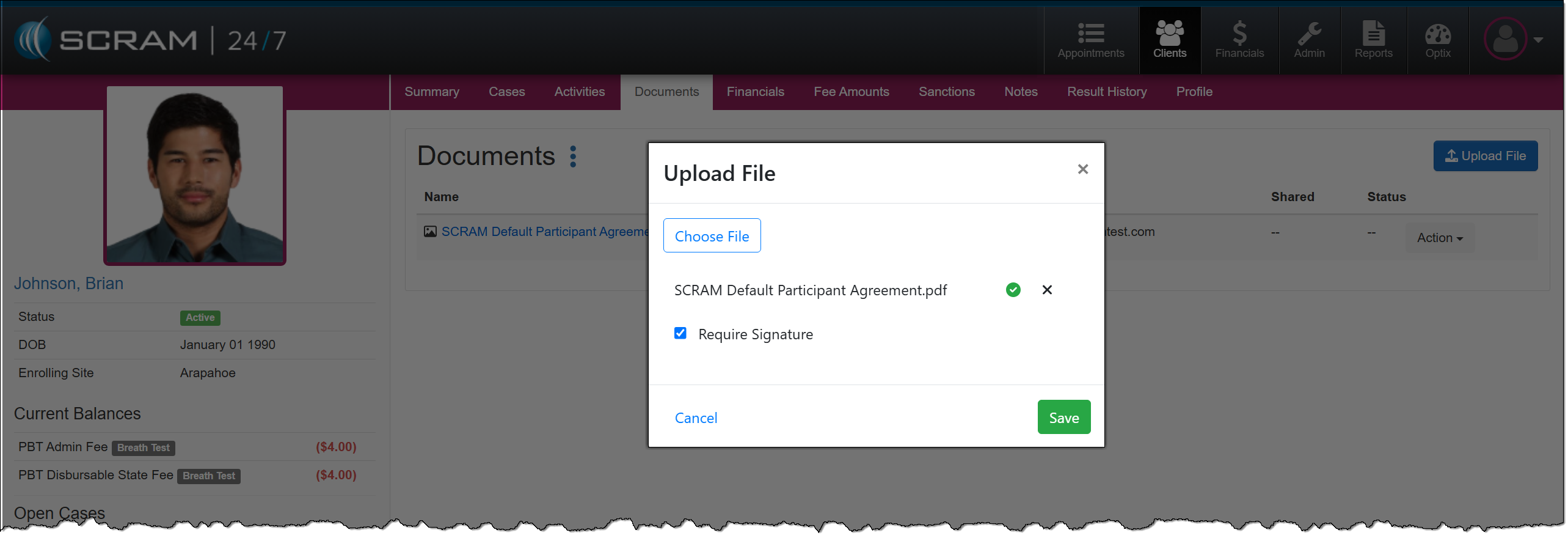
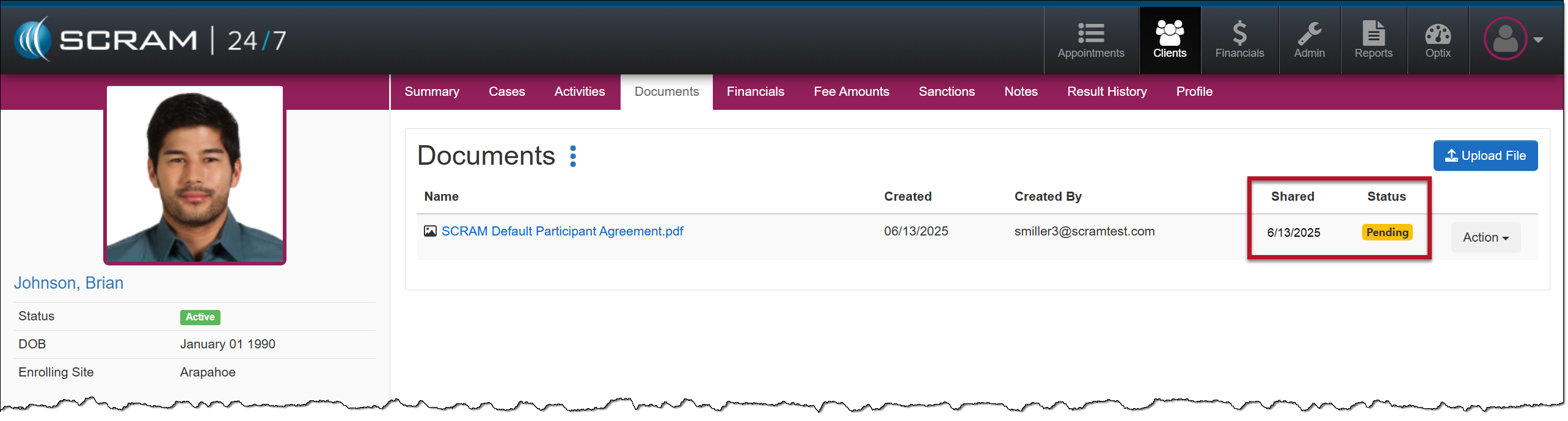
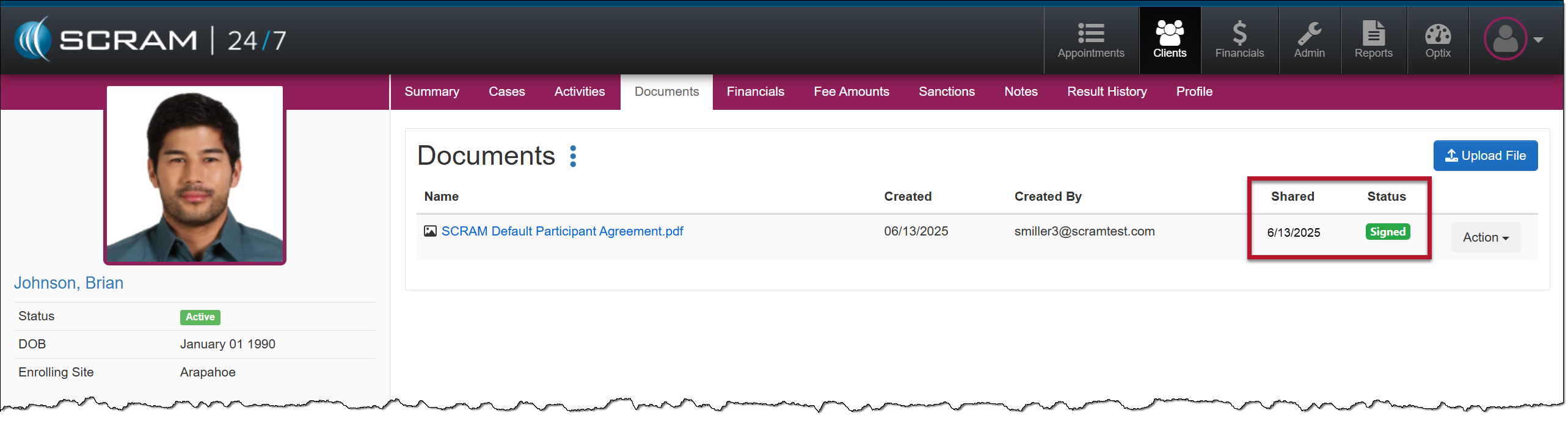
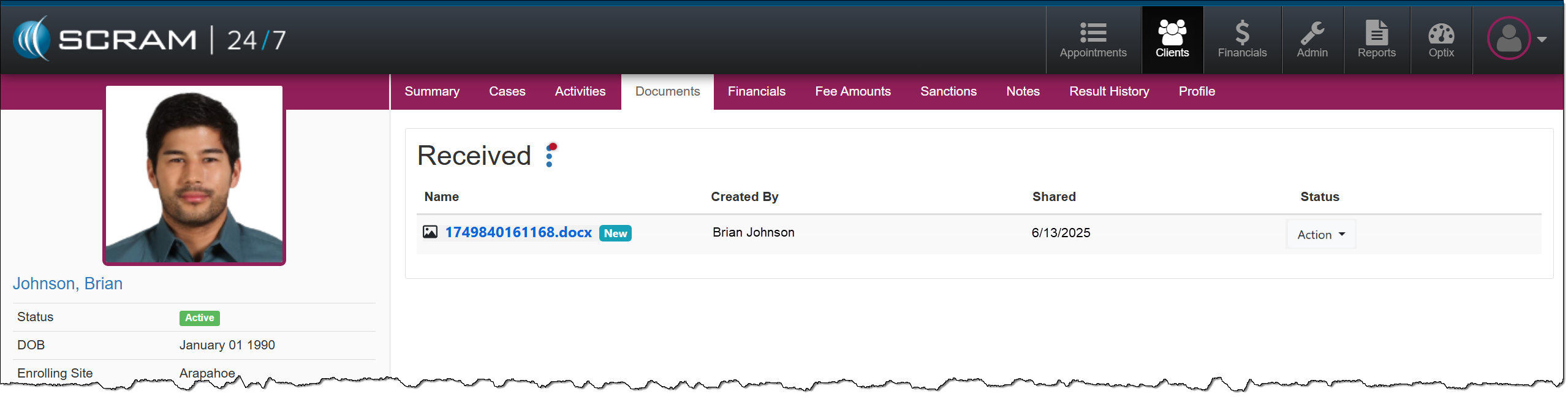
Additionally, the client may send documents and images directly from their mobile application to their Documents page in SCRAM 24/7, thus streamlining the delivery, receiving, and saving of documents to the client’s SCRAM 24/7 Profile.
Communications
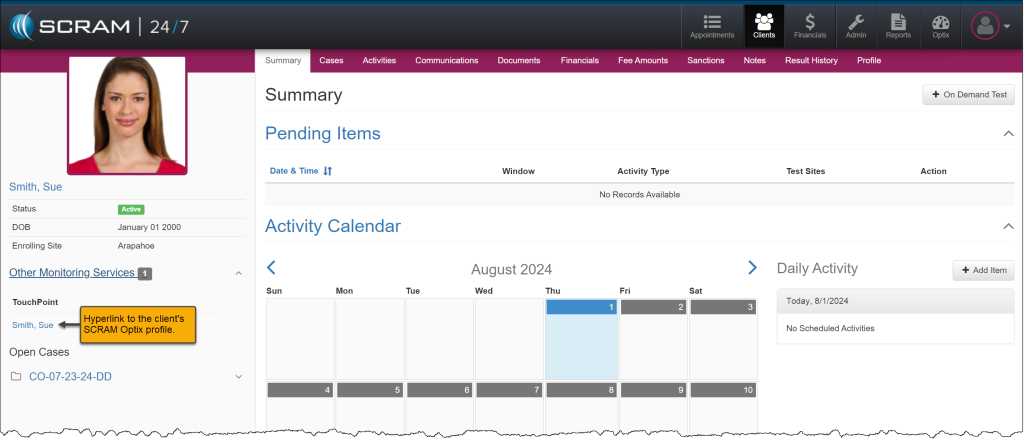
Currently, after adding the TouchPoint Activity and enabling the Messaging feature for your client, you must navigate to the client’s Optix TouchPoint profile to send, view, and print a history of messages.
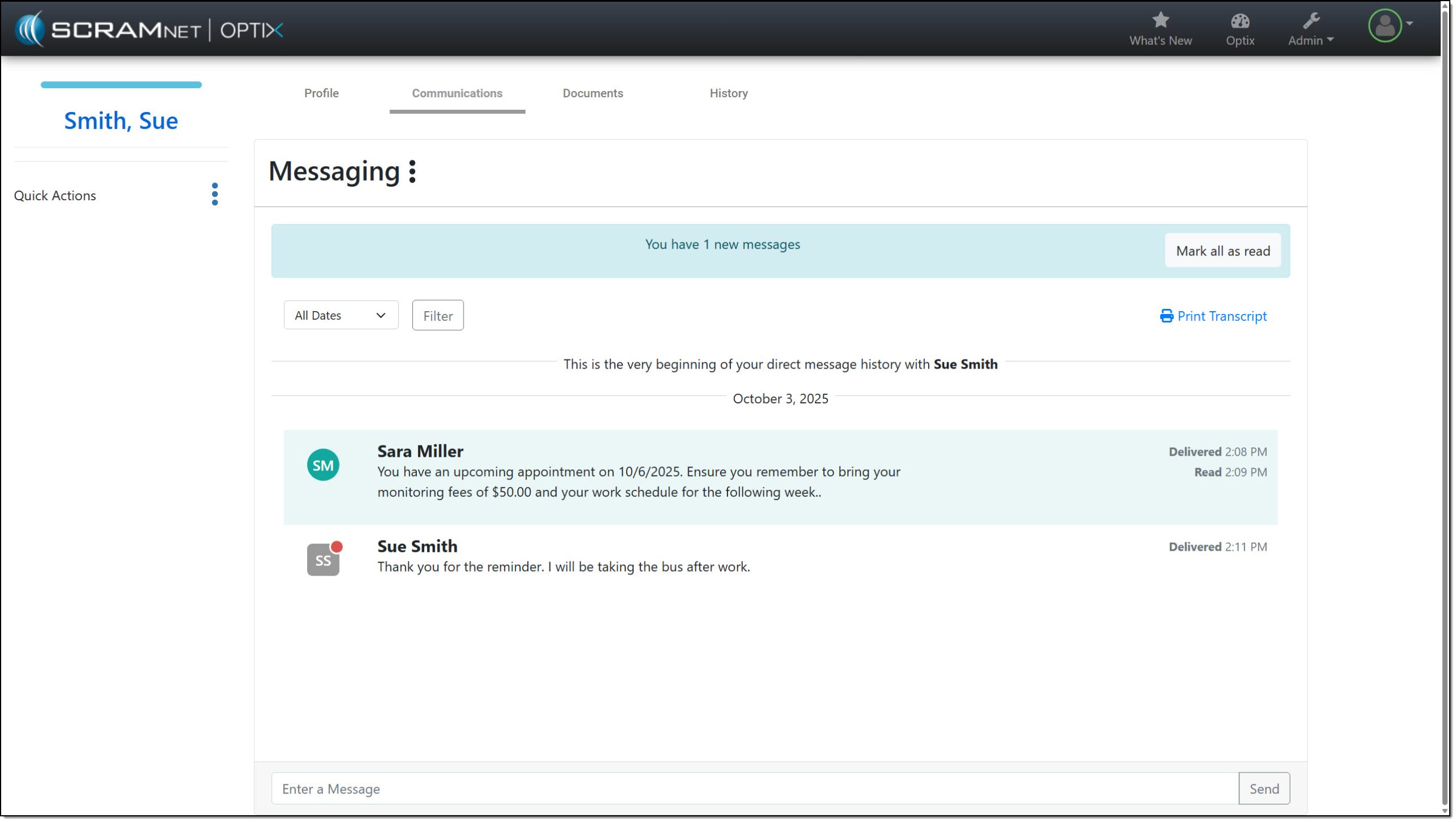
With this enhancement, you may complete all messaging tasks from within SCRAM 24/7.
TouchPoint Activity “Quick Actions” Options
Once a TouchPoint Activity has been enabled for your SCRAM 24/7 client, to utilize the on-demand features like “Locate Now” or to request an “On Demand Check-in,” you would navigate to the client’s Optix profile using the client’s name hyperlink located in the Other Monitoring Services section under the “TouchPoint” heading.
With this enhancement, you may now access and launch these features within SCRAM 24/7 by opening the Quick Actions dropdown menu.
 |
|