On February 18, 2025, SCRAM Systems will release three enhancements for your SCRAM TouchPoint Caseloads. These enhancements include:
- An option to disable Biometric Verification for clients who log in to TouchPoint for Check-Ins.
- For Messaging services, as soon as one user marks a message as read, it eliminates the need for all users to mark the same passage as read. Each message will be stamped with the username, date, and time read.
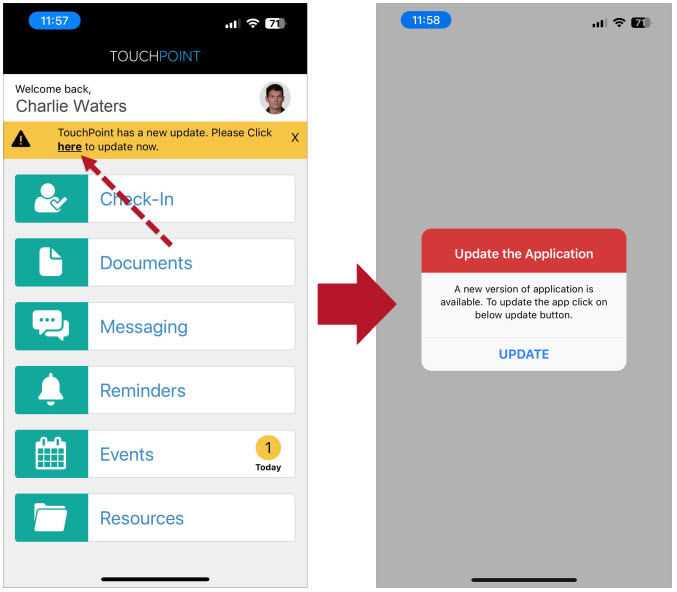
- In an effort to ensure that clients are using the latest version of the SCRAM TouchPoint mobile application, a reminder banner will be displayed on the client’s smartphone.
 |
Your account must be enabled for video conferencing for these instructions to work. Contact your SCRAM Systems Account Representative if you are interested in activating this service. |
 |
As a best practice, we recommend you encourage your clients to enable automatic app updates. This ensures they are always using the latest version of the TouchPoint app. |
Optional Biometric Login
For customers who do not require biometric verification when logging into TouchPoint, an option will be available to disable the setting.
Disabling Biometric Verification
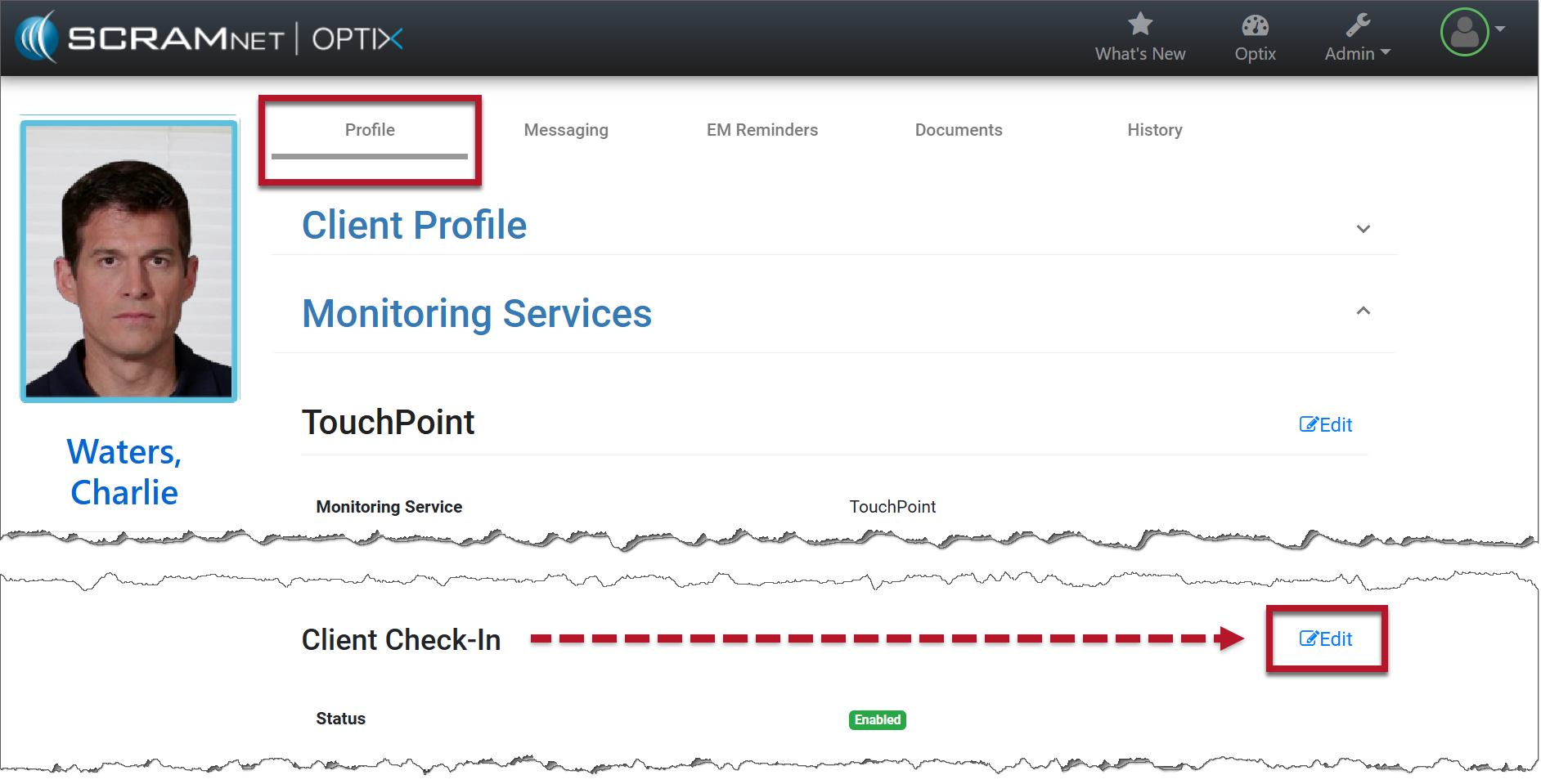
- From the client’s Profile page in Optix, select the Edit hyperlink for Client Check-In.
- Toggle the Status of the Biometric Verification from Enabled to Disabled and save your changes.
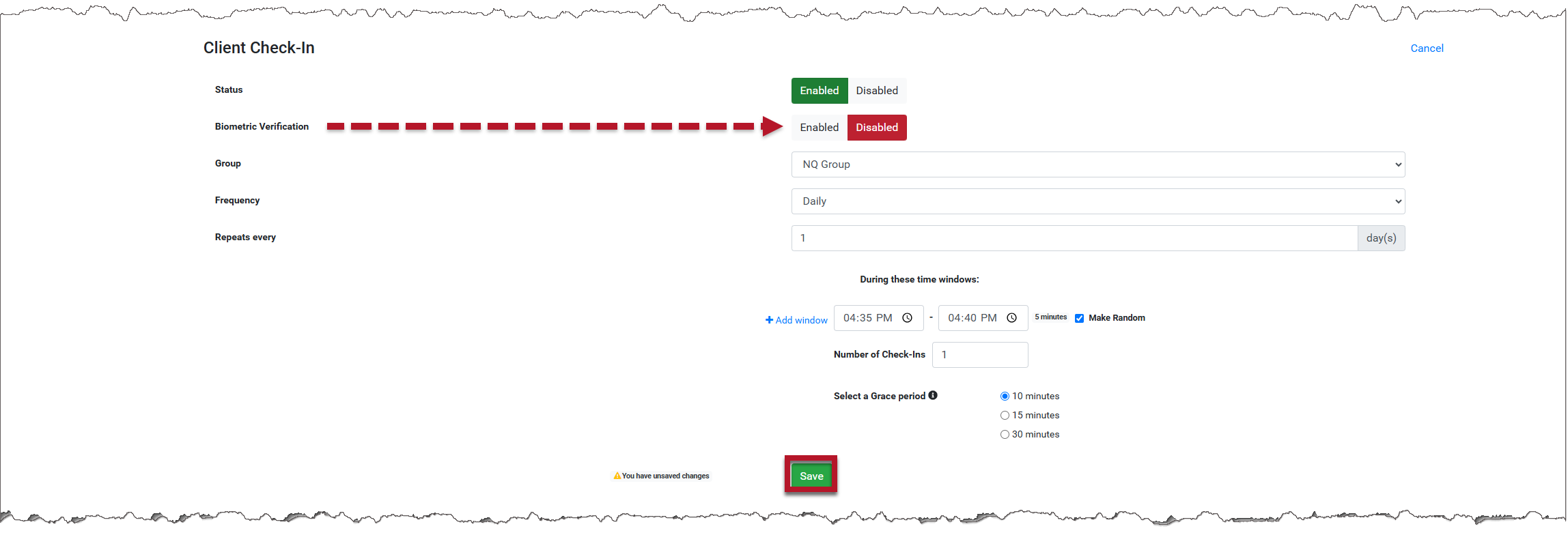
- Biometric Verification has been disabled. When the user logs in to TouchPoint on their smartphone, biometric verification will not be required. The Check-In questions will be the first thing they see.

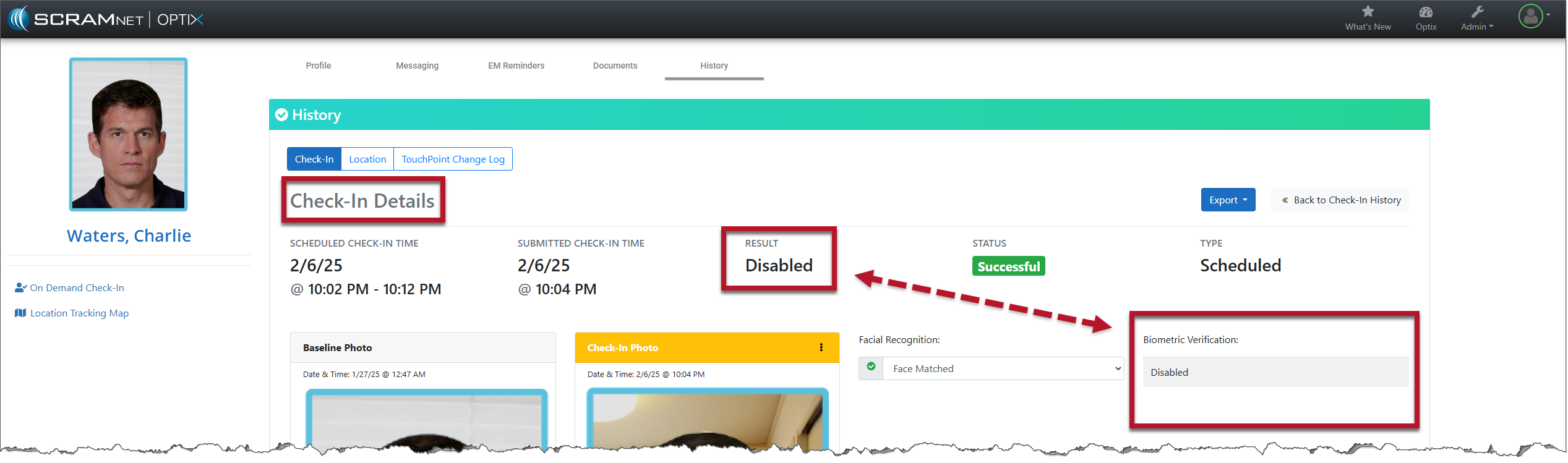
- The Check-In Details page will also display “Disabled” for Biometric Verification.
TouchPoint Read Messages
Once a user reads a message in TouchPoint, that message will be marked as read for all users.
Mark Messages as Read
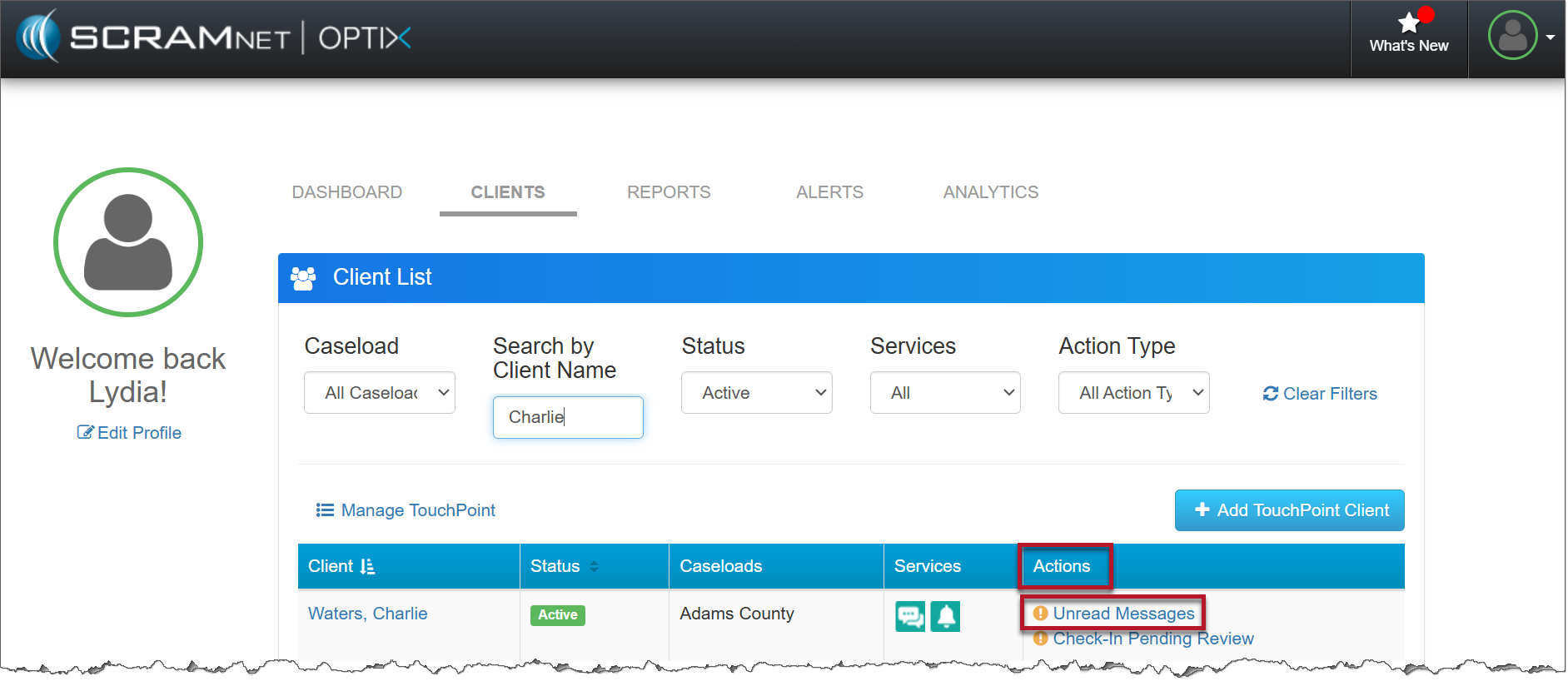
When a user receives a message from a client, an Unread Message alert appears in the Actions column on the Client List page. Select the Unread Messages hyperlink.
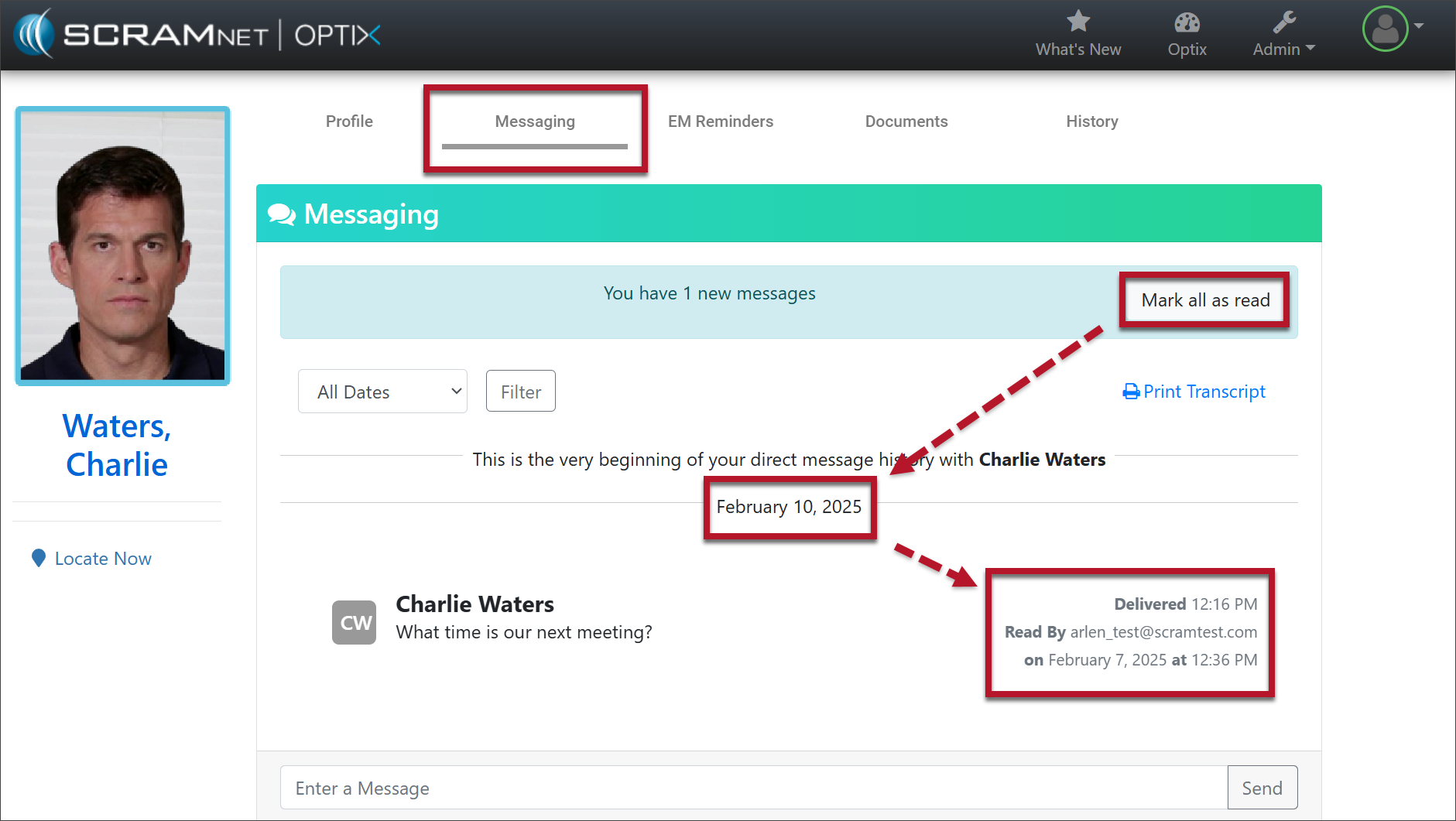
The new message displays on the Messaging tab. Selecting the Mark all as read button:
- Removes the Unread Message alert from the Actions column for all users.
- Displays a “Read By” receipt to all users that shows the username, date, and time of the message read.
Update to Latest Version of TouchPoint Application
To ensure your client is using the most recent version of the TouchPoint Mobile Application, a reminder banner will be displayed when logging in to TouchPoint. Selecting the link will take the client to the Google Play store or Apple App Store to download and install the update.
If clients select the x in the banner, it will close the alert. The next time the client logs in, the banner will reappear until the app is updated.