On, February 29, 2024, SCRAM Systems will release two enhancements for your SCRAM Nexus Caseloads.
- Add one-time, single-occurrence appointments to clients’ calendars.
- While editing a Condition within a Module, an Administrator may customize whether or not that Condition will display a TouchPoint Reminder within the client’s mobile application.
Add a One-Time, Single-Occurrence Calendar Appointment
With this enhancement, once you have added a Supervision Plan to your client, you may add a one-time, single-occurrence appointment to your client’s calendar, such as the client’s next court date.
To add a one-time, single-occurrence appointment:
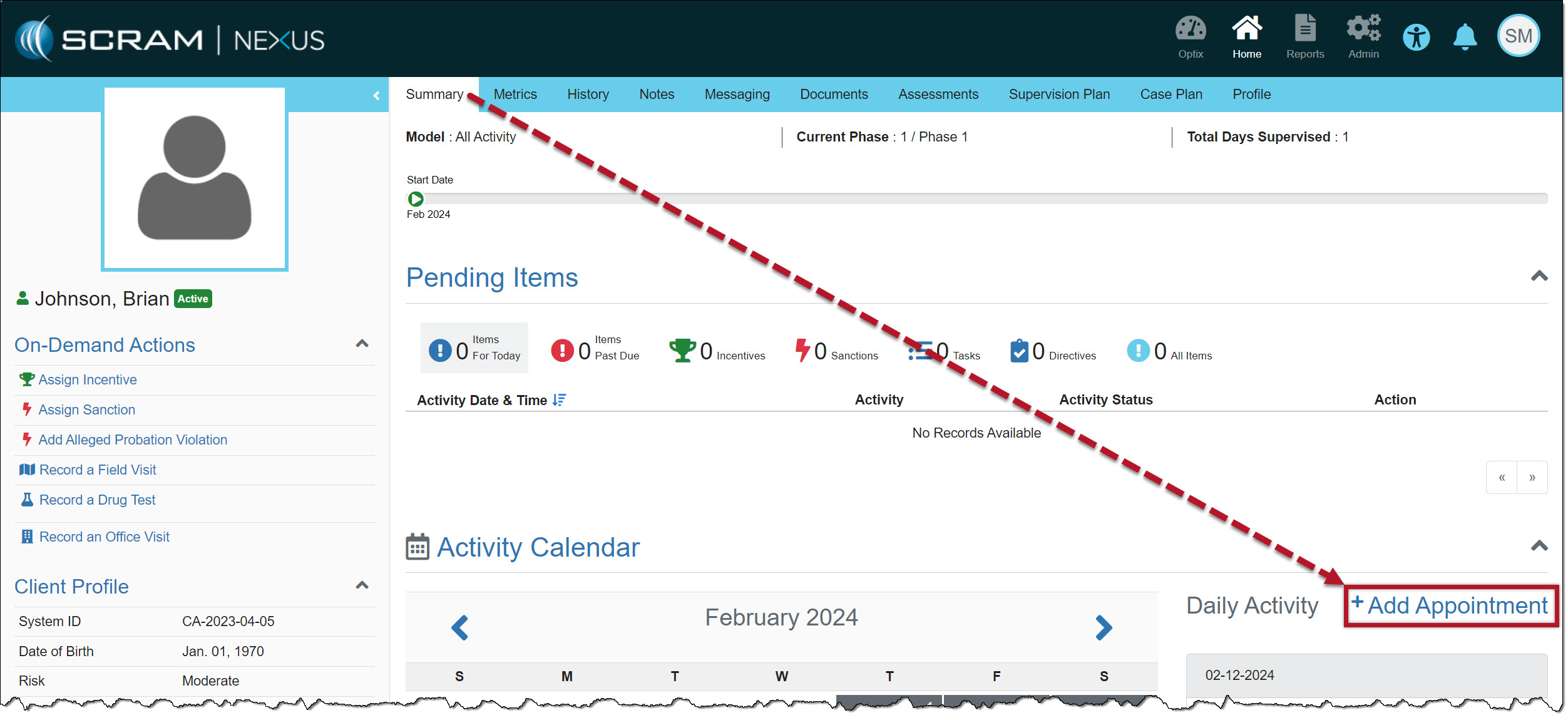
- Select the +Add Appointment hyperlink on the client’s Summary page in the Daily Activity stream section.
- On the Add a New Appointment page, from the “Activity Type” dropdown menu, you may add any activity that is currently part of the client’s Supervision Plan. In this example, the option of Supervised Appointment is selected.
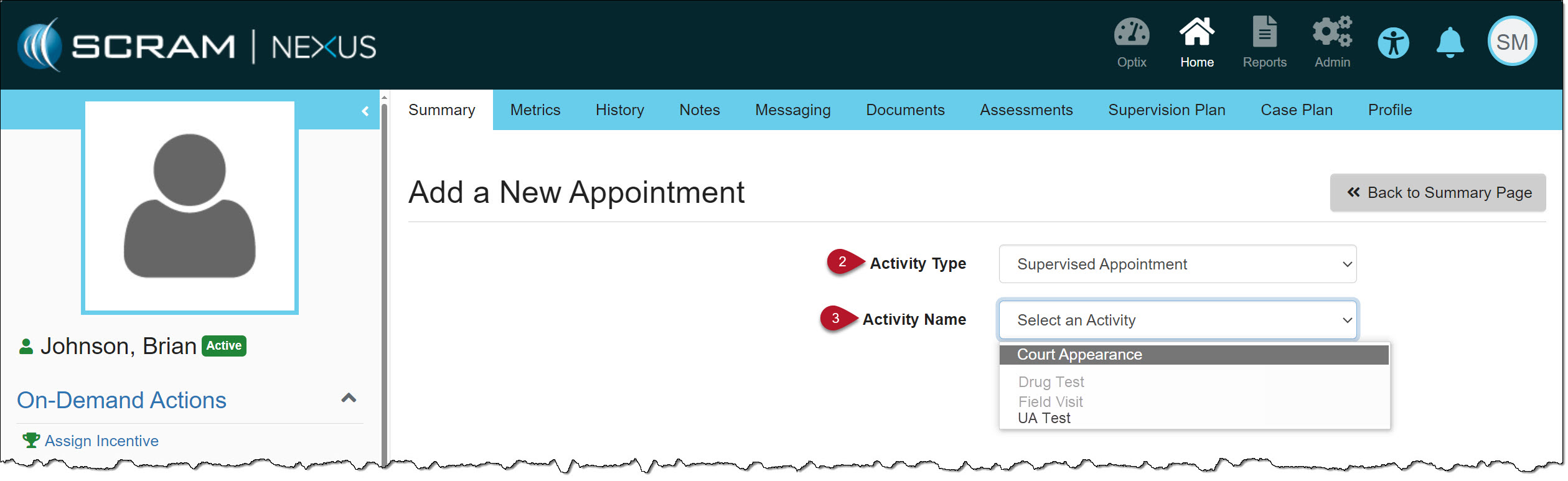
- Select the “Activity Name.” You may only select an “activity” that is currently part of the client’s Supervision Plan. In this example, the option of Court Appearance is selected.
 | When adding a one-time, single-occurrence appointment, you may only select from the available options on the Activity Type and Activity Name dropdown menus. If you cannot choose an option listed, then that option is not available. |
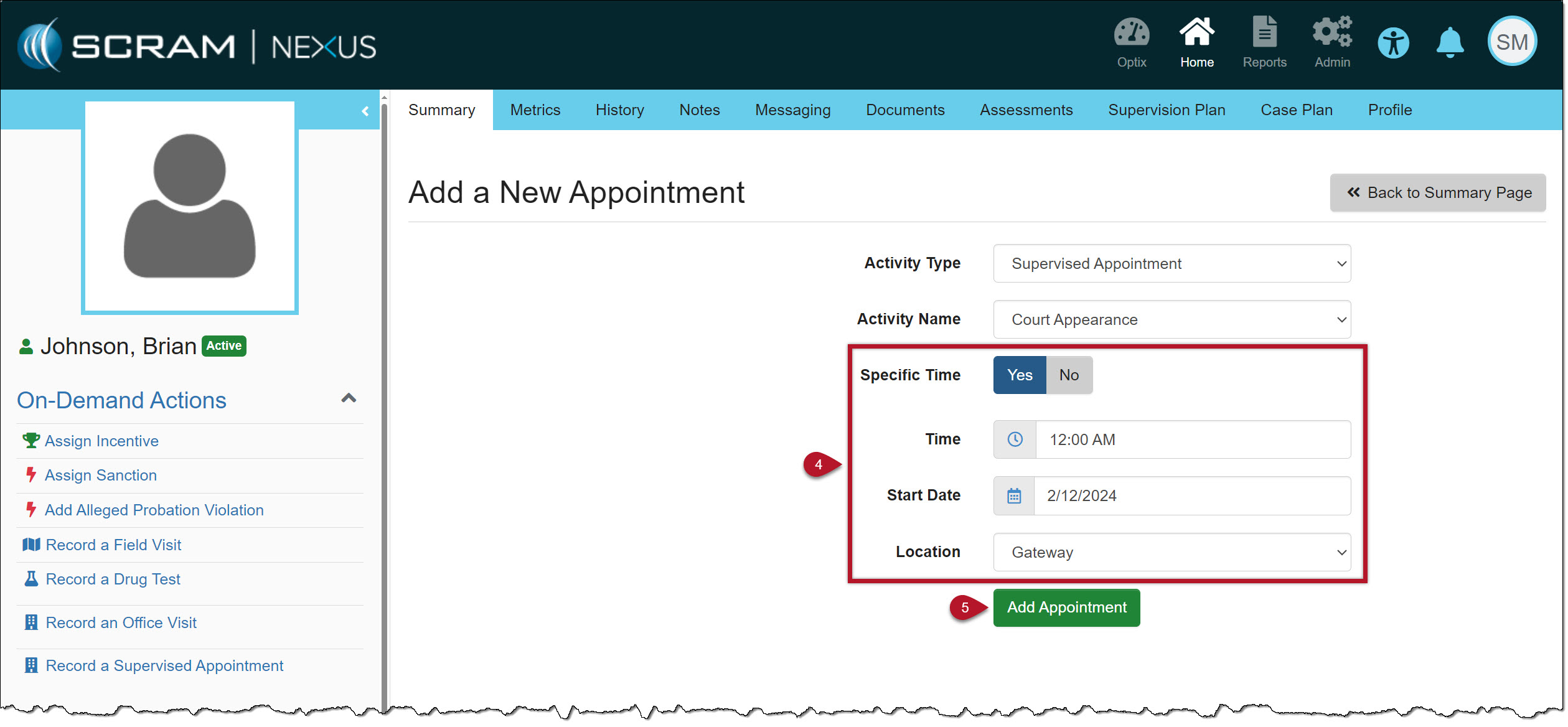
- Enter the details for the one-time, single-occurrence appointment. When selecting the Start Date, you may choose a current or future date only. You are not able to select a date in the past.
- To save the information, select the Add Appointment button.
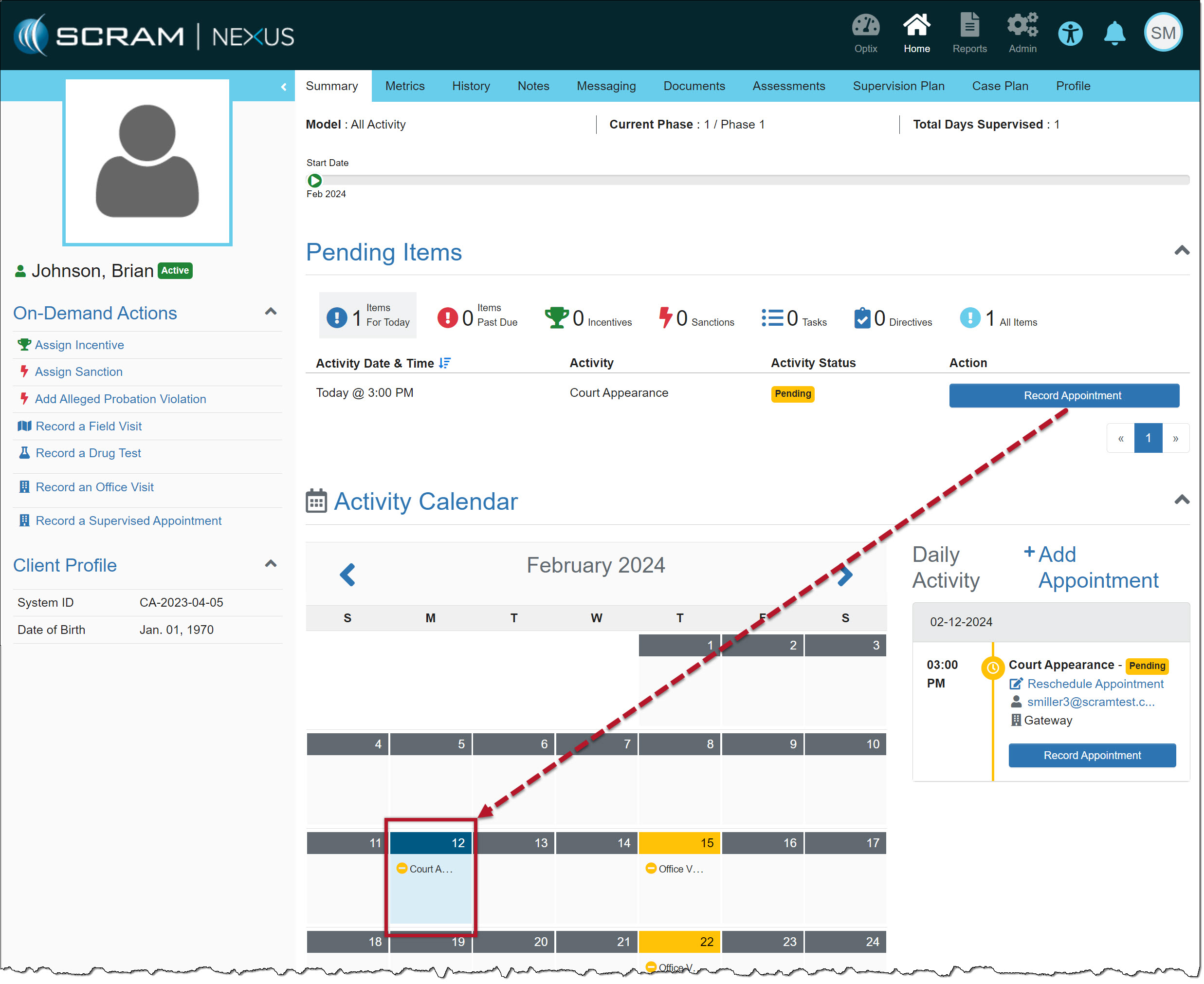
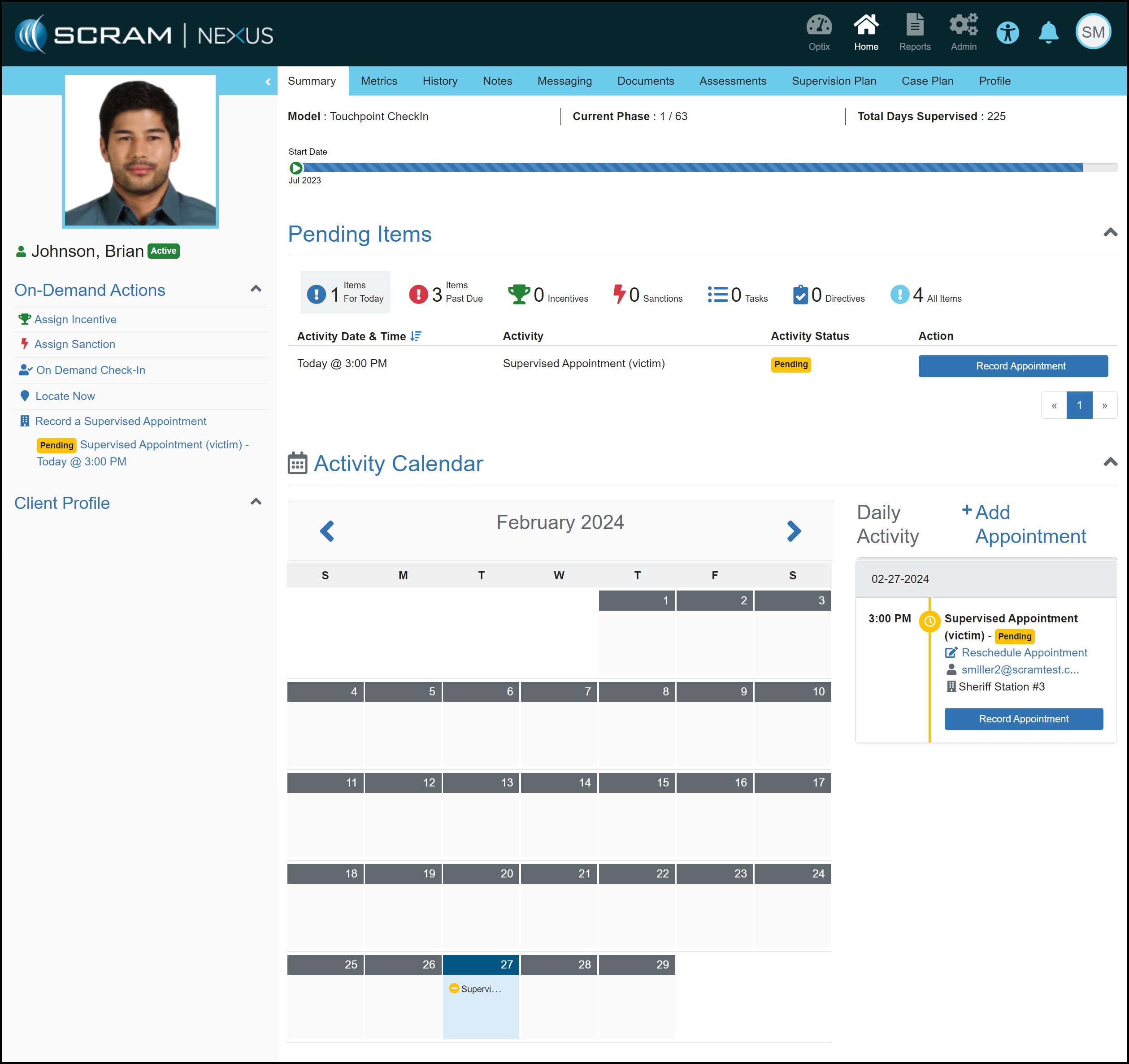
The client’s Summary page will now display the appointment.
 | Tips:
|
TouchPoint Reminders for Conditions
An Administrator may view and edit an active Condition’s TouchPoint Reminders.
To do this:
- Select the Condition you want to view or edit from the Admin page in Nexus.
- On the Condition Details page, locate the TouchPoint Reminders section to view the current settings.
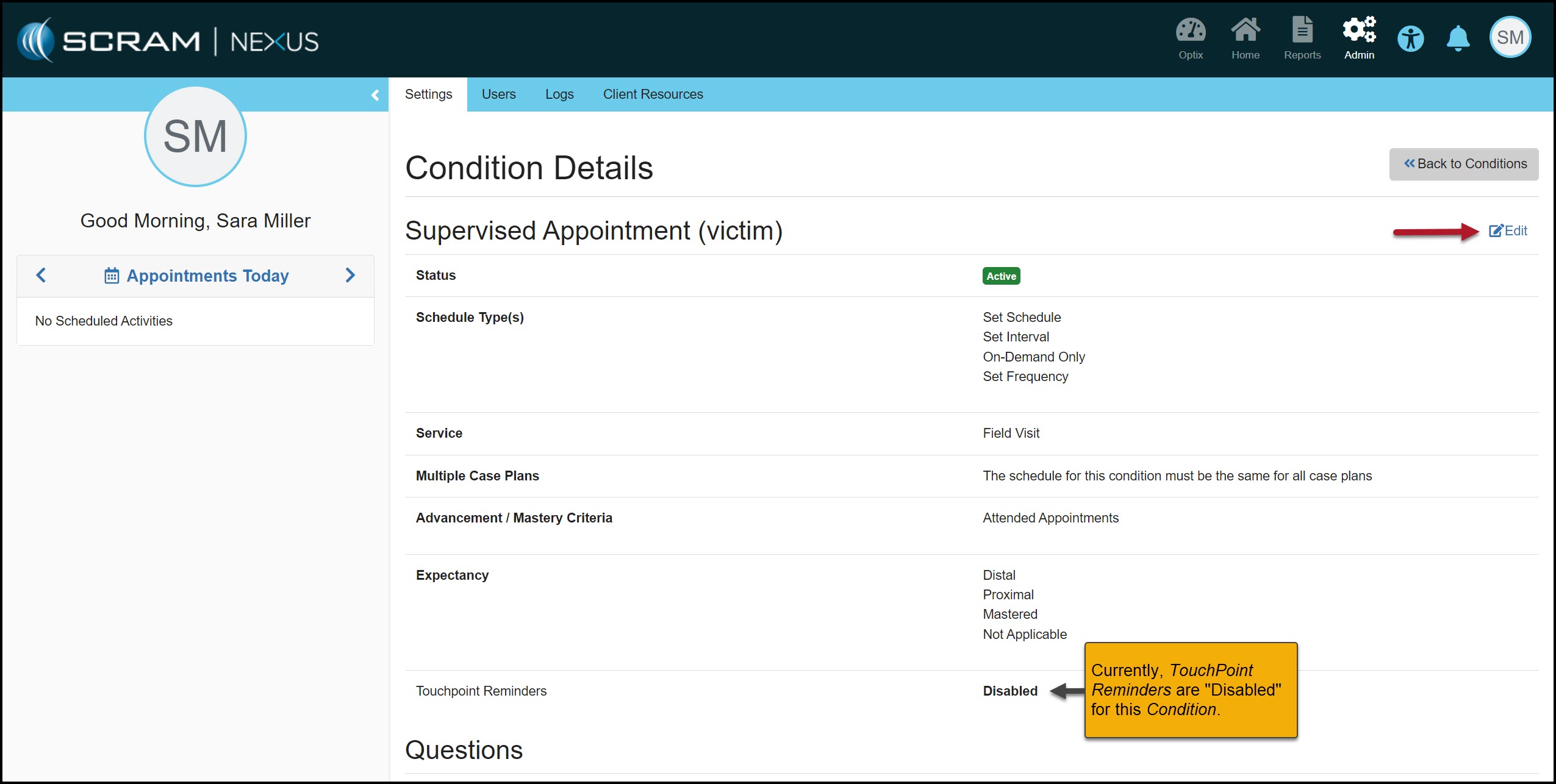
- Select the Edit hyperlink and locate the Touchpoint Reminders section to edit the current setting.
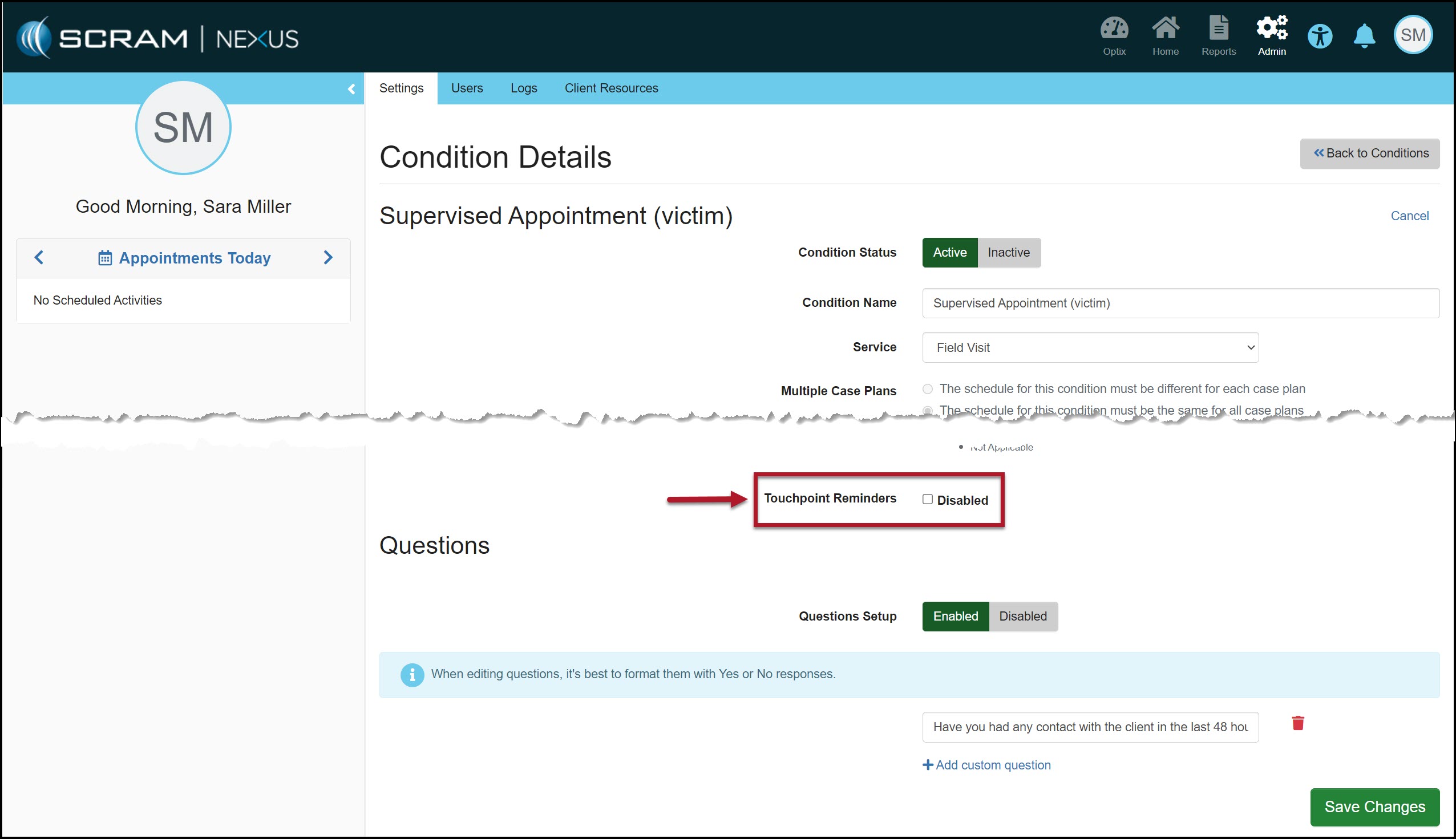
- Leave the checkbox “unchecked” to Disable the TouchPoint Reminders or “check the box” to Enable the Reminders.

- After making your edits, select the Save Changes button.
When a Condition is Disabled, the appointment will only display on the agent’s Activity Calendar and not within the client’s TouchPoint mobile application.
| With this release, all current Conditions are automatically Enabled for TouchPoint Reminders. |