On, September 21, 2023, SCRAM Systems will release an enhancement to the SCRAM TouchPoint Documents page for your client’s supervision plan. This enhancement enables you to require a client to electronically sign a PDF Document shared with them via their TouchPoint mobile application.
 |
|
Require an eSignature
You may require an eSignature for any PDF document you wish to share with your client’s TouchPoint mobile application. This includes new and previously viewed PDFs.
To require an eSignature for a new PDF document:
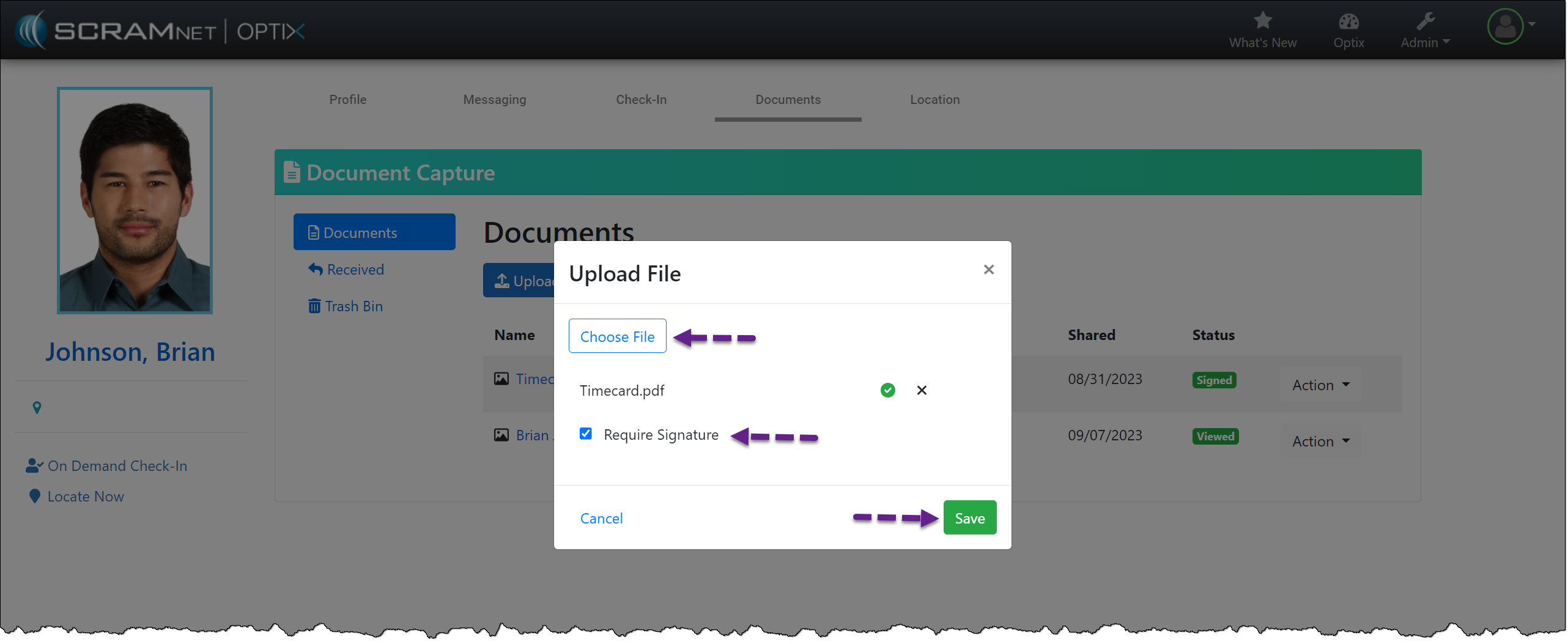
- Select the Upload File button on the client’s Documents page.
- On the Upload File pop-up, choose the PDF file.
- Select the checkbox to Require Signature.
- Select the Save button.
- Once displayed on the Documents page, Share the PDF with the client’s TouchPoint mobile application.
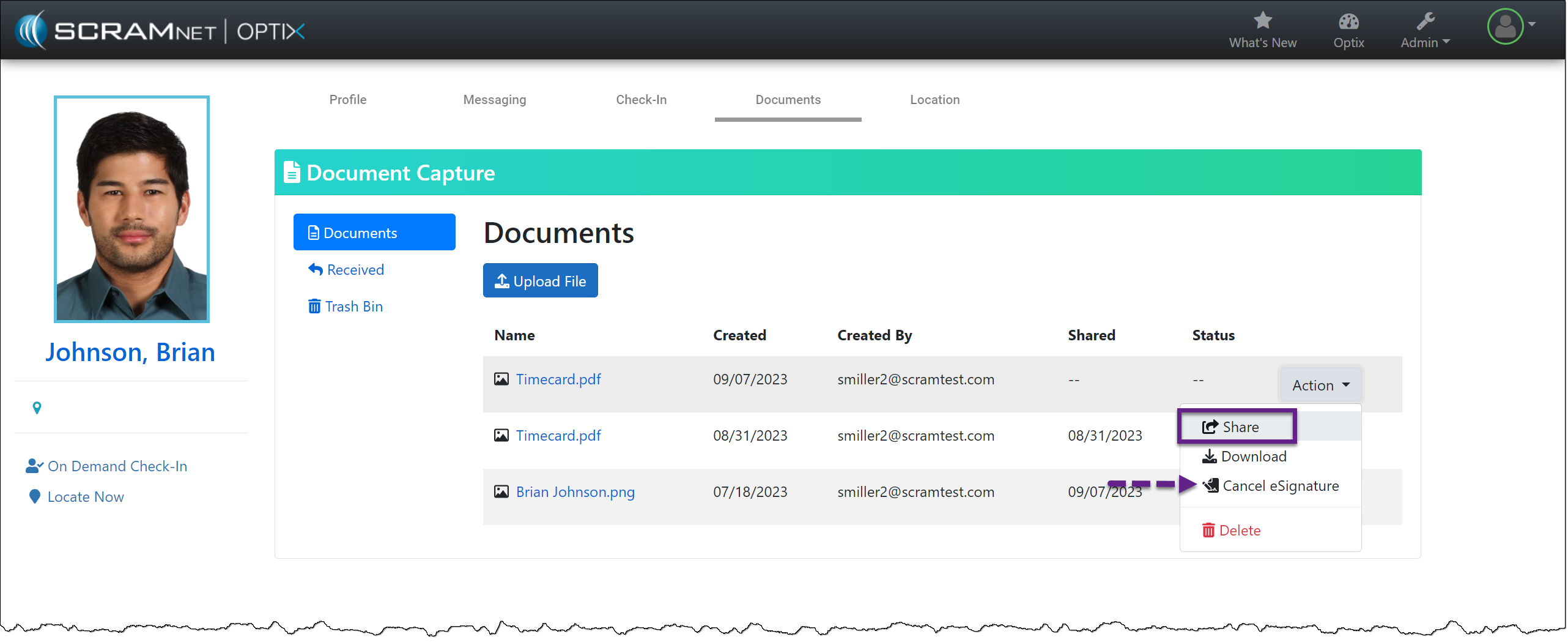
If an eSignature is no longer required, you may now select Cancel eSignature.
| You may request an eSignature for previously shared and viewed PDFs by selecting the ellipsis and then selecting the Require eSignature option. The client will then be notified that a document requires an eSignature. |
SCRAM TouchPoint Mobile Application
When an eSignature is required for a shared document, the application’s Home screen will display a banner that alerts the client of the necessary eSignature.
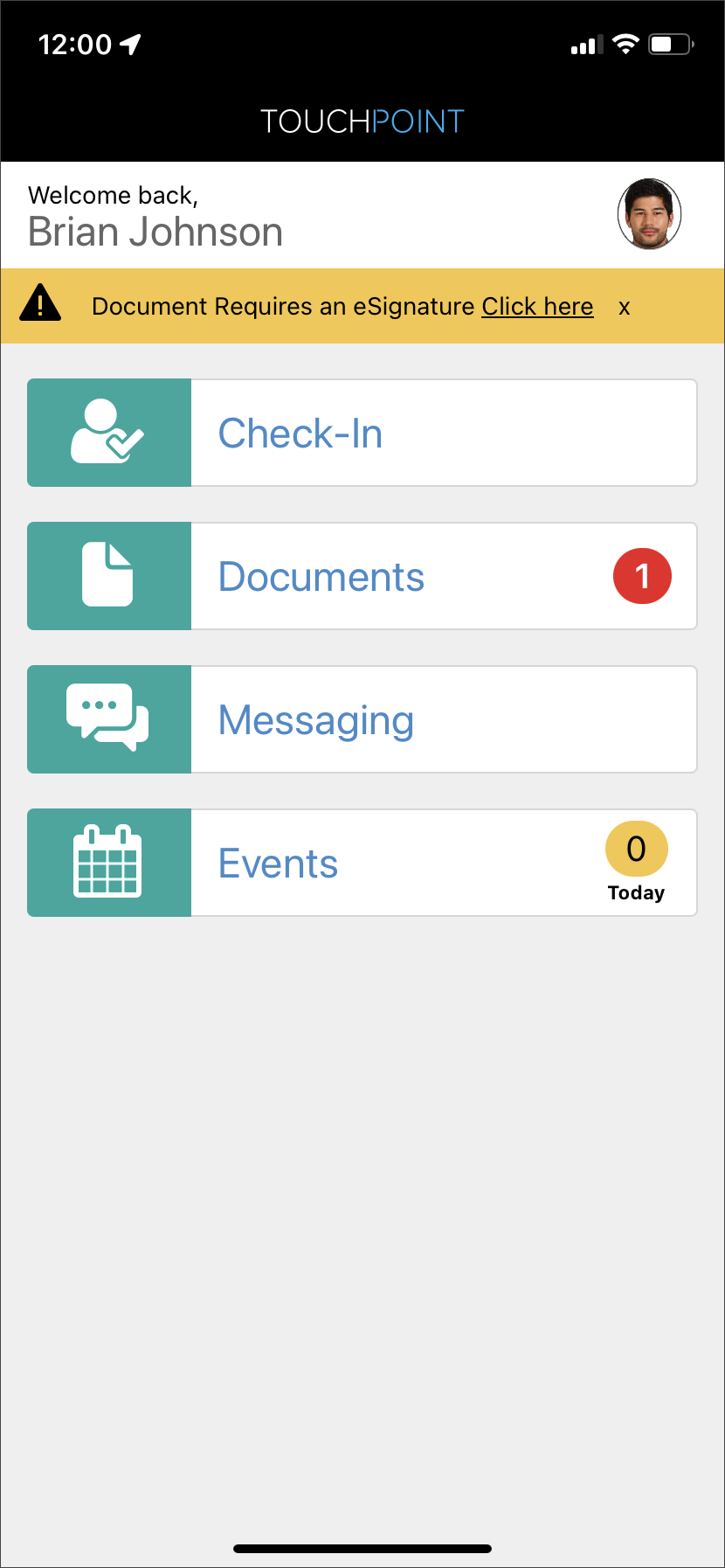
To complete an eSignature, have the client:
- View the PDF within the TouchPoint mobile application by tapping on it.
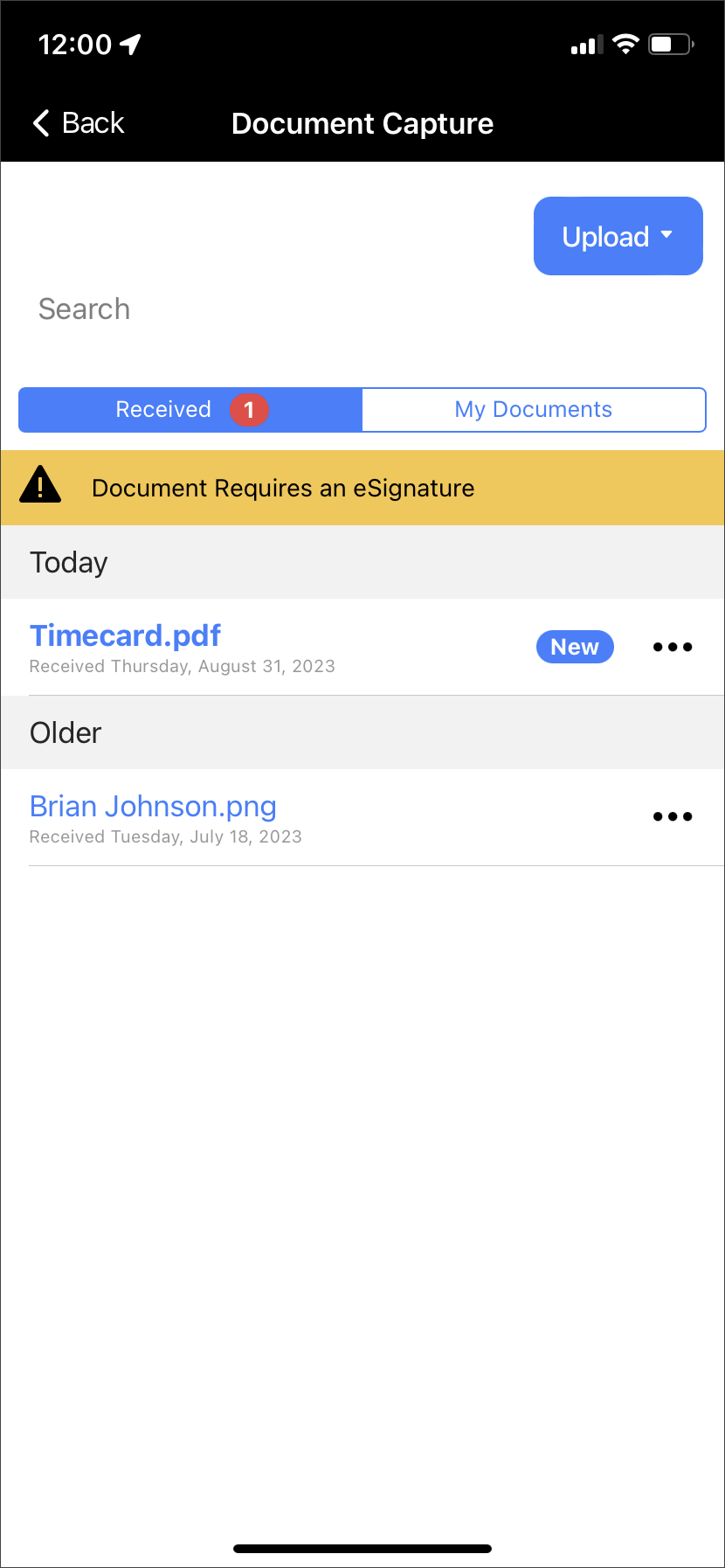
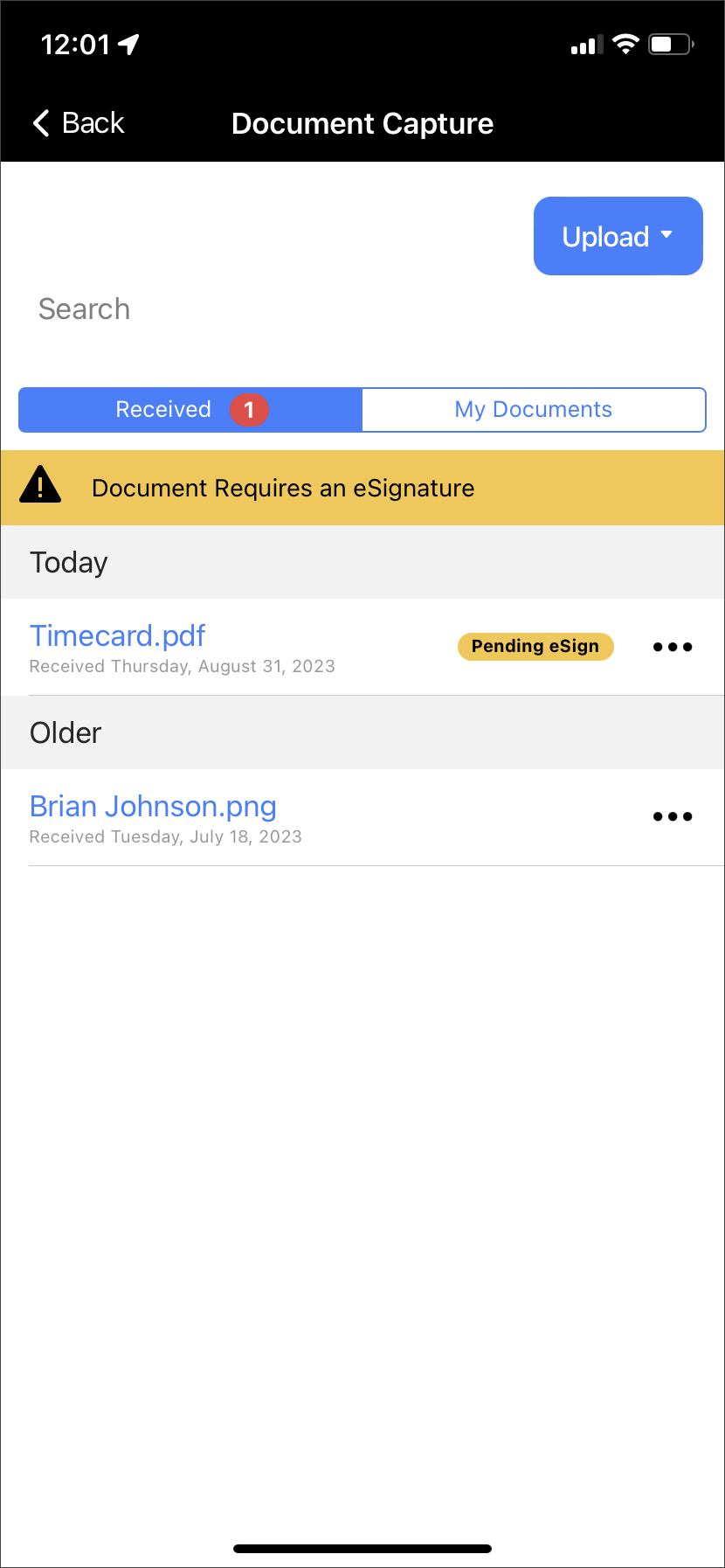
- After viewing the document, a “Pending eSign” badge will display next to the ellipsis. Tap the ellipsis and then tap the Sign option.
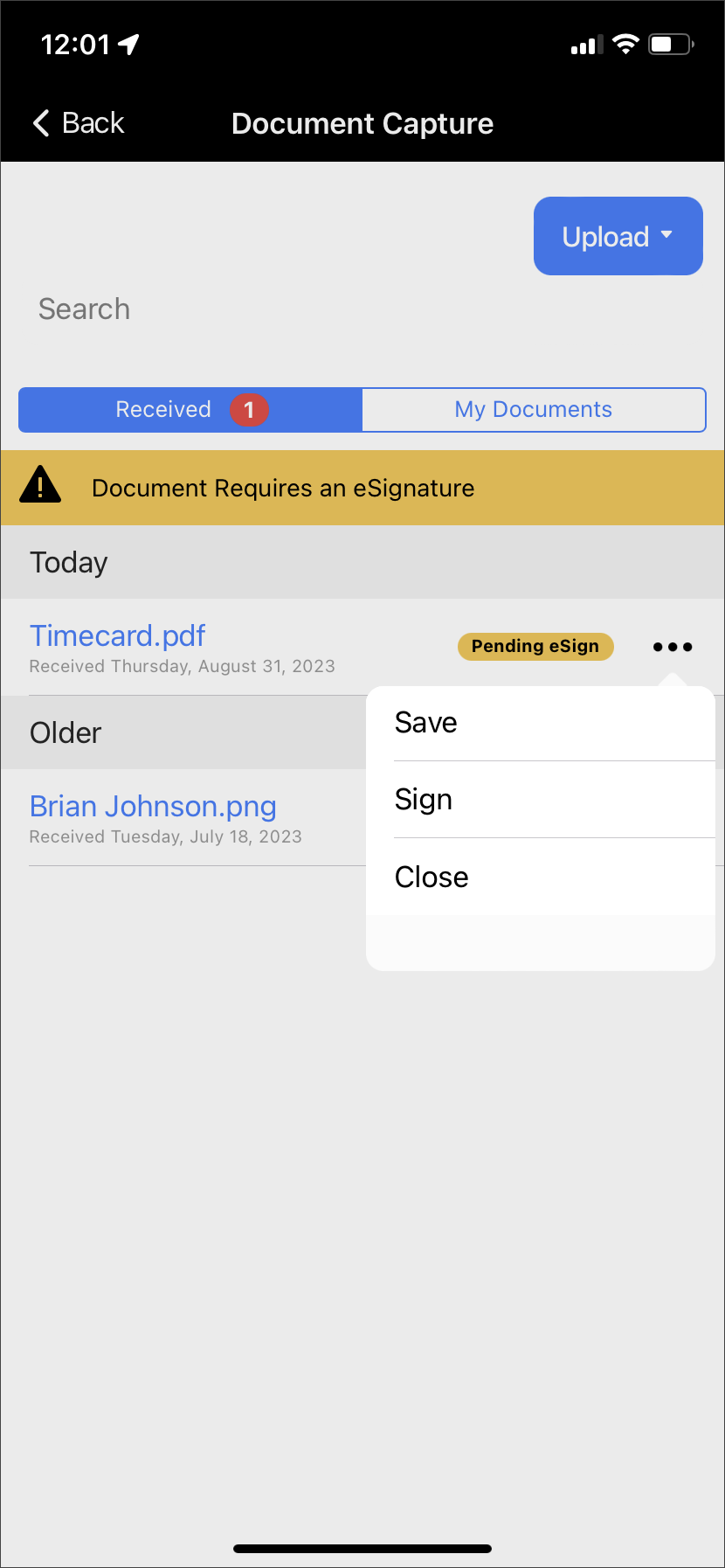
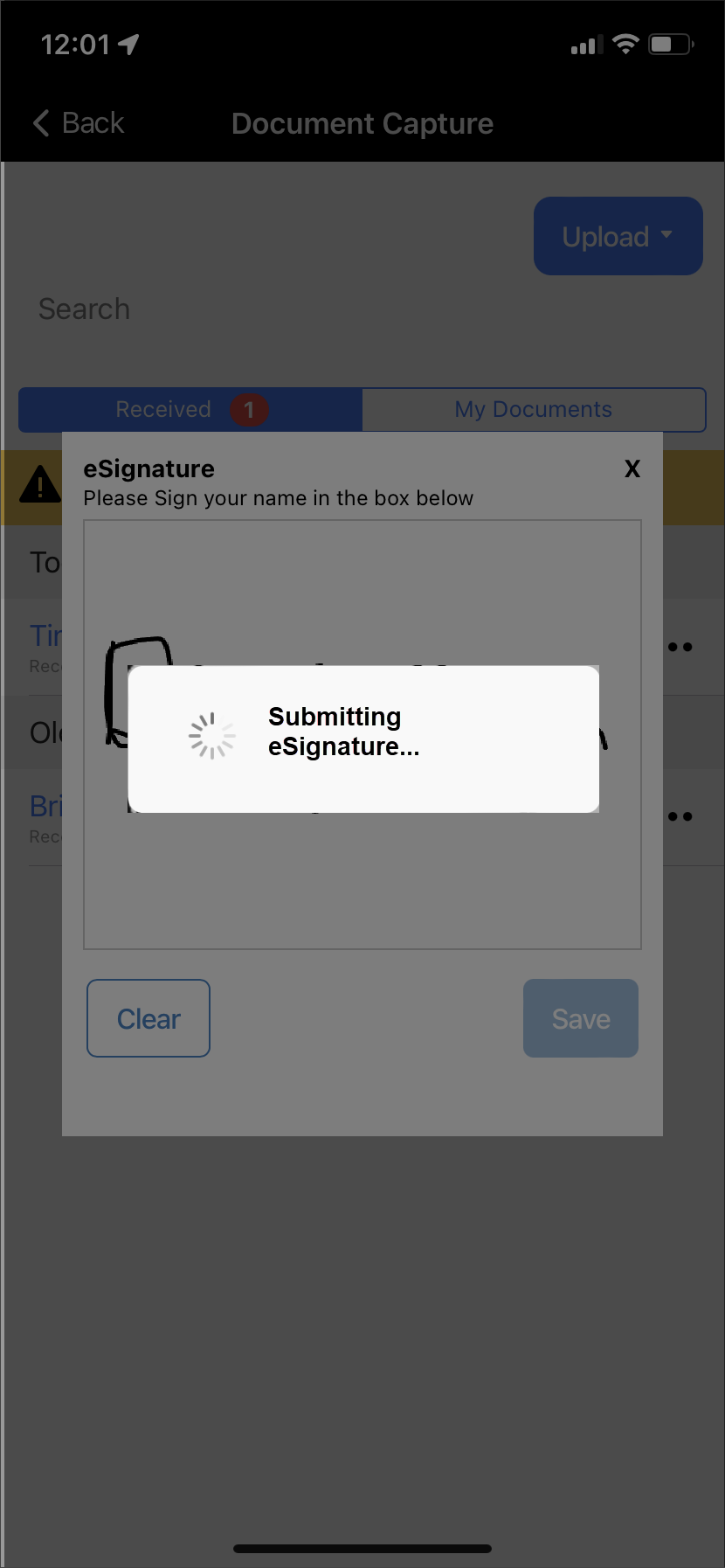
- Sign your name on the eSignature pop-up and tap the Save button.
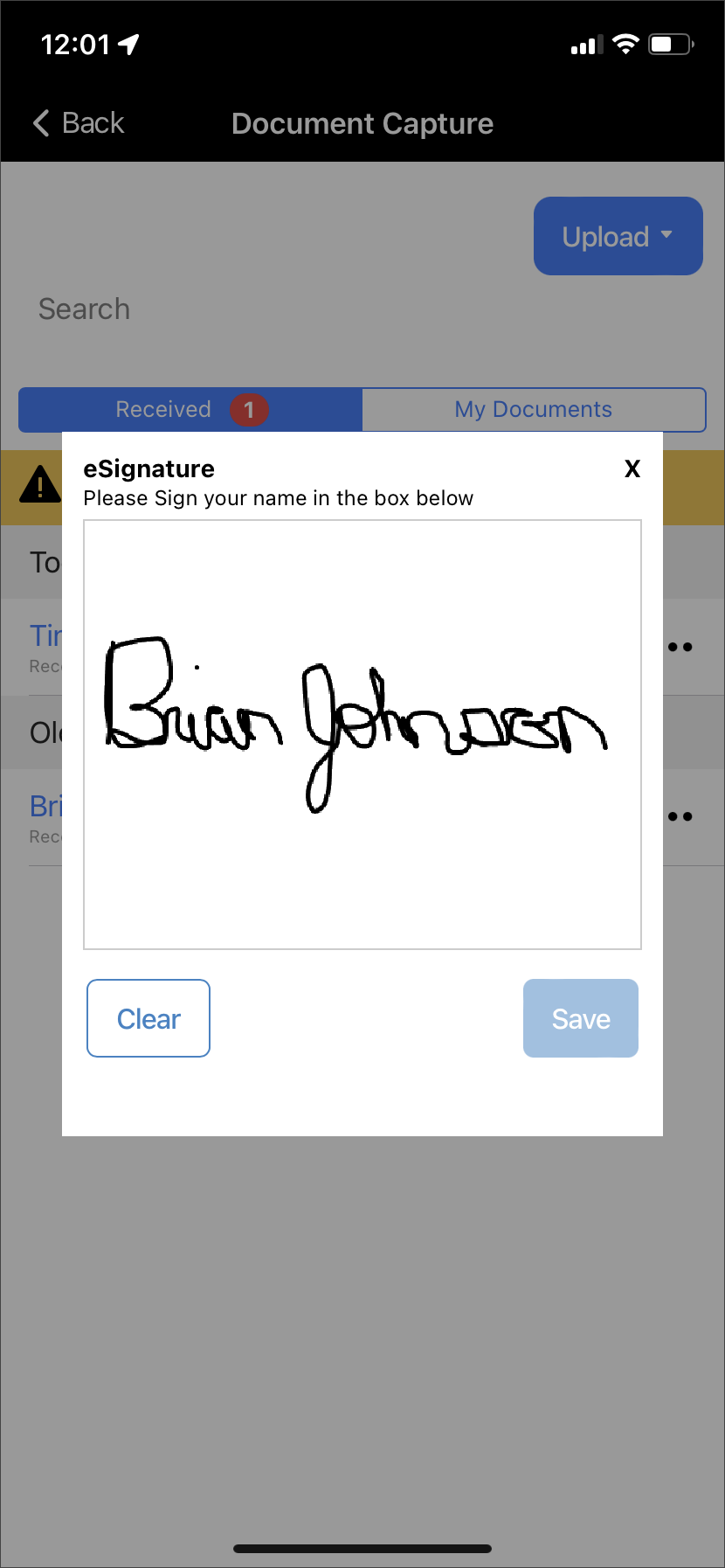
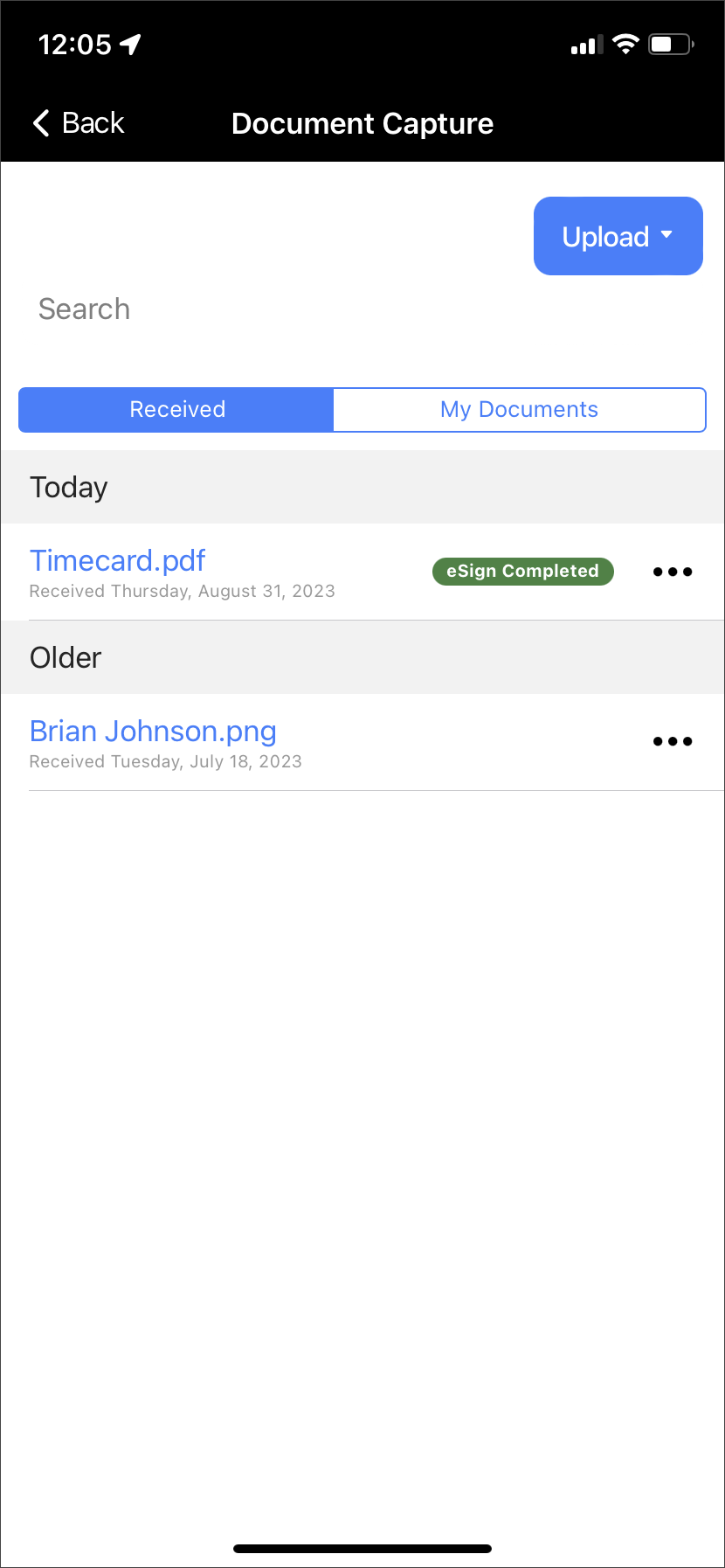
A message of “Submitting eSignature” will display on the screen. Once submitted, an “eSign Completed” badge will display next to the document’s information.
View eSignature
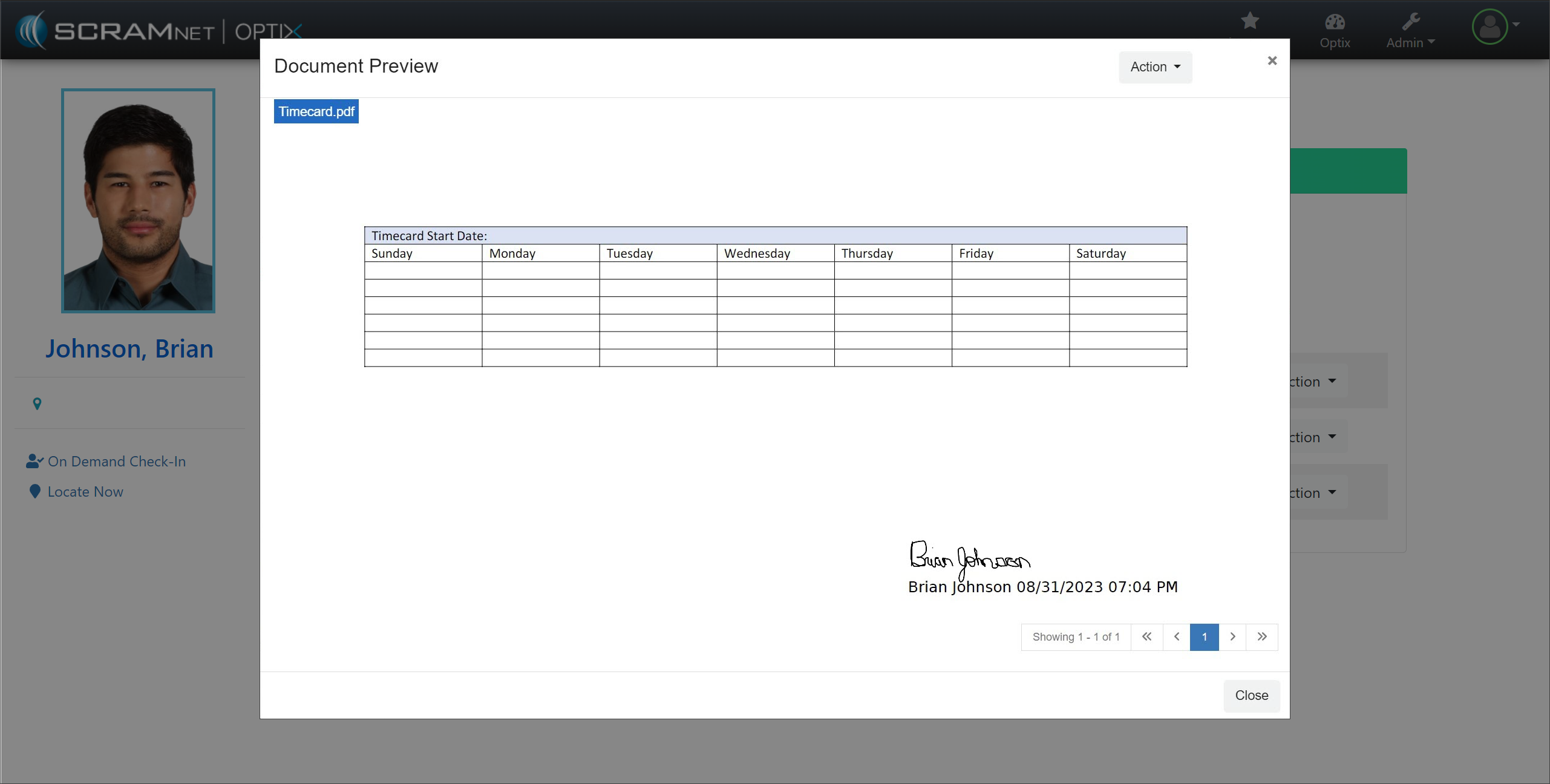
After the client views the document and completes the eSignature on their TouchPoint mobile application, the status for that document will update from “Pending eSignature” to “Signed” on the client’s Documents page.
Following the established process, you may view the eSignature from the Document Preview pop-up or download the document to your computer.