At 11:00 AM MDT on October 12, 2022, SCRAM Systems® will release enhancements designed to streamline equipment management for your clients with CAM, House Arrest, or Remote Breath (EM) Activities. With this release, many tasks that you completed in SCRAMNET, you may now complete within SCRAM 24/7.
These enhancements allow you to:
- Create the client’s profile in SCRAMNET automatically
- Add and assign equipment to the client
- Access the Maintenance hyperlink
- Replace equipment
- Stop billing and monitoring of the EM equipment in SCRAMNET
Adding an EM Activity
Once you have created the client’s profile in SCRAM 24/7, the next step is to add the EM (CAM, Remote Breath, or House Arrest) Activity.
 | SCRAM 24/7 and SCRAMNET User access required. |
Select the Activities tab to get started.
- Select the +Add a New Activity button.
- On the Add an Activity page, open the Activity dropdown menu and select the option of CAM, Remote Breath, or House Arrest. For this example, CAM has been selected.
- Add the Activity Schedule details.
- Verify/Enter the Activity Fees (if applicable).
- In the SCRAMNET Information section, select the SCRAMNET Caseload the client will be associated to from the dropdown menu.
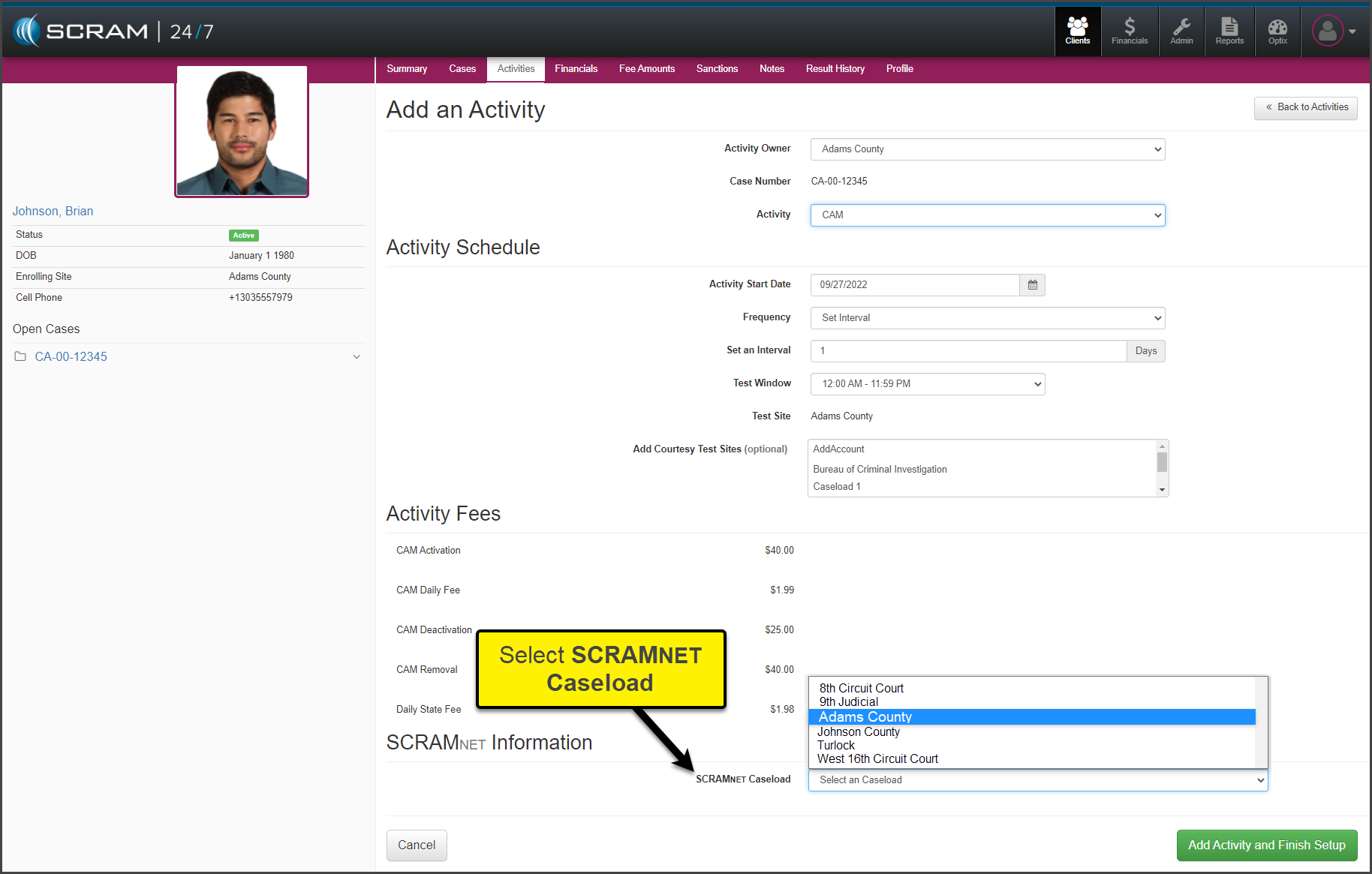
- Select the Add Activity and Finish Setup button to save the information.
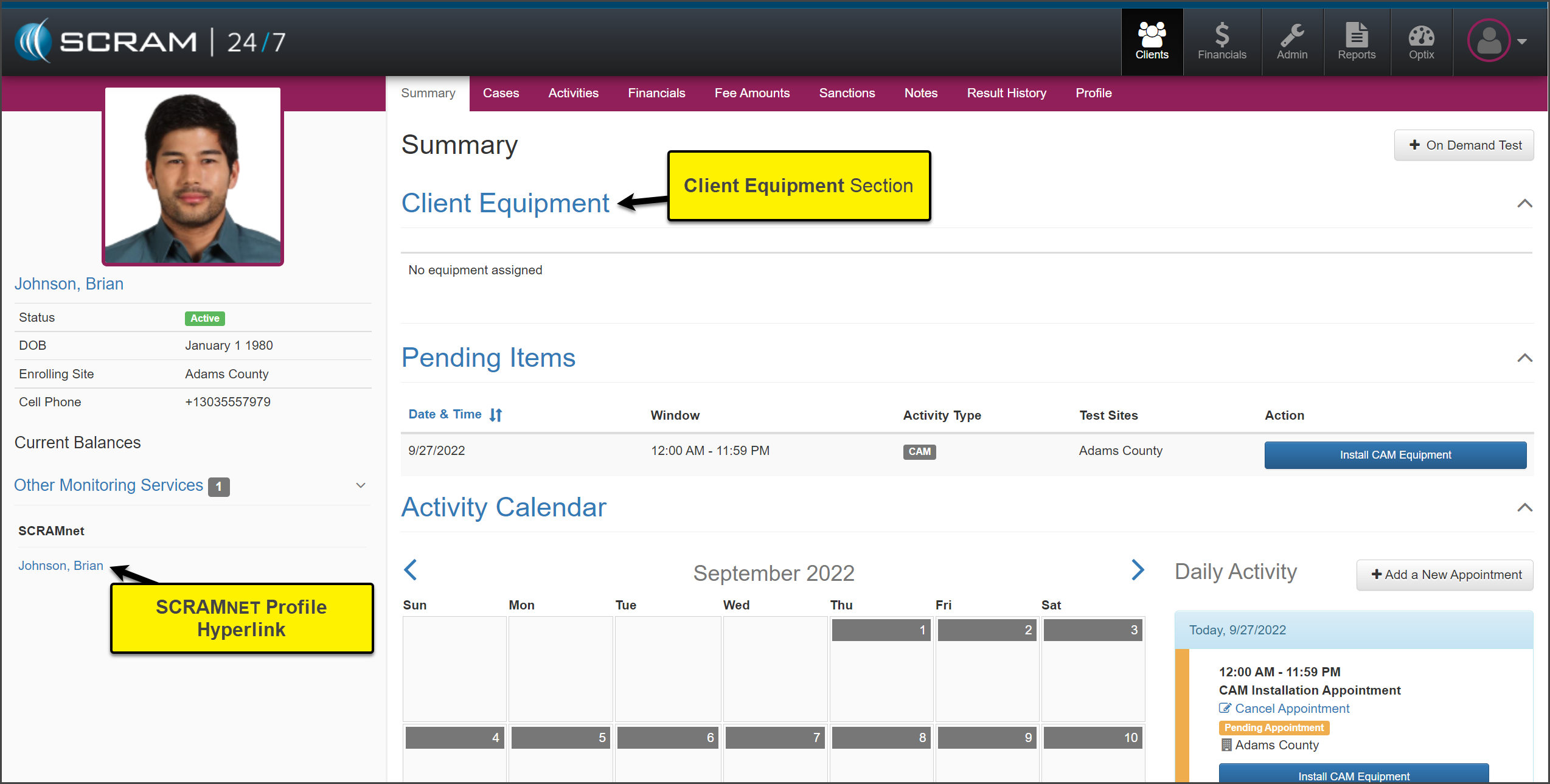
At this time, the client’s profile is automatically created in SCRAMNET and linked to the SCRAM 24/7 profile.
The Summary page is now displayed. You will notice a new section entitled “Client Equipment.” Additionally, SCRAMNET is listed under the Other Monitoring Services on the client’s sidebar.
Complete the Equipment Install Appointment
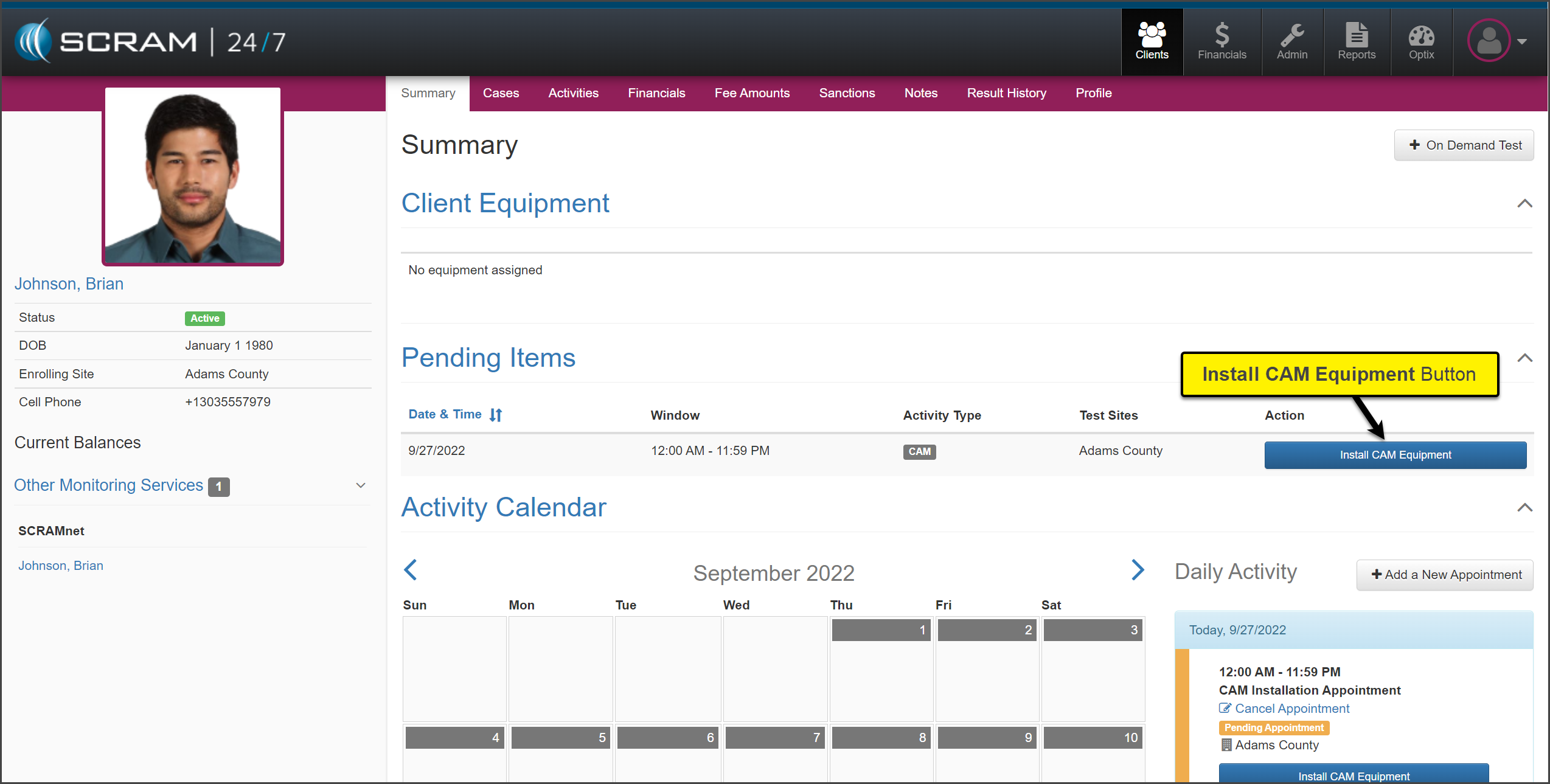
It is now time to add the equipment information and monitoring details for the client. Within SCRAM 24/7 locate the Install (EM) Equipment appointment under the Pending Items section on the Summary page. For this example, CAM is the activity.
- Select the Install CAM Equipment button.
- In SCRAM 24/7, on the Install Equipment page select the:
- SCRAM equipment serial number(s)
- Bracelet Communication method
- Bracelet Communication Schedule
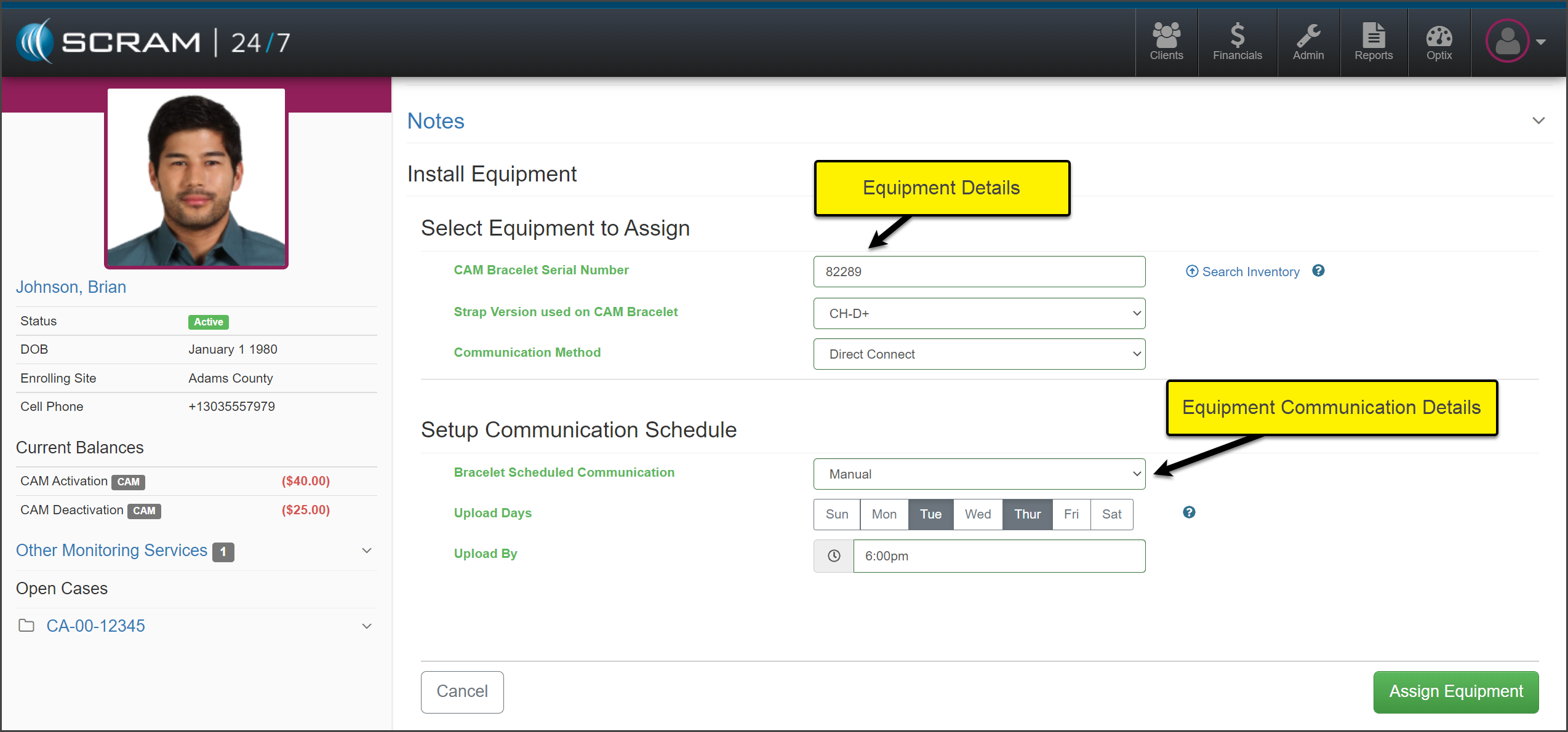
- Once all information has been entered, select the Assign Equipment button to save the selections.
- The Participant Agreement form is available to select and print for the client to sign. In addition, you can access the Assign Equipment Help Document.
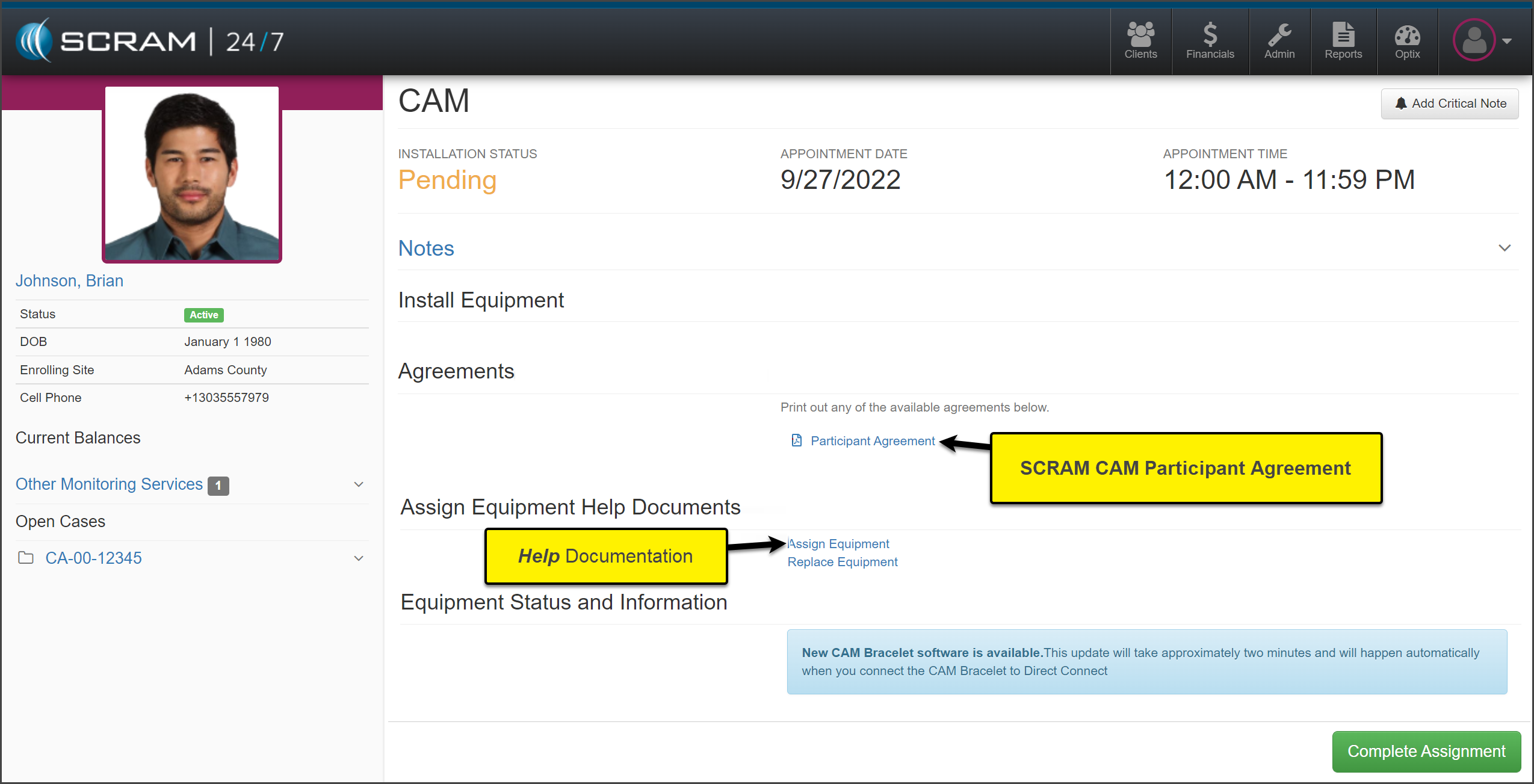
- Next, select the Complete Assignment button to save the equipment information.
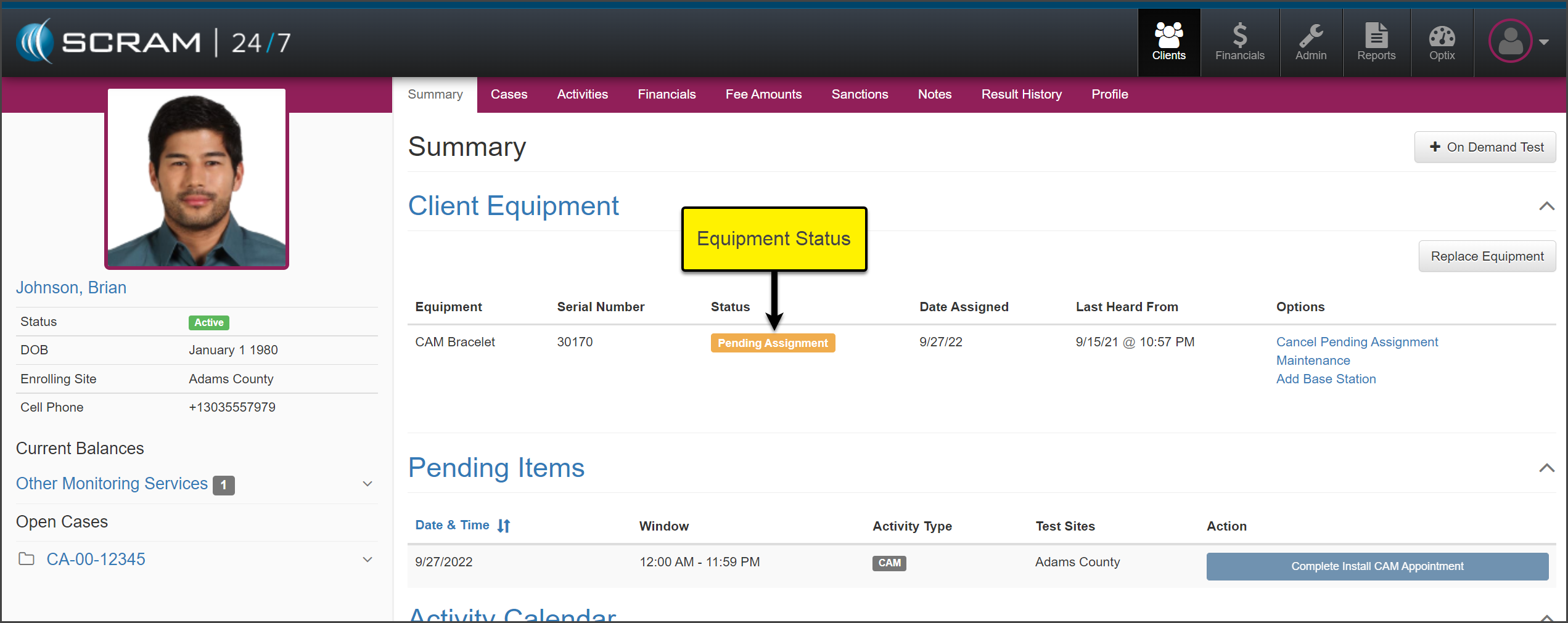
On the client’s SCRAM 24/7 Summary page, the Client Equipment section will show the equipment status of “Pending Assignment.”
Once the assignment process is complete, the Client Equipment section will reflect the current equipment status.
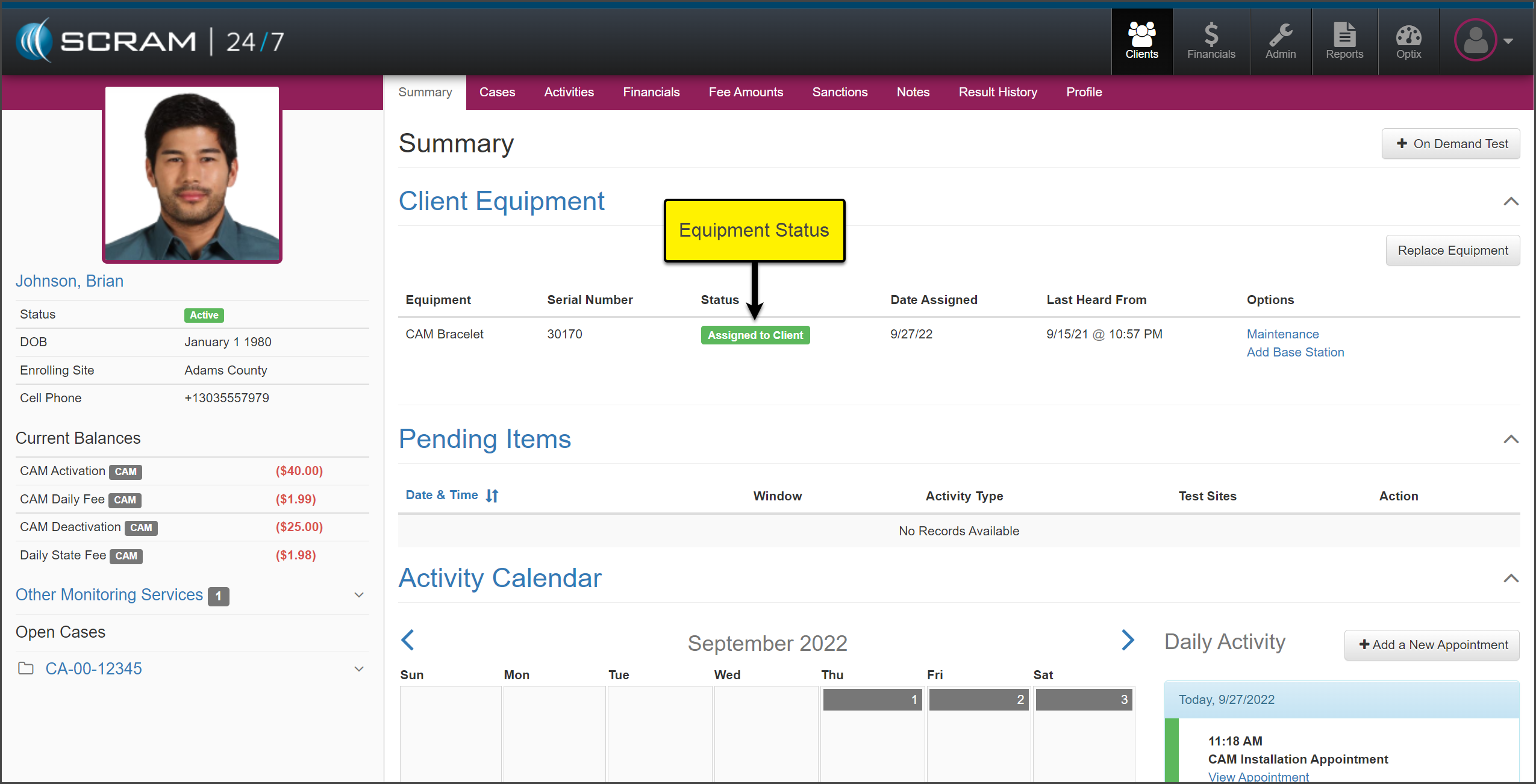
Once the equipment is assigned, the monitoring fees will be associated with the client.
| To update the House Arrest and Remote Breath notification parameters or add a Remote Breath testing schedule or House Arrest leave schedule for the client, select the client’s name under the SCRAMNET services on the sidebar to open the client’s profile in SCRAMNET. |
Complete Equipment Maintenance
While the client is on your monitoring program, some equipment tasks may need to be completed. All equipment maintenance alerts are displayed in SCRAMNET on the Workload page, as well as sent electronically on the Daily Action Plan (DAP).
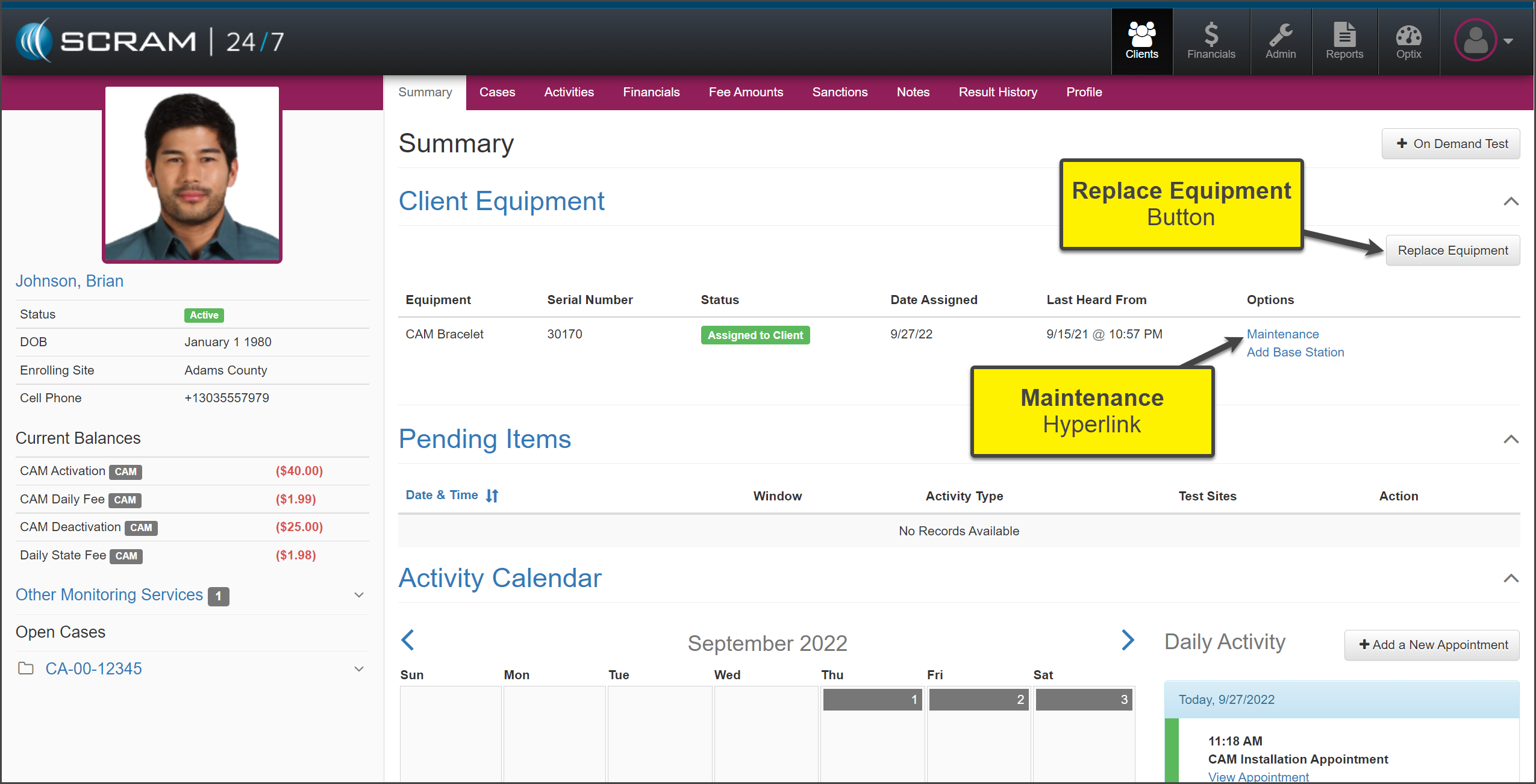
When it is time to Replace Equipment or complete a Maintenance request (fit adjustment, Battery Faceplate Replacement, or Strap Replacement), start on the client’s Summary page in SCRAM 24/7.
Equipment Replacement
To replace the client’s monitoring equipment:
- Select the Replace Equipment button.
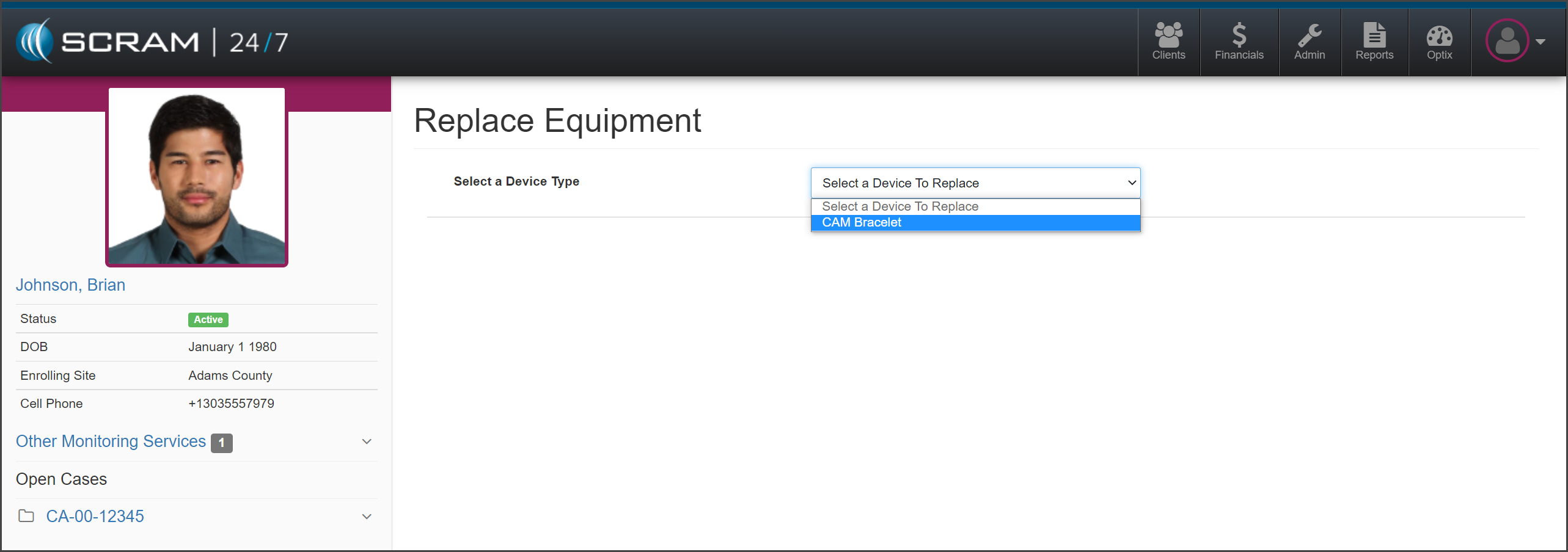
- On the Replace Equipment page, “Select a Device to Replace” from the dropdown menu. In this example the CAM Bracelet is selected.
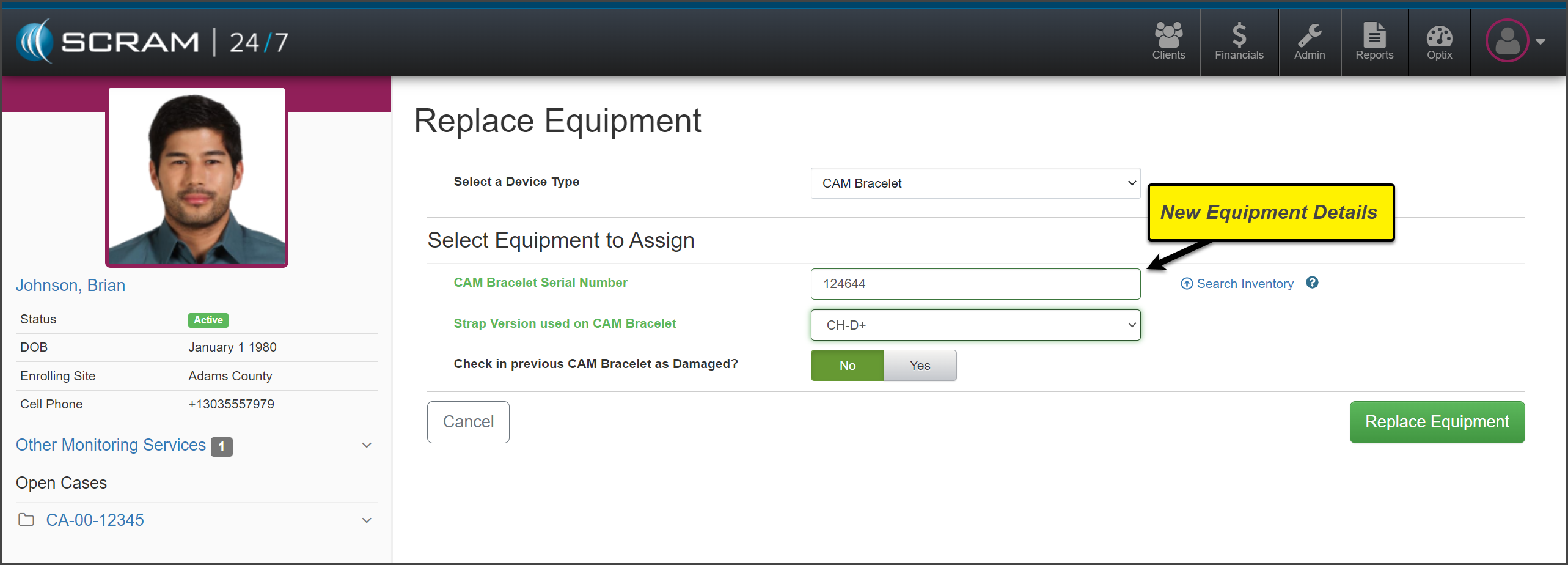
- Add the new equipment information and select the Replace Equipment button.
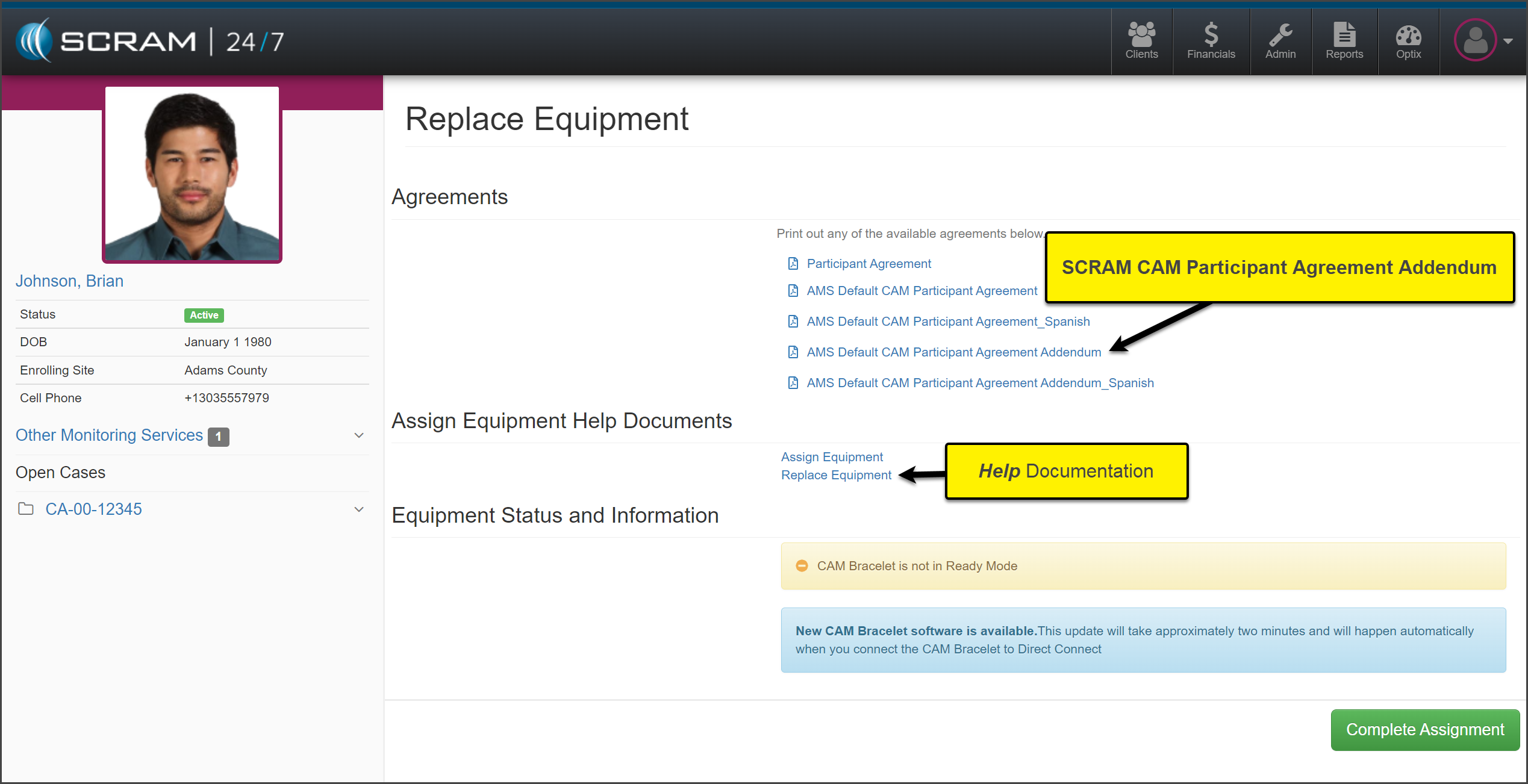
- Select and print the AMS Default CAM Participant Agreement Addendum for the client to sign and select the Complete Assignment button.
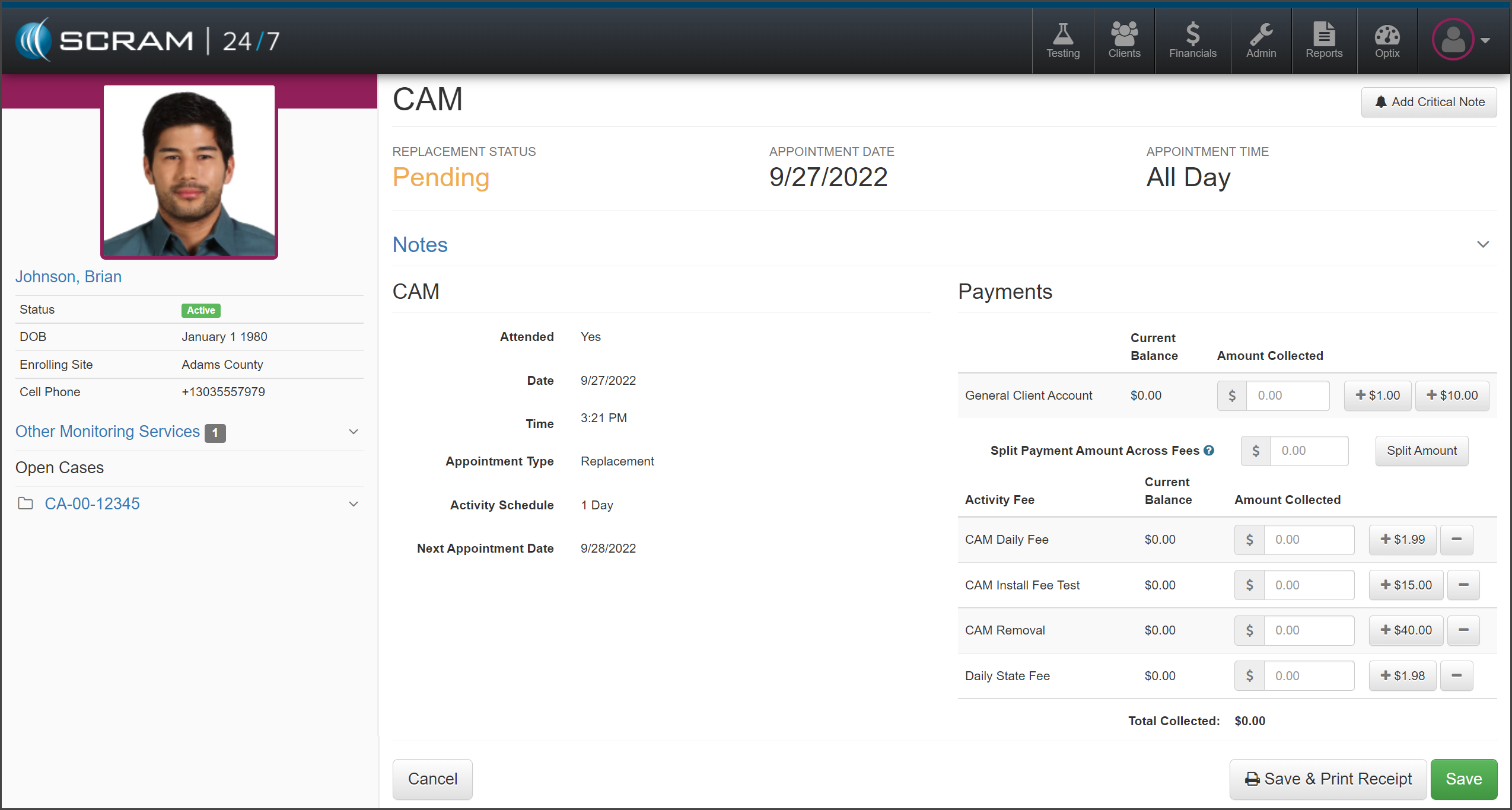
- Collect any fees and select one of the Save options.
- The Summary page will now display the current equipment status.
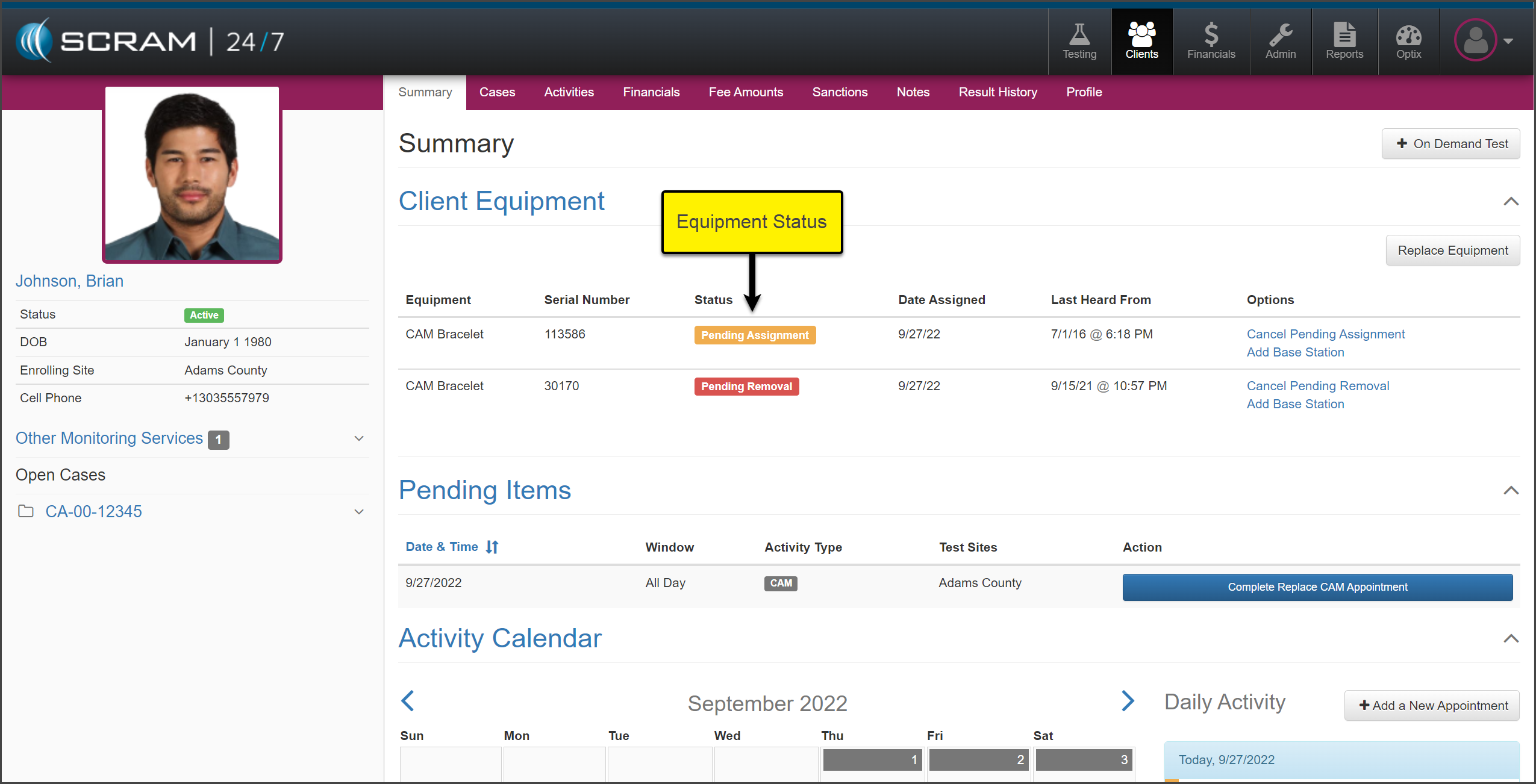
- Check in the “Pending Removal” device, and then complete the assignment of the “Pending Assignment” device.
Once completed, the Summary page will display the device status of “Assigned to Client.”
Maintenance
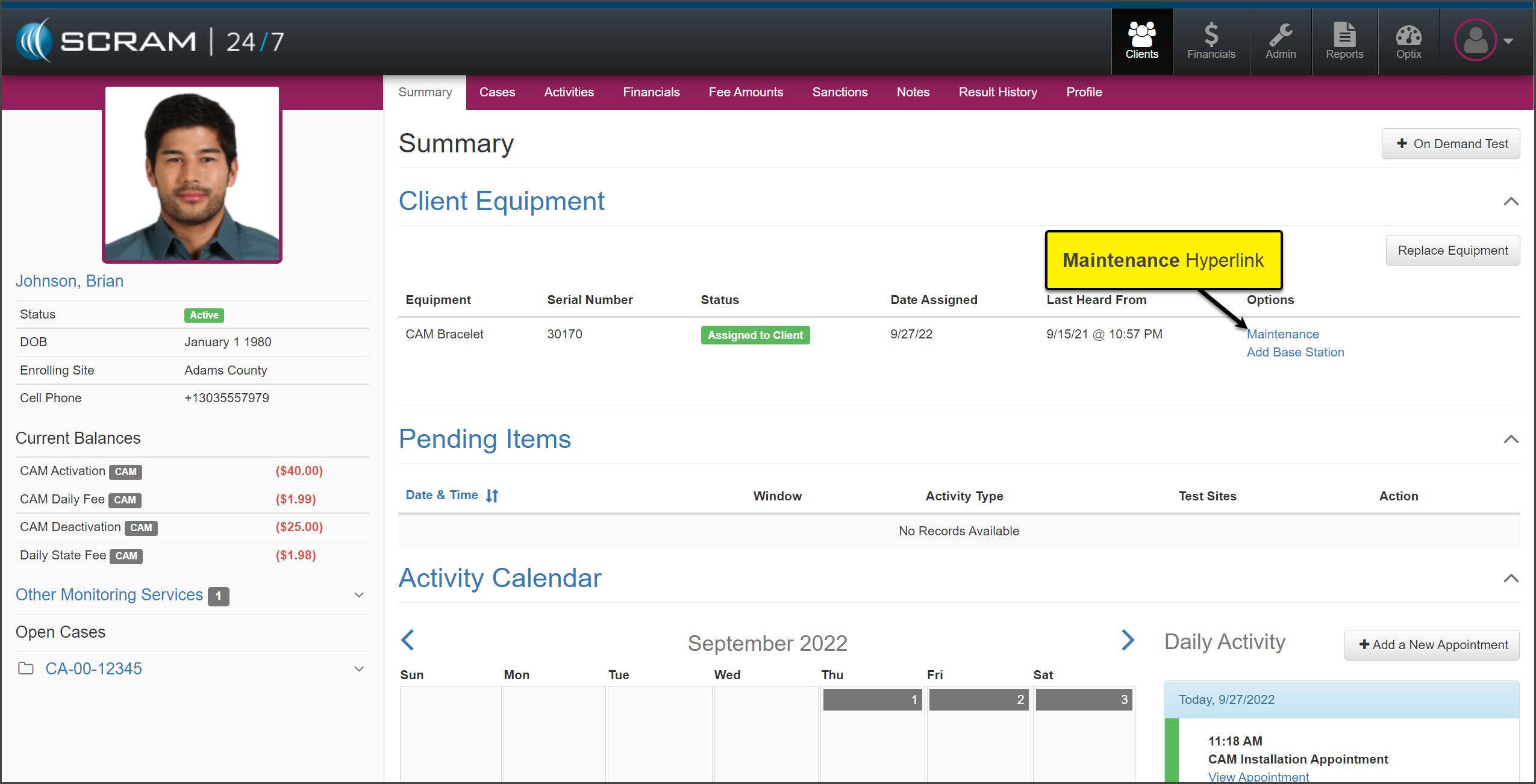
To complete a required Maintenance alert, select the Maintenance hyperlink located under the Options section on the client’s Summary page in SCRAM 24/7.
A new browser window will open displaying the Maintenance page in SCRAMNET for the client. Follow the established process for the specific maintenance request.
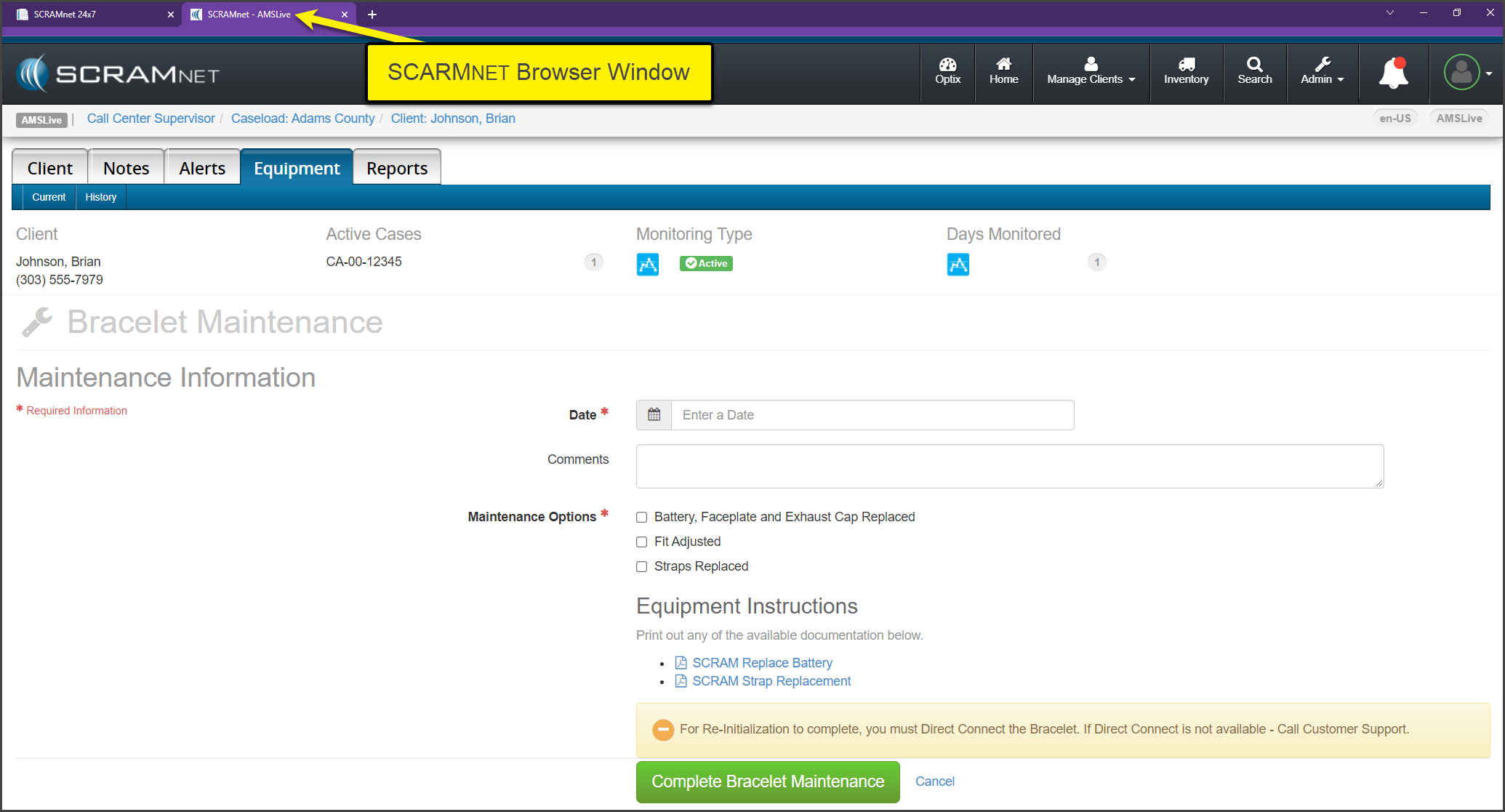
Once you have completed the maintenance and the final Direct Connect, simply close the SCRAMNET browsing window.
Remove Activity / Suspend Activity
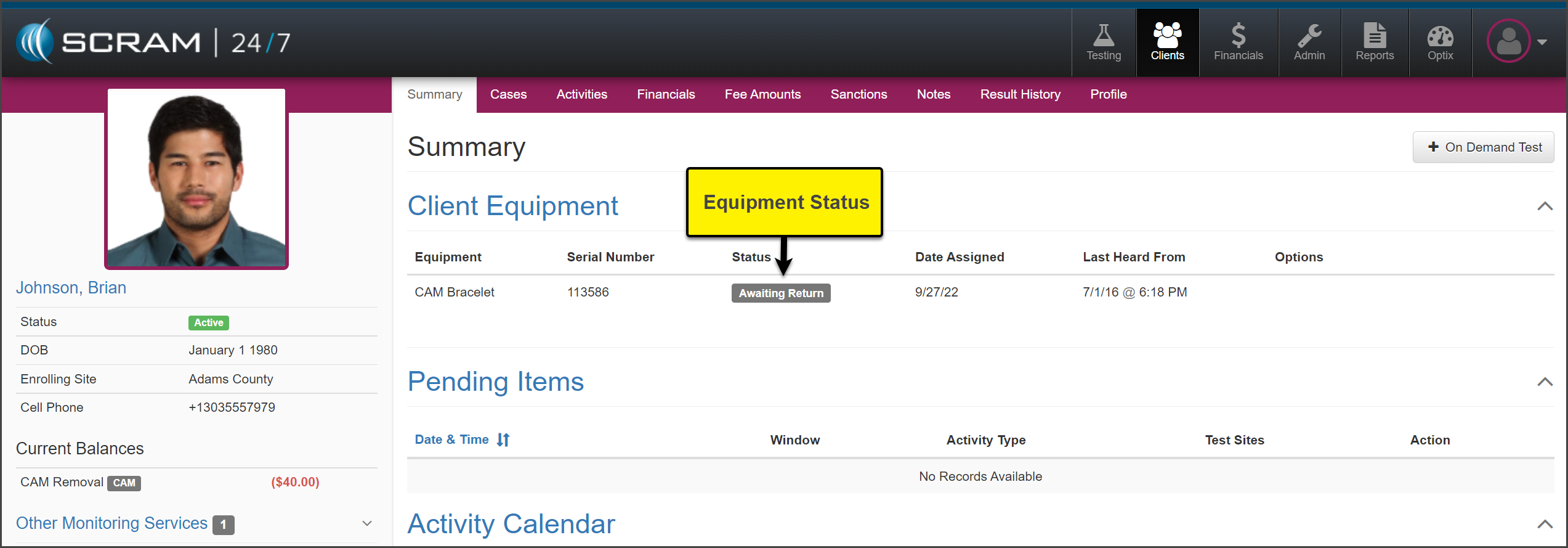
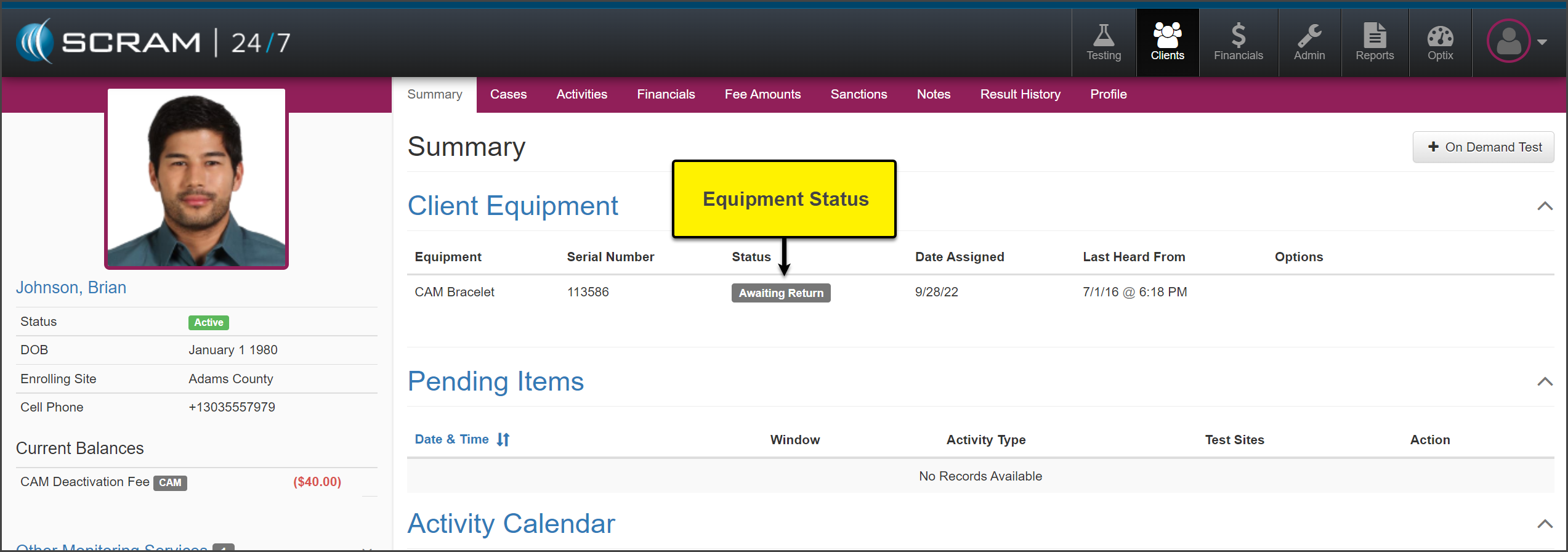
When the billing and monitoring of the client needs to be stopped or suspended for the client, the equipment status will need to be updated to an “Awaiting Return” status. This will stop the monitoring fees from generating for the client in SCRAMNET.
Remove Activity
Select the Activities tab to get started.
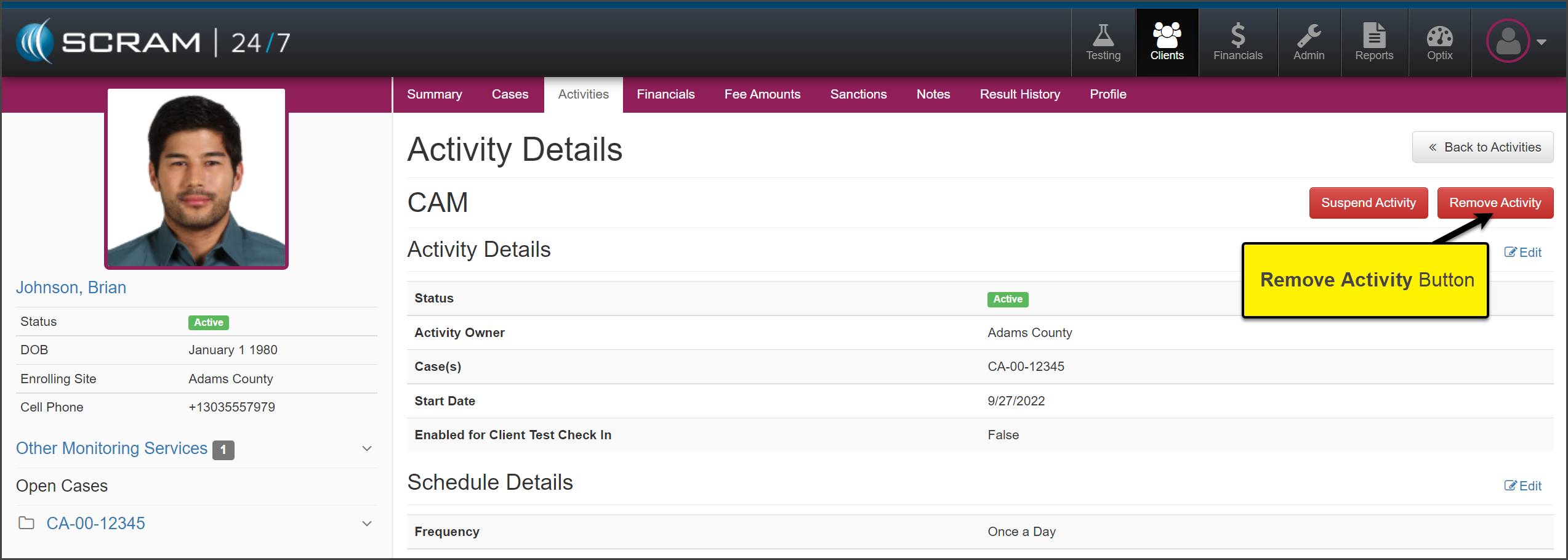
- Select the activity you wish to remove. In this example the Activity of CAM is selected.
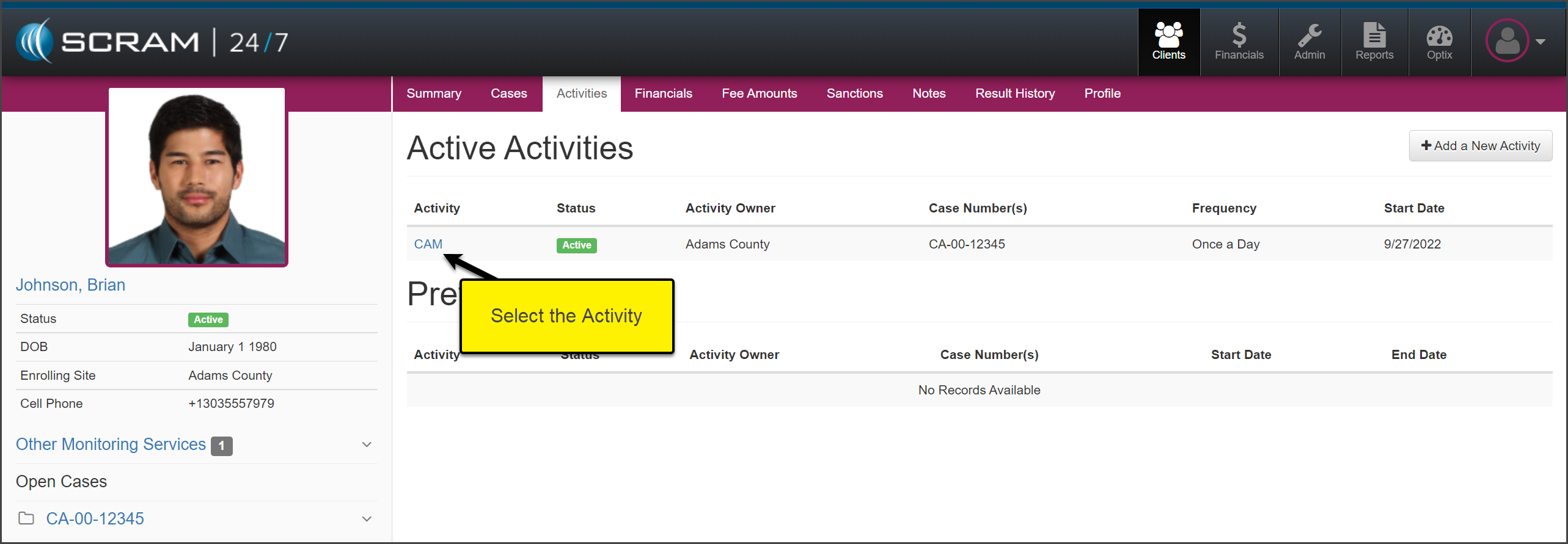
- On the Activity Details page, select the Remove Activity button.
- On the Remove Equipment page, select when to Stop the Monitoring of the client and whether to automatically inactivate the SCRAMNET profile once the equipment is checked in or leave the SCRAMNET profile active.
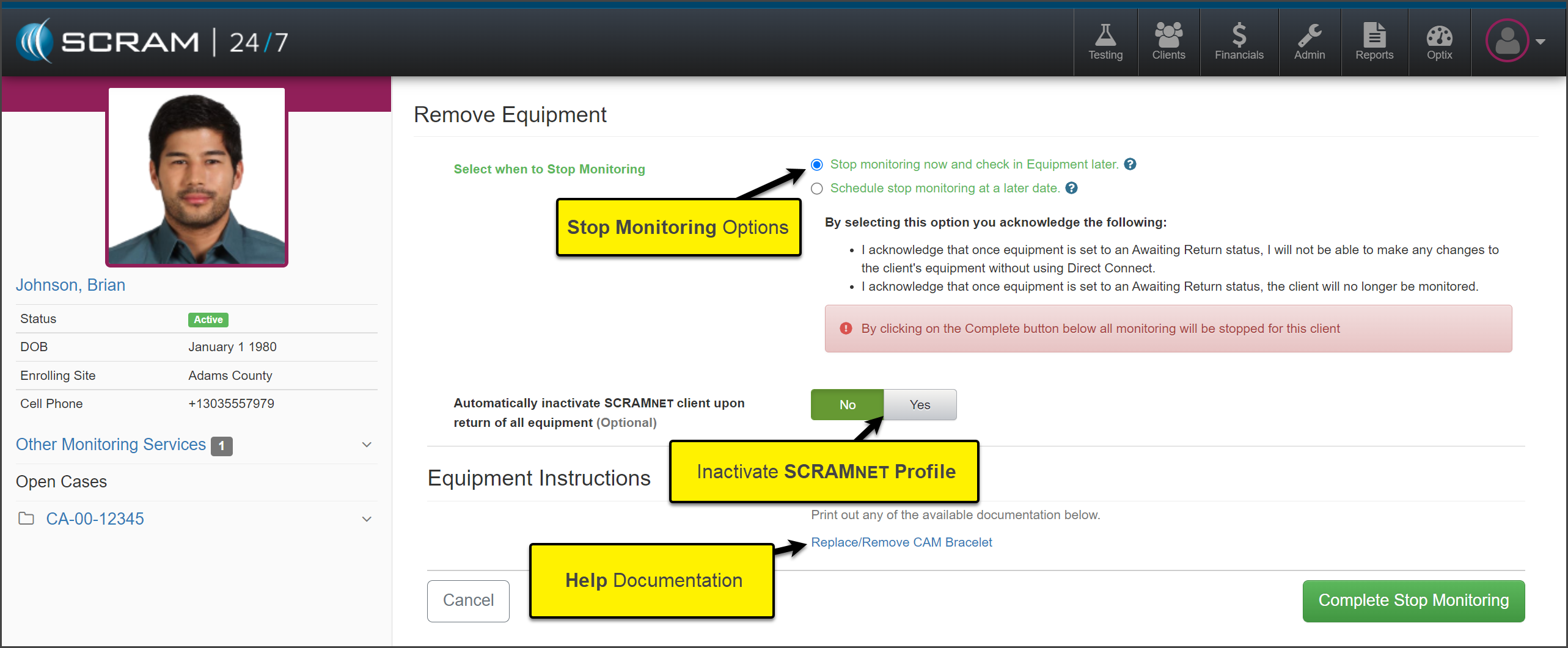
- To save the selection, select the Complete Stop Monitoring button.
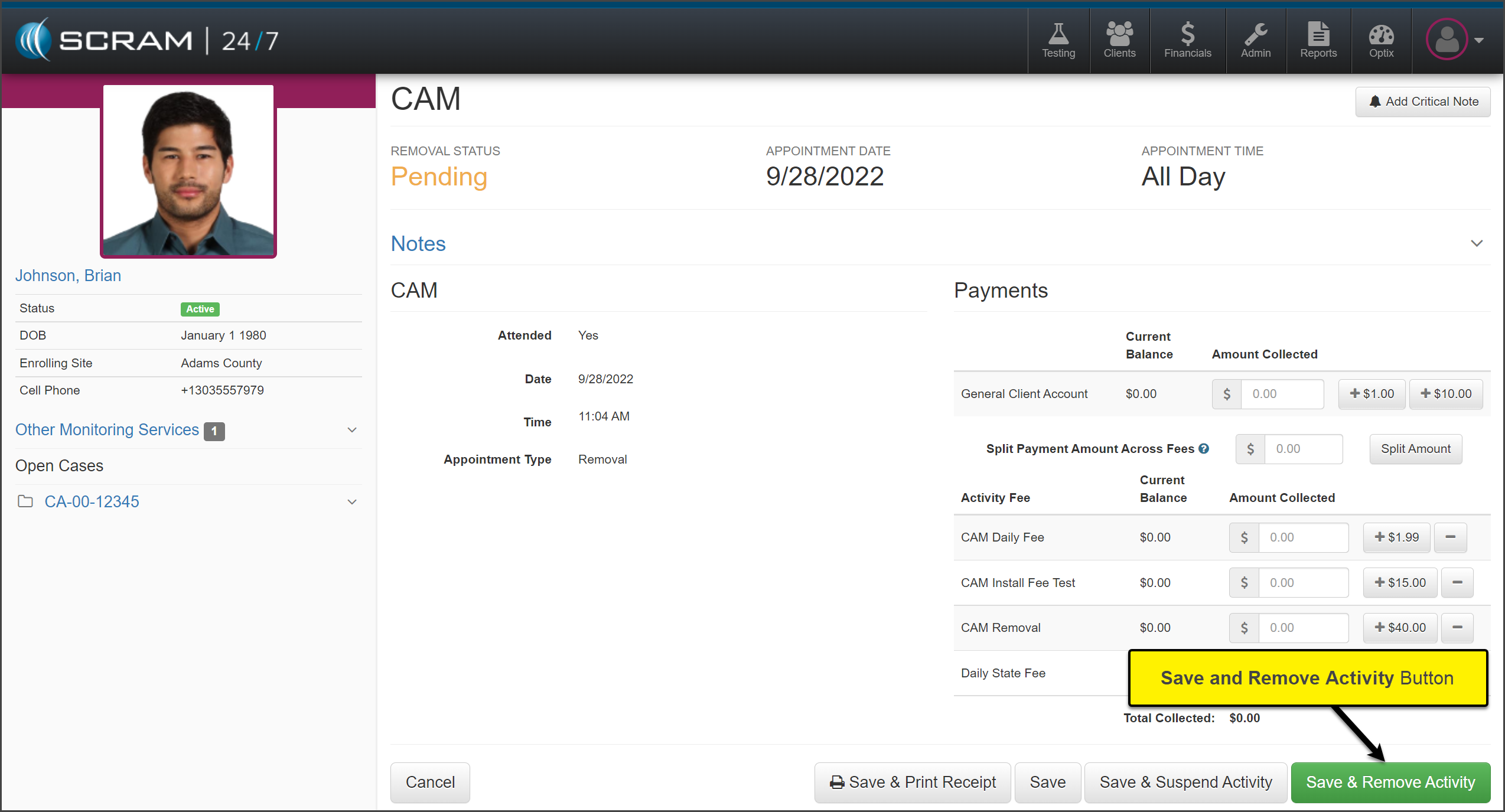
- Collect any fees, and select the Save & Remove Activity button.
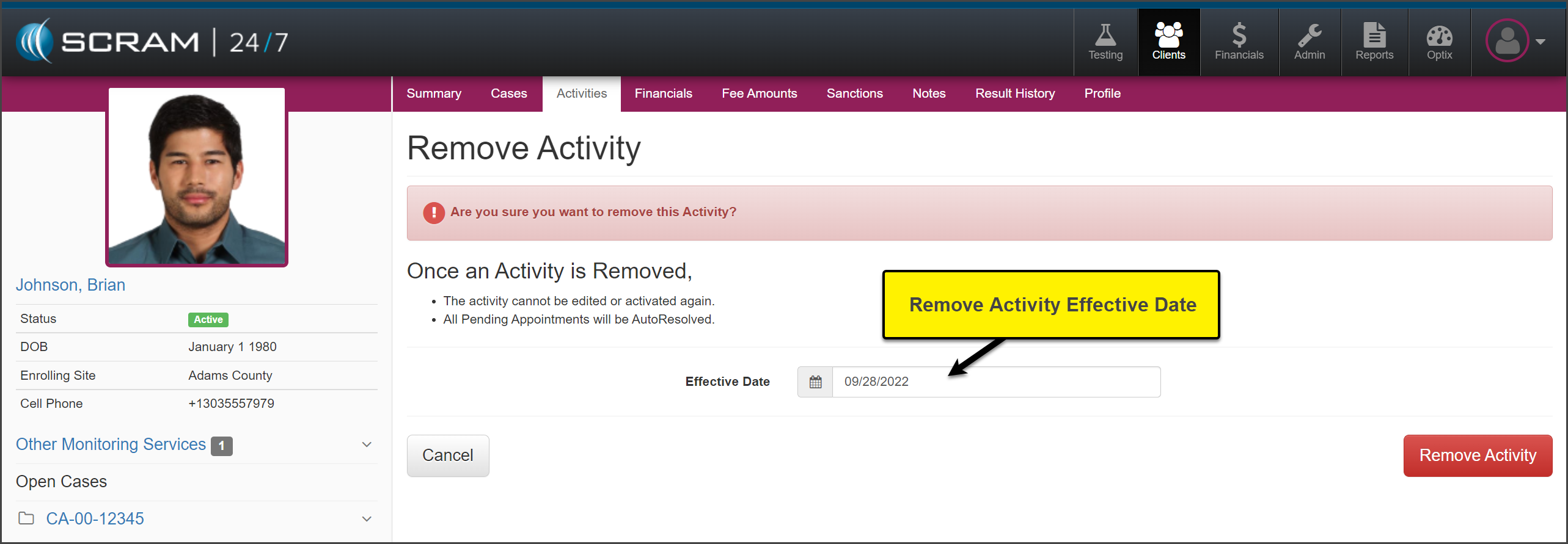
- Verify the Effective Date and select the Remove Activity button.
The Activity will now display as Inactive.
On the Summary page, the equipment is now in an “Awaiting Return” status. Check in the equipment following the established process.
Suspend Activity
Select the Activities tab to get started.
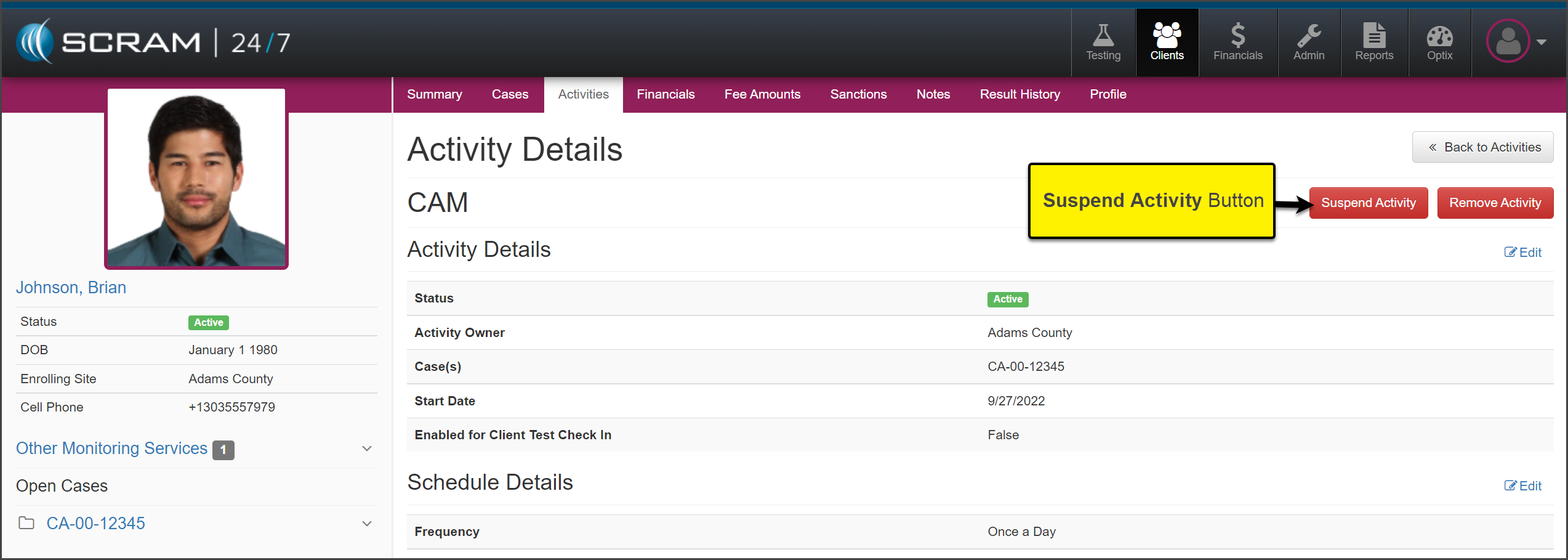
- Select the activity you wish to suspend. In this example the Activity of CAM is selected.
- On the Activity Details page, select the Suspend Activity button.
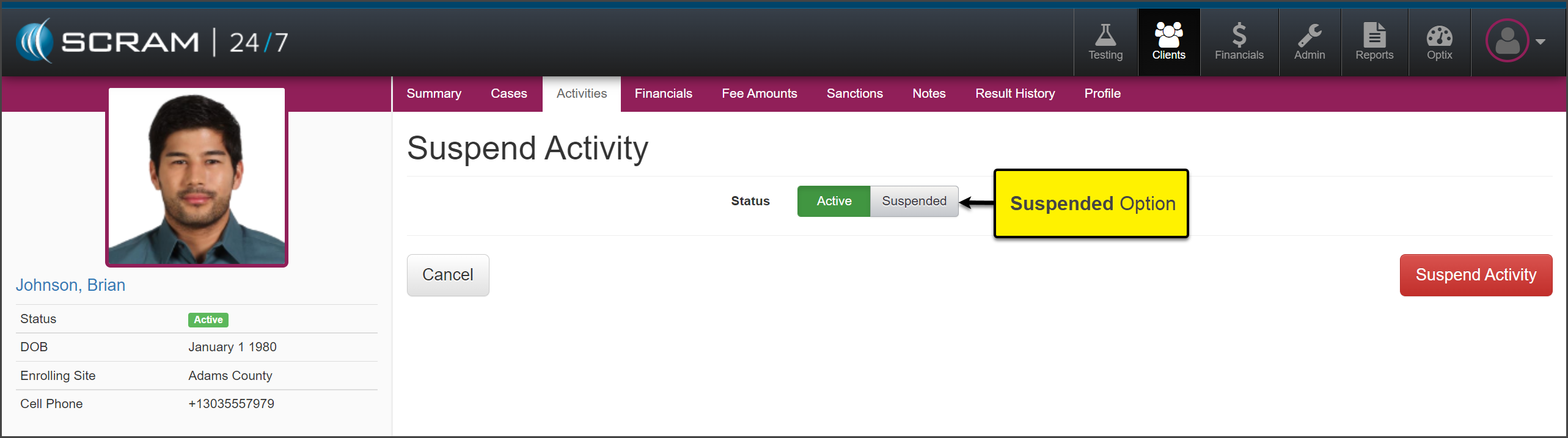
- On the Suspend Activity page, set the status to Suspended and select the Suspend Activity button.
- Select the Suspension Reason from the dropdown menu.
- Select the appropriate suspension details and verify the Activity Resumes On date.
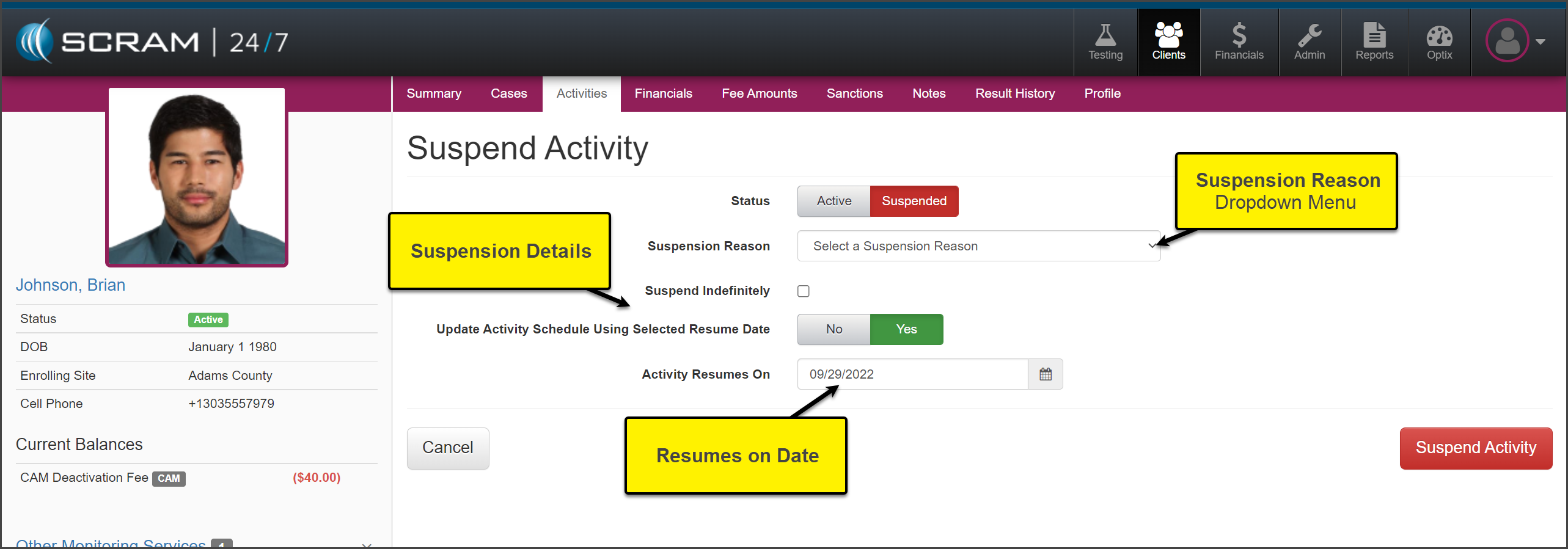
- Select the Suspend Activity button.
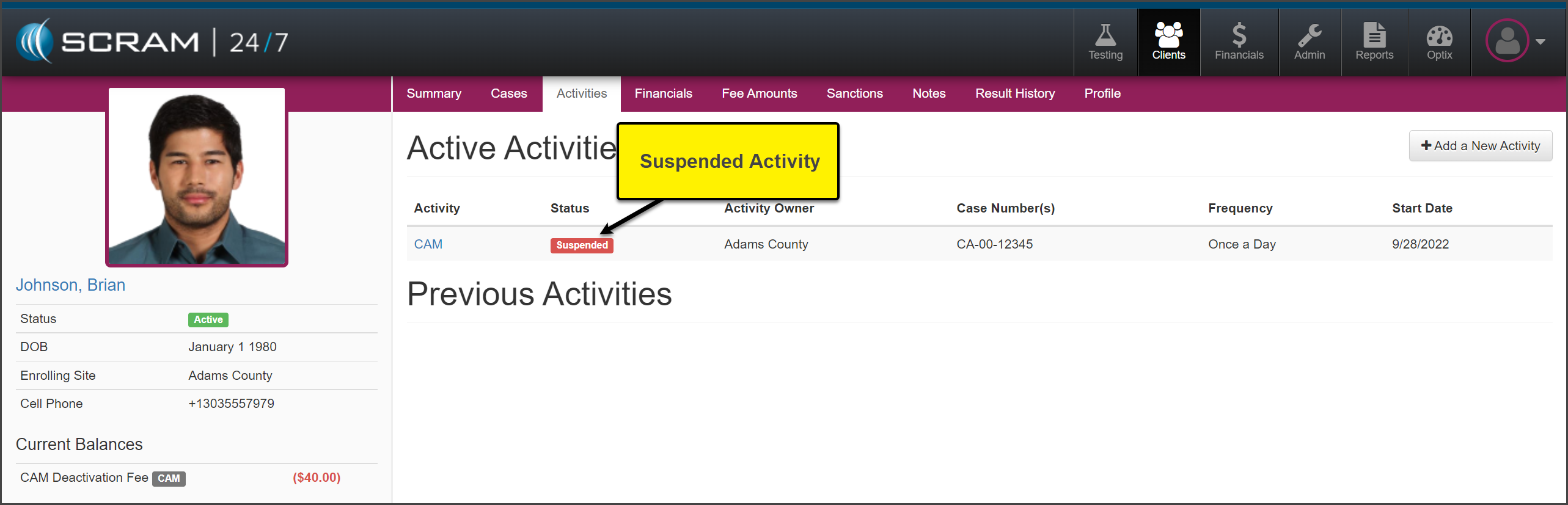
The activity will now display as Suspended on the Activities page. On the Summary page, the equipment is now in an “Awaiting Return” status. Check in the equipment following the established process.
When it is time to resume the billing and monitoring of the client, you will assign the equipment within SCRAM 24/7 to start the billing and monitoring.