At 5:00 AM MDT on Thursday, June 27, 2024, SCRAM Systems released an enhancement to the SCRAMNET GPS Suspend Alerts feature.
Suspend Alerts
The Suspend Alerts feature in SCRAMNET GPS is used to suspend alerts from appearing on the Dashboard and to pause notifications from being sent for specific clients during a specified time period. This is useful when you know alerts will be generated and there is no need for supervising authorities to take any action. For example, a client in the hospital might generate ‘No Communication’ and ‘No Location’ events while admitted, due to the hospital building’s impaired environment, but the client’s location and condition is known; so there is no need to take action.
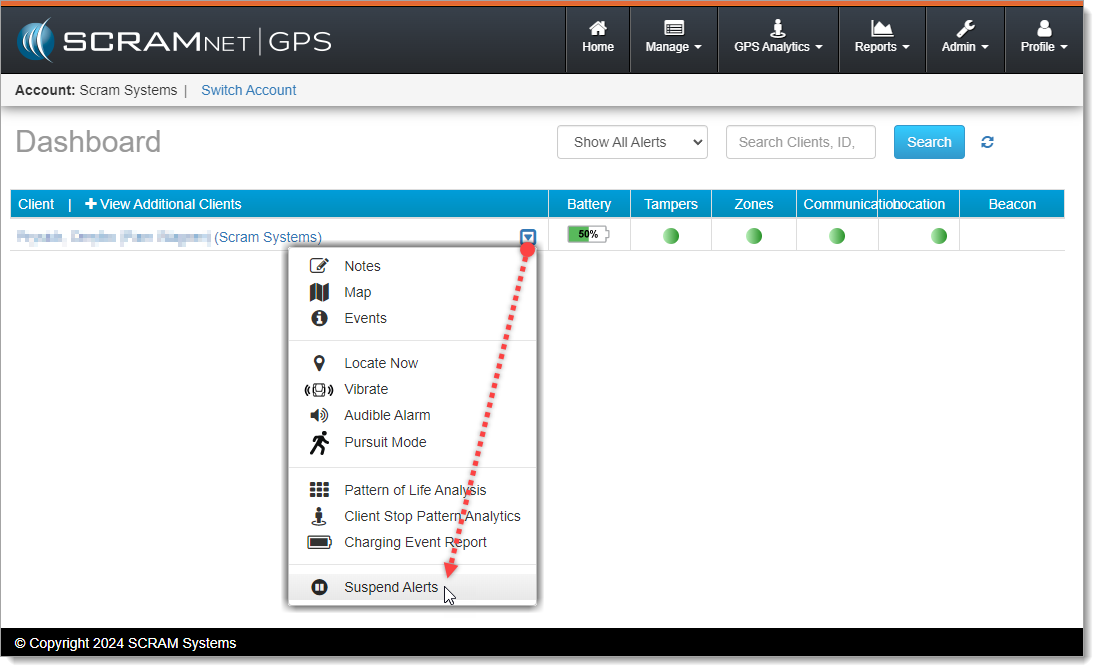
Alerts can be suspended by selecting Suspend Alerts from the context dropdown menu next to the client’s name on the SCRAMNET GPS Dashboard:
Prior to this release, SCRAMNET GPS offered two options for suspending alerts:
- Suspend All Alerts – During the suspension period, alerts do not show on the dashboard, notifications are not sent, and tickets are not generated for the GPS Monitoring Center.
- Suspend Alerts to Call Center Only – During the suspension period, tickets will not be generated for the GPS Monitoring Center; however, the alerts are shown on the dashboard, and notifications are still sent.
 | The ‘Suspend Alerts to Call Center Only’ option is only visible to accounts using the GPS Monitoring Center service. |
Simplified Process for Enabling Suspend Alerts
Previously, to suspend alerts users had to first toggle the Enable Suspend Alerts button to ON before selecting the suspension timeframe. With this release, the toggle button has been removed. Users may configure the suspension directly without first setting the button to ON.
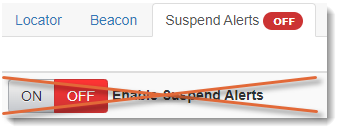
Although the toggle is gone, the ON / OFF badge in the Suspend Alerts tab is still used to indicate at a glance if a suspension is active, without having to click into the tab.
Suspend Alerts by Dashboard Column
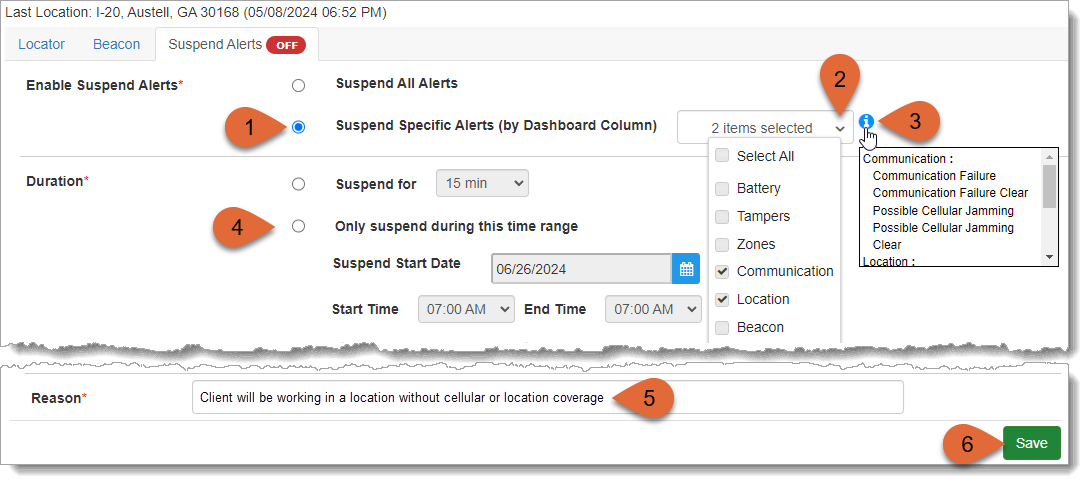
Thursday’s release introduced a third Suspend Alerts option in addition to the two described above: Suspend Specific Alerts (by Dashboard Column). This option supports suspending specific alerts that appear in the columns on the SCRAMNET GPS Dashboard. This is useful when you want to suspend some alerts, but don’t want to suspend all alerts. For example, you could suspend ‘No Communication’ and ‘No Location’ events, but leave ‘Tamper’ events active. To use this new feature:
- Select the Suspend Specific Alerts (by Dashboard Column) radio button
- Then select the desired Dashboard columns from the dropdown menu
- Hover over the Information icon to see which specific alerts apply to the selected columns
- Select the appropriate Duration for the alert suspension(s)
- Add a Reason for the alert suspension
- Save your new alert suspension schedule
Upon selecting Save, the Suspend Specific Alerts dialog window will appear:
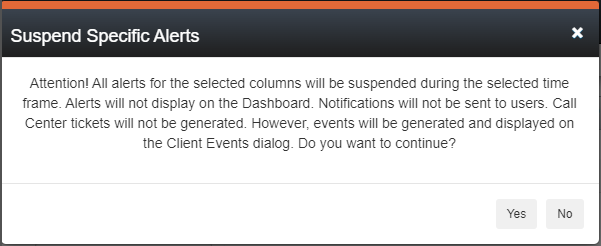
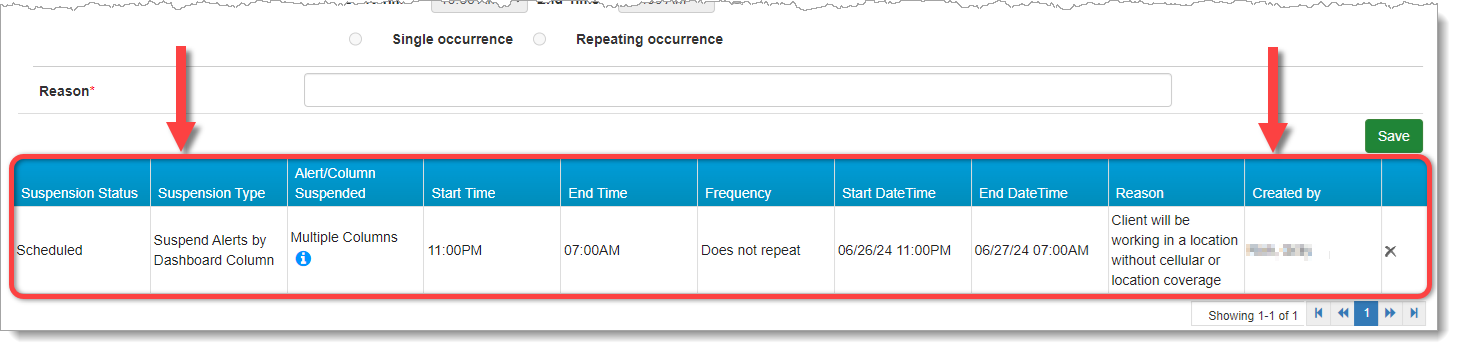
Select Yes on the dialog window to confirm your new alert suspension schedule. It will appear in a table beneath the Save button at the bottom of the page:
Schedule Multiple Suspensions
Additionally, Suspend Alerts by Dashboard Column supports multiple and recurring suspensions. To schedule multiple suspensions:
- Select Only suspend during this time range
- Set the Suspend Start Date, Start Time, End Time, and Suspend End Date
- Then click Save
Schedules may be for overnight, or may last longer than 24 hours. Please note, however, that no part of a scheduled suspension can overlap with any other scheduled suspension. For example:
| Start Date | Start Time | End Date | End Time | Result |
|---|---|---|---|---|
| June 26 | 11:00 PM | June 27 | 7:00 AM | This is an overnight schedule and will end the next morning |
| June 26 | 11:00 PM | June 30 | 7:00 AM | The suspension will start June 26 at 11:00 PM and continue until June 30 at 7:00 AM |
Schedule Recurring Suspensions
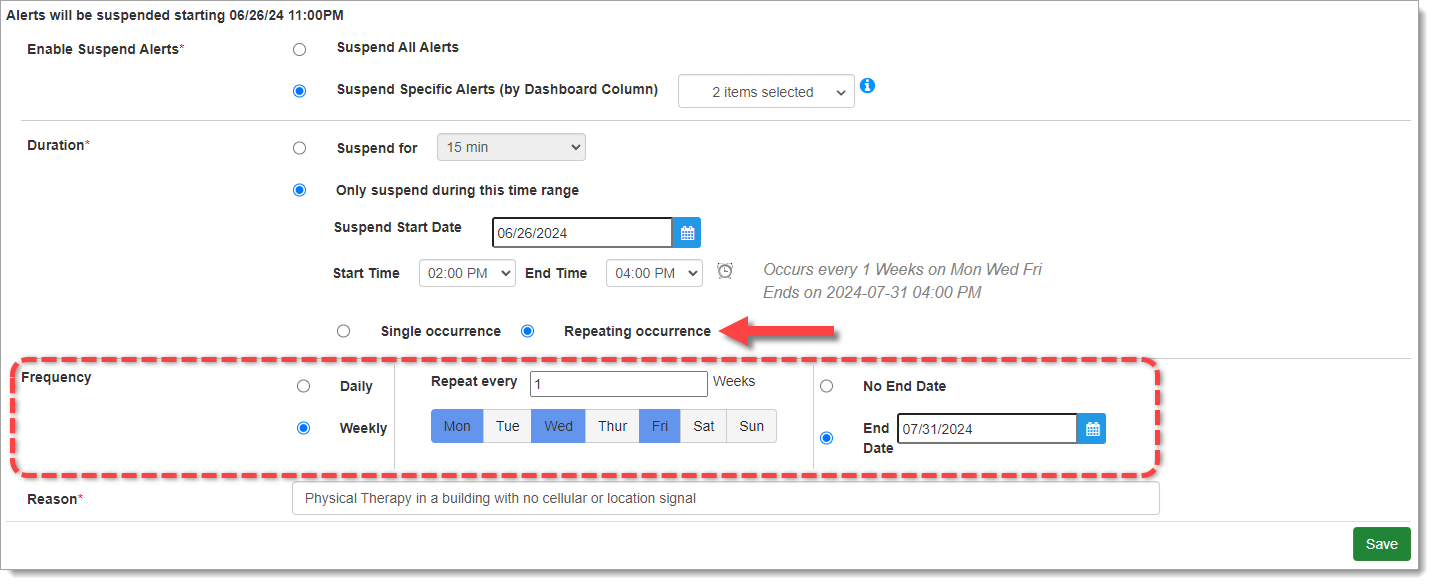
Scheduled suspensions can be recurring. For example, alerts can be suspended every day for the next five days, or every Monday, Wednesday, and Friday. When creating the suspension select the Repeating Occurrence radio button to reveal the Frequency options. Then select the desired Frequency:
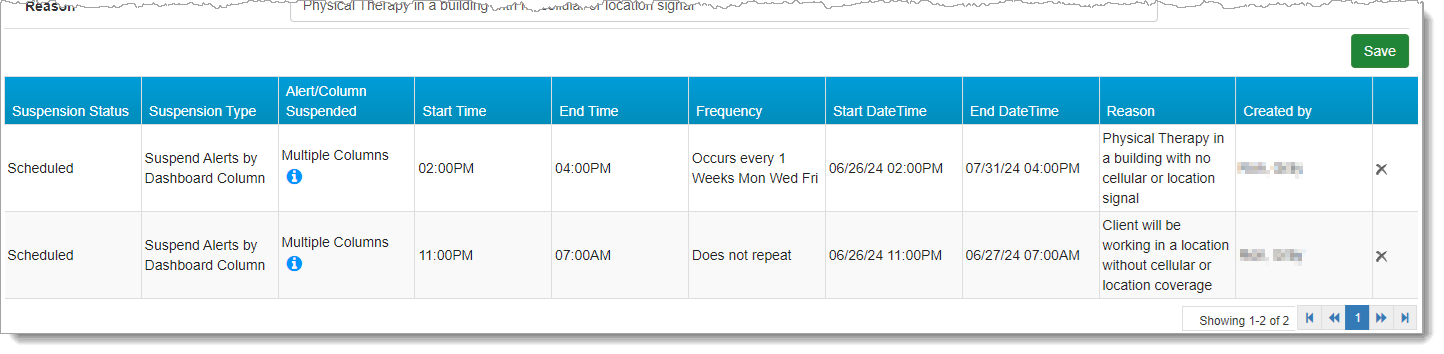
Once you Save the alert suspension schedule(s) and select Yes to confirm in the dialog window, the recurring suspension(s) will appear the table at the bottom of the page:
How Suspensions Appear on the Dashboard
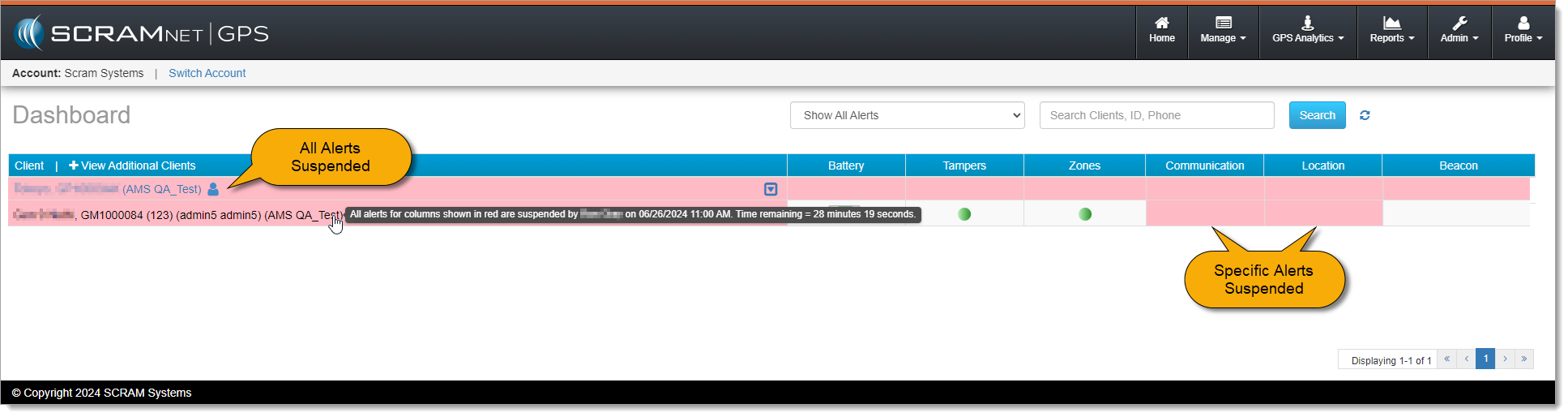
The Dashboard visually indicates if all alerts are suspended or if only alerts for specific columns are suspended. Suspended columns are highlighted in red. Alerts for other columns will continue to appear and function normally. Mouse over the client’s name to see details of the alert suspension:
Delete Active or Scheduled Suspensions
To delete an “Active” or “Scheduled” suspension, simply select the Delete (x) icon at the far right of the row you wish to delete:
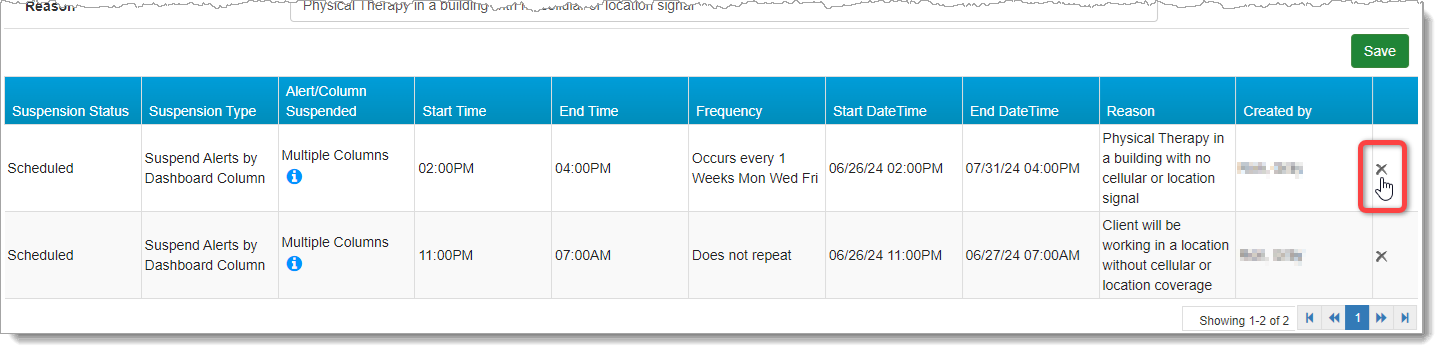
Deleting an active or scheduled suspension deletes the entire series, as indicated in the End Suspension dialog window.
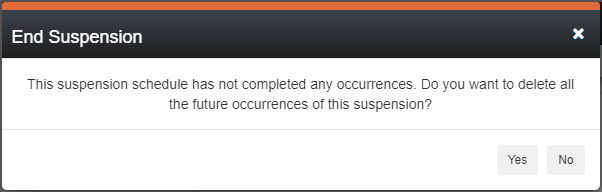
Select Yes to confirm you wish to end the alert suspension series.
Auditing
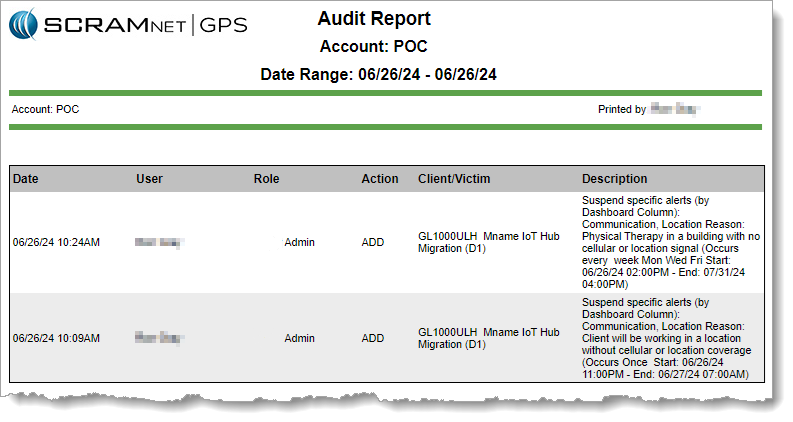
Audit entries are added to the Audit Report when schedules are created, deleted, become active, or end.